videocam_off
This livestream is currently offline
Check back later when the stream goes live
Up next in 10



Sponsored by NordVPN. Buy a 3-year deal at 70% off, get an extra plan on top! Click here: https://chromeunboxed.com/nordvpn
Shop Chromebooks on CHROME SHOP: https://chrmshop.com/
・・・・・・・
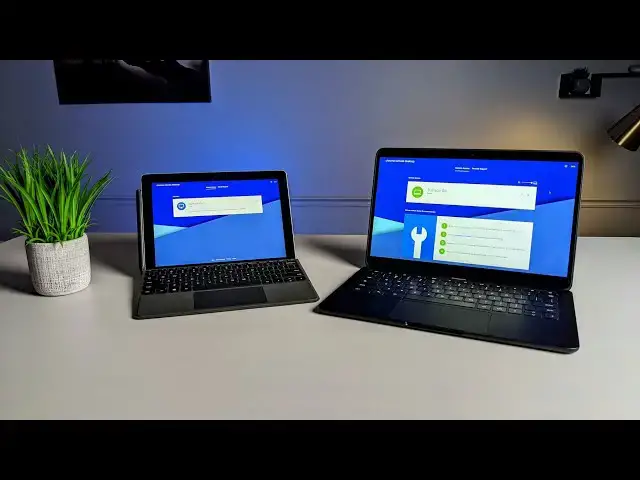
As we all learn to adjust in a world where working from home is the new normal, we thought it a good time to revisit how you can get a reliable, simple remote desktop setup up and running. This will work on any device you have across the board, so you don't really have to worry much with compatibility. Getting the whole thing working is quite simple and the end result is the ability to quite seamlessly connect to the host computer with little lag and full control over the device.
Read more: https://chromeunboxed.com/chrome-remote-desktop-set-up-work-from-home/
Join our newsletter: http://bit.ly/2WjCDm7
・・・・・・・
Subscribe to the channel: http://bit.ly/2xFuj6L
The Music We Use - PERFECT for YouTube: http://bit.ly/31W6PYP
Become a member of Chrome Unboxed to help us make our channel even better, and for access to exclusive perks: http://bit.ly/CU-join
Follow us:
Show More Show Less View Video Transcript
0:00
given the current state of things you're
0:01
probably finding yourself at this point
0:03
in time working in ways that maybe
0:05
you've never worked before and that
0:07
includes probably these massive video
0:08
calls where you're doing zoom meetings
0:11
or hangouts or something like that with
0:12
people and working on machines maybe
0:15
you're not used to working on in spaces
0:17
you're not completely used to working on
0:18
and for some of you using files and
0:21
operating systems you're not completely
0:23
familiar with working on and so
0:25
thankfully there is a service called
0:28
remote desktop and there's lots of
0:30
different remote desktops that you could
0:31
use but Google has made one that's super
0:33
easy to set up called chrome remote
0:36
desktop it's been around for years
0:38
and they've recently updated it to where
0:40
it's almost completely a web-based
0:42
portal that you can basically control a
0:45
remote computer from so if you've got a
0:47
device that sits at your office and has
0:49
some files on it that you would really
0:51
like to have access to on an ongoing
0:52
basis but you don't have something you
0:54
can just pick up and take home this is a
0:56
way that you can actually hook up to
0:57
that computer completely control it do
1:00
whatever you need to do send files and
1:01
emails you can do whatever you want on
1:03
that remote device right from any device
1:07
that you have in front of you because
1:08
you don't have to just have a Chromebook
1:10
this is chrome remote desktop so if you
1:12
have a device that will run Chrome on
1:13
macbook a Windows Device any of those
1:15
things it will run chrome remote desktop
1:17
so we want to go through and show you
1:19
how to simply set this up so that you
1:21
can begin accessing your stuff at your
1:24
office while you're stuck at home
1:27
[Music]
1:32
today's video is brought to you by Nord
1:34
VPN there the VPN of choice for millions
1:37
of users because they're awesome at what
1:38
they do that's keeping your browsing
1:40
secure and safe whether you're at home
1:41
or out and about if you'd like to learn
1:43
more about them and their services head
1:45
over to chroma inbox comm forward slash
1:47
Nord VPN to learn more and get started
1:49
today alright again this is super simple
1:51
but we want to take you step-by-step
1:52
through how to get it set up and one of
1:54
the requirements you have to have is the
1:56
device that you are remoting into so the
1:58
host device does need to be a Windows or
2:01
Linux or Mac machine so there's a little
2:05
bitty thing you get to download and
2:06
install it's basically the host
2:07
controller there are ways to make it
2:09
work on a Chromebook I don't advise that
2:11
the benefit of Chrome OS is that you log
2:14
into whatever Chromebook you've got and
2:16
use your stuff so that's a benefit for
2:18
us chromebook users this is for those of
2:20
you who are stuck using Windows or
2:21
MacBook something like that at work and
2:23
can't get that thing out of that office
2:25
and bring it physically with you this
2:27
gives you the ability to do that so for
2:28
Chromebook users there's really no need
2:30
so let's hop in if you go to a remote
2:33
desktop google.com it's going to take
2:36
you to this forward slash access you see
2:38
up here in the URL bar but that's that's
2:40
where you're gonna land is right here we
2:42
want to do remote access and we're going
2:43
to set that up and we're just going to
2:45
click this download you'll see this very
2:47
tiny MSI file download when it is done
2:50
you're going to click on it and it is
2:52
going to install and that's it give it
2:56
just a second yes yeah we'll just make
3:00
sure that that's all done ok so once it
3:03
is done and in place you'll see this
3:05
show up here just says choose name we're
3:07
just basically naming this so that if
3:08
you happen to set this up on multiple
3:10
computers you know which one you're
3:11
going to access so we're gonna call this
3:13
surface go go hit next we're gonna
3:19
choose a pin I'm gonna choose something
3:21
super simple here I would recommend you
3:24
choose something a little more personal
3:27
to you or something you're going to
3:28
obviously remember so I'm just going to
3:30
do 1 2 3 4 5 6 again that's not what our
3:35
to recommend doing and then we're gonna
3:38
hit start what this does now
3:40
that starts a remote session I'm not
3:44
gonna say that password it starts a
3:45
remote session with this computer so
3:49
that I can remote into it on any other
3:51
device now you can return to the remote
3:54
desktop google.com after you've done all
3:56
this setup to kind of see the status of
3:58
your remote computer to see if it's
3:59
online and ready to accept remote
4:02
connections or not but you're not gonna
4:03
have to go through all of the setup in
4:04
an install process again in the future
4:06
it's just kind of there and ready to go
4:08
whenever you need it and it's important
4:10
to note as you think about your use case
4:12
for this how you're going to handle your
4:14
remote host computer so if you're going
4:17
to leave this thing at the office and
4:19
it's going to be sitting there all the
4:20
time
4:20
you can't let it turn off or go
4:22
completely to sleep now I can go to its
4:24
lock screen and that's fine but anything
4:26
that would kind of cause the whole thing
4:27
to shut down basically hibernate or any
4:29
of those kind of things you're gonna
4:31
have to avoid those so depending on your
4:32
device you need to go into your settings
4:34
and make sure it's set to when it's
4:35
plugged in or whatever it can go to the
4:37
lock screen that's fine but don't let it
4:39
go to sleep or completely turn itself
4:41
off or else you're gonna be at home
4:43
trying to remote in and this thing's
4:44
never going to wake up it's never going
4:46
to come online another thing you want to
4:48
consider also is how you handle your
4:51
lock screen so this particular Windows
4:53
Device has Windows hello so it unlocks
4:56
by looking at my face well in a remote
4:58
session your face isn't going to be in
4:59
for under the screen so you probably
5:01
want to turn that off for the time being
5:02
if you know the use case for this
5:04
computer is going to be remoting into it
5:06
turn that off and make it a pin or make
5:08
it a password to log in lock your screen
5:10
make sure Chrome remote desktops running
5:12
and you can kind of leave it there leave
5:13
it plugged in and it can kind of stay
5:15
secure and lock down but still on and
5:18
ready for you to access from your remote
5:20
computer which could be again a
5:22
Chromebook Windows Device or MacBook so
5:24
let's move over now to this Chromebook
5:27
and show you how easy it is now that
5:28
you've got all that stuff out of the way
5:29
how easy it is to go through and
5:31
actually hop on to this particular
5:34
device so again on this device I'm going
5:36
to go to remote desktop google.com over
5:39
on the right side you're going to make
5:40
sure that your your account that you've
5:43
picked is the same account you have
5:44
chrome remote desktop setup on so I
5:46
can't have the account set up over here
5:48
on one Google account and then go and
5:50
try to log in with another it's
5:51
obviously all synced via your Google
5:53
account
5:53
so once that is done and you're ready to
5:55
go obviously you're gonna see you right
5:57
up atop your remote devices that you can
6:00
go into and click anywhere on this and
6:02
it's going to start that remote session
6:04
now it's going to ask for the pin that
6:05
we created one two three four five six
6:07
is what we made I'm gonna go and tell it
6:09
to remember the pin on this device and
6:12
we're going to log in and there you see
6:14
it we've got the actual screen from the
6:19
surface go right here two finger scroll
6:22
works I can scroll around I can move
6:24
around and then you have this flyout
6:26
menu over here that does a lot of cool
6:28
thing so we could go fullscreen
6:29
obviously we can scale it to fit which
6:32
we're kind of already doing resizing it
6:33
to fit and you can tell the the surface
6:35
ghost screen is a three by two screen so
6:37
there's some letterbox and kind of going
6:39
on here if you want to get real fancy
6:41
you can actually go in and change the
6:42
resolution to a sixteen by nine format
6:44
on the remote computer or whatever
6:47
format you're using for your device that
6:49
you're using to actually remote in make
6:51
sure those you know dimensions match so
6:53
the the pixel book goes at sixteen by
6:55
nine if I make sixteen by nine the
6:57
default resolution and default aspect
6:59
ratio on the surface go it will actually
7:02
fill this entire screen you can change
7:03
the resolution again you have full
7:05
control over that remote computer so
7:07
when I go in here I'm not looking at
7:09
some modified settings I'm looking at
7:11
the settings that are on that device so
7:12
you can kind of change some of your
7:14
settings to fit whatever it is you need
7:16
to do it may just be you're going in
7:18
here to get a few files you don't need
7:19
to mess with this full screen thing it's
7:22
completely up to you but you have this
7:23
pop out menu that allows you to do any
7:26
of these things you can enable clipboard
7:28
synchronization hit begin and you can
7:31
actually enough tested this you can copy
7:32
and paste from your Windows desktop to
7:35
your Chrome OS desktop it's kind of cool
7:37
and it gives you some input controls
7:39
down here some stuff that you can do you
7:41
can look at all your displays and you
7:43
can actually do some file transfers
7:44
right in this in this setup as well if
7:48
you're using Google Drive or Dropbox or
7:49
something like that you obviously don't
7:51
really need to use that for most people
7:53
it's going to be about getting it here
7:54
and being able to manipulate controls on
7:56
the host computer and just as you'd
7:59
expect I can go in here and I can open
8:01
up anything I can do anything
8:03
and the lag is exceptionally good I mean
8:06
this is completely usable I've watched
8:09
some videos over it and you know frame
8:11
rates are good enough that if I don't
8:13
wouldn't suggest you do that but it can
8:15
be done so that means a lot of work can
8:16
actually happen over this remote
8:18
connection if you need to and a kind of
8:21
advanced tip for again any operating
8:23
system you can actually throw this
8:25
window into its own virtual desk and you
8:27
can do this on Windows you can do this
8:29
on Mac OS you can do this on Chrome OS
8:31
work on your you know your Chrome OS
8:33
desktop over here and then swipe four
8:35
fingers over and have your Windows
8:37
desktop in this virtual desktop so
8:39
that's kind of a nice separator for when
8:42
you need to go back and forth between
8:43
different desktops and different
8:45
operating systems but that's it I mean
8:48
that's as simple as it is when you're
8:49
done you can go back to your remote
8:52
session and you're finished up you can
8:55
actually click this X to get out of full
8:57
screen and right up here at the top you
9:00
just click disconnect and boom you're
9:02
out but your host computer is still
9:05
sitting there online ready for you the
9:07
next time you need to log in because we
9:08
really hope that stuff like this
9:10
especially in a time like we're in that
9:13
is like no other is helpful to you if it
9:16
is give us a like down there make sure
9:18
and hit subscribe so you can be updated
9:19
when we make new videos just like this
9:21
and don't hit forget to hit the
9:22
notification bell as well so that you
9:24
can get alerted and also hit that joined
9:25
button while you're down there you can
9:27
see all the stuff that our members get
9:28
like custom emojis and behind the scenes
9:30
stuff to next time we'll see you
9:33
[Music]
9:38
you
#VPN & Remote Access
#Software