0:00
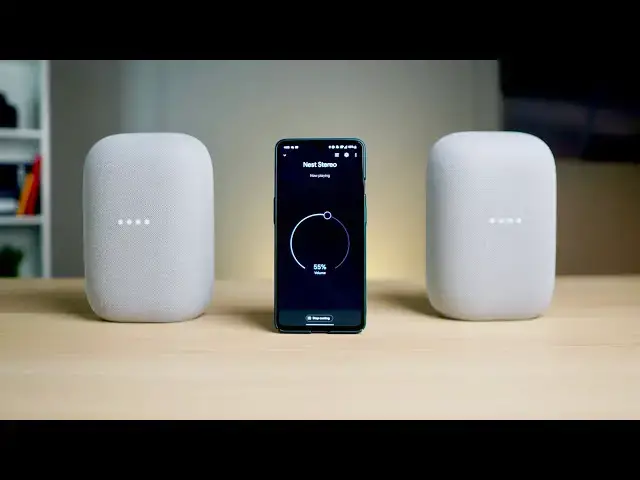
this is a google nest audio and
0:03
this is a google nest audio and if you
0:05
happen to be in possession of two of
0:07
these or more of them
0:09
you can actually create a stereo pair
0:11
and i'm talking true stereo here
0:13
with these two speakers and it's
0:14
completely wireless completely synced up
0:17
and we want to show you how to do it
0:35
all right so to get this started you're
0:37
going to need to get your phone out
0:38
or technically you can use a chromebook
0:40
if you wanted to and launch
0:42
into the google home app and in that app
0:44
you need to make sure that you've put
0:46
both of the speakers that you're looking
0:48
in the same room so it's not enough to
0:50
just set them up you need to make sure
0:52
that you've created a room in your home
0:54
and that you've placed them both in that
0:56
room in the app and so as you can see on
0:59
we've called these zesty nesty and
1:02
i've got them in the same office room so
1:05
we've got pretty much all of our devices
1:06
here in the office are all in the same
1:09
once they're in there it's a very simple
1:11
process to go about getting them stereo
1:13
so i'm going to go into zesty and sd1
1:16
and once you get into this screen
1:18
you're going to click the settings and
1:20
then you're going to scroll down
1:22
until you see speaker pair now this is a
1:25
setup here this is not like creating a
1:29
so you could go and create a speaker
1:30
group if you want but they're not going
1:31
to technically be stereo
1:33
they're just going to be mono so they'll
1:36
audio synced up perfectly and it works
1:38
in most scenarios but if you're looking
1:39
for that true stereo pairing
1:41
this is the way you want to go so we're
1:43
going to hit next and it's going to see
1:46
is also in the same room and so now you
1:48
can just select it's auto selected it
1:50
for me i'm going to hit next
1:52
and it's going to play you a little
1:54
sound and you can see it's asking in the
1:57
pick the blinking speaker and so the one
2:00
for us you all looking at it technically
2:03
is the right channel so that's what i'm
2:04
going to tell it we'll say that's the
2:07
hit next and i'm not going to go through
2:09
renaming it we can call this whatever we
2:11
want it's set up as office pair
2:13
i'm going to hit next and now it's
2:15
pairing and we're going to hear a really
2:16
sweet sound here in just a second
2:18
that is unique to this whole setup
2:24
yeah that's pretty sweet sounding all
2:26
right and just like that office pair is
2:28
and it will show up now in the list of
2:32
your other speakers basically but you
2:34
get your basic volume control just like
2:35
you would with other grouped audio
2:37
then if you hit the equalizer button up
2:39
there you actually get a bass
2:41
treble and balance left and right in
2:43
case you don't have them exactly
2:45
centered in the room so that you can
2:47
balance that to your heart's content and
2:50
once you've got it done
2:51
you'll go down here just right there
2:53
with all your other devices now you see
2:56
just another speaker basically and so
2:59
groups so speaker groups kind of appear
3:01
in their own little section this is
3:02
going to show up as like
3:04
almost like its own device which is kind
3:05
of cool and i like that setting because
3:07
again it's just very simple to
3:09
cast to which is what we're going to do
3:11
now all right so now that that's done
3:13
give the whole setup a listen if i go
3:15
into my new office pair and i cast my
3:20
you'll hear that familiar sound which
3:22
means it's ready to go and it's going to
3:23
start playing whatever's on my phone now
3:25
i went through the google home app you
3:26
can go through youtube music or spotify
3:28
or whatever it is you listen to your
3:30
music on as long as it's cast enabled
3:32
and it'll these new speaker pairs will
3:35
uh just like any other speaker that's
3:37
around you on your wi-fi network but
3:39
we're going this route because i'm
3:40
playing a local file because
3:42
you know youtube and licensing and all
3:46
and so we're playing a track from
3:47
epidemic sound which is what we use to
3:49
get our sound beds for all of our other
3:51
videos so shout out to them they're
3:54
without any further ado i'm going to
3:59
and immediately you can't really pick it
4:01
up here we're recording in mono but you
4:02
can hear stereo separation just
4:05
and i can tell you from practicing and
4:07
messing around with these
4:08
uh before going into this video just to
4:10
kind of get a feel for how this is all
4:13
that this process for creating stereo
4:16
separation with these speakers just
4:18
really enhances the nest audio's ability
4:21
to play back high fidelity music i mean
4:24
it goes from being a pretty good speaker
4:25
by itself to being a really awesome
4:28
stereo pair and if you've got two of
4:31
a deal for christmas time or something
4:34
that allowed you to get two of these
4:36
i would highly highly recommend you set
4:38
up stereo pairing because it really does
4:40
enhance the sound quality of the nest
4:43
audio but guys that's it for this one if
4:45
give us a thumbs up go down there and
4:46
hit the subscribe button and make sure
4:48
and hit the notification bell as well if
4:50
you'd like to be alerted when we make
4:51
future videos just like this one until