Up next in 10



Sponsored by NordVPN. Buy a 3-year deal at 70% off, get an extra plan on top! Click here: https://chromeunboxed.com/nordvpn
Shop Apple Magic Trackpad 2 on Chrome Shop: https://chrmshop.com/apple-magic-trackpad-2/
On The Run To 100K Giveaway: http://bit.ly/OnTheRunTo100KGiveaway
・・・・・・・
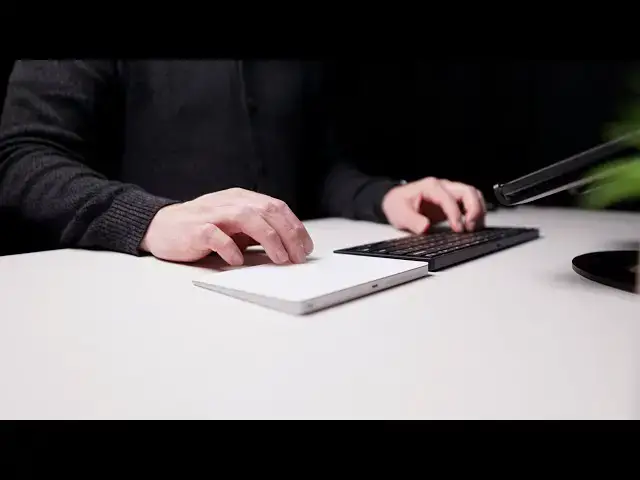
Now that the Brydge C-Touch wireless trackpad is out of the picture, we thought it a good time to return to the Magic Trackpad 2 from Apple and give it a spin once again. We uncovered the addition of this accessory to Chrome OS a long time ago and in the time since, the Magic Trackpad has only become more adept at navigating Chrome OS. Actually, at this point, the entire experience is so good it almost feels like the thing was made for Chrome OS to begin with.
Read more: https://chromeunboxed.com/how-to-set-up-apple-magic-trackpad-2-chromebook-chrome-os/
Join our newsletter: http://bit.ly/2WjCDm7
・・・・・・・
Subscribe to the channel: http://bit.ly/2xFuj6L
The Music We Use - PERFECT for YouTube: http://bit.ly/31W6PYP
Become a member of Chrome Unboxed to help us make our channel even better, and for access to exclusive perks: http://bit.ly/CU-join
Show More Show Less View Video Transcript
0:00
if you're watching this video there's a
0:01
good chance you are on the lookout for a
0:04
wireless trackpad to use with your
0:06
Chromebook or your chrome box and it's
0:08
also highly likely that you have read
0:10
about the demise of this guy this is the
0:13
bridge see touch wireless trackpad and
0:16
while this breaks our heart a little bit
0:18
because we really like this device and
0:20
we're hoping that it was going to
0:22
actually show up and start shipping
0:23
sometime this year it turns out it's not
0:26
going to at all and it's just not even
0:27
going to be a thing it's been canceled
0:29
totally the silver lining here though is
0:31
the Apple Magic Trackpad - as we've
0:33
talked about previously works perfectly
0:36
with Chromebooks and in the time that
0:37
I've not used it over the last few
0:39
months it actually feels like it's
0:41
gotten better so we want to take a few
0:43
minutes to show you how to go about
0:44
setting it up and using it to its
0:46
fullest potential on your Chrome OS
0:48
device
0:50
[Music]
0:55
before we get into all that though this
0:58
video is brought to you by Nord VPN of
1:00
the VPN of choice for millions of users
1:01
including Chrome OS users because they
1:03
are awesome at what they do it's keeping
1:05
your browsing secure and safe while
1:07
you're at home or out and about if you'd
1:09
like to learn more about them head over
1:11
to Chrome on box comm forward slash Nord
1:13
VPN to learn more and get started today
1:15
in case you haven't been tracking along
1:17
with the development of the Magic
1:19
Trackpad 2 in Chrome OS saga it's over a
1:22
year old at this point we even made a
1:24
video about it when it finally became a
1:26
thing but the way it all worked out was
1:28
you know a year and a half ago or so
1:30
there were no real wireless trackpads
1:33
that worked in general for Chromebooks
1:35
except for the logitech t6 50 and we've
1:38
even seen at that time that they brought
1:40
those drivers along because Logitech
1:43
doesn't make this thing anymore and
1:44
haven't made it for a couple years but
1:45
they kept bringing the drivers along but
1:47
we were running into Chromebooks where
1:48
the drivers for some reason weren't
1:50
there and none of the gestures would
1:51
work for Chrome OS and so we realized
1:54
pretty quickly that if they didn't
1:56
continue support for that we wouldn't
1:57
have any options for desktop wireless
2:00
trackpad and that's unfortunate because
2:02
we have chrome boxes we have ways to
2:03
dock Chromebooks where you have a whole
2:05
desktop set up and you're not going to
2:07
use the trackpad and keyboard that are
2:08
on your Chromebook it's really nice to
2:10
have one of these and so the options are
2:12
starting to look really really slim and
2:14
then out of nowhere we saw Apple Magic
2:17
Trackpad drivers being brought into
2:18
Chrome OS via the chromium repositories
2:21
and so we followed along as that
2:23
development happened and when it first
2:24
started it was literally just being able
2:26
to move the mouse cursor with the
2:28
trackpad once you've paired it up and
2:30
that was all it could do it couldn't do
2:31
any of the multi-touch gestures but over
2:33
time as they worked on it everything
2:35
came over and when we made our video
2:37
finally and said hey this is a thing you
2:39
can go buy this trackpad and use it with
2:41
Chrome OS all the gestures work so three
2:44
finger swipe up three fingers swipe
2:46
between tabs now four finger swipes
2:48
between virtual desktops the two finger
2:50
clicks one finger click all of it works
2:52
all of it works flawlessly on any Chrome
2:55
OS device across the board and even back
2:57
then when everything seemed to be
2:59
working really well there was one kind
3:00
of weird thing and this may just be a
3:02
habit of mine that seemed to not be
3:05
quite working and I just have a tendency
3:07
to lay my thumb across the bottom
3:08
the trackpad I don't know if everybody
3:10
does that so I had to start moving it to
3:12
where I was leaving my thumb kind of
3:14
like on the desk instead because if my
3:16
thumb was sitting still it would
3:18
misinterpret
3:19
if I was trying to move the cursor
3:20
around as like a pinch gesture and so
3:22
just everything would stop and so I
3:24
almost had to rework the way that I used
3:27
the thing and that wasn't the case with
3:28
the T 650 trackpad those were habits I
3:30
built with that trackpad and so that was
3:33
a little bit of an annoyance to me but
3:35
again that could just be a thing that I
3:37
do and nobody else does but it even
3:39
seems like now that they've worked on
3:41
these drivers and really brought stuff
3:42
over maybe it's like a palm rejection
3:44
type thing but I just here recently have
3:46
not noticed that being a problem either
3:48
matter of fact as we prepared with this
3:50
video I spent a good day just using this
3:52
track that is my main input device and I
3:54
really can't find any fault with it at
3:56
all and so while I'm sad to see this
3:59
thing not actually come to fruition and
4:01
not become a real product I am pretty
4:04
excited about the fact that this
4:05
trackpad that clearly will be made for
4:07
years and years to come
4:09
does some really interesting unique
4:11
things and is made by a company that
4:13
makes really really high-end and great
4:15
products works perfectly and flawlessly
4:18
with Chromebooks one last thing I want
4:20
to mention about this trackpad before we
4:22
get into how you pair it up and make it
4:24
work properly and move it between
4:25
different Chrome OS devices is the
4:28
uniqueness about the way it goes about
4:31
clicking on the trackpad and that's a
4:34
really awkward way to say the haptics in
4:36
this thing are kind of magic and so I'm
4:39
not usually a fan of Apple calling
4:41
anything magic and this thing is called
4:42
the Magic Trackpad but honestly it kind
4:45
of is magic so with this track that the
4:47
bridge won they ended up having to go
4:49
with a regular click mechanism so we
4:51
call this a diving board kind of
4:53
mechanism so it's hinged at one end and
4:55
you push it and it kind of does this
4:56
number so if I try to click it at the
4:58
top I can't even get a click to go at
5:00
the bottom it's very responsive but that
5:03
clicked that feel that sound that you
5:05
get is moving pieces it's something that
5:08
we're used to feeling and it works
5:09
because the thing moves this trackpad
5:12
when it's turned off doesn't move there
5:14
are no moving pieces it's it's just
5:16
solid and yet when I turn it on you're
5:19
not gonna be able to hear this or feel
5:20
this obviously on the video
5:22
once I turn it on I can click it and it
5:25
sounds like it's clicking and it feels
5:27
like it's clicking and I don't fully
5:30
understand how that works I even know
5:32
that it's not moving I know it's not
5:34
moving and yet it feels like it's moving
5:37
but the benefit here is with the same
5:39
amount of pressure I can push up in this
5:40
corner that corner bottom corners middle
5:43
doesn't matter I get the same click no
5:45
matter where I press on this I get a
5:47
larger surface area I can get it in
5:49
black and or white and again it's just a
5:53
great piece of hardware so again I'm sad
5:56
that the bridge trackpad is not going to
5:58
work out but I'm super happy that this
6:01
one's working the way it is so let's dig
6:03
into how to get it working on your
6:05
Chrome OS device okay we have two
6:08
Chromebooks sitting here and you'll
6:09
understand why in just a second but
6:11
basically the setup is about as dead
6:14
simple as it gets for any Bluetooth
6:15
device make sure the trackpad is turned
6:19
off and then go up to bluetooth click
6:22
your down arrow you can get here through
6:23
your settings as well but then click
6:25
your settings gear it's going to open up
6:26
to your Bluetooth settings see there's
6:28
no pair of devices right now I'm going
6:31
to flip this thing on give it about two
6:34
three seconds usually and it'll show up
6:36
Magic Trackpad 2 right now the only way
6:39
to rename this thing is to actually
6:41
attach it to a Mac or something running
6:44
Mac OS so if you're really diehard about
6:47
changing the name of it you're gonna
6:48
have to find someone that has a Mac or
6:50
take it to an Apple store or something
6:51
like that it won't change its
6:53
functionality whatsoever so we're gonna
6:56
click that again pairs up almost
6:58
immediately and then boom we got it
7:00
three finger swipe up works just fine if
7:03
we go into oh I already got desks open
7:07
so if I go into virtual desks for finger
7:09
swipes work just fine what else do you
7:12
need to see you need to see some two
7:14
finger scrolling so let's go to Chrome
7:17
on boxed and you'll see two finger
7:21
scrolling works just fine pinch to zoom
7:23
works just fine again three fingers
7:25
swipe up no big deal
7:27
and then three fingers swipe between
7:29
tabs works just fine so everything works
7:32
is you would expect it to and like I
7:33
said even if you leave your thumb
7:34
sitting
7:35
on on the trackpad like I have a
7:38
tendency to kind of leave it down here
7:39
one finger navigation works fine and
7:42
even two finger gestures work fine with
7:44
that thumb there it's almost like it
7:45
knows I don't know I guess it knows hey
7:48
that's sitting still so we're not gonna
7:49
count it as an input I don't know how
7:50
they do that and what those algorithms
7:52
are I know it's not a tendency for me on
7:54
the right regular track back because I
7:56
tend to keep my thumb down on the side
7:57
of the of the machine but for these the
8:00
side of the device is actually the
8:02
trackpad so it's cool that they've kind
8:04
of fixed that too so my one little gripe
8:06
I used to have with this thing is it's
8:08
basically gone and don't have any real
8:10
issues with it the other thing to note
8:12
is if you want to move between multiple
8:14
Chromebooks you can pair it up with all
8:16
kinds of Chromebooks there's no real
8:17
pairing mode you can go into with your
8:20
Magic Trackpad
8:21
turning it off turning it on if it
8:23
doesn't immediately connect to something
8:25
it's gonna always be ready to pair with
8:26
something else so what you can do is go
8:29
here and you can disconnect it from here
8:32
because what I will say is if you turn
8:34
it off turn it back on it's not going to
8:36
auto connect to anything so watch I'll
8:38
disconnect it I'll turn it off I've
8:40
already gone through the pairing process
8:41
with this Chromebook over here so you
8:42
can see Magic Trackpad same devices
8:44
paired up on both of these you would
8:47
think a lot of Bluetooth devices the
8:48
minute you turn them on they just pair
8:50
automatically this one won't do that and
8:52
that's actually a very good thing
8:53
because you can move it between devices
8:54
turn it on it's not jumping on with
8:57
either one of these so I can choose turn
8:59
the device on and go I'm going to be
9:01
working on this one so I'm just gonna
9:03
click on it a couple seconds later but
9:06
we're connected now I'm moving around
9:07
here but what you'll notice is if I hit
9:10
disconnect and I try to connect it
9:13
without turning it off like one power
9:15
cycle on this if I try to connect it
9:17
over here it's going to fail because
9:19
it's still kind of connected over here
9:21
even though I've told the Chromebook to
9:22
disconnect so I'll turn it off give it a
9:24
couple seconds turn it back on give it a
9:30
second again and they could have connect
9:32
it it'll connect right up and I've
9:34
bounced back and forth quite a bit
9:36
between these two devices over the last
9:38
couple days and I've literally not had
9:40
one issue whatsoever
9:41
so again if it's not paired at all the
9:43
minute you turn it on it's going to go
9:45
to find it as a new device once you've
9:46
got it paired
9:47
you do need the power cycle the trackpad
9:49
itself before you can switch it between
9:52
devices and no it's not going to auto
9:54
connect once you turn the trackpad on
9:56
even if it's connected and bluetooth is
9:58
turned on you're gonna have to go click
9:59
that connect button and that allows you
10:01
to move between devices with a relative
10:03
ease honestly one last thing before we
10:06
let you go be sure to go down in the
10:07
description and hit that link for our on
10:09
the run to 100k giveaway there are still
10:13
two awesome prizes to be given away the
10:15
pixel for brand new and the Asus
10:17
Chromebook flipsie 434 we're going to
10:20
give away the the pixel at ninety five
10:22
thousand subscribers and we're giving
10:24
away the Chromebook at 100 thousand
10:26
subscribers if you've already entered
10:27
you were still entered to win those
10:29
things but if you're not go down there
10:31
and hit that link in the description get
10:32
entered share this out with your friends
10:34
share it out on social media the faster
10:35
we get to those numbers the faster we
10:37
get to giveaway this stuff and we cannot
10:39
wait to be mailing these things off to
10:41
two lucky winners in the next few weeks
10:44
but guys that's it for this one
10:46
if you liked it make sure you give us a
10:47
thumbs up go down there and hit the
10:48
subscribe button as well and don't
10:50
forget to hit the notification bell if
10:51
you'd like to be alerted when we make
10:53
future videos just like this one also
10:55
there is a join button down there if you
10:56
hit it you'll see all the benefits our
10:58
members get such as custom emojis and
11:01
behind-the-scenes footage til next time
11:03
we'll see you
11:04
[Music]
#Consumer Electronics
#Software