0:00
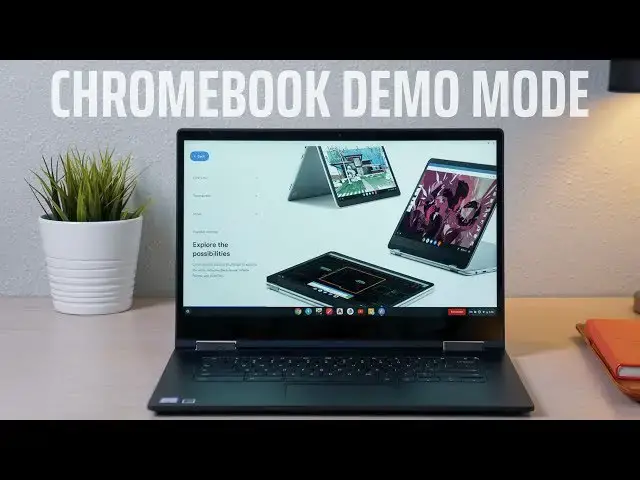
hey guys Gabriel with chrome unbox
0:01
coming at you today with a quick how-to
0:03
I've always wanted to know how to put a
0:05
Chromebook into demo mode if you don't
0:06
know what that is when you go to Walmart
0:08
BestBuy wherever and you see a
0:09
Chromebook setup it's usually in demo
0:11
mode you can play around with it do a
0:13
few things browse the web but it's
0:15
locked down and I thought maybe somebody
0:17
else wanted to know too so today we're
0:27
the first this video is brought to you
0:29
by wordpress.com whether you're a
0:32
blogger or a big business WordPress has
0:34
all the tools you'll need to build a
0:35
beautiful responsive SEO rich site to
0:39
learn more head over to chroma and
0:41
forward slash wordpress alright so here
0:44
we go guys like I said this is just
0:46
something I was curious about and who
0:48
knows maybe you own a small electronic
0:49
store or you're an administrator at a
0:51
school or something and you just want to
0:53
have some devices set up running but not
0:55
necessarily logged into a personal or
0:57
managed account anyway it's this very
1:00
simple just a little bit time-consuming
1:02
but before we go in just a little caveat
1:05
this will power wash your device so if
1:06
you have any local data store do you
1:08
need to upload it to the cloud or dump
1:10
it onto a drive because it's gonna be
1:12
gone when we're done so to take it into
1:14
demo mode we're gonna start by power
1:16
washing and you're just gonna go to your
1:19
settings to the bottom advanced all the
1:22
way to the bottom and power wash alright
1:25
so here we are guys freshly power wash
1:27
this is what you get out of the box when
1:29
it's new this device is already up to
1:30
date if you haven't done that before you
1:32
power wash you might want to update your
1:33
device anyways don't hit anything here
1:36
if you hit lets go it's gonna ask you to
1:38
login if you log in then you're gonna
1:40
start this whole process over again so
1:42
from the welcome screen you're gonna
1:44
press ctrl Alt + D enable demo mode are
1:48
you sure yes I'm sure we're making a
1:50
video here so you're gonna select your
1:52
preferences language keyboard country
1:54
click OK then you're gonna connect to
1:56
whatever Wi-Fi you're gonna be using all
1:59
right so now you've connected to your
2:00
network and you're gonna see the normal
2:02
Chrome OS Terms & Conditions accept and
2:04
continue Google Play apps and services
2:06
you can go ahead and hit more here it's
2:08
going to give a demo of the Google Play
2:11
services and apps you're not actually
2:12
gonna be able to install apps on here
2:14
but it gives you that demo so I think
2:16
this one actually is gonna run a nice
2:17
little demo of asphalt 8 you'll get to
2:20
so now it's checking for updates and
2:22
you'll see starting demo mode depending
2:24
on your device this could take up to two
2:26
minutes but its usual
2:27
pretty quick and here in just a second
2:29
will be fired up and ready to go so here
2:31
we go that's the demo session login
2:33
screen and it's gonna go right into the
2:35
demo once this comes up you'll be able
2:40
to access Chrome so you can actually
2:42
navigate the web and stuff but there's
2:43
gonna be some stuff running in the
2:44
background that's just kind of how to
2:46
navigate around a Chromebook again I'm
2:49
not sure what your use case could be if
2:50
you if you are small maybe mom and pops
2:52
electronics store and you don't have
2:54
access to some of the resources that
2:55
best buys and Walmart's have or maybe
2:58
you're an administrator at a school
3:00
that's getting ready to roll out
3:02
Chromebooks for the first time and you
3:04
you want to set up some displays for for
3:06
teachers and parents to see what the
3:08
students are going to be working on this
3:10
is a really neat way to do it so you can
3:12
navigate around some things that'll show
3:14
you around your device nice shot as a
3:16
pixel book there but you can go to
3:19
Chrome and they even have some Android
3:22
app demos here so these aren't actually
3:24
full installations they're just little
3:29
apps that you can run demos on and so
3:33
that's it this will just continue to
3:34
roll run in a loop you can't log out of
3:37
it so you don't have to worry about
3:38
somebody else getting on the device and
3:40
logging in and that's it so to reverse
3:44
the process you can't power wash this
3:47
device from the settings menu because
3:49
it's in demo mode so you actually have
3:51
to do a hard power wash so you're going
3:55
to power it down and then press and hold
4:00
the escape and the Refresh key and press
4:04
the power button I'll keep holding those
4:06
keys until the power comes back on
4:07
you're gonna see insert recovery USB
4:09
stick don't where you haven't broken
4:11
anything just press ctrl D it's going to
4:14
ask you to turn the OS verification off
4:16
so go ahead and hit enter there but
4:19
instead of actually transitioning into
4:21
developer mode once it gets to this
4:23
screen just press space to enable and
4:25
enter now it's going to wipe the device
4:28
and it's going to return to stable clean
4:32
wash straight from the factory so it
4:34
wasn't actually in developer mode but it
4:36
says it's returning to verified mode
4:37
because that's the option that we
4:39
selected and then it's going to reboot
4:41
and once it reboots Chrome and a nice
4:44
freshly power-washed ready to login
4:47
device not manage no demo mode or
4:49
anything so there you go
4:51
like I said I'm not sure what you would
4:52
use it for for me I was just curious and
4:54
I wanted to know how and there's not a
4:56
lot of information around the web on how
4:58
to use this anyways I hope this helped
5:00
and maybe you want to take around with
5:03
anyways till next time hey check us out
5:06
on the web chromevox comm click the like
5:09
and the subscribe button below and we'll