0:00
over the course of the last few years
0:01
Chromebooks have continued to ditch
0:03
ports in general across the board to the
0:06
point where a lot of devices like the
0:08
pixel ago sitting right here actually
0:10
just have two ports and both of those
0:11
ports are the same thing a USB type-c
0:13
but for a lot of users coming over from
0:16
windows devices and maybe older laptops
0:18
they're not really sure exactly how to
0:20
go from that USB type-c to actually
0:22
outputting on the screen and just
0:23
recently I had a conversation with a
0:25
friend where they just weren't even sure
0:27
what to do with that USB type-c port so
0:29
we want to talk about that for today's
0:30
Chromebook tip Tuesday while USB type-c
0:40
can do basically everything I mean
0:43
honestly it could be the port that just
0:44
replaces every other type of cable it
0:46
can handle video it can handle audio it
0:49
can handle data transfer it can handle
0:51
charging I mean literally we could use
0:53
USB type-c for everything we use a cable
0:55
for and not have to have any other type
0:57
of adapters the issue kind of comes up
0:58
in standards there's all kinds of
1:00
different standards for data transfer
1:02
speeds and there's different standards
1:04
for charging speeds and there's
1:05
different standards for some of the
1:06
visual outputs and and audio outputs so
1:09
you need to know exactly what it is
1:10
you're going to buy with all these
1:12
competing standards with charging and
1:13
audio and all that kind of stuff it can
1:15
get a little bit confusing to try to
1:16
figure out the easiest way to go from
1:18
USB type-c to HDMI but fortunately this
1:22
is one area where USB type-c seems to be
1:25
kind of settled in at this point and in
1:26
general we've found that most of these
1:28
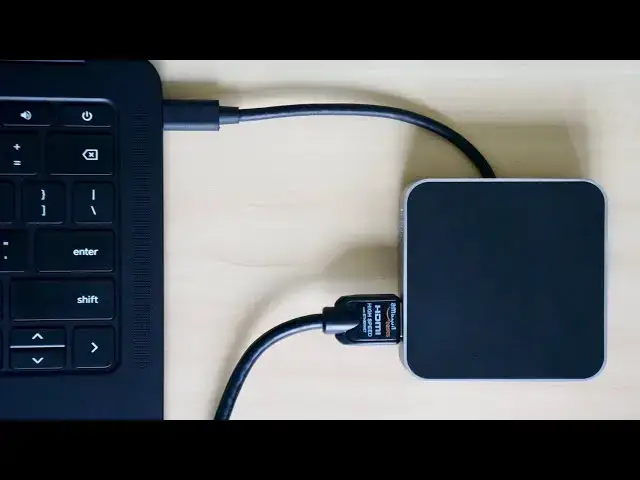
Doc's like this or even just the
1:30
adapters that just have a USB type-c and
1:32
an HDMI on them all seem to work just
1:34
fine now you'll see some differences on
1:36
Amazon or Best Buy or anything like that
1:38
between these so there's some that are
1:39
nice and slim like this it's small it's
1:41
easy to put in a bag but it doesn't have
1:43
a lot of port selection here you've got
1:45
your HDMI that's gonna handle your video
1:46
stuff you've got one USB type a and
1:49
that's gonna handle any peripherals you
1:51
have like a mouse or keyboard something
1:52
like that then you've got a power
1:53
pass-through which allows your charger
1:55
to also pass through this single USBC
1:57
connection but then from companies like
1:59
o WC you get a slightly larger version
2:02
of the same thing but you get an
2:03
additional USB type-a then over here you
2:06
get a SD card slot and there going to be
2:07
other docks that have even more ports
2:09
and all that kind of stuff so you kind
2:11
of just got to look around decide how
2:13
I want the doc to be how much do I want
2:14
it to extend my functionality but for
2:16
today we're really just talking about
2:18
getting the display from your Chromebook
2:21
onto a television and honestly any of
2:23
these things works you just need some
2:25
sort of adapter to make that transition
2:27
from your small screen to your large
2:29
screen and I would say go on Amazon and
2:31
just pick the one that looks best for
2:33
the price and extends all the functions
2:34
extra functions that you want to get out
2:36
of your dock or adapter but guys that's
2:39
if this helped you in any way give it a
2:41
thumbs up go down there and hit the
2:42
subscribe button and make sure to hit
2:44
the notification bell next to that if
2:46
you'd like to be alerted when we make
2:47
future videos just like this one until
2:48
next time we'll see you