Up next in 10



👉 Join Chrome Unboxed Plus for access to our private Discord, an ad-free website experience, ad-free podcast, AMAs, exclusive giveaways, and more! Start your 7-day FREE TRIAL here: https://chromeunboxed.com/join/
👉 Shop the best Chromebook deals today: https://chromeunboxed.com/the-best-chromebook-deals-today-updated/
📧 Subscribe to our newsletter: https://bit.ly/4jVq0de
・・・・・・・
Read more: https://chromeunboxed.com/
☕ Fueled by Fresh Roasted Coffee! Buy the special edition Chrome Unboxed bag here: https://chromeunboxed.com/coffee
Subscribe to the channel: http://bit.ly/2xFuj6L
Follow us: https://x.com/chromeunboxed
https://www.instagram.com/chromeunboxed
https://www.threads.net/@chromeunboxed
https://www.facebook.com/Chromeunboxed
Show More Show Less View Video Transcript
0:00
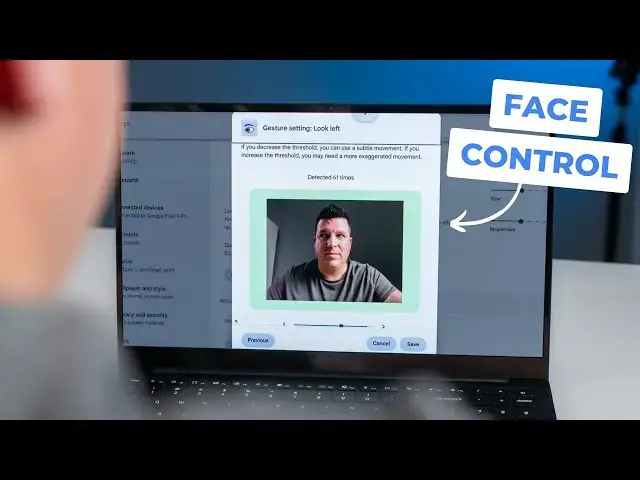
all the way back in May of 2024 we got
0:02
an early look at a new feature that has
0:05
rolled out in Chrome OS 132 it's kind of
0:08
been there since 131 and maybe even 130
0:10
behind some Flags but it's called face
0:12
control and it's uh it's an
0:14
accessibility feature that lets you do
0:16
exactly what it says it lets you control
0:18
your Chromebooks Mouse input with your
0:21
face so let's check it
0:25
out so overall this thing is quite
0:28
simple and uh if you're on Chrome OS 132
0:31
all you got to do is go into your
0:33
settings and then the easiest way to get
0:35
there is just go up here to the search
0:36
and just type face and you'll see face
0:38
control pop up and early on when we were
0:41
trying this you could tell it was very
0:42
experimental like this weird camera
0:44
thing would show up and it show how it
0:45
was like tracking stuff on your face uh
0:48
it was super weird they have completely
0:50
cleaned all that stuff up it's very very
0:52
uh userfriendly here so I'm just going
0:54
to go and turn it on um and now you can
0:56
see up at the top there's a little icon
0:58
my camera light has come on and you can
1:00
see my cursor is moving already around
1:03
the screen and just following my face
1:05
it's kind of fun the first time you do
1:06
it it's like oh my God like I can't
1:08
believe this thing's moving so I'm going
1:09
to turn it off real quick so that I can
1:11
actually talk it's kind of hard to talk
1:13
with my head completely still um and so
1:16
you have a couple um settings here that
1:18
you would obviously need for Mouse
1:19
control so um you can adjust the speed
1:22
separately for each direction if you
1:24
turn that off you basically just have
1:25
one cursor speed but what I found in
1:27
messing with this just like with uh like
1:29
if you're sit and mouse controls on a
1:31
game you kind of want to do different
1:32
controls for left right up and down like
1:35
up and down you don't really move your
1:37
head that much if you think about it
1:38
like during the day just in general you
1:40
don't you don't spend a lot of time
1:41
doing a lot of this but you'll look over
1:43
your shoulders no big deal so uh you
1:46
kind of want the up and down to be a
1:47
little bit more sensitive so that you
1:49
don't have to make these huge movements
1:50
to get to the top and bottom of your
1:51
screen but the left and right you want
1:53
to kind of keep in the middle that's at
1:54
least what I've kind of found to be true
1:55
so uh I'm going to I'm going to crank
1:57
the up and down up just a little bit
1:59
here
2:00
go there and then the left and right I'm
2:02
actually going to take down a notch I
2:04
think that's about where my sweet spot's
2:06
been and then you have cursor stability
2:08
so think about this as mouse mouse
2:10
smoothing um basically if it's
2:13
responsive if we go all the way down on
2:14
full responsive uh it's going to try to
2:17
move exactly when you move as as close
2:19
as it can to following your face uh if I
2:21
go to stable it's going to kind of lag
2:23
behind a little bit I'm going to show
2:24
you that here in just a second it's
2:25
going to lag behind a little bit but
2:26
it'll really smooth the cursor out so H
2:29
to each his own you can kind of mess
2:30
around with that then you have cursor
2:32
acceleration no different than Mouse
2:33
acceleration so if I'm touching the
2:35
trackpad right now and I'm moving nice
2:36
and slow the cursor moves slow but if I
2:38
make a quick movement I mean it in the
2:40
same amount of space on the trackpad
2:42
that cursor is flown across the
2:44
screen for me that has been a little
2:47
weird cuz you'll have one twitch
2:49
movement and then the cursor goes flying
2:50
somewhere so um I don't completely love
2:53
that but I'm going to turn it on just to
2:54
show you and I'm going to crank this up
2:56
a little bit and then we're going to
2:57
turn this back on again okay okay and
3:00
you can see now that it doesn't take a
3:02
whole lot of movement up and down with
3:04
my face to move the cursor and I feel
3:06
like that's a little more natural versus
3:08
left and right I feel like it's tracking
3:09
right with like if my nose was pointing
3:11
at the screen that feels way more normal
3:15
um so I'm going to try to hold my head
3:16
still here a little bit I'm going to
3:17
turn the cursor stability all the way
3:19
down so this is super responsive and you
3:21
can see it looks a little jittery but it
3:24
is it is moving exactly when I move my
3:26
face now I'm going to slide that thing
3:27
all the way up to stable if I get a hold
3:30
of it here and set it back here and you
3:32
can kind of see it lags behind a little
3:35
bit hopefully you'll be able to see that
3:38
but this movement looks a little
3:40
smoother I personally don't see a whole
3:42
lot of difference between the two so I
3:43
think leaving this one kind of in the
3:44
middle as where you want to be and then
3:46
I'm going to turn this acceleration off
3:49
and see how that feels and see to me I
3:52
think for this for figuring out exactly
3:54
where you want your cursor to be it
3:56
makes a lot more sense to turn off
3:57
acceleration again all these things are
4:00
here um so that you can try them out and
4:02
see which one works best for you if you
4:04
need to use this feature okay finally uh
4:07
there are actually some shortcuts that
4:08
you can uh leverage and forgive me if
4:10
the cursor jumps around I have to leave
4:12
the the feature turned on obviously to
4:14
turn this on so I'm going to try to keep
4:16
my head nice and still here but here at
4:18
the bottom under actions you can uh set
4:20
some different actions um based on uh
4:23
different facial movements and so um
4:26
pause resume face control reset cursor
4:30
to Center could probably be really
4:31
helpful I think so you could set
4:32
something for that but I'm going to go
4:33
with left click so I'm going to go to
4:34
left click and going hit next and then
4:37
we get to choose so you can see there's
4:39
kind of a little animation for each one
4:41
that kind of just shows you what they're
4:42
trying to get across so like move your
4:44
mouth left it would be kind of this
4:47
number um but I think there's another
4:49
shift your jaw so I'm guessing this um
4:53
again I didn't have a whole lot of luck
4:56
with with all of these cuz I don't know
4:58
if I'm just not expressive to pull them
5:00
off U but we have some squinting so um I
5:03
like raise eyebrows let's do that one
5:04
let's do raise
5:06
eyebrows um that's fine I don't know
5:08
what it's what it's pinned to oh here we
5:10
go this is actually new I haven't messed
5:11
with this yet um and so yeah so raise my
5:15
eyebrows and you can kind of see that
5:17
meter down there it's letting you know
5:19
I'm not quite there so I need to change
5:21
my threshold this is fantastic so this
5:23
might work way better than last time I
5:25
used this so boom now you see it light
5:27
up well done here this is this is cool I
5:31
feel like I'm really having to work to
5:32
get it to go though so I'm going to I'm
5:33
going to turn down just a little bit
5:34
more there we go I don't do that very
5:37
often I don't like look at my screen and
5:39
sit there and do this so I think I'd be
5:41
safe with that so now I have all of my
5:44
cursor settings done and I have a left a
5:47
left click set up so I'm going to um
5:50
what do I want to go to I'm going to go
5:51
to wallpaper and style
5:53
boom
5:56
accessibility uh
5:58
accounts how sweet is that I mean that's
6:01
really really cool and the setup is so
6:03
well done um definitely would want to if
6:06
I was using this on a regular basis uh
6:08
and it again it depends on the person if
6:10
if you lack enough Mobility where like
6:12
this is going to be absolutely your
6:13
primary input on your device leave it on
6:16
I I wouldn't I would never turn it off
6:17
but it's definitely something if you're
6:19
not going to be using it all the time uh
6:21
I would definitely have the shortcut set
6:23
to turn it off so you could like set
6:24
your raised eyebrows or show your teeth
6:26
in order to turn the feature off so that
6:28
your mouse isn't jumping all over the
6:29
screen screen cuz it does follow your
6:31
face all the time and sometimes you're
6:32
just kind of chasing the mouse around
6:34
the screen because it's again it's
6:36
following your face so I mean that's
6:37
about it um and I I hate saying that
6:40
because this is an incredible feature
6:42
using your built-in webcam it's built
6:45
into Chrome OS this isn't some add-on or
6:47
some download that you have to have this
6:49
is just part of using a Chromebook now
6:51
and uh from where it was in May of last
6:54
year when we first saw this to where it
6:56
is now I mean this is a Monumental
6:58
achievement like this is is really
7:00
really uh amazing to see happening and
7:03
uh again just the fact that it's baked
7:04
right into Chrome OS is is pretty
7:06
astounding well done chromos team uh
7:09
again like I haven't used it I don't
7:11
know probably since beta uh 132 and it
7:14
didn't have the the threshold thing that
7:16
I literally making this video just saw
7:18
and it's like these nice touches make
7:20
setting all this up so much easier and
7:22
would make getting this honed in and
7:24
actually like not just a gimmick but
7:26
100% usable uh for a lot of people who
7:29
may have have trouble using a mouse and
7:30
keyboard and so like kudos to Google for
7:32
knocking this out this is a really cool
7:34
addition and hope uh some of you find
7:37
some uh great use uh for this feature in
7:40
Chrome OS and hope this video has been
7:41
helpful uh in you discovering this
7:43
feature but that's it for this one if
7:45
you like this video give us a thumbs up
7:46
head down there hit that subscribe
7:48
button and be sure to ring the
7:49
notification icon if you'd like to be
7:51
alerted when we make future videos just
7:52
like this one until next time I'll see
7:54
you
8:00
m
Consumer Electronics
Software
Operating Systems
Science