Up next in 10



Sponsored by NordVPN. For a limited time, grab the 3-year plan with 70% off! Click here: https://chromeunboxed.com/nordvpn
・・・・・・・
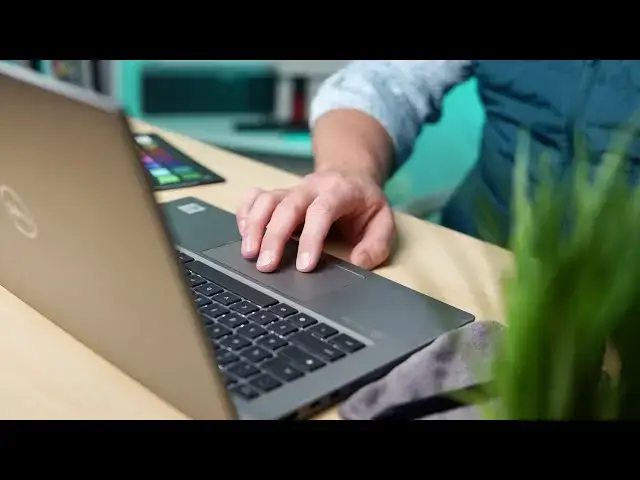
Chromebooks are built to be easy to understand and simple to navigate. A big part of that navigation lies in the powerful, flexible trackpad that rests just beneath your Chromebook's keyboard. This input method wields a lot of power over Chrome OS, but just because Chromebooks are meant to be streamlined, simplified computers, that doesn't mean they come entirely without a learning curve. With that in mind, we wanted to put together a simple, quick guide to all the things you can do with your Chromebook's built-in trackpad.
Read more: https://chromeunboxed.com/chromebook-trackpad-touchpad-gestures-chrome-os-how-to/
Join our newsletter: http://bit.ly/2WjCDm7
・・・・・・・
Join our Patreon community for exclusive extras, an ad-free website experience, access to our private Discord server, and more: https://www.patreon.com/chromeunboxed
Shop Chromebooks on CHROME SHOP: https://chrmshop.com/
Subscribe to the channel: http://bit.ly/2xFuj6L
The Music We Use - PERFECT for YouTube: http://bit.ly/31W6PYP
Show More Show Less View Video Transcript
0:00
chromebooks are designed to be simple
0:01
devices they're designed to be simple to
0:03
start up and use and simple to navigate
0:06
one of the main ways you navigate them
0:07
though is with the trackpad
0:09
and google's done a great job over the
0:10
years of building in all sorts of
0:12
gestures to help you move through the os
0:14
and just because it's a simple device
0:16
it doesn't mean that there's no learning
0:17
curve whatsoever so we wanted to put
0:19
together a quick guide that kind of
0:21
encompasses
0:22
all the gestures that you can use on a
0:24
chromebook trackpad
0:30
today's video is brought to you by
0:32
nordvpn they're the vpn of choice for
0:34
millions of consumers because they're
0:35
awesome at what they do and that is keep
0:37
your browsing safe and secure
0:39
whether you're at home or on the go if
0:40
you'd like to learn more about them and
0:42
their services head over to
0:44
chromeunbox.com forward slash
0:45
nordvpn and you can learn more and get
0:47
started today
0:48
okay so let's dive into some of these
0:50
gestures but before we do that
0:52
we do need to talk about a couple
0:53
settings that will help you interpret
0:55
all the things i'm going to say and show
0:57
you so if you go under your device in
0:59
your settings menu
1:00
and we go into touchpad there's tap to
1:02
click tap to drag
1:03
and then there's reverse scrolling tap
1:05
to click and tap to drag or things i
1:07
leave off i prefer to just click the
1:09
trackpad but a lot of people would
1:10
rather just tap it and
1:11
that just allows a brief tap to register
1:14
a click
1:15
for the sake of this video i'm going to
1:16
turn that on i'm also going to turn on
1:18
tap dragging so we can kind of see how
1:19
those things work here in just a second
1:21
and then reverse scrolling i tend to
1:23
like to leave that turned on because
1:25
ultimately whenever you're scrolling
1:27
stuff i would rather just like if i was
1:29
going to reach up and touch the
1:30
touchscreen i would
1:31
i would slide my hand from low to high
1:34
in order to move
1:35
down the screen because it's kind of
1:37
like paper or anything else i'm going to
1:38
move it that way
1:40
well i want to do the same thing with my
1:41
track pad so i if i'm going to go down
1:43
the screen i kind of would prefer
1:45
the content to move along with my
1:47
fingers not everybody likes that
1:49
so you can make that difference in the
1:51
settings right there and switch it to
1:53
your liking
1:54
so let's begin with single finger
1:56
gestures and you can't
1:57
really call these gestures i guess they
1:58
kind of are i mean you're moving on the
2:00
on the track pad but you know everybody
2:03
kind of knows that you move your finger
2:04
around the track pad the mouse cursor
2:06
moves around on the screen so that's
2:07
that's
2:08
your main single finger function here
2:10
but you can also select things and just
2:12
as i said with either a tap if you have
2:14
it turned on or a click
2:15
you can actually select what things you
2:17
would like to open
2:18
or move around the screen so if i drag
2:21
this down
2:22
if i double tap when we turn that on
2:24
double tap to drag when i tap tap
2:26
i can now drag this around and then let
2:28
go
2:30
and again i turn this off because every
2:31
once in a while you kind of miss on that
2:33
and stuff moves and you don't really
2:34
want it to
2:35
but again single finger those are
2:37
basically what you have working here
2:39
you have grab and move things around
2:42
you can select things
2:45
and you can move your mouse around two
2:47
finger gestures are where we start
2:49
getting into some pretty
2:50
interesting stuff so let's single click
2:52
again here and open up some content
2:54
we'll go
2:56
to chrome unboxed and if i want to
2:57
scroll down the page instead of
2:59
you know a mouse wheel or holding any
3:01
other buttons just enable two fingers
3:04
on the track pad and immediately you can
3:06
scroll up and down the page to your
3:08
heart's content
3:10
additionally with this with a pinch in
3:13
and out
3:13
you can zoom in and out on the content
3:16
just like you would on a phone or a
3:18
tablet
3:18
a lot of people are used to this
3:20
additionally those two fingers
3:22
not just up and down can move in other
3:24
directions around the screen as well
3:26
so if you're in a document that has some
3:28
left to right
3:29
that you need to navigate you can do
3:31
that with just two fingers this way
3:32
if you need to go up and down the
3:33
document up and down this way and then
3:35
you can also pinch and zoom
3:37
to your heart's content around the same
3:40
content
3:40
additionally adding in that second
3:42
finger when you go to click or tap
3:44
brings up your context menu and the
3:46
context menu is what most of us think of
3:47
as our right click menu if you grew up
3:49
using windows
3:50
you know that you can right click on all
3:52
kinds of stuff and get all kinds of
3:54
context menus well
3:55
it's similar to like a long press on
3:57
android or long press in
3:58
ios or a right click on windows there's
4:01
other
4:01
functionality hiding behind the context
4:04
menus and to pull that up
4:06
a two-finger tap or a two-finger click
4:08
will bring up that extra context menu
4:10
depending whether you're in chrome or
4:12
all sorts of different apps android apps
4:13
and all that stuff everybody
4:14
programs different stuff in for that
4:16
two-finger click and again you can do it
4:18
with a click
4:19
or a tap okay so let's move on to three
4:21
fingers
4:22
and when we move to three finger
4:24
gestures we're getting into more
4:26
os type navigation and some of this
4:29
stuff is very unique to chrome os
4:31
and the first one we've talked about
4:33
before on both youtube and on our
4:35
website
4:36
is the three finger gesture to scrub
4:38
tabs so if i open up multiple tabs up
4:40
here on the top
4:42
and i'll get into some different content
4:44
on each one just so you can kind of see
4:46
what we're doing google search cool
4:50
and we'll just do another chrome unboxed
4:51
okay so i have four different tabs
4:53
instead of going here single clicking on
4:55
the tab single clicking on the tab
4:57
single clicking on a tab with a three
4:59
finger swipe i can actually move
5:01
through those open tabs and so as i need
5:04
to get between one tab and the next i
5:06
use this
5:07
constantly when i'm adding stuff from
5:09
multiple pages
5:10
it allows me to just swipe over swipe
5:12
back swipe over
5:13
copy swipe back click something it's a
5:16
very very handy gesture for productivity
5:18
next up and probably just as productive
5:20
if not more
5:21
is the three finger swipe up now it
5:23
doesn't matter how you have your
5:25
scrolling whether it's turned into
5:26
reverse or standard this is always now
5:29
they've made this a three swipe
5:30
three finger swipe upward to get to the
5:33
overview mode now there is a key on your
5:35
keyboard that does this as well
5:37
if you're like me you're almost always
5:40
going to swipe three fingers up to get
5:41
to this so three finger swipe up
5:43
and you're in overview mode and i'm
5:45
going to show you i'm going to break
5:46
these out as separate windows here
5:48
just so you kind of get a little bit
5:49
more of a feel for what that looks like
5:51
in case you've not used this there we go
5:54
so now i've got three separate windows
5:55
overview mode boom i see all of my
5:57
windows open
5:58
and i can click into any of them at this
6:00
point and as we've talked about in the
6:03
mastering split screen from this mode
6:05
you can then drag
6:06
stuff to either side and kind of do
6:07
split screen modes that's not really a
6:09
gesture on the trackpad it's just a nice
6:11
cool feature of the overview mode and
6:13
then one final trick i want to show you
6:15
with a three finger
6:17
click a lot of people don't really think
6:19
about clicking anything with the three
6:20
fingers
6:21
this actually takes the place of if you
6:22
had a mouse scroll wheel and you
6:24
click down on that mouse scroll wheel so
6:26
if there's any gestures that you're used
6:28
to using with that this is the only one
6:29
i can think of but
6:31
this is a handy effective little tool
6:34
here
6:34
this allows you to close tabs down
6:36
without having to hunt for the little x
6:38
here so
6:39
i just have to get my mouse cursor over
6:40
this tab anywhere three finger click and
6:42
boom that tab's gone
6:44
cool and so it's nice if you're trying
6:45
to just knock out some tabs just
6:47
getting in the in the habit of three
6:48
finger clicking to kill those tabs
6:50
it's just a whole lot easier than
6:52
hunting down that little bitty x and
6:53
making sure and clicking on it and
6:54
finally we come to
6:56
four finger gestures again the more
6:58
fingers you add into these gestures
7:00
almost the more complex things get here
7:03
so when we talk about four finger
7:04
gestures there's a couple things that
7:05
you can do
7:06
so i'm gonna go back into this overview
7:08
mode again three fingers
7:09
swiping upward i'm gonna add a new desk
7:12
and so desks
7:13
help you get productive by putting stuff
7:15
on multiple
7:16
entire desktops and the reason this is
7:19
productive is you can kind of set this
7:21
desktop up to look one way
7:22
and then another desktop up to look
7:24
another way well it's nice to be able to
7:26
get between these desktops pretty
7:28
quickly and again there are keyboard
7:29
shortcuts or you could swipe up
7:31
and single finger click to get to that
7:33
desk and those are fine
7:34
but when you're really trying to be
7:35
productive and move through things it's
7:37
nice to be able to almost feel like
7:38
you're just
7:39
turning and looking at that next monitor
7:41
that's next to you and for that
7:42
a four-finger swipe in either direction
7:44
gets you to that next adjacent desk
7:46
one swipe boom we're there one swipe
7:49
boom we're there one swipe
7:50
boom we're there and it's just a nice
7:53
trick to have up your sleeve if you like
7:55
using virtual desks instead of going up
7:57
and clicking
7:58
through each one to be able to
7:59
four-finger swipe boom between desks
8:01
it's just a really really handy tool to
8:04
have all right guys
8:05
so that's basically it there are going
8:07
to be more gestures that show up and
8:09
there's going to be stuff that changes
8:10
and
8:11
and things that may move around a little
8:12
bit and they may add a swipe here or
8:14
swipe there but in general when you're
8:16
talking about navigating the os
8:18
as a whole these gestures are the ones
8:20
that you're going to use
8:21
most and the ones that are going to help
8:23
you be most effective on a chromebook
8:25
and
8:25
we generally hope that this helps you
8:27
out and helps you to be more productive
8:29
and just
8:29
helps you enjoy your chromebook a little
8:31
bit more but that's it for this one
8:32
if you enjoyed it give us a thumbs up go
8:34
down there and hit the subscribe button
8:36
and make sure and hit the notification
8:37
icon
8:38
if you'd like to be alerted when we make
8:39
future videos just like this one
8:41
until next time we'll see
8:56
you
#Software
#Internet & Telecom