Up next in 10



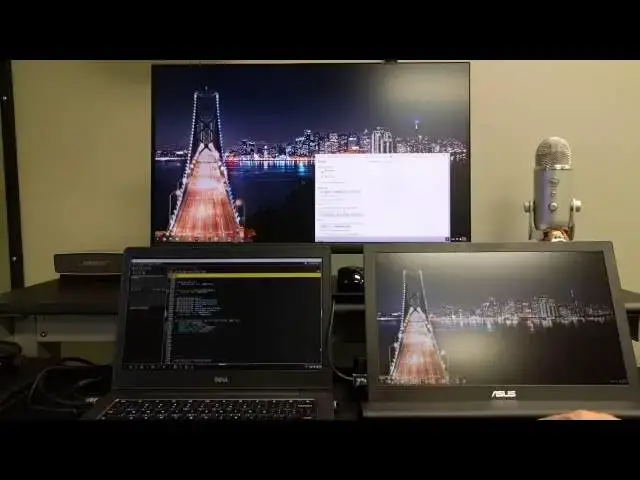
In this video, we take a look at the ease of setup on the ASUS MB169B+ and talk through the options you get once you are plugged in. It is simple, effective, and brilliant. Overall, I’m extremely pleased with Chrome’s implementation of this tech and plan on, from this point forward, keeping a second screen in my bag at all times. Enjoy the video!
To buy: http://www.bhphotovideo.com/c/product/1175625-REG/asus_mb169b_15_6_full_hd_portble.html
For more, visit chromeunboxed.com
Show More Show Less View Video Transcript
0:00
hey folks Robbie pay with chrome unbox
0:02
coming at you today with a quick guide
0:04
on how to use a USB 3.0 monitor with
0:08
your Chromebook your Chromebase or your
0:10
Chrome box today we're going to be using
0:12
asus's version of this they have both a
0:14
USB 3.0 and a USBC version of this and
0:17
I'll put a link down below where you can
0:19
purchase it at B&H and there's all kinds
0:21
of places that you can actually get a
0:23
hold of this thing but it comes with a
0:24
really handy case the device itself is
0:26
really light and the setup process is
0:29
pretty much straightforward and simple
0:31
but I want you all to see how it works
0:33
and hopefully entice you to get one of
0:36
these things for
0:39
[Music]
0:42
yourself all right guys so my standard
0:45
setup usually consists of a large screen
0:47
and the Chromebook screen if I'm using a
0:49
chrome box a lot of times I'll just work
0:50
from this one uh it is a Quad HD so you
0:53
get some extra room outside of the 1080p
0:55
framework there to work with all that
0:58
aside this is my normal setup and it
1:00
works exactly like you'd expect most
1:02
Chromebooks come with an HDMI output I
1:05
hook the HDMI into here it just works um
1:08
you can go down into your
1:10
settings on the far left and you see
1:12
extending screen to the monitor you've
1:14
chosen and and once this pops up you get
1:17
the ability to actually drag your
1:19
displays around to position them the way
1:21
they want so technically right now I'm
1:23
to the left and the bottom I'm going to
1:25
let go so when I try to go down here at
1:27
the bottom I don't go through but over
1:28
here on the left my mouse goes straight
1:31
down into the screen and so that's
1:34
fairly normal that's how Chrome OS has
1:36
worked for some time and and that's been
1:39
great but as of Chrome OS 51 and we're
1:41
now on 52 in the stable Channel you have
1:44
support for USB 3.0 and USBC um that's
1:48
kind of a different animal cuz USBC has
1:50
this stuff built in USB 3.0 is a special
1:52
display link driver and we've been
1:54
waiting for that for some time uh for
1:56
Chromebooks because this guy over here
1:58
is actually a monitor from Su and that's
2:00
all it is down here we have the case
2:02
that folds into a stand but it's really
2:04
simplistic uh it's it's very Sleek it's
2:07
very light as you can see I'm holding it
2:08
just with a couple fingers uh it's
2:10
attractive it's got the nice Asus
2:12
cylindrical pattern going on the back uh
2:14
but it's light it's anti- glare and uh
2:17
it works really well over on its side it
2:19
just has a power rocker and a or a
2:22
brightness rocker I'm sorry and a power
2:23
button and then the micro USB and so I
2:26
am actually going to plug that in right
2:28
now and this is
2:30
with no real setup or anything
2:34
here and we're going to take this behind
2:37
the
2:40
dell and I'm trying to do this without
2:42
any prior setup CU I want you to see how
2:44
ridiculously simple this actually is so
2:47
you get this thing out of the box you
2:49
get the cord
2:50
out and you plug it in and we'll see the
2:53
Asus poers
2:55
on and just like that you now see up
2:59
here we have three monitors to choose
3:01
from which is awesome so I'm going to
3:03
arrange them the way that they actually
3:05
are so kind about half
3:08
here half
3:11
there and so now we've kind of got them
3:13
arranged actually the way that they are
3:16
you can change the resolutions of them
3:17
if you like and this one's got a setting
3:19
on the side that allows you to crank the
3:21
brightness up and down turn it down so
3:23
it doesn't blow our shot out here it is
3:26
pretty bright uh it's advertised at 200
3:28
nits and and with it anti- glare it
3:31
performs quite well uh no no real issues
3:33
there but now we have the ability to
3:37
drag down into
3:39
here over to there up to there three
3:43
consecutive monitors one of them being
3:45
driven completely by USB which is
3:47
awesome and it works it works really
3:49
well there's a slight hesitation it's
3:52
not even really lag it just like a frame
3:54
rate drop with the mouse you can notice
3:56
here it's probably hard to see on screen
3:57
it's real smooth up here it's a little
4:00
bit laggy over here I have used the USBC
4:02
version of this with the hp13 and it's
4:05
zero lag whatsoever but again USBC was
4:07
built for that from the ground up USB
4:09
3.0 clearly is not and the fact that
4:12
this works with no setup is really
4:15
really awesome and here's one last
4:17
nugget with this we can actually close
4:20
this and normally this always behaved as
4:24
when I Clos this this always behaved as
4:26
you would expect it to it's now in
4:27
docked mode boom you have one display
4:29
and a closed Chromebook no big deal what
4:31
I was not expecting actually was the USB
4:33
3.0 to actually work once I close this
4:36
lid but it does and it will work even if
4:39
I'm not plugged in which is not
4:40
something I can say for a Macbook uh if
4:42
a macbook's closed and not plugged in it
4:44
likes to go to sleep and all that kind
4:45
of stuff it can be unplugged no big deal
4:47
I actually worked from it earlier today
4:49
unplugged uh and had it run in multiple
4:52
monitors it was kind of cool um and it
4:55
will change the configuration once you
4:56
go down to two monitor so you'd have to
4:58
re
5:00
reconfigure and yeah they're showing
5:02
side by side we're going to show top and
5:04
bottom and boom we're set up to go and
5:07
so technically you can close your
5:08
Chromebook and have it still push to
5:10
displays which is pretty awesome please
5:12
excuse the motorcycle that just drove by
5:14
it's pretty awesome um it works so well
5:17
um I'm I'm really really excited about
5:19
how easy this is and this guy is only
5:21
$179 so you can imagine all the things
5:24
that this is going to be able to do so
5:26
uh when you're in a coffee shop you just
5:27
take this nice lightweight device
5:29
there's no other need for power cuz the
5:31
USB Powers it um so there's no power
5:33
that goes along with it it's just one
5:35
cable boom to your laptop and you have a
5:37
setup um the implications of that are
5:40
pretty awesome because now you have a
5:42
two monitor setup pretty much anywhere
5:44
you go and you see how quick it just
5:45
jumps right back to the configuration of
5:47
three monitors no problem once you've
5:48
set it up once Chrome OS remembers it
5:51
the integration of this is so well done
5:54
I'm I'm so very pleased with what Google
5:57
has done uh with Chrome OS and and
5:58
multim monitor support especially with
6:00
USB 3.0 uh as I said the USBC version of
6:03
this is also available not much more
6:05
expensive I want to say maybe 10 bucks
6:06
more or something um and it does work a
6:08
little bit better and the screen itself
6:10
actually has a few extra options in the
6:12
menu but overall it's pretty much the
6:14
same experience between them and it's
6:16
really really encouraging to see this
6:18
because as we move forward and we're
6:19
going to start seeing all these
6:20
different uh 360 and convertible devices
6:23
some of them are going to have smaller
6:24
screens and maybe be powerful enough to
6:26
get all your work done but you don't
6:28
always want to be working with them uh
6:31
on on tedious tasks and so for something
6:33
like the Chromebook flip whenever it SQL
6:35
does come out we're expecting it to be a
6:37
lot more powerful than the existing one
6:39
but that small screen could limit you in
6:41
certain situations it won't really be an
6:44
issue anymore you could just carry one
6:45
of these in your backpack as well it's
6:47
super duper light you drop it on the
6:49
table with your flip your flip becomes
6:51
your second screen this becomes your
6:52
main screen and all that problem is
6:54
solved and so now you can actually have
6:55
a 10-in device that acts as your main
6:58
kind of daily driver and so for me I'm
7:00
pretty excited about that I think that
7:01
setup would be awesome um and so that's
7:05
about it guys for this it's very simple
7:07
unbox it plug it in it just works and I
7:08
wanted to show all the uh variations and
7:11
and different ways you can set those
7:12
monitors up hope you enjoyed the video
7:15
uh if you haven't already please
7:16
subscribe below uh the more subscribers
7:18
we get the more videos we can make give
7:20
it a thumbs up if you like the video and
7:22
I hope uh there are handful of other
7:24
companies but I hope uh you guys get
7:26
your hands on some of these and try them
7:27
out and I hope they work out for you I
7:28
think they can really increase some
7:30
productivity thank you for watching
7:32
until the next video we'll see you next
7:34
time
7:36
[Music]
#Computer Peripherals
#Consumer Electronics