Up next in 10

5 Things ChromeOS Tablets Could Learn From The Pixel Tablet
Mar 14, 2025


Sponsored by eiP. Get productive and protect your Pixel Tablet with their new All-White Magnetix Keyboard Case, Grey Slim Tablet Bag, and Reusable Paperlike Screen Protector. Click the links below to purchase!
? eiP Magnetix Pixel Tablet Keyboard Case (White)
- Amazon US: https://amzn.to/3Wyjeji
- Amazon CA: https://amzn.to/4h8fbCx
- Amazon UK: (Available by March 31st, 2025 )
- Amazon DE: (Available by March 31st, 2025 )
- Amazon AU: https://amzn.to/4hg6O87
- Amazon JP: https://amzn.to/4gcXHE0
? eiP Slim Bag Grey 11 Inch: https://amzn.to/3CqaK70
? eiP Reusable Paperlike Protector (Available by April 30th, 2025)
- Anti-blue light version: https://amzn.to/4b3lkhj
- Standard version: https://amzn.to/4i4ryQo
Learn more about the eiP Magnetix Keyboard Case for Pixel Tablet here: https://eipstore.net/gpt-magnetix-white2
Shop the best Chromebook deals today: https://chromeunboxed.com/the-best-chromebook-deals-today-updated/
Show More Show Less View Video Transcript
0:00
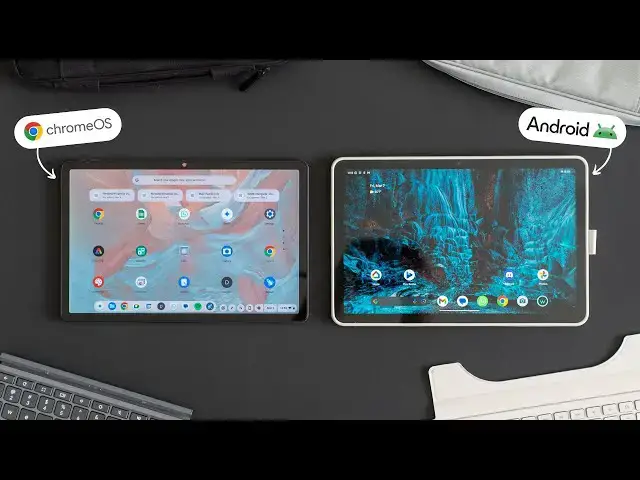
in front of me are two very similar
0:02
looking tablets but honestly in real
0:04
world use they couldn't be more
0:06
different on my left is the duet 11 so
0:10
the brand new uh duet tablet that runs
0:12
Chrome OS and on my right is the pixel
0:15
tablet and obviously one runs Chrome OS
0:18
and one runs Android and we all know
0:20
that the Android kernel is coming to
0:22
Chrome OS at some point hopefully in the
0:25
near future and that means there's a lot
0:27
of stuff from Android that can come over
0:29
to Chrome OS and so we just wanted to
0:31
make a video to kind of
0:32
showcase uh what it is that chromeos
0:35
tablet specifically not just Chrome OS
0:37
but Chrome OS tablets could learn as
0:39
this transition happens from the Chrome
0:42
OS Linux kernel to the Android Linux
0:45
kernel so let's check it
0:49
out but before we get into all that
0:52
today's video is brought to you by EIP
0:55
their magnetics Bluetooth keyboard case
0:57
for the pixel tablet includes a
0:58
detachable keyboard and and a trackpad
1:01
that supports multi- gestures this new
1:03
and improved version is an all-white
1:04
model that features a lighter case a new
1:07
function button to open your app list
1:09
and it's been specially designed for
1:11
easy cleanup EIP has also redesigned the
1:14
area around the fingerprint sensor on
1:16
both the black and white models so that
1:18
it's easier to access and for those on
1:20
the go their new gray slim tablet bag is
1:22
a nice complement to the case and it has
1:25
multiple compartments for extra storage
1:27
in addition to the keyboard case EIP is
1:29
also made some improvements to their
1:31
paperlike screen protector for the pixel
1:33
tablet as well and they've added a new
1:36
anti-blue light version this time around
1:38
this screen protector makes for a great
1:39
paper-like writing experience and the
1:41
best part is it's actually removable so
1:44
you can just pull the screen protector
1:46
off and reapply it anytime thanks to the
1:48
dust resistant Nano adhesive around the
1:51
edge that isn't even really sticky to
1:53
the touch you can even take it off and
1:55
wash it if needed the Japanese
1:57
paper-like texture makes writing feel
1:59
more like putting pen to actual paper
2:02
and it's a must have for anyone who
2:03
likes to draw or write on their pixel
2:11
tablet so if you own a pixel tablet you
2:14
really need to check out these
2:15
accessories from EIP you can find the
2:17
links to everything down in the
2:19
description below all right so as I said
2:22
in the opening we have two very
2:24
different tablets in front of us and
2:26
it's well known if you read on Chrome
2:28
onebox.com that I don't love the Chrome
2:31
OS tablet setup uh I'm going to get into
2:34
some of the reasons why but I'm hoping
2:37
as this Android kernel shows up um
2:39
there's some things that the Android
2:41
tablet side of things I mean they've
2:43
been doing this for a very long time now
2:45
uh not necessarily successfully because
2:47
I mean obviously when you think of
2:48
tablets most people think of like an
2:50
iPad or something but Android tablets
2:52
have gotten really good and the pixel
2:54
tablet I think is from a UI standpoint
2:57
at least um kind of exceptional it's
2:59
really fun to use use and it's not like
3:01
some super crazy powerful tablet and so
3:02
I think there's some stuff specifically
3:04
that that Google can take from what
3:07
they've figured out what they've learned
3:08
from Android and hopefully apply it to
3:11
Chrome OS because I've been asking for
3:14
some updates to the chromeos tablet mode
3:16
for a few years at this point I've
3:17
written some pretty pointed articles and
3:20
uh nothing has happened so far and and
3:22
not that I think that just cuz I asked
3:23
for something it should happen it's just
3:25
been a little bit odd that we haven't
3:26
had much movement on the Chrome OS
3:28
tablet side of things uh in a little bit
3:30
and so part of that I wonder uh if that
3:32
could be coming down to the fact that
3:34
hey we have this new kernel coming we
3:36
have all these new features that that'll
3:37
be much easier to implement on Chrome OS
3:39
in the future so let's wait until that's
3:41
there and then start rolling these kind
3:42
of things out so here's some ideas of
3:44
what uh we're hoping at least that the
3:47
Chrome OS team rolls out once this
3:49
transition to the Android kernel happens
3:51
so I want to start with what's right in
3:53
front of us which is the home screens
3:55
and if you're looking at this um one
3:58
next to the other one looks kind of fam
4:00
if you've used an Android or an iOS
4:02
phone honestly uh for the last I don't
4:04
know 5 6 78 years the other looks um
4:08
just kind of dumb I I don't know any
4:11
other way to say it um and I I'm not
4:13
trying to be harsh on on anyone but
4:16
Chrome OS right now this is the home
4:18
screen you get like if I pick this thing
4:19
up as a tablet and say like this is what
4:21
I want to use as a tablet this is it
4:24
this is what my home screen looks like a
4:26
really really strange looking half-baked
4:30
um lineup of applications that scroll
4:33
vertically and that's it there's no
4:34
other options there's nothing else you
4:35
can do versus on Android just like on
4:38
your phone you've got uh multiple
4:41
homepages I can put widgets on here so I
4:43
can have quick glanceable information I
4:45
can move my application or my my apps
4:47
around to different spots on the on the
4:49
page I've got um you know obviously
4:52
wallpapers you can kind of do that on
4:54
Chrome OS but the wallpapers are are
4:57
have to be kind of wided out so that you
4:59
can see that icons and stuff and and
5:01
they're covered by all this stuff so
5:03
it's it's a completely different
5:04
experience when you compare Android to
5:06
Chrome OS in this on this front and it
5:09
mostly just comes down to not having any
5:11
ability on Chrome OS right now to move
5:13
or change really anything outside of
5:16
move the location of these apps and put
5:19
them in folders so the second really big
5:21
difference that um if you've used either
5:23
of these side by side you would notice
5:25
pretty quickly is the way that
5:27
notifications and quick settings are
5:28
handled so Chrome OS comes from a
5:30
desktop obviously so we're TR kind of
5:32
adapting a desktop setup to a tablet so
5:35
I I'm not like dogging on Chrome OS for
5:37
this this it works but there's no like
5:39
swipe up for anything um you just hit
5:41
these down here as if you were clicking
5:43
them with a mouse uh and you can bring
5:44
up like your Calender and your your
5:46
quick settings that you know you would
5:48
see on the desktop and Chrome OS like
5:50
this doesn't change for tablet mode it's
5:51
the exact same thing you would get uh on
5:54
on Chrome OS and if I had any
5:55
notifications here there's another
5:57
bubble that would pop up I could touch
5:58
and see those notifications stacked kind
6:00
of over here on the right again very
6:02
desktop style it works fantastic when
6:05
I'm you know sitting at my desk and a
6:07
mouse and keyboard it's great it's a
6:09
little strange having it over here
6:11
especially when on most mobile devices
6:13
you pick up a phone what do you do when
6:15
you want to see your notifications swipe
6:17
down just you swipe down just what we do
6:20
and so when I come over here to the
6:22
Android tablet and I want to check my
6:23
notifications guess what I do I swipe
6:25
down and they're there just like they
6:26
would be on a phone um and they're split
6:29
you know like you would get maybe on a
6:30
foldable phone to where my quick
6:32
settings are on the left my my
6:33
notifications are over here on the right
6:35
and it just works like it works the way
6:38
it intuitively should and and I don't
6:40
want to talk about UI from an intuitive
6:42
standpoint as if this is the only way it
6:44
can be done but that's just the way it's
6:46
worked out to where it works on
6:48
everything else so now the only outlier
6:51
in a tablet form that doesn't work that
6:53
way is Chrome OS and so it's like I get
6:56
that you're having to move stuff around
6:57
here but it would be a really cool thing
7:00
if on Chrome OS I swipe down and I got
7:02
my notifications right now it doesn't
7:03
really do anything another thing that I
7:06
would love to see in some way shape form
7:08
or fashion on a Chromebook especially a
7:10
Chromebook tablet uh is the inclusion of
7:13
discover um over the years Google
7:15
discover has just become this
7:17
indispensable tool for checking out news
7:19
so on my phone or on a foldable phone or
7:23
on the pixel tablet if I get to the very
7:26
left side of my home screens I get this
7:28
nice news feed that's curated from stuff
7:30
that I search for and and and topics
7:33
that I choose and decide I don't want to
7:34
see that or I'd like to see this it's
7:37
it's become the closest thing I think to
7:39
Google's winning strategy and more of
7:41
like a social media kind of thing it's
7:43
not social media but you know you get to
7:45
base the stuff that you see based on the
7:47
things that you read and are interested
7:49
in and it's I it's just one of those
7:51
things like I just expect it to be over
7:53
there it doesn't matter if it's a you
7:55
know Google pixel device or a Samsung
7:57
device or whatever when I swipe to the
7:58
left of my home screens I want to see a
8:00
feed of all my news and stuff and and so
8:03
now on the pixel tablet like I have that
8:05
I have the ability to see this really
8:06
cool layout of all the stuff that I want
8:08
to view and it's very magazine like kind
8:11
of and I can just swipe through and see
8:13
and keep up on stuff uh and it's it's
8:16
super handy on Chrome OS obviously
8:19
that's just not there there's no way
8:21
actually to get discover in any way
8:22
shape or form no Google app on
8:24
Chromebooks um I don't get a discover
8:26
feed in Chrome so there there's just no
8:29
discover I've I've looked for ways to
8:31
try to integrate it on here just so I
8:32
could Red discover type stuff there just
8:35
no way to do that uh Google News would
8:37
be the closest thing to it um but it
8:39
just doesn't feel integrated at all and
8:41
again I just think that's a a great
8:43
Android feature that chromeos should
8:45
adopt the next thing is something I've
8:48
written about I can't tell you how many
8:50
times um widgets I want widgets on the
8:53
home screen and I went widgets on my
8:55
home screen on the desktop too um I I
8:57
wish Chrome OS would have adopted them a
8:59
long time ago I I think when the Android
9:01
container showed up on Chromebooks back
9:03
in 2016 they should have figured out a
9:05
way to do this um it's just never been a
9:07
thing the closest thing we have to a
9:09
widget on uh Chrome OS is in the
9:11
overview screen you get these kind of
9:14
quick glance things like sometimes it'll
9:16
show you the weather but you have no
9:17
control over exactly what um that's
9:20
going to show you but over on an Android
9:22
tablet you get widgets just like you
9:23
would expect I mean we've been using
9:25
widgets on Android for gosh um I don't
9:29
know at least 15 years at this point
9:31
something like that maybe 14 years I
9:33
don't know exactly when widgets really
9:35
took off they might have been there from
9:36
the from day one I can't remember but
9:38
it's been a long time and so on the
9:40
pixel tablet of course you know you can
9:42
put widgets I just threw some on here so
9:44
I've got a weather widget we got a
9:45
calendar widget whatever my phone's got
9:47
widgets that I use every single day I
9:50
have a calendar widget I've got the
9:51
Google news widget I've got my YouTube
9:53
music widget I've got um a Google keep
9:56
widget like these ones that it's this
9:58
quick access um to things that you just
10:01
need and and with the pixel tablet I
10:03
mean you get add a glance here which
10:04
there's nothing popping up for the time
10:06
being but if there's an appointment
10:07
coming up or uh something I need to be
10:10
reminded of or whatever it would show up
10:11
up here and at a glance and you know
10:14
it's it's super helpful just like it is
10:16
on a pixel phone here it is on the pixel
10:18
tablet and obviously on the desktop or
10:20
in tablet mode none of those things
10:22
exist on Chromebooks we can't put apps
10:25
on our desktop we can't put there are no
10:27
widgets and so none of those things are
10:29
there and so what you're left with again
10:31
is instead of this kind of customizable
10:32
home screen where then you have a a nice
10:34
app tray that pops up when you need it
10:37
um we have all of our apps just kind of
10:39
thrown into this thing that I'm forced
10:41
to look at so I get really almost
10:43
confused as to what to do when I go like
10:45
home on a Chrome OS tablet when I'm kind
10:48
of done and I want to go back to the
10:50
home screen it just this doesn't feel
10:51
like home this feels like I'm somewhere
10:54
I need to go somewhere else from it just
10:56
doesn't work so the final thing I I want
10:59
to say that I think you know Android
11:01
could teach Chrome OS let me see if I
11:03
can do this without can I just lock you
11:06
I just want to lock you um can we do a
11:08
quick lock I we'll just do it that way
11:10
there we go so here are our lock screens
11:12
I'm going to keep touching these to kind
11:13
of keep them awake um obviously on
11:16
Chrome OS kind of got sign out you know
11:19
shut it down put in your pen that's
11:21
about all we get uh there's no really
11:22
other functionality here on the lock
11:25
screen so on Android I still have a
11:27
small weather notification I've got a
11:29
big clock I've got the ability on the
11:31
pixel tablet at least uh to to go into
11:34
my home controls um I've got the ability
11:37
to swipe down again there's none of that
11:39
here I can look at my notifications
11:40
basically from here if I had some on the
11:43
on the Chrome OS tablet but I've got
11:45
notifications over here I've got quick
11:46
settings brightness all that kind of
11:47
stuff from a swipe down but I've also
11:49
got home screen or lock screen I'm sorry
11:52
widgets uh that I can add in here again
11:54
there's obviously none of that over here
11:56
and so calendars and and stocks and some
12:00
basic home controls and timers and
12:02
there's all these different widgets that
12:03
work on the home screen and or on the
12:05
lock screen I'm going to say that a 100
12:06
times but the point is there's tons more
12:09
functionality on the lock screen here
12:11
and especially for the pixel tablet
12:12
obviously it's it's built to be you know
12:14
set on a stand and it even does more
12:16
tricks than other Android tablets when
12:18
it's hooked up on that dock but the
12:20
point is here you can do all kinds of
12:22
stuff from the lock screen I don't even
12:23
have to unlock this thing to actually
12:24
see some information over here it's it
12:27
serves no purpose other than lock in
12:29
down the device so I want to kind of
12:31
close this out with saying that I I'm
12:33
not dunking on chromeos I love Chrome OS
12:35
I love Chromebooks obviously um on the
12:37
desktop I wouldn't replace it with
12:39
anything I could we could do an opposite
12:41
video here and plug an Android device
12:44
into a big screen and put a mouse and
12:45
keyboard in front of it and dunk on it
12:47
all day for not being good at being
12:49
productive it's not um but I think if if
12:52
we're talking about this this Android
12:54
kernel coming over to Chrome OS there
12:56
are some possibilities here that could
12:58
uh that could be pretty awesome and as
13:00
one bonus thing we kind of wanted to
13:02
keep this to five things but as one
13:03
bonus thing when we look at uh split
13:06
screen mode here for instance like look
13:07
how smooth the resizing is here and
13:10
granted there's some like it went white
13:12
there for a second and then it repops in
13:14
I have no problem with this this is fine
13:16
uh over
13:18
here come on
13:20
baby you kind of see this like janky
13:23
moving like it just doesn't feel like
13:25
it's even meant to do this like I'm
13:27
trying to do something I shouldn't um
13:29
they theyve fixed some of the split
13:30
screen stuff on desktop mode in chromeos
13:32
like when I move back and forth it's
13:34
nice and smooth it's not fixed on the
13:37
tablet mode yet and so again it it's
13:39
little stuff it it makes so much more
13:41
sense when I go to navigate and I go
13:44
into overview mode here and the two
13:46
things I put together are still sitting
13:47
together they're right there when I go
13:49
here it swipes up to that one can I yeah
13:52
so you it's a different way of doing two
13:55
things and and overall like I don't hate
13:58
with Chrome OS like you know I can go
14:00
say into Chrome and if I'm full screen
14:03
and I go into overview mode I can drag
14:05
this to one side like that's kind of
14:07
cool I can't do that over here but over
14:09
here if I have the the mini doc popped
14:11
up and I say um let's open up the camera
14:14
over here I just drag it over there and
14:15
it opens um like little stuff like
14:18
that's really cool and it's just you can
14:19
tell it's just smooth when I go when I
14:22
have an intent to do something I go to
14:23
do and it does it uh versus I feel like
14:25
a lot of times Chrome OS fights me a lot
14:28
of times in in tablet mode but again
14:30
this isn't to dunk on chromeos as a
14:32
tablet OS the whole point of this thing
14:34
is to look at from a tablet perspective
14:37
like Chrome OS hasn't gotten an update
14:39
in a long time and it it just feels like
14:40
it's time and with this Android kernel
14:42
coming like here's some really low
14:44
hanging fruit it feels like that Android
14:46
tablets get really well when you're
14:47
holding them in your hand that if Chrome
14:49
OS tablets did that they would really be
14:52
the best of both World they would be
14:53
just incredible if I could get this
14:55
tablet experience on this device and
14:57
then plug it in and and it work like
14:59
Chrome OS on a desktop absolutely
15:02
phenomenal device but there's some way
15:05
to go there and hopefully hopefully uh
15:08
with the introduction of the Android
15:10
kernel and some of the changes that are
15:11
coming maybe some of that stuff's coming
15:13
down the road but guys that's it for
15:15
this one if you enjoyed this video give
15:17
us a thumbs up head down there hit that
15:18
subscribe button be sure to ring the
15:20
notification icon as well if you'd like
15:21
to be alerted when we make future videos
15:23
just like this one until next time we'll
15:25
see you
15:29
m
15:30
[Music]
#Laptops & Notebooks
#Consumer Electronics
#Consumer Electronics
#Gadgets & Portable Electronics