
• Skip to main content
  • Skip to primary sidebar
  • Deals
  • Features
  • Guides
  • Chromebooks
  • Videos
  • Podcast
  • More +
    • Reviews
    • Unboxing
    • Upcoming Devices
    • Chromebook Plus
    • Chrome
    • ChromeOS
    • Chrome OS Flex
  • Search
  • Sign Up
  • Log In
Chrome Unboxed – The Latest Chrome OS News

Chrome Unboxed - The Latest Chrome OS News

A Space for All Things Chrome, Google, and More!

  • Deals
  • Features
  • Guides
  • Chromebooks
  • Videos
  • Podcast
  • More +
    • Reviews
    • Unboxing
    • Upcoming Devices
    • Chromebook Plus
    • Chrome
    • ChromeOS
    • Chrome OS Flex
  • Search
  • Sign Up
  • Log In

How to set up Chrome Remote Desktop for your new work from home life

April 1, 2020 By Robby Payne View Comments

Support our independent tech coverage. Chrome Unboxed is written by real people, for real people—not search algorithms. Join Chrome Unboxed Plus for just $2 a month to get an ad-free experience, access to our private Discord, and more. Learn more about membership here.
START FREE TRIAL (MONTHLY)START FREE TRIAL (ANNUAL)

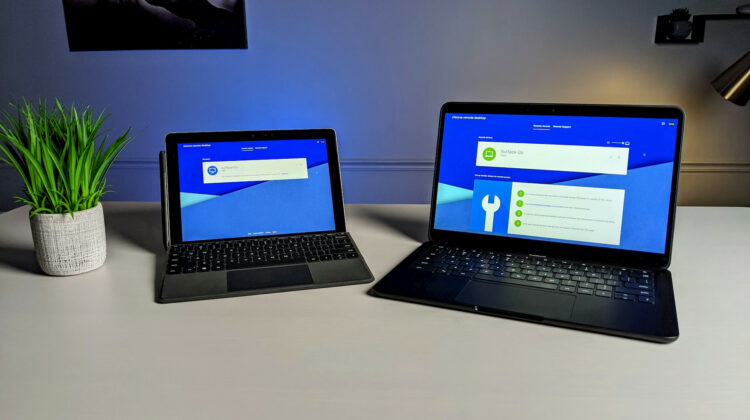
As we all learn to adjust in a world where working from home is the new normal, we thought it a good time to revisit how you can get a reliable, simple remote desktop setup up and running. This will work on any device you have across the board, so you don’t really have to worry much with compatibility. Getting the whole thing working is quite simple and the end result is the ability to quite seamlessly connect to the host computer with little lag and full control over that device.

If you don’t feel like watching the video above, here are the very basic steps to get Chrome Remote Desktop working on your device of choice.

Xremove ads
  • Go to the device you want to access remotely. This device needs to be running Windows, MacOS or Linux.
  • Go to remotedesktop.google.com/access while in the Chrome browser.
  • Install the remote desktop software offered, follow the simple instructions, and complete the setup.
  • No go to the device you’d like to use as the access point.
  • Visit remotedesktop.google.com/access and make sure you are logged into the same Google account you used to set up the host computer.
  • You will see your available device you set up in the steps above.
  • Click that device and you will be launched into your virtual session.

That’s about it, honestly. There are a few options in the side fly-out menu like copy/paste you can tinker with and get your setup just right. One thing I recommend is setting the host device resolution to match your remote device. If not, like you see in the video, you’ll have a bit of letter-boxing to make up for the difference.

Additionally, we’d recommend you set the host device to never go to sleep or hibernate. Lock screens are fine and you need to keep your device secure, but if it is asleep or hibernated, the remote session will not wake it from this state. With lock screens and Windows Hello, we’d also recommend you make sure a password or PIN is the default log in preference. Obviously, face identification won’t be possible in a remote session.

Featured Videos

Xremove ads

We sincerely hope this helps some of you get your work done in a more efficient manner while we work from home. You’ll have to get in to your office to get a quick setup done, but hopefully that is something you can get arranged and sorted as the whole process shouldn’t take more than a few minutes. Stay safe out there and be well.

Shop All The Latest Chromebook Deals

SUBSCRIBE TO UPSTREAM

Get Chrome Unboxed delivered straight to your inbox

Upstream is our flagship, curated newsletter with the top stories, most click-worthy deals, giveaways, and trending articles from Chrome Unboxed sent directly to your inbox a few times a week. Join 31,000+ subscribers.

Xremove ads
SUBSCRIBE HERE!

Filed Under: Chrome, Guides and How-To's

About Robby Payne

As the founder of Chrome Unboxed, Robby has been reviewing Chromebooks for over a decade. His passion for ChromeOS and the devices it runs on drives his relentless pursuit to find the best Chromebooks, best services, and best tips for those looking to adopt ChromeOS and those who've already made the switch.

Primary Sidebar

Xremove ads

Deals

The best Chromebook deals today

By Robby Payne
April 20, 2026

Deal Alert: the excellent Lenovo Chromebook Plus 2-in-1 returns to $429

By Robby Payne
April 20, 2026

Lenovo Legion Tab Gen 3 drops to $399, ahead of the much pricier Gen 5 release

By Joseph Humphrey
April 18, 2026

How to get 50% off YouTube Premium for a full year with Google One

By Robby Payne
April 16, 2026

The Pixel 10a just dropped to $449, but here’s why you should buy the Pixel 10 instead

By Joseph Humphrey
April 13, 2026

More Deals

Xremove ads

Reviews

Acer Chromebook Plus Spin 514 Review: Kompanio Ultra power in a convertible

By Robby Payne
December 24, 2025

My review after 6 weeks with the Lenovo Chromebook Plus 14 [VIDEO]

By Robby Payne
August 11, 2025

One week with the best small Android tablet you can buy, and I’m sold

By Robby Payne
May 9, 2025

Best Chromebooks of 2024 [VIDEO]

By Robby Payne
November 28, 2024

Samsung Galaxy Chromebook Plus Review: Samsung is back! [VIDEO]

By Robby Payne
October 28, 2024

More Reviews

Xremove ads

Guides

This Chromebook trackpad shortcut is definitely not new, but is blowing my mind

By Robby Payne
March 11, 2024

How to reduce broadcast delay on YouTube TV to stop live spoilers

By Robby Payne
December 8, 2023

Windows PC keyboard and Chromebook

How to use a Windows keyboard with a Chromebook

By Joseph Humphrey
December 8, 2023

How reset and revert your Chromebook to the previous version of Chrome OS

By Robby Payne
November 29, 2023

My Chromebook Plus features disappeared: here’s how I fixed it

By Robby Payne
November 24, 2023

More Guides

TWITTER · FACEBOOK · INSTAGRAM · YOUTUBE · EMAIL · ABOUT

Copyright © 2026 · Chrome Unboxed · Chrome is a registered trademark of Google Inc.
We are participants in various affiliate advertising programs designed to provide a means for us to earn fees by linking to affiliated sites.

PRIVACY POLICY