0:00
hey guys Gabriel with Grohmann box and
0:02
today we're talking Linux apps I've got
0:04
my Linux hat on it's the same as my
0:06
Chrome OS hat it's just turned around
0:07
backwards but we've been diving on into
0:09
Linux on Chrome OS a lot lately and when
0:11
we do stuff like that we get a lot of
0:13
questions so we started a new series
0:15
called the command line you can check it
0:17
the first post went out earlier this
0:19
week and all we're gonna do is explore
0:21
stuff that you can do on your Chromebook
0:23
with Linux in case you aren't aware
0:25
Linux is now supported on Chrome West
0:28
for a lot of devices you can install it
0:30
directly from the settings menu and it
0:32
lets you install Linux apps and use them
0:34
alongside Chrome OS it's a really
0:37
awesome feature and it's really helpful
0:39
for a lot of people who have been
0:40
looking to bridge the gap between
0:41
Windows Mac and Chrome OS so today we're
0:45
gonna go kind of off into the weeds
0:47
because we've been getting a lot of
0:48
comments about having a desktop now if
0:51
you've ever used a Chromebook with the
0:53
old crouton environment you can actually
0:55
install a desktop on Chrome OS because
0:58
your sideloading a different Linux
1:01
distribution alongside from West with
1:04
the gnu/linux that's built into Chrome
1:06
OS you don't get a desktop environment
1:08
you have to install your apps and then
1:10
your apps have their own interface but
1:12
somebody said that crouton was actually
1:14
better than crostini because of the
1:16
desktop while I don't necessarily agree
1:18
with that I had to find out if you could
1:20
do it so today we're gonna take a look
1:22
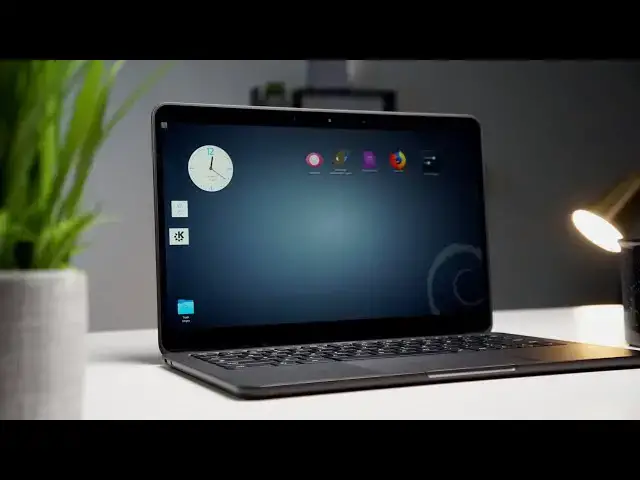
at how to install a full Linux desktop
1:25
with icons widgets clocks everything you
1:28
can think of on a Chromebook in stable
1:31
not in dev mode and see if it works
1:40
but before we do this video is brought
1:43
to you by Nord VPN it's the VPN of
1:45
choice for users around the world and it
1:47
works across platforms desktop mobile
1:49
and yes Chrome OS we recommend it and we
1:53
love it if you want to learn more head
1:55
over to Chrome on box.com forward slash
1:57
Nord VPN today as we mentioned Chrome OS
2:01
now supports Linux apps you can access
2:04
in the settings menu turn on Linux and
2:06
then you still have to kind of know your
2:08
way around the terminal to install
2:10
applications if you want to learn more
2:12
about that our command line article that
2:14
we launched last week gives you the
2:15
basic how-to of installing Linux on your
2:18
and where to start for installing
2:20
applications if you're interested in the
2:23
desktop and you just want to have a
2:24
desktop environment because honestly
2:26
that's something a lot of Chrome OS
2:28
users have wanted please understand this
2:30
is not a Chrome OS desktop Linux is
2:33
going to run as a window on top of
2:36
Chrome OS just like Chrome does just
2:38
like any other application does but if
2:40
you want it it's there and you can have
2:42
it and honestly it looks pretty cool
2:45
because you've never seen a Chromebook
2:48
with desktop icons and all these things
2:51
on it and that's exactly what we've done
2:54
it can be a little bit buggy because
2:56
you're running an environment on top of
2:58
an environment in a container and all
2:59
that stuff but we just wanted to try it
3:01
out to see if it worked and it did so
3:04
there are a few little housekeeping
3:06
things that have to do before you get
3:08
started again the command line article
3:09
has those things in it but to install
3:12
KDE desktop which is a desktop
3:15
environment you literally just have to
3:18
drop a couple commands into the terminal
3:20
and wait it takes about 45 minutes to
3:22
install but once it's installed you can
3:25
launch it and you will have a full
3:27
customizable desktop that you can use
3:29
however you want there's even an app
3:31
store where you can download apps as
3:33
opposed to using the command line and
3:34
for some users that might be really
3:36
appealing will include all the links in
3:38
the video description of how to do this
3:40
what commands to use and they'll be in
3:42
the article as well again it's not
3:45
difficult it just takes a little bit of
3:46
time but before we go in don't get
3:49
intimidated Linux runs in a container on
3:52
Chrome OS it's enabled through the
3:54
settings menu if you feel like
3:56
something's broken or if your
3:57
Chromebooks a little buggy or sluggish
3:59
after you do this all you have to do is
4:01
turtle and it's off and it will
4:03
literally delete everything that you
4:04
installed via Linux and you can start
4:07
alright so in case you haven't got a
4:10
setup already head to chromevox check
4:12
out the command line and see how to get
4:14
Linux installed and ready on your device
4:16
once you've done that there's one other
4:17
thing you're going to want to do before
4:19
you install KDE now KDE is not a Linux
4:22
distribution it is a interface it used
4:25
to stand for cool desktop environment
4:28
and essentially it's just a skin for
4:30
Linux so it works with a couple
4:33
different distributions so just think
4:34
about your mobile phone most mobile
4:36
manufacturers have their own look for
4:39
Android you've got Samsung oneplus as
4:41
oxygen OS it's just a skin to give you a
4:44
graphic user interface or GUI for your
4:47
operating system before you do this you
4:50
will want to change your Linux password
4:52
because if you don't there might be a
4:54
point in time where KTU will prompt you
4:56
for that password and I'ma be honest I
4:58
don't know what the default Linux
5:00
password is for Linux on Chrome OS I've
5:03
tried to figure it out but it's easy to
5:05
change so you're just going to open your
5:06
terminal up it'll be in your launcher
5:08
and then from there you're going to type
5:11
sudo space PA SS WD space root it's
5:17
going to prompt you to change your UNIX
5:19
password you're going to type it in and
5:21
hit enter you're going to type it in and
5:22
hit enter again you're not going to see
5:24
it so if you type it in incorrectly the
5:26
second time it'll just prompt you to
5:28
type it in again that reset your
5:30
password so now anytime from here on out
5:32
if KDE asks you for a password or if the
5:35
screen times out and it goes to the lock
5:36
screen just type in that password and
5:39
you should be good to go now that's done
5:42
you're going to install the KDE desktop
5:44
I've done this four or five different
5:47
ways because there are different
5:48
methods and different dependencies and
5:50
there's different things that you can
5:52
install along with it add-ons this is
5:54
the cleanest smoothest way I've done it
5:57
so far so this is the way we're gonna go
5:58
you're gonna go back to your terminal
6:00
and you're gonna type sudo apt-get
6:05
- KDE - desktop hit enter and then sit
6:10
back order pizza go get some coffee do
6:13
whatever this will take about 45 minutes
6:15
or so depending on your device I've done
6:17
it on my chrome box I've done it on the
6:19
pixel book go I five and it took a good
6:21
45 minutes to install once it is
6:24
installed I ran into an issue one time
6:28
where it wasn't recognizing the display
6:29
now that's not the display on my
6:31
computer that's the display that Lennox
6:33
uses to display everything it has
6:36
something to do with X servers and all
6:37
that anyway you are gonna drop another
6:40
command in there and it's just gonna add
6:42
a line of code to Linux and then it
6:44
should work from there on out it's in
6:45
the description as well and in the
6:47
article if you don't get that error
6:48
don't worry about it you're good to go
6:50
once the installation is complete you'll
6:52
go back to your prompt on the terminal
6:54
and you're going to type start KDE it's
6:58
that simple no spaces no anything and
7:00
what you do it's going to launch a clean
7:02
empty KDE desktop now remember this
7:06
functions just like a window on Chrome
7:09
OS you can three finger swipe and you're
7:11
gonna see your Linux desktop your
7:13
windows everything else that's running
7:15
your terminal don't close your terminal
7:17
because of KDE running and you close the
7:19
terminal it's going to shut KDE down but
7:22
once you've started KDE you'll see that
7:26
it is just pretty much a blank slate
7:28
just desktop there's a menu at the top
7:32
left but if you right-click on the
7:34
desktop you'll get all of the features
7:36
you would on a Linux machine or a
7:39
Windows machine for that matter you can
7:41
add widgets you can customize your
7:43
desktop with different applications you
7:45
can drag app icons and shortcuts on
7:47
there you can put a trash can I've got a
7:51
and it's fully functional and it works
7:54
really well there is a small package
7:56
store where you can download some
7:58
different applications but the cool part
8:00
about KDE on Chrome OS is if you install
8:03
any applications from the command line
8:05
just installing them via the terminal
8:08
they will show up in KDE when you launch
8:11
KDE one other cool thing since this
8:14
desktop environment is technically
8:15
running in a window you can add it to
8:18
one of your Chrome OS virtual desktops
8:20
so you just swipe up create a new desk
8:23
and then drop it into that new desk so
8:25
now your Linux environment is separated
8:28
by itself and if you enable the new
8:30
gestures flag you can swipe back and
8:33
forth between those desktops using a
8:34
four finger swipe left and right so you
8:36
can keep your Linux environment isolated
8:39
by itself so it'll have even more real
8:42
Linux desktop feel to it so yeah that's
8:44
pretty cool right so there you go we've
8:46
installed a full Linux desktop
8:48
environment on the Chromebook again I
8:50
wouldn't use this on the regular but I
8:52
know there are a lot of people that one
8:54
like having a full Linux desktop and two
8:57
people have clamored for widgets and
8:59
desktop icons on Chrome OS for how long
9:02
now ten years eight years how old are
9:03
from West has been around so if you
9:05
really want to do it you can we'll
9:08
continue to test different as it
9:09
interfaces xfce was my go-to when I used
9:12
crouton on my old Chromebooks I've tried
9:14
installing it it didn't work great it
9:18
was really buggy in it crashed a lot but
9:19
I'd say as crostini involves they'll be
9:22
more and more desktop environments that
9:24
we can use and we'll keep trying them
9:26
out so that's the whole purpose of this
9:28
series and we'd love to hear from you
9:30
guys I already got an email this morning
9:32
from someone in India who's trying to
9:34
install a Linux app and they're having
9:36
some issues it's throwing some airs for
9:38
them and we want to figure out along the
9:41
way with you guys what works and what
9:43
doesn't so if there's something you'd
9:44
like to try on a Chromebook but you're
9:46
kind of scared or you don't know your
9:47
way around the terminal or you just
9:49
rather see me do it than you drop me a
9:52
line shoot me an email drop a comment
9:54
hit us up on Twitter because we'd love
9:55
to hear from you and I'd love
9:56
to try it out this is exciting to me
9:58
it's really cool stuff and I love doing
10:01
it so that's it until next time guys I
10:04
hope you liked this one don't forget to
10:06
hit that subscribe button and a
10:08
notification bell so you'll get an alert
10:09
every time we put one of these new
10:11
videos out because there's going to be
10:12
more and more and don't forget to check
10:14
out the command line it's going to be a
10:15
weekly maybe twice a week article and/or
10:19
video just about Linux on Chrome OS so
10:22
there you go until next time we'll see