Support our independent tech coverage. Chrome Unboxed is written by real people, for real people—not search algorithms. Join Chrome Unboxed Plus for just $2 a month to get an ad-free experience, access to our private Discord, and more. Learn more about membership here.
START FREE TRIAL (MONTHLY)START FREE TRIAL (ANNUAL)
The Chromebook Files app has become quite powerful and feature-filled over the past few years. Not only has it gained the ability to display Linux files for those with Crostini enabled, and received new trash can and camera folders, it’s also become capable of saving files for offline use on an individual basis instead of forcing you to visit Drive on the web first.
With Google advertising Chromebooks to different types of consumers, and especially to creatives using their recent barrage of creativity-focused Perks and marketing materials, I imagine that many of you reading this will have more than just standard images and documents saved to your local or cloud storage. When opening these from the Chromebook Files app, the operating system is usually fairly intuitive in its ability to guess which app should handle which file type. However, that’s not always the case – especially in situations where you throw new file types at it. Some examples include uncommon audio file extensions, photoshop documents, and more. With that said, let’s take a quick look at how you can change the default application for each specific file type in order to improve your workflow!
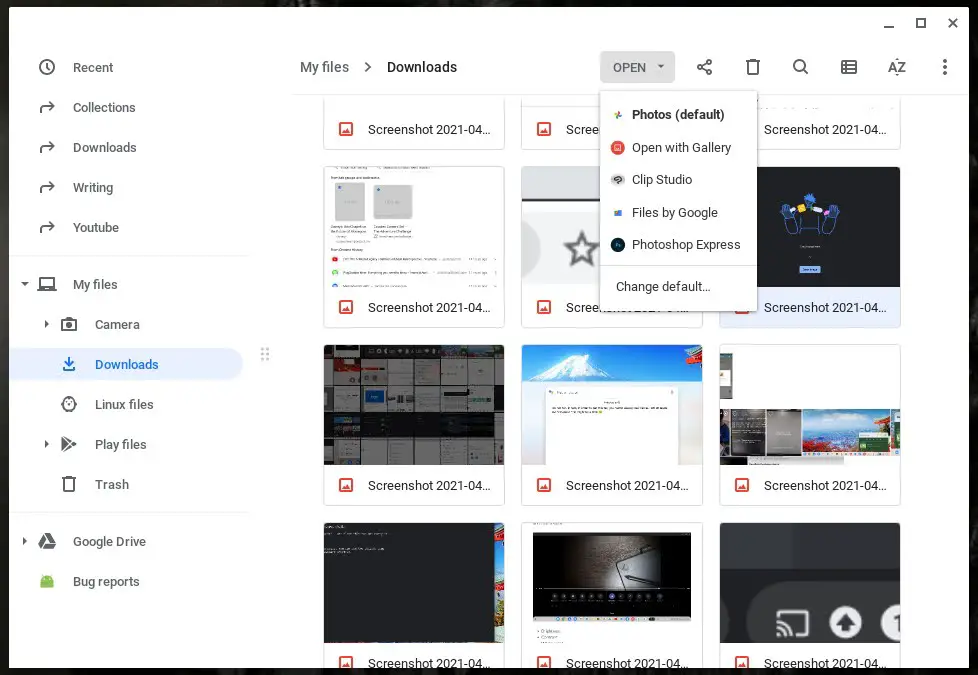
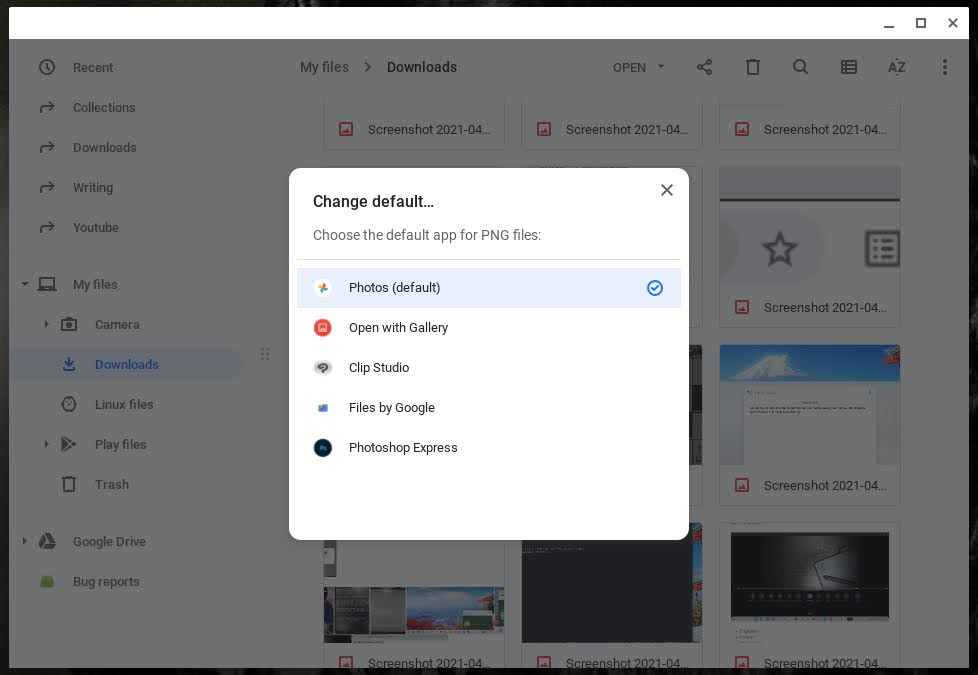
By launching the Files app and selecting an item, you may notice that at the top, there is an ‘Open’ button to the left of the sharing icon. By clicking it, you will automatically open the file. Instead, just hover over the dropdown arrow to the right of the word itself, and click. From here, you can select a different app to open the file in. If you’d like to change the default app going forward that should open the file type you’ve selected, you’ll need to click the ‘Change default’ button at the bottom of the dropdown list to select a compatible alternative application.
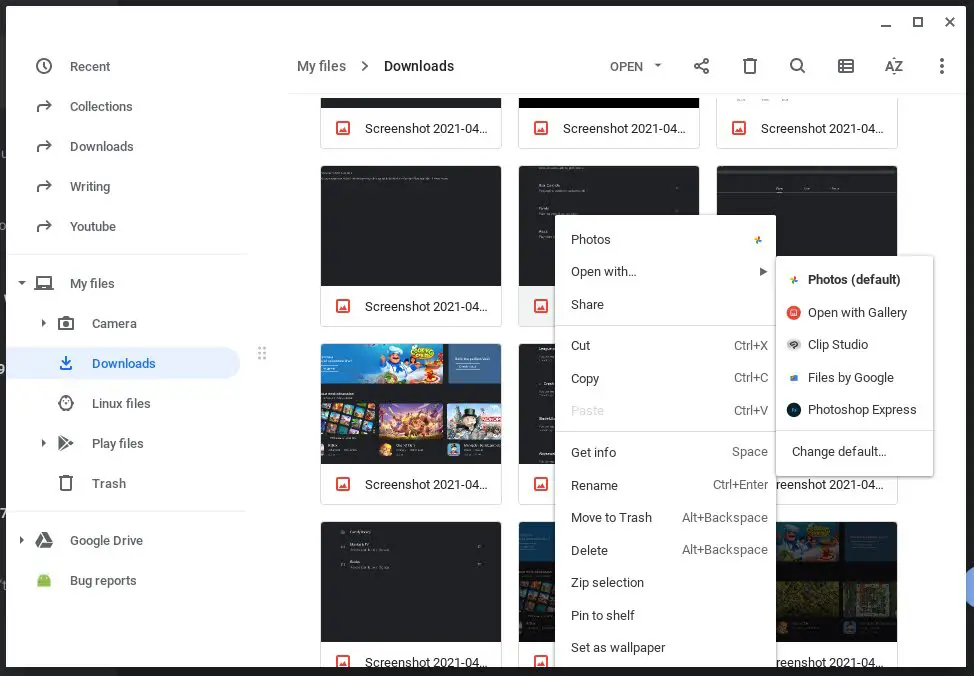
This will work for files in your local, external, or even cloud storage, but not on Google Docs, Sheets, Slides, and other types that were created to operate solely in the cloud. By selecting these types of files, the arrow to the right of the ‘Open’ button will disappear, indicating that you can’t change its default. If you really want to modify these files in a Play Store application, you can convert and download it as a traditional file type from Drive on the web, but it’s probably not worth it in many instances – Google’s suite of editing tools is better than most apps, in my humble opinion. Oh, and don’t forget that you can also right-click a file, choose ‘Open with’, and then ‘Change default’ as well!
I recommend searching the Google Play Store for new and exciting apps that can open the files you’re interested in modifying. There are literally thousands to choose from, and once you’ve set defaults for these, double-clicking on a file will automatically launch your favorite, making your Chromebook and workflow feel much more personal. My only hope is that in the future, Google will add a section to the Settings app that shows each file type and lets you change their defaults directly instead of having to modify it from an individual file.
SUBSCRIBE TO UPSTREAM
Get Chrome Unboxed delivered straight to your inbox
Upstream is our flagship, curated newsletter with the top stories, most click-worthy deals, giveaways, and trending articles from Chrome Unboxed sent directly to your inbox a few times a week. Join 31,000+ subscribers.