Support our independent tech coverage. Chrome Unboxed is written by real people, for real people—not search algorithms. Join Chrome Unboxed Plus for just $2 a month to get an ad-free experience, access to our private Discord, and more. Learn more about membership here.
START FREE TRIAL (MONTHLY)START FREE TRIAL (ANNUAL)
Over the years, I’ve used a lot of Chromebooks, and often, I’ve used both clamshell and tablet devices simultaneously for a variety of reasons. For example, clamshell Chromebooks are great for hammering out some writing, while tablet Chrome OS is great for reading Google Play Books, watching Youtube, and handwriting notes with Keep or Cursive. Over this time, I’ve noticed some inconsistencies in the experience or at least a few things that have made it difficult to maintain them separately in a way that lets me get the most out of each form factor. To fix this, I have a solution, but it’s purely wishful thinking. Let’s discuss.
Android apps or PWAs? You need both!
We all know that Google is rapidly shifting its focus toward Progressive Web Applications (PWAs), and is even replacing traditionally packaged Android apps on the Google Play Store with said PWAs. While they do provide a great experience in most instances, and certainly on laptop Chromebooks, there are just a few areas where good old-fashioned apps are better for tablet users. Google Keep is a great example – scrolling down your sidebar of labels is as easy as touching and swiping in the app, but on the web, you have to tap in that sidebar before being able to scroll – every time.
This is probably because Keep for the web isn’t exactly a PWA – it’s a regular web app. It’s not exactly optimized for this type of touch use, and it’s not alone. In fact, Google Chat has the same issue with the sidebar for calling up your Rooms and the Gmail for web experience is just terrible for touch users. There are actually many instances where you can’t just ditch Android apps and use the web instead. If you’re hoping to use a Lenovo Duet or any other tablet-style Chromebook day to day, you’ll probably know what I mean.
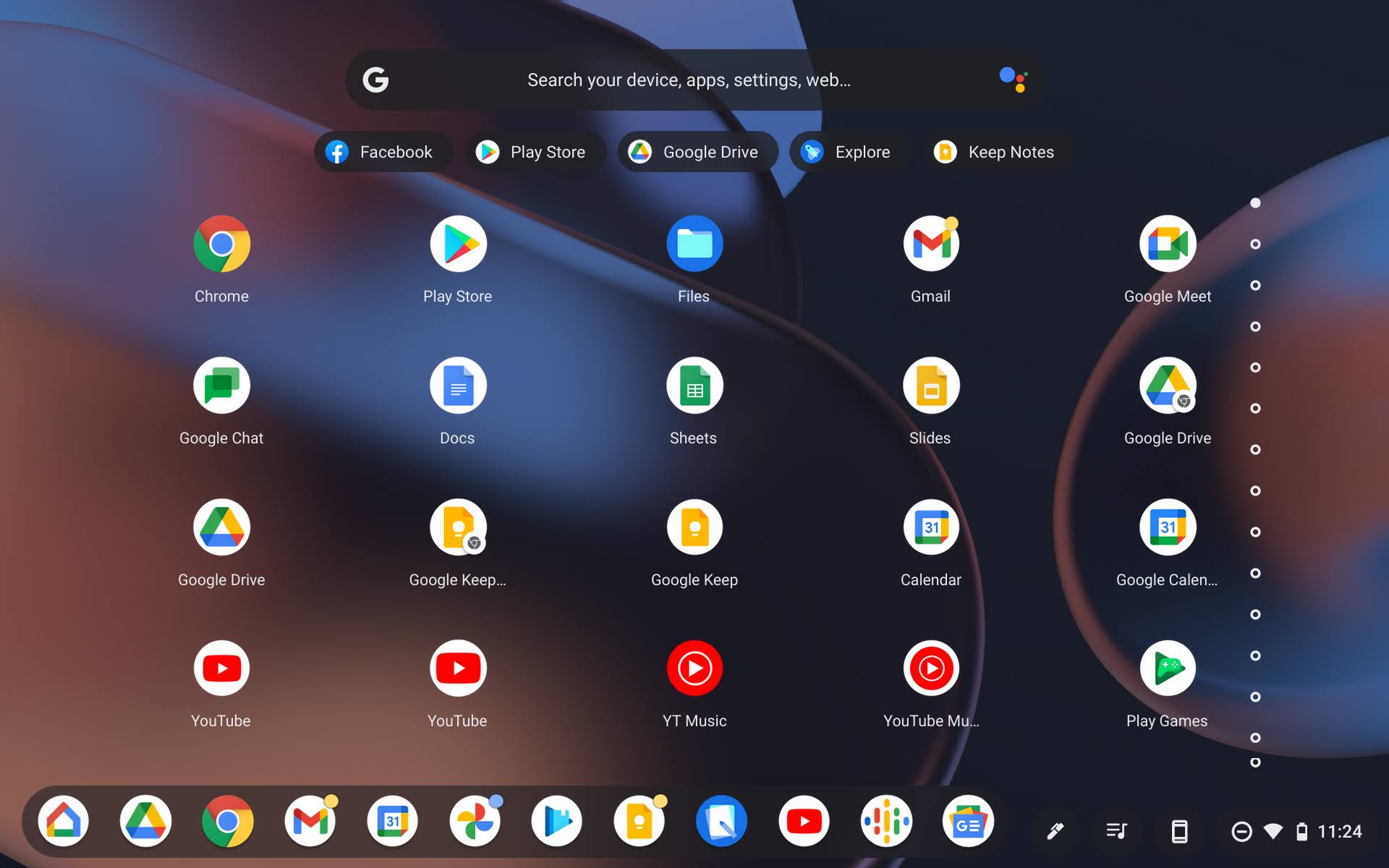
Because of this, you’ll find yourself keeping both the app and the web app installed side by side. Not only is this redundant, but it also clutters your launcher and looks terrible. You could toss all of the web apps into a folder so they’re out of the way when you’re browsing without a keyboard, but then your keyboard setup is disorganized since then your apps would be front and center and provide a less natural experience for mouse and keyboard. I’ve tried this and then have had to keep digging through folders for my web apps.
Sure, you could simply disable the Google Play Store and all of your apps on laptop Chromebooks, but I don’t think this is a good solution. Instead, I think Google should be looking into ways to support both types of users and their approaches to computing.
Shelf pinning needs differ
Piggybacking off of the previous point, when you’re using a tablet-style Chromebook and are focused on media consumption and writing apps, you’ll often want to have these items pinned to your shelf. When you’re using a laptop instead, you’ll probably want different apps pinned there for quick access, but with the same Google account. The issue with this, though it’s meant to be a good thing, is that you then have the same synchronized data across both devices. So, you’ll either have to continue to shift around what you have pinned to accommodate each use case, which is a whole lot of work, or just accept it and refrain from using your shelf in any meaningful way. Instead, you’ll need to opt for a minimal shelf setup and a bunch of organized folders.
This is not ideal, Google – not ideal at all. A good solution to this would be to allow for multiple pinning profiles or the ability to have different pinned items per Desk, similar to how Chrome OS Canary already shows only apps that are open on that active desk.
Same sync, less storage and power
One of the most frustrating things I’ve dealt with over the past few years is the inconsistencies with device storage across Chromebooks. This would normally be fine, after all, media consumption tablets like the Duet aren’t meant to store or process a lot of data like my Pixelbook Go, which I use for work. The issue rears its head when you go from a tablet-style Chromebook with tons of storage or any device where you’re utilizing the Play Store and Android apps often, to a casual, laid-back device like the aforementioned Duet.
Instead of Google asking you which apps you’d like to install on the lower-end hardware and then respecting your limited storage capacity and stopping installs when you’re near filling it up, it attempts to sync over every last app you had on the higher-end device with more storage space. Then, since your storage is jammed full and you can’t fit the rest, your tablet’s performance slows to a crawl and you get notifications for each app that couldn’t fit stating that you need to free up some space.
Similarly, Google doesn’t really take into account app performance when it syncs your Play Store experiences across devices. Instead of checking whether or not that hardware meets the basic or recommended requirements of that specific app or game, it installs it anyway. It would be much better if Google used some of its AI and machine learning to intelligently make recommendations that respect the device’s specifications.
Imagine setting up a new Chromebook and Play Services says something like “You still have 48 apps to install, but you only have enough space for 12. Would you like to stop syncing, or choose which apps you’ll need instead?” or “This app was designed for more powerful Chromebooks. Would you still like to install it?” These types of recommendations would show that the company understands that each device has different use-cases or at the very least that users may want to use them differently. Google account sync attempts to be a one size fits all solution where it shouldn’t be.
Different sync, different experience
Lastly, I want to bring up the issue I’ve mentioned plenty in the past where your Chromebook’s launcher experience differs from device to device depending on how rapidly you switch between them. Adding, removing, or moving an app or web app in a folder or anywhere in the launcher often does not mirror that over to another Chromebook. For those who frequently go between a laptop and a tablet-style Chrome OS device, you’ll notice that these changes are both not immediate, and not accurate. Google has a lot of work to do with its launcher, and it may soon respect the synchronization of apps and data more than it currently does. For now, we’re left with an inconsistent mess.
Do you share any of these frustrations, or do you simply use your Chromebook in one form factor? For those of you who simply flip your 4-in-1 clamshell device into tablet or tent mode and use it that way, you’re probably not going to feel the same as those who try to pick two separate pieces of hardware for each type of experience.
If Google created ‘Personas’ – or multiple sync profiles for a single user where they could have deeper personalization across the shelf, launcher, app install experience for storage, performance, and app type alike, and then save and load them for different hardware configurations, I think that the Chrome OS experience would feel less fragmented and chaotic. One solution would be to turn its Google One and Drive Chromebook backups, which already exist into ‘Personas’ which store all of these preferences and let you choose between them during the out-of-the-box experience.
I’ve found that using the Lenovo Duet is much easier on my hand and wrist for casual use and feels better than having a big, bulky, hot device flipped into tablet mode. For anyone who goes this route, I think you’ll agree that Google needs to make some decisions and many important changes to make sure Chrome OS works in a variety of configurations within the same Google account. What I’m asking may be impossible or even unlikely to happen, since it goes against the very nature of what synchronization is, but I have hope that the company will be able to find a solution for all of these issues and more with time.
SUBSCRIBE TO UPSTREAM
Get Chrome Unboxed delivered straight to your inbox
Upstream is our flagship, curated newsletter with the top stories, most click-worthy deals, giveaways, and trending articles from Chrome Unboxed sent directly to your inbox a few times a week. Join 31,000+ subscribers.