
• Skip to main content
  • Skip to primary sidebar
  • Deals
  • Features
  • Guides
  • Chromebooks
  • Videos
  • Podcast
  • More +
    • Reviews
    • Unboxing
    • Upcoming Devices
    • Chromebook Plus
    • Chrome
    • ChromeOS
    • Chrome OS Flex
  • Search
  • Sign Up
  • Log In
Chrome Unboxed – The Latest Chrome OS News

Chrome Unboxed - The Latest Chrome OS News

A Space for All Things Chrome, Google, and More!

  • Deals
  • Features
  • Guides
  • Chromebooks
  • Videos
  • Podcast
  • More +
    • Reviews
    • Unboxing
    • Upcoming Devices
    • Chromebook Plus
    • Chrome
    • ChromeOS
    • Chrome OS Flex
  • Search
  • Sign Up
  • Log In

Google Slides, Sheets, and Drawings add Smart Compose to make commenting faster

August 4, 2021 By Michael Perrigo View Comments

Support our independent tech coverage. Chrome Unboxed is written by real people, for real people—not search algorithms. Join Chrome Unboxed Plus for just $2 a month to get an ad-free experience, access to our private Discord, and more. Learn more about membership here.
START FREE TRIAL (MONTHLY)START FREE TRIAL (ANNUAL)

Smart Compose – Google’s AI and machine learning implementation of autocomplete in Android and Gmail made its way to Google Docs last year so users would be able to quickly and efficiently complete comments and cut back on wasted time. Not only that, but the feature also helps reduce grammatical and spelling mistakes. Through intelligent recommendations, they save the day as much as Grammarly ever did.

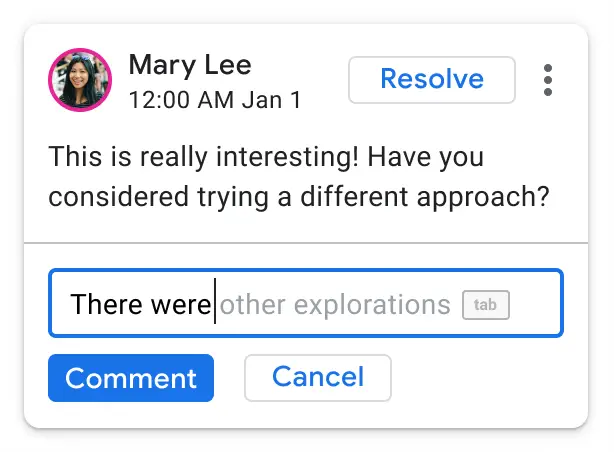
Now, that same technology is finally making its way to several other Workspace apps – namely Google Slides, Sheets, and Drawings – completing the bundle of popular services (Well, Drawings doesn’t seem too popular these days)! All you’ll have to do is highlight something in any one of these document types and create a comment via the Insert menu or by pressing Ctrl+Alt+M on your keyboard. Alternatively, Google has placed a nice comment and suggestion icon to the right of documents, which makes this more visual.
Xremove ads

As you type, you’ll begin to notice light grey text appear to the right of your cursor. These are Google’s suggestions for what it thinks you want to say. If it’s correct, tapping the ‘Tab’ key, as shown above, will autocomplete the sentence on your behalf. If you’re not already using this in Gmail, Android, and elsewhere, you really ought to be. It’s a serious time saver!

Smart Compose is already rolled out to all Workspace users that fall under any of the tiers found below and is turned on by default, but if for any reason you’re not seeing it, just visit the Tools menu and then click on Preferences. From there, you can click ‘Show Smart Compose suggestions’, and then confirm your changes with ‘Ok’. If you’re a Workspace admin, you can also visit your admin dashboard and go to Apps > Google Workspace > Drive and Docs > Features and Applications > Smart Compose in order to check your settings.

Featured Videos

Xremove ads

Workspace Essentials
Business Starter
Business Standard
Business Plus
Frontline
Enterprise Standard
Enterprise Plus
Education Fundamentals
Education Plus
Nonprofits
Cloud Identity Free
Cloud Identity Premium

Availability

SUBSCRIBE TO UPSTREAM

Get Chrome Unboxed delivered straight to your inbox

Upstream is our flagship, curated newsletter with the top stories, most click-worthy deals, giveaways, and trending articles from Chrome Unboxed sent directly to your inbox a few times a week. Join 31,000+ subscribers.

SUBSCRIBE HERE!

Filed Under: Education, Enterprise, New & Upcoming Features, News, Updates, Workspace Sessions

About Michael Perrigo

Known as "Google Mike" to his customers, Michael worked at Best Buy as a Chromebook Expert who dedicated his time to understanding the user experience from a regular Chromebook owner's perspective. Having spent nearly 20 years meeting you face-to-face, he strives to help you understand your technology through carefully crafted guides and coverage, relentlessly seeking out the spark in what's new and exciting about ChromeOS.

Primary Sidebar

Xremove ads

Deals

The touchscreen Lenovo Chromebook Slim 3 is a steal at under $200

By Robby Payne
March 16, 2026

Google TV Streamer and Remote held in front of a wall-mounted TV

The premium Google TV Streamer 4K is back down to $80

By Joseph Humphrey
March 16, 2026

The best Chromebook deals today

By Robby Payne
March 16, 2026

Pixel Buds Pro 2 running

I still love the Pixel Buds Pro 2 and they are $60 off right now

By Joseph Humphrey
March 13, 2026

The Lenovo Chromebook Slim 3 is the one to get, starting at just $139 right now

By Robby Payne
March 6, 2026

More Deals

Xremove ads

Reviews

Acer Chromebook Plus Spin 514 Review: Kompanio Ultra power in a convertible

By Robby Payne
December 24, 2025

My review after 6 weeks with the Lenovo Chromebook Plus 14 [VIDEO]

By Robby Payne
August 11, 2025

One week with the best small Android tablet you can buy, and I’m sold

By Robby Payne
May 9, 2025

Best Chromebooks of 2024 [VIDEO]

By Robby Payne
November 28, 2024

Samsung Galaxy Chromebook Plus Review: Samsung is back! [VIDEO]

By Robby Payne
October 28, 2024

More Reviews

Xremove ads

Guides

This Chromebook trackpad shortcut is definitely not new, but is blowing my mind

By Robby Payne
March 11, 2024

How to reduce broadcast delay on YouTube TV to stop live spoilers

By Robby Payne
December 8, 2023

Windows PC keyboard and Chromebook

How to use a Windows keyboard with a Chromebook

By Joseph Humphrey
December 8, 2023

How reset and revert your Chromebook to the previous version of Chrome OS

By Robby Payne
November 29, 2023

My Chromebook Plus features disappeared: here’s how I fixed it

By Robby Payne
November 24, 2023

More Guides

TWITTER · FACEBOOK · INSTAGRAM · YOUTUBE · EMAIL · ABOUT

Copyright © 2026 · Chrome Unboxed · Chrome is a registered trademark of Google Inc.
We are participants in various affiliate advertising programs designed to provide a means for us to earn fees by linking to affiliated sites.

PRIVACY POLICY