Support our independent tech coverage. Chrome Unboxed is written by real people, for real people—not search algorithms. Join Chrome Unboxed Plus for just $2 a month to get an ad-free experience, access to our private Discord, and more. Learn more about membership here.
START FREE TRIAL (MONTHLY)START FREE TRIAL (ANNUAL)
I’m a huge proponent of productivity tools and resources. Each time I write something up promoting Chrome extensions, apps, or just tips and tricks for Chromebook users to get the most out of their devices, the feedback I receive is that you’re all very much interested as well. Today, I wanted to draw your attention to something I’ve been using lately. While Chrome OS has recently gained the ability to mark up screenshots directly through its media app, it has its limitations, and there’s currently no feature directly from Google that allows you to do so across operating systems.
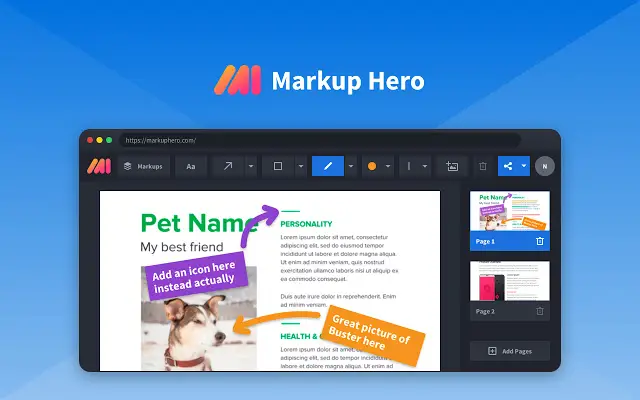
Luckily, Chrome extensions come in very handy in such situations. Markup Hero is a free screenshot and annotation tool made to increase your productivity and improve communication. With it, you can take screenshots, scrolling screenshots of entire Chrome tabs, application windows, or the entire device screen with just one click. Once you do, your screenshot will open immediately so that you can use a powerful toolset to make alterations to it before sharing it out with its own unique URL.
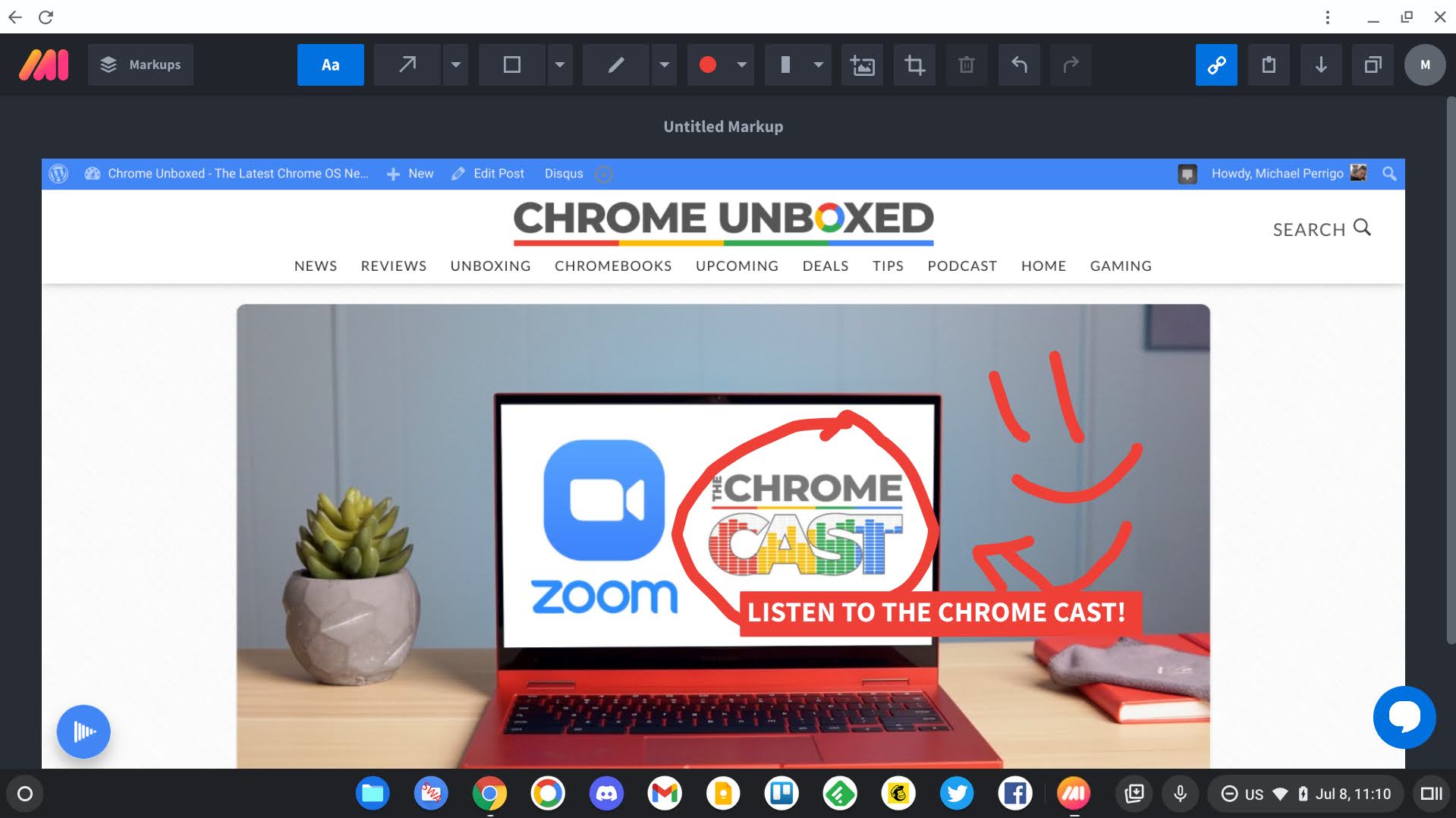
As you can see above, Markup Hero lets you add text, shapes, images, and more to your screenshots and move each element around as much as you want. You can also crop images quickly, which is useful. I was actually a bit surprised at the amount of freedom I had with what’s on offer. For example – and this is my favorite feature – when text is typed out, you can scale it horizontally to allow it to take up one or multiple lines, or scale it diagonally to dynamically change the font size with nothing but your mouse.
The pen tool is a great way to draw attention to something in your media, as I’ve done with The Chrome Cast, our very own podcast that you should totally be listening to! (shameless plug). By choosing the dropdown next to the pen, you can also select a highlighter and there are 11 colors to choose from for each – all fairly standard nowadays. Oh, and you can change the thickness of the drawing tools, of course. Where Markup Hero shines though, is its beautifully modern and functional interface, and its rapid-fire screenshotting capabilities.
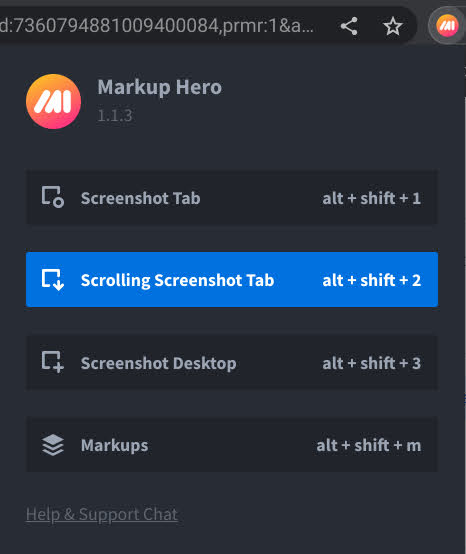
Not only can you access it directly from the extensions menu in the Chrome browser, but for those who want to make it feel more native, it can also be activated using keyboard shortcuts! Full-page screenshots, scrolling screenshots, full desktop shots, or direct access to your markups with just three key combinations. My only gripe is that you can’t change the keyboard shortcuts, but I understand that most of the keys are already being utilized by Chrome itself. Even better would be the ability to relegate a standard screenshot to a single keypress. According to its official roadmap, there’s plenty to get excited about though, so I’m going to keep an eye on this and submit my request!
Planned updates include a comment tool with mentions, advanced sharing, selected area screenshots (yes, please!), improvements to scrolling screenshots, shared collections, and much more. Markup Hero can be installed directly via the Chrome Web Store in addition to my usual recommendation of turning the site into an icon on your Chromebook so that it feels like an application. Once you snap some screenshots, you’ll find making the site a standalone web app can help you quickly access your existing media faster.
Quite honestly the most interesting and useful feature Markup Hero offers is the ability to annotate and draw directly on Google Docs, Sheets, Slides, PDFs, and images straight from Google Drive using its Marketplace integration. This means that Workspace users who are students or employees can supercharge their collaboration efforts without leaving their existing workflow. While the tool is completely free, Markup Hero can be upgraded to a ‘Superhero’ subscription for just $4 per month if you’re interested in gaining access to features like unlimited file uploads and annotations, larger file sizes (50MB as opposed to 8MB), offline mode (coming soon), and much more.
While I’m extremely impressed with this product, I do wish that the limitations on the free account were relaxed a bit. Five to ten image or screenshot uploads per month hardly feels like enough to fit the tool into your life and become attached to it before shelling out the cash for a monthly subscription. Instead, it feels like it’s just enough to tease you before you become frustrated. I initially tried Markup Hero without claiming my promo code so that I could feel out these limitations on your behalf, and for someone who takes loads of screenshots all day (maybe you don’t, and that’s okay!) I felt like I hit a brick wall within the first few minutes of using a free account. Still, it’s an incredibly well-built product, and the developers do deserve compensation for the premium features they’ve created.
The co-founder, Jeff Solomon, reached out recently to make me aware of Markup Hero and while this is not a sponsored post, Jeff did provide me with an extended trial run of the Superhero subscription as a thanks for my honest and unfiltered evaluation of the product. With that said, I want you all to have a little something as well. Geeky Gadgets is offering 60% off of a 2-year subscription to ‘Superhero’ for new users for the next 7 days. This is normally valued at $120, but you can pick it up for just $48. There’s also a 1-year subscription offer as well for just $27 instead of $60. Afterward, it will cost you just $4 per month or $48 per year if you pay upfront – not too shabby. Four bucks is almost nothing compared to the usual $10-$15 subscription cost of most things these days, and if you find that you’ll use it daily and often, it’s well worth the cost.
Have you ever used Markup Hero for school or work? Of all of the annotation extensions I’ve tried, it’s definitely the best one I’ve encountered, and I’m a bit upset that I hadn’t heard of it sooner! Let me know your thoughts in the comments and whether or not you’ll give this a go. With such a massive discount, it can’t hurt to see what it’s all about. Use the big blue button below to visit Geeky Gadgets. Remember, Markup Hero is completely free to use upon installing it, but with this deal, I feel like you’ll be able to assess it for yourself more fully before subscribing to a monthly cost after your 2 years expires. Enjoy!
Markup Hero offer on Geeky Gadgets
SUBSCRIBE TO UPSTREAM
Get Chrome Unboxed delivered straight to your inbox
Upstream is our flagship, curated newsletter with the top stories, most click-worthy deals, giveaways, and trending articles from Chrome Unboxed sent directly to your inbox a few times a week. Join 31,000+ subscribers.