Support our independent tech coverage. Chrome Unboxed is written by real people, for real people—not search algorithms. Join Chrome Unboxed Plus for just $2 a month to get an ad-free experience, access to our private Discord, and more. Learn more about membership here.
START FREE TRIAL (MONTHLY)START FREE TRIAL (ANNUAL)
Managing notifications on Chromebooks has improved substantially since they launched. Do not disturb has become a staple in my everyday use, and you can toggle notifications on or off per app or web app. I do wish that you could cloud synchronize your choice to have Do not disturb enabled, but that’s a battle I’ve already griped about. Though there are still some frustrations, I want to give credit where credit is due. There is one feature in particular that notifications have gotten right, and probably not intentionally. Instead, I believe that it’s simply a natural, positive consequence of Android being baked into Chrome OS.
Today, we’re going to be looking at how you can snooze notifications that are pushed to you from Google Play apps – or “Android apps” as they are still referred to as – on your Chromebook in order to be notified of them at a later time. To state this up front, yes, this does unfortunately only work with Google Play apps. Because Android has the ability to snooze notifications, the feature has been carried over to your Chromebook as a result. I hope to see notification snoozing come to progressive web apps (PWAs) in the near future, and I’m a bit disappointed that it hasn’t already been implemented. We’re already getting right-click options for PWAs that mimick that of Google Play apps, so it makes sense to me that notification snoozing can also be achieved.
Without any further ado, let’s get started! If you’ve got an Android app installed on your device and you’ve enabled push notifications for it, you may notice that these alerts appear in your shelf’s notification section. While this is useful, it can get quite cluttered if you don’t click on them or dismiss them shortly after they appear (Google needs to sync dismissing these across phones and Chromebooks, but that’s a discussion for another time). At first glance, they look identical to notifications given to you by web apps, don’t they? Well, by hovering over them, you’ll reveal a tiny clock icon on the right side of the card as seen below. You can also perform a half swipe to the right in order to make the clock appear.

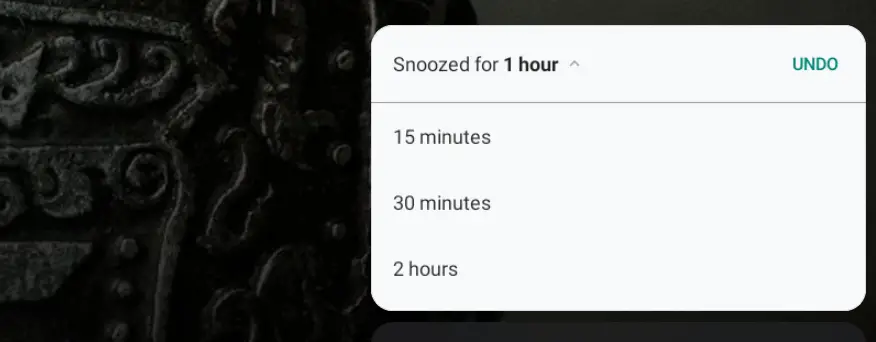
Tapping the clock reveals that the item has been snoozed for an hour by default. There is a drop-down arrow to the right of this, and you’ll need to tap or click it immediately as it disappears quickly. Intervals of 15 minutes, 30 minutes, an hour, and two hours are options to choose from – sweet! I’d love to see a full 24 hours become a choice, but for now, this is useful, I think. Though an obscure feature, it’s an effective tool that could certainly be utilized more often. Google could do better to advertise this too, but that goes for many of the other great, little nuanced tricks that are baked into the operating system.
Were you already aware of Android app notification snoozing on your Chromebook, or is the first time you’re hearing about it? It’s existed for quite some time, and I just wanted to draw attention to it as one of the quick and dirty tricks for increasing your productivity on your laptop. Will you try this out, or are you just going to continue dismissing notifications and tapping on them as per usual?
SUBSCRIBE TO UPSTREAM
Get Chrome Unboxed delivered straight to your inbox
Upstream is our flagship, curated newsletter with the top stories, most click-worthy deals, giveaways, and trending articles from Chrome Unboxed sent directly to your inbox a few times a week. Join 31,000+ subscribers.