


Support our independent tech coverage. Chrome Unboxed is written by real people, for real people—not search algorithms. Join Chrome Unboxed Plus for just $2 a month to get an ad-free experience, access to our private Discord, and more. Learn more about membership here.
START FREE TRIAL (MONTHLY)START FREE TRIAL (ANNUAL)
VLC Media Player is not only free, but it’s also open-source and fantastic for a variety of video formats that aren’t traditionally supported on Chrome OS. For anyone who wants to watch a video directly from their thumb drive, hard drive, or SD card without needing to rely on Netflix, Google TV, or any other cloud streaming service that provides offline downloads, VLC can give you the freedom of truly cutting the cord provided that you have your own content.
Some of us still have had our old DVDs and personal files stuffed away on discs in the closet or on media storage devices, and in the past, there just haven’t been a lot of options for us to consume them on Google’s operating system. That is until VLC Media Player came around in 2015 as a Chrome extension and added compatibility to Chrome OS.
Being that VLC has loads of codecs built-in that can’t be found on your device when you buy it from the store, your options should open up quite a bit. For example, some files exist in a well-known format called MP4, while others come in AVI. However, many others appear in MOV, Ogg, FLAC, TS, M2TS, Wv, and even AAC. VLC can play all of these with no issues whatsoever. Add to that the fact that it’s highly customizable, and you’ve got yourself the best media player around!
Just a heads up though – you can’t use this app or extension to play DVDs directly from a disc. I’ve tested this extensively, and while the file browser built into the extension used to allow you to play TS files directly from a DVD player connected to your Chromebook, the feature was stripped out years ago. To continue with this type of content, you’ll need to own a digital copy before we get started. With that being said, let’s go ahead and take a look at two ways that you can install and use VLC Media Player on your Chromebook!
Install via the Chrome Web Store
Both methods for installing and using VLC on your Chrome OS device are dead simple. First, let’s take a look at the Chrome Web Store route. Just follow the instructions below. Please note that
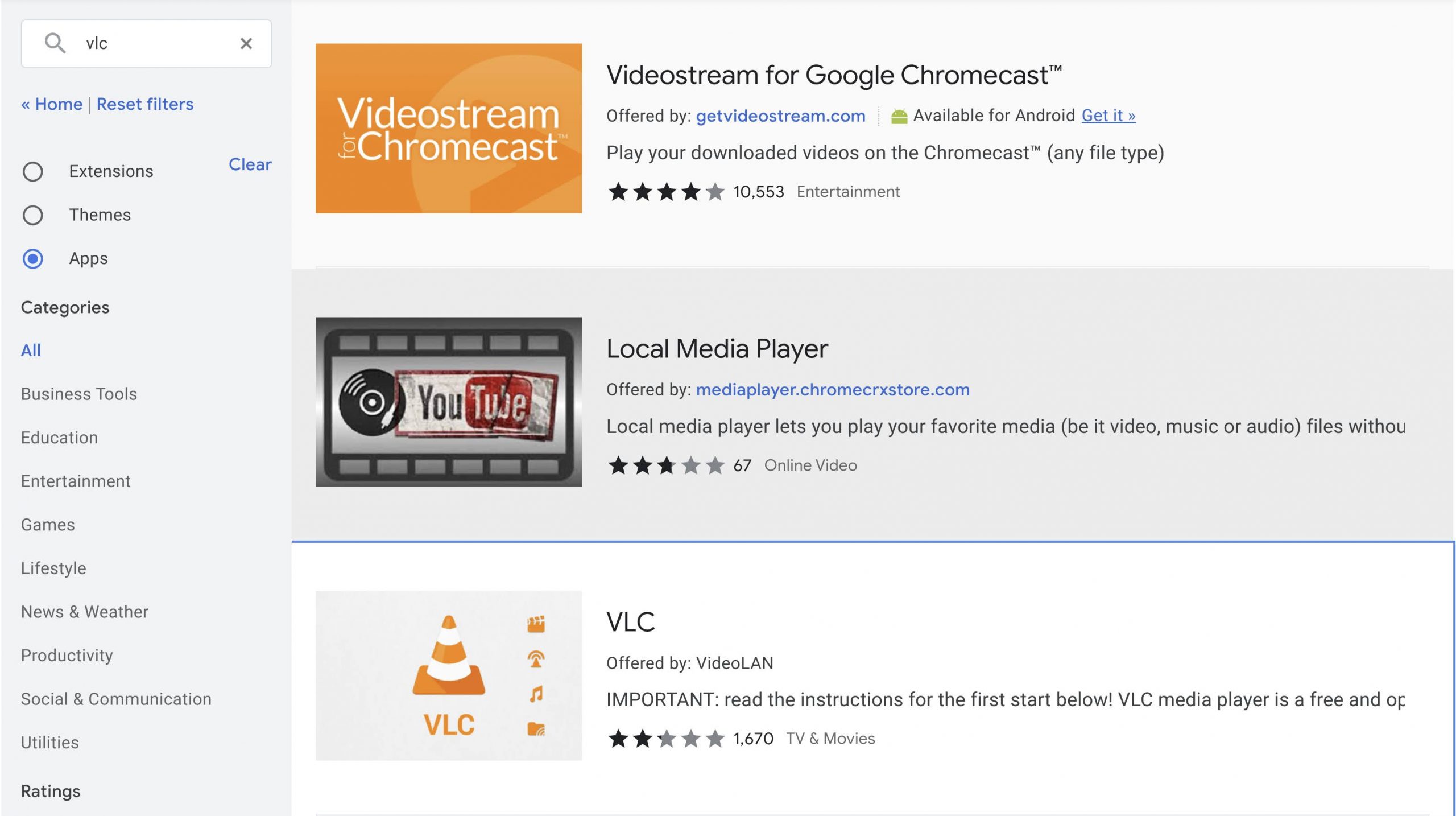
- Visit the Chrome Web Store
- Type “VLC Media Player” in the search box found on the top-right of the page
- Select the “Apps” filter on the left-hand sidebar
- Click “VLC” – it will be the third option and is offered by VideoLAN
- Click the blue “Add to Chrome” button and wait while it’s installed
- Click “Add app” on the dialogue box after reviewing the permissions it’s requesting
- You can find your new VLC app in your Chromebook’s app launcher via the ‘Everything button‘
Pro Tip: There’s also an extension that allows you to open videos from the web directly in VLC using the app extension we just installed. This “Open in VLC media player” extension offered by yokris.dev adds an option to the right-click contextual menu on your device. It can be a nice bonus if you’re looking to extend VLC’s functionality throughout your OS.
Install via the Google Play Store
While you can’t install the traditional Windows application for VLC Media Player on your Chromebook, and the Chrome Web Store extension above can be useful, you may find that you either can’t run it on certain devices for compatibility reasons or you simply want a more straightforward approach.
Luckily, nearly all Chromebooks now have the Google Play Store installed on them, and you can easily install VideoLAN’s app with a few clicks! To make this easy, simply click the app badge below from your Chromebook to be taken directly to the store in order to install it. Otherwise, you can follow the instructions found below as well.
- Tap the ‘Everything button‘ on your Chromebook’s keyboard. It’s the magnifying glass or “search” icon found where Caps Lock used to be
- Type in “Google Play Store” or locate it manually
- Click the Play Store icon to launch your app store
- Using the magnifying glass “search” icon at the top-right of the store, type in “VLC”
- Click the first result titled “VLC for Android” – it’s got an orange cone and is offered by Videolabs as seen above
- Click the green “Install” button
- The Install button will change into a green “Open” button. Click it to launch the app. Alternatively, you can find VLC in your Chromebook’s app launcher via the Everything button!
Once you’ve completed this process and have VLC Player open on your Chromebook, simply go through the steps using the orange buttons to grant it permission to see your device’s internal and external storage. If you’ve done everything listed above, any media files you have will now appear on the VLC app window, and clicking on them will cause them to begin playing!
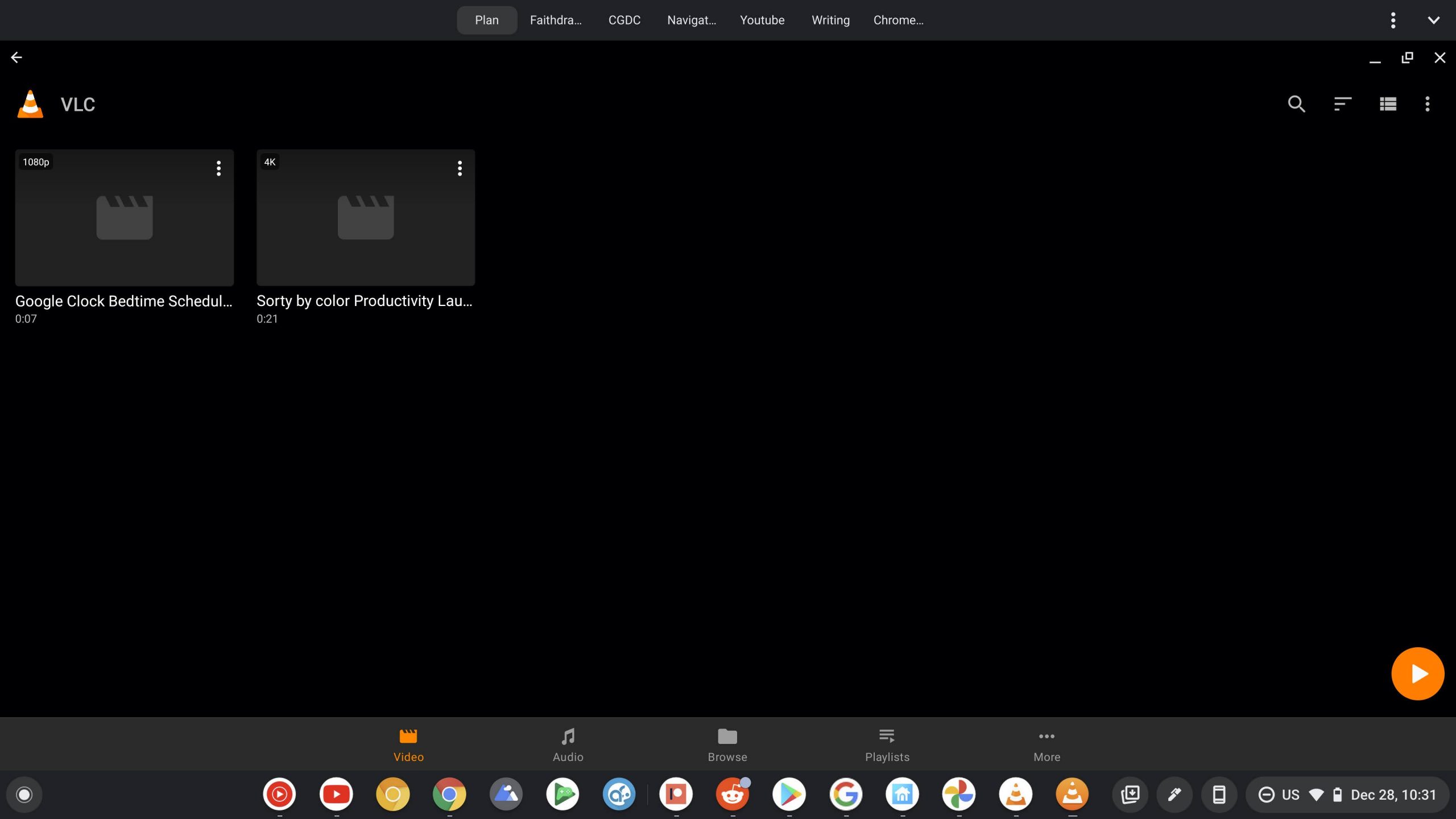
You may find that a brief on-screen tutorial for how to use VLC’s controls will appear before you can see your video, but this only occurs the first time you use the app. Just keep clicking the orange “Next” button to dismiss it. While your video is playing, you can tap or click the screen once to pull up your playback controls. Have fun!
SUBSCRIBE TO UPSTREAM
Get Chrome Unboxed delivered straight to your inbox
Upstream is our flagship, curated newsletter with the top stories, most click-worthy deals, giveaways, and trending articles from Chrome Unboxed sent directly to your inbox a few times a week. Join 31,000+ subscribers.

