
• Skip to main content
  • Skip to primary sidebar
  • Deals
  • Features
  • Guides
  • Chromebooks
  • Videos
  • Podcast
  • More +
    • Reviews
    • Unboxing
    • Upcoming Devices
    • Chromebook Plus
    • Chrome
    • ChromeOS
    • Chrome OS Flex
  • Search
  • Sign Up
  • Log In
Chrome Unboxed – The Latest Chrome OS News

Chrome Unboxed - The Latest Chrome OS News

A Space for All Things Chrome, Google, and More!

  • Deals
  • Features
  • Guides
  • Chromebooks
  • Videos
  • Podcast
  • More +
    • Reviews
    • Unboxing
    • Upcoming Devices
    • Chromebook Plus
    • Chrome
    • ChromeOS
    • Chrome OS Flex
  • Search
  • Sign Up
  • Log In

How to hide Tote previews on your Chromebook to reclaim shelf space

April 23, 2021 By Michael Perrigo View Comments

Support our independent tech coverage. Chrome Unboxed is written by real people, for real people—not search algorithms. Join Chrome Unboxed Plus for just $2 a month to get an ad-free experience, access to our private Discord, and more. Learn more about membership here.
START FREE TRIAL (MONTHLY)START FREE TRIAL (ANNUAL)

After tracking the new holding space feature for so long, it was finally released as ‘Tote’ on Chrome OS 89. The tool allows you to quickly access screenshots, downloads, and pinned files or folders directly from your shelf. Tote adds a preview bubble for up to three of your latest additions, and while the slick animation of a new item being added provides great visual feedback for those who download something or take a screenshot but have their notifications set to ‘Do not disturb’, it both quickly feels cluttered and is not fun to continue looking at previously utilized items if they are no longer relevant.

While useful, I realized that the Chromebook shelf space was becoming more congested with each added feature. Sure, you can open your Tote and then right-click items to remove them manually, but over time, that becomes annoying to do. In other words, Tote’s previews are less attractive and take more space than its generic icon. For those reasons, I’m going to show you how to hide its previews or disable the feature entirely. This is a quick and easy tip, but I wanted to make sure that it was something anyone could reference or share with those who are interested.

Xremove ads

While not really advertised at all, you can simply right click the Tote previews section in order to display a ‘Show previews’ option. This is marked with an eyeball icon (or is it an ‘eyecon’?). If you’re using a touchpad, just hover over the previews and two-finger touch and for you touchscreen users, just press and hold to bring up the menu option. Selecting it will make the previews disappear entirely from your shelf and be replaced by the Tote icon which looks like two squares stacked on one another with a down arrow. You can click it to bring up all of your held items which remain available there, so have no fear!
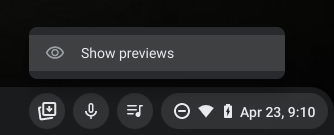
Following this simple step causes Tote to take up about half of the space it previously did. Yes, I know, it’s not much, but you can also disable dictation, unpin your global media controls and access them through your quick settings and more to reclaim additional shelf space! For some, the option to disable Tote altogether may still be available as a Chrome developer flag, so if you’re just not at all a fan of the feature, you can check there. If you’re out of luck, then disabling these previews should help reduce the eyesore to an otherwise amazing tool! Let me know in the comments if you use Tote or if you prefer to access everything directly through your Files app.

Featured Videos

Xremove ads

SUBSCRIBE TO UPSTREAM

Get Chrome Unboxed delivered straight to your inbox

Upstream is our flagship, curated newsletter with the top stories, most click-worthy deals, giveaways, and trending articles from Chrome Unboxed sent directly to your inbox a few times a week. Join 31,000+ subscribers.

SUBSCRIBE HERE!

Filed Under: Chrome OS Tablet, ChromeOS, Guides and How-To's, News

About Michael Perrigo

Known as "Google Mike" to his customers, Michael worked at Best Buy as a Chromebook Expert who dedicated his time to understanding the user experience from a regular Chromebook owner's perspective. Having spent nearly 20 years meeting you face-to-face, he strives to help you understand your technology through carefully crafted guides and coverage, relentlessly seeking out the spark in what's new and exciting about ChromeOS.

Primary Sidebar

Xremove ads

Deals

The Lenovo Chromebook Slim 3 is the one to get, starting at just $139 right now

By Robby Payne
March 6, 2026

The best Chromebook deals today

By Robby Payne
March 6, 2026

The fantastic $599 deal on the Samsung Galaxy Chromebook Plus has returned

By Robby Payne
February 25, 2026

There are some great Pixel 10a pre-order offers right now: Here are my 2 favorite deals

By Joseph Humphrey
February 25, 2026

Save up to 25% off the Gemini-powered Nest Cam Indoor

By Joseph Humphrey
February 19, 2026

More Deals

Xremove ads

Reviews

Acer Chromebook Plus Spin 514 Review: Kompanio Ultra power in a convertible

By Robby Payne
December 24, 2025

My review after 6 weeks with the Lenovo Chromebook Plus 14 [VIDEO]

By Robby Payne
August 11, 2025

One week with the best small Android tablet you can buy, and I’m sold

By Robby Payne
May 9, 2025

Best Chromebooks of 2024 [VIDEO]

By Robby Payne
November 28, 2024

Samsung Galaxy Chromebook Plus Review: Samsung is back! [VIDEO]

By Robby Payne
October 28, 2024

More Reviews

Xremove ads

Guides

This Chromebook trackpad shortcut is definitely not new, but is blowing my mind

By Robby Payne
March 11, 2024

How to reduce broadcast delay on YouTube TV to stop live spoilers

By Robby Payne
December 8, 2023

Windows PC keyboard and Chromebook

How to use a Windows keyboard with a Chromebook

By Joseph Humphrey
December 8, 2023

How reset and revert your Chromebook to the previous version of Chrome OS

By Robby Payne
November 29, 2023

My Chromebook Plus features disappeared: here’s how I fixed it

By Robby Payne
November 24, 2023

More Guides

TWITTER · FACEBOOK · INSTAGRAM · YOUTUBE · EMAIL · ABOUT

Copyright © 2026 · Chrome Unboxed · Chrome is a registered trademark of Google Inc.
We are participants in various affiliate advertising programs designed to provide a means for us to earn fees by linking to affiliated sites.

PRIVACY POLICY