


Support our independent tech coverage. Chrome Unboxed is written by real people, for real people—not search algorithms. Join Chrome Unboxed Plus for just $2 a month to get an ad-free experience, access to our private Discord, and more. Learn more about membership here.
START FREE TRIAL (MONTHLY)START FREE TRIAL (ANNUAL)
When a piece of software malfunctions on Windows, you press Ctrl+Alt+Delete or Ctrl+Shift+Esc to bring up the task manager, and on Mac, you press Cmd+Alt+Esc to launch the mini Activity Monitor. Force quitting and re-launching a program can be as effective as “turning it off and on again” as the old joke goes.
However, when an app malfunctions on Chrome OS, what do you do? Let’s say for example you install something from the Google Play Store, but it just won’t launch or it continually crashes on your device. Today, we’re going to show you a simple step-by-step troubleshooting method for handling these types of situations because while Chromebooks are built on simplicity, they do have a few hidden features for the advanced user and it can be useful to have this kind of information in your pocket.
Google’s operating system is called Chrome OS and it’s built on an open-source Linux kernel from a project called Chromium OS. If you frequent our site, this probably isn’t news to you. In 2016, Google wove Android apps into Chrome OS to provide additional functionality via the Google Play Store. If you’re at all familiar with troubleshooting apps on your Android phone, then what I’m about to show you will seem familiar. In order to solve problems with apps on your Chromebooks, you’ll basically do the exact same thing as what you’ve always done with your phone. In fact, if you dig a bit, you’ll find that Chrome OS has a secret, hidden Android interface!
Now, before we get started, I should state that if an app fails to launch or continually crashes each time you open it, the most likely cause is that its developer has not yet optimized it to run on your Chromebook. If this is the case, the best you can hope for is an update in the near future, or perhaps you can reach out to them and ask them to bake in support for more Chromebooks. It’s still common for developers to be a bit lackadaisical in creating app experiences that are built for laptops since for 12 years they’ve been building them exclusively for phones.
The fastest and easiest way to fix problem apps is by restarting your Chromebook or uninstalling and re-installing the app itself. Yep – that’s all, thanks for reading folks! I know that there are some who would even say this article need not even exist because of its simplicity, but I feel it could be a great resource for those who are like me and find that the six-second boot time is just too much time to wait (what, I’m a millennial!) Force stopping the app and restarting it is how we’ll approach the problem today in order to shave some time off of the process and besides, it’s always fun to learn new tricks, wouldn’t you agree?
Anyway, go ahead and right-click the app that’s giving you trouble and select ‘App info’. You can do so from the shelf as seen below or from the app launcher using the ‘Everything button’ – yeah, that’s a thing now. I’ll quickly mention here that you can also go to Settings > Apps > Manage your apps > [App name] in order to achieve the same result. Regardless of how you get there, the next steps are to force stop the problem app and clear its cache. If you continue to have issues, you can also clear the app’s storage, but keep in mind that you will be required to sign-in again.
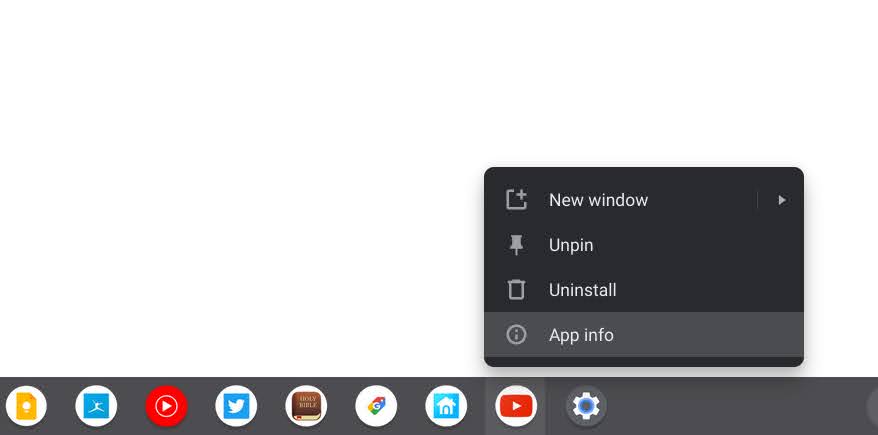
1. Settings
2. Apps
3. Manage your apps
4. [choose the app you want to fix]
5. more settings and permissions
6. Force Stop > OK
7. Storage
8. Clear Cache
9. Clear Storage > OK
10. Re-launch the app and enjoy!
Assuming the app is compatible with your Chromebook, this could very well solve the problem and you’ll quickly be on your way. It’s not a cure-all, but it works more often than it doesn’t. Since you still can’t easily sideload older versions of apps on Chrome OS, your only other option is to opt for the web app or PWA of that service. Most of the apps that most people use can mostly be found as websites…mostly. While writing this up, I had to intentionally go and install a Google Play app because I had none. I literally only use web apps (aside from when I’m drawing on another account) due to their great cross-device compatibility and increasingly impressive functionality.

I’m not saying that you shouldn’t use Google Play apps – I actually think that some experiences should remain as apps as opposed to web apps – but I am saying that you may want to consider shifting toward them in places where it makes sense to do so. Those instances just so happen to be more common now than they used to. I’ve actually already compiled the essential web app starter pack for you with a ton of great recommendations, but the possibilities of the open web are innumerable.
Either way, I hope this helps serve as a reference for those who are curious. Let us know in the comments if you have any additional pointers for other readers on how to deal with malfunctioning Google Play apps on Chromebooks!
SUBSCRIBE TO UPSTREAM
Get Chrome Unboxed delivered straight to your inbox
Upstream is our flagship, curated newsletter with the top stories, most click-worthy deals, giveaways, and trending articles from Chrome Unboxed sent directly to your inbox a few times a week. Join 31,000+ subscribers.

