


Support our independent tech coverage. Chrome Unboxed is written by real people, for real people—not search algorithms. Join Chrome Unboxed Plus for just $2 a month to get an ad-free experience, access to our private Discord, and more. Learn more about membership here.
START FREE TRIAL (MONTHLY)START FREE TRIAL (ANNUAL)
Believe it or not, Chromebooks aren’t just and only cloud computing devices. Google may have created them to be that at first, and they are certainly still largely center around that philosophy, but they have become so much more over the years thanks to downloadable offline Google Play apps and even Linux programs.
I’ve seen plenty of Chromebook users who just want to use their devices for browsing the web and have zero interest in storing files in Google Drive. Instead, they prefer to store them locally or on an external hard drive that’s plug and play. To each his or her own, I say, and I can certainly see the justification for doing so. I, myself, prefer to use an external hard drive for backing up my data, and then I continue to use cloud services for the convenience of immediate access to live and ever-changing data.
Today, I wanted to give you a quick tip – disconnecting Google Drive from your Chromebook and using it as a local storage device! Luckily, Google has made this quite easy to do and I applaud them for that. If you visit your Settings app by tapping your ‘Everything button‘ and typing in ‘Settings’ (or by clicking the time clock at the bottom right side of the screen and clicking the cogwheel icon), you can access all of your Chromebooks personalization options. Think of this as your ‘control center’, so to speak. Because it’s made by Google, you’d better believe that they slapped a big search bar at the top, so go ahead and type in ‘Drive’. You should immediately see a list of options pop up (or just hit enter to submit your search query). Among them is the option to ‘Disconnect Google Drive account’.
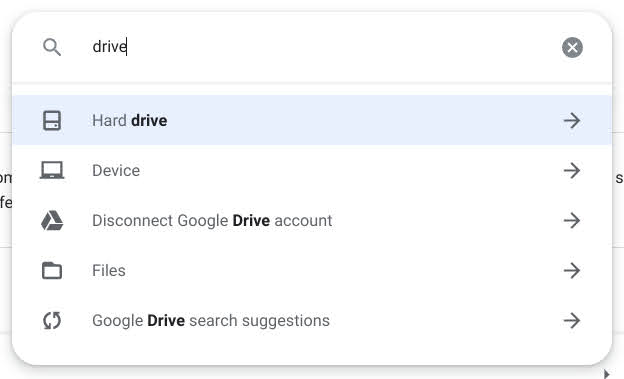
If you don’t yet have the fuzzy search feature in your Settings app as seen above, just navigate using the left-hand sidebar to:
Advanced > Files > Disconnect Google Drive account
Once you’re there, just click on the toggle so that it slides right or ‘on’ and becomes blue. When you open your ‘Files’ app in your Chromebook, you’ll find that the Google Drive storage has completely disappeared! Don’t worry, you didn’t delete any of your files, you’ve just caused them to be unreachable via the Files app. You can still access them via Drive on the web at any time. Should you decide that you’d like to re-enable them in the future, just click the toggle back off (grey) in Settings and your files will reappear like magic!
Should you want to keep something in your Chromebook’s internal storage, you can just save it to the Files app under Downloads, or you can right-click inside of the ‘My files’ section and choose ‘New folder’ from the contextual menu to create your own file hierarchy.
Again, I can understand why some users would prefer not to use Google Drive, but I would also encourage you to take a look at Google Takeout and set a scheduled backup so that you can have both the convenience of the cloud and the peace of mind of having a backup. I hope this helps!
SUBSCRIBE TO UPSTREAM
Get Chrome Unboxed delivered straight to your inbox
Upstream is our flagship, curated newsletter with the top stories, most click-worthy deals, giveaways, and trending articles from Chrome Unboxed sent directly to your inbox a few times a week. Join 31,000+ subscribers.

