
• Skip to main content
  • Skip to primary sidebar
  • Deals
  • Features
  • Guides
  • Chromebooks
  • Videos
  • Podcast
  • More +
    • Reviews
    • Unboxing
    • Upcoming Devices
    • Chromebook Plus
    • Chrome
    • ChromeOS
    • Chrome OS Flex
  • Search
  • Sign Up
  • Log In
Chrome Unboxed – The Latest Chrome OS News

Chrome Unboxed - The Latest Chrome OS News

A Space for All Things Chrome, Google, and More!

  • Deals
  • Features
  • Guides
  • Chromebooks
  • Videos
  • Podcast
  • More +
    • Reviews
    • Unboxing
    • Upcoming Devices
    • Chromebook Plus
    • Chrome
    • ChromeOS
    • Chrome OS Flex
  • Search
  • Sign Up
  • Log In

How to charge your Pixel Buds using your Pixel 5, Pixel 6, or Pixel 6 Pro

June 24, 2022 By Johanna Romero View Comments

Support our independent tech coverage. Chrome Unboxed is written by real people, for real people—not search algorithms. Join Chrome Unboxed Plus for just $2 a month to get an ad-free experience, access to our private Discord, and more. Learn more about membership here.
START FREE TRIAL (MONTHLY)START FREE TRIAL (ANNUAL)

Did you know that you can wirelessly charge Qi-compliant accessories, like your Pixel Buds, by sitting them on the back of your compatible Pixel phone? Google introduced Battery Share with the Pixel 5 and subsequently added it to the Pixel 6 and 6 Pro line as well. The feature is extremely handy for charging smaller devices, or even another phone, in a pinch. However, a few steps are needed to ensure that the feature works well and right out of the gate. Here’s how you do it:

Enable Battery Share Automatically

If you plug in your Pixel phone to charge it, Battery Share will turn on automatically for about 30 seconds. However, if no other device is placed on its back to charge, the feature will turn itself off automatically until you manually turn it on or repeat the process of plugging in to charge.

Xremove ads

Enable Battery Share Manually

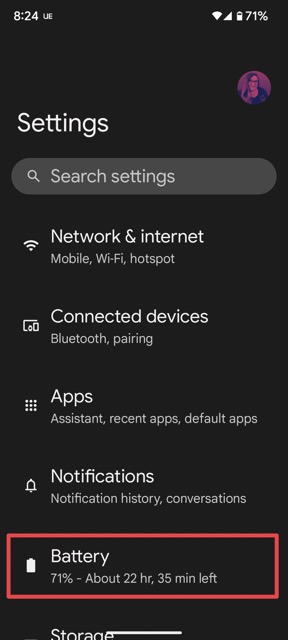
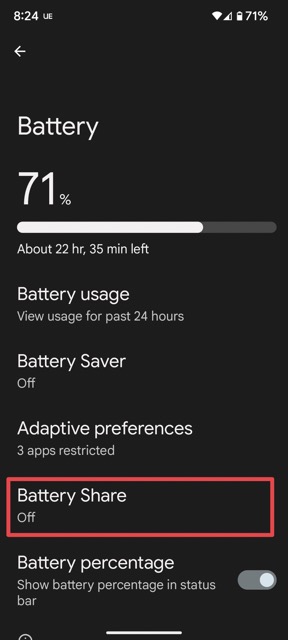
To turn Battery Share on manually, open your Pixel’s Settings app, tap on Battery > Battery Share and toggle on “Allow Battery Share.” Here you can also set how low your phone’s battery can get before it stops powering other devices, ranging between 10% and 50%. Once you’ve turned the setting on, you can proceed with placing the device you want to charge on the back of your Pixel, although note that you will need to put it in the right spot, which is roughly around the middle.
I just want the steps!
    ​
  1. Open your Pixel’s Settings
  2. Tap on Battery > Battery Share
  3. Toggle on “Allow Battery Share”
  4. Place the device you want to charge in the correct spot on the back of your Pixel

Keep in mind that you cannot Battery Share if your Pixel itself is charging wirelessly. Also, Battery Share will turn itself off if your phone senses that the device it is charging is already fully charged, when your phone gets too hot, when the device you are charging is not properly placed, when it hasn’t been charging another device for more than 30 seconds, or when Battery Saver is turned on. Otherwise, it is an amazing feature that I hope Google keeps on Pixel phones for years to come.

Featured Videos

Xremove ads

SUBSCRIBE TO UPSTREAM

Get Chrome Unboxed delivered straight to your inbox

Upstream is our flagship, curated newsletter with the top stories, most click-worthy deals, giveaways, and trending articles from Chrome Unboxed sent directly to your inbox a few times a week. Join 31,000+ subscribers.

SUBSCRIBE HERE!

Filed Under: Guides and How-To's, Pixel, Pixel Buds Tagged With: battery share, pixel 5, pixel 6, pixel 6 pro, pixel buds, pixel phone

Primary Sidebar

Googlebook

Google’s classic ‘Text’ app is now an Android app for Googlebook on the Play Store

By Robby Payne
September 24, 2026

Why we can now rule out hardware or software bugs for the missing Lenovo Duet m

By Robby Payne
September 24, 2026

Best Buy is giving away free Pixel Buds 2a with any Googlebook pre-order

By Robby Payne
September 23, 2026

Every new Googlebook includes nearly $600 in free software perks

By Robby Payne
September 23, 2026

Our first real look at Googlebook OS in the wild features CapCut, Figma, offline downloads, and games

By Robby Payne
September 23, 2026

More Googlebook

Xremove ads

Deals

The best Chromebook deals today

By Robby Payne
September 2, 2026

The best Chromebook ever made is $350 off at Best Buy right now

By Robby Payne
August 21, 2026

The excellent, powerful Acer Chromebook Plus Spin 514 is $150 off right now

By Robby Payne
August 12, 2026

Acer’s new Chromebook 315 is wildly affordable and points to the real future of Chromebooks

By Robby Payne
August 11, 2026

You can score the massively upgraded ASUS CX54 Chromebook Plus for just $599 right now

By Joseph Humphrey
July 28, 2026

More Deals

Xremove ads

Reviews

Acer Chromebook Plus Spin 514 Review: the best convertible you can buy [VIDEO]

By Robby Payne
July 1, 2026

Lenovo Chromebook Plus 2-in-1 Review: pretty great in a vacuum

By Robby Payne
April 23, 2026

My review after 6 weeks with the Lenovo Chromebook Plus 14 [VIDEO]

By Robby Payne
August 11, 2025

One week with the best small Android tablet you can buy, and I’m sold

By Robby Payne
May 9, 2025

Best Chromebooks of 2024 [VIDEO]

By Robby Payne
November 28, 2024

More Reviews

Xremove ads

TWITTER · FACEBOOK · INSTAGRAM · YOUTUBE · EMAIL · ABOUT

Copyright © 2026 · Chrome Unboxed · Chrome is a registered trademark of Google Inc.
We are participants in various affiliate advertising programs designed to provide a means for us to earn fees by linking to affiliated sites.

PRIVACY POLICY