
• Skip to main content
  • Skip to primary sidebar
  • Deals
  • Features
  • Guides
  • Chromebooks
  • Videos
  • Podcast
  • More +
    • Reviews
    • Unboxing
    • Upcoming Devices
    • Chromebook Plus
    • Chrome
    • ChromeOS
    • Chrome OS Flex
  • Search
  • Sign Up
  • Log In
Chrome Unboxed – The Latest Chrome OS News

Chrome Unboxed - The Latest Chrome OS News

A Space for All Things Chrome, Google, and More!

  • Deals
  • Features
  • Guides
  • Chromebooks
  • Videos
  • Podcast
  • More +
    • Reviews
    • Unboxing
    • Upcoming Devices
    • Chromebook Plus
    • Chrome
    • ChromeOS
    • Chrome OS Flex
  • Search
  • Sign Up
  • Log In

How to change the navigation voice in Google Maps

December 11, 2022 By Johanna Romero View Comments

Google Maps Voice Directions

Support our independent tech coverage. Chrome Unboxed is written by real people, for real people—not search algorithms. Join Chrome Unboxed Plus for just $2 a month to get an ad-free experience, access to our private Discord, and more. Learn more about membership here.
START FREE TRIAL (MONTHLY)START FREE TRIAL (ANNUAL)

Google Maps has many features to help you reach your destination with as few surprises as possible. However, although one of the most feature-packed apps in the Google apps ecosystem, Google Maps is not known for having many options when it comes to switching up the look and feel of the experience. But what if you want to change the navigation voice that guides you with turn-by-turn directions when using Maps? Below are the options available.

Change Google Maps Language/Voice

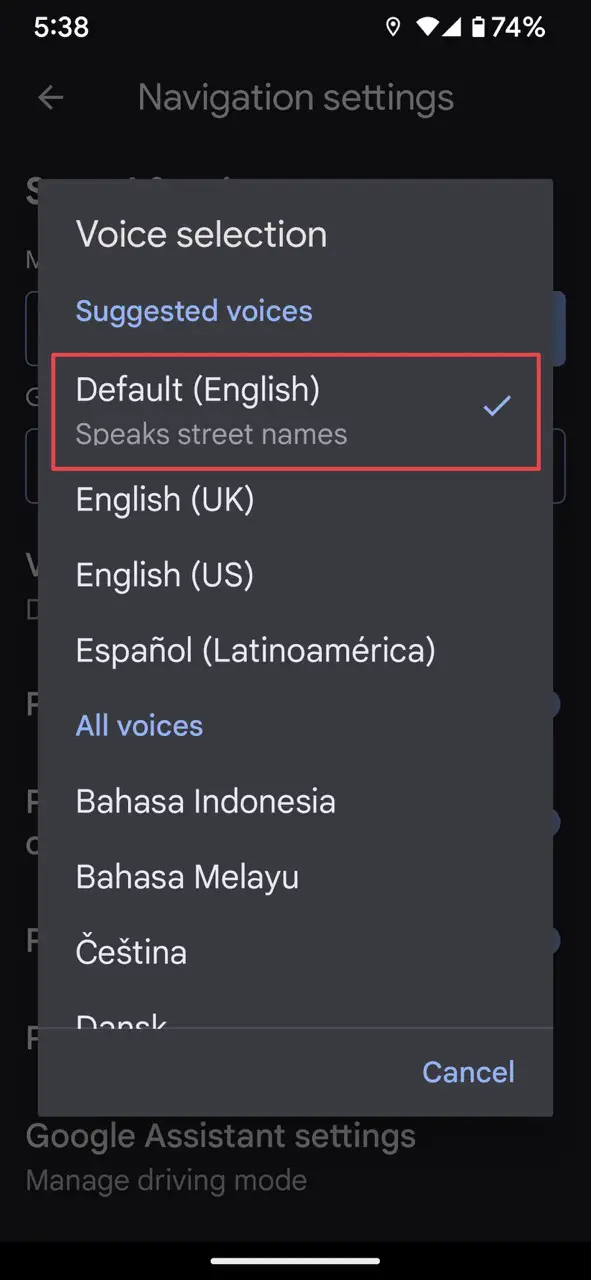
That’s right. Although Google Maps technically has a setting for changing the navigation voice, it is actually an option to change the navigation voice’s language. Basically, you can choose to have a voice with a British accent by changing the language to English (UK), but other than that all the other options will completely change the language in which you will get your directions, the default being the English you may have been using so far which calls out street names.

Xremove ads

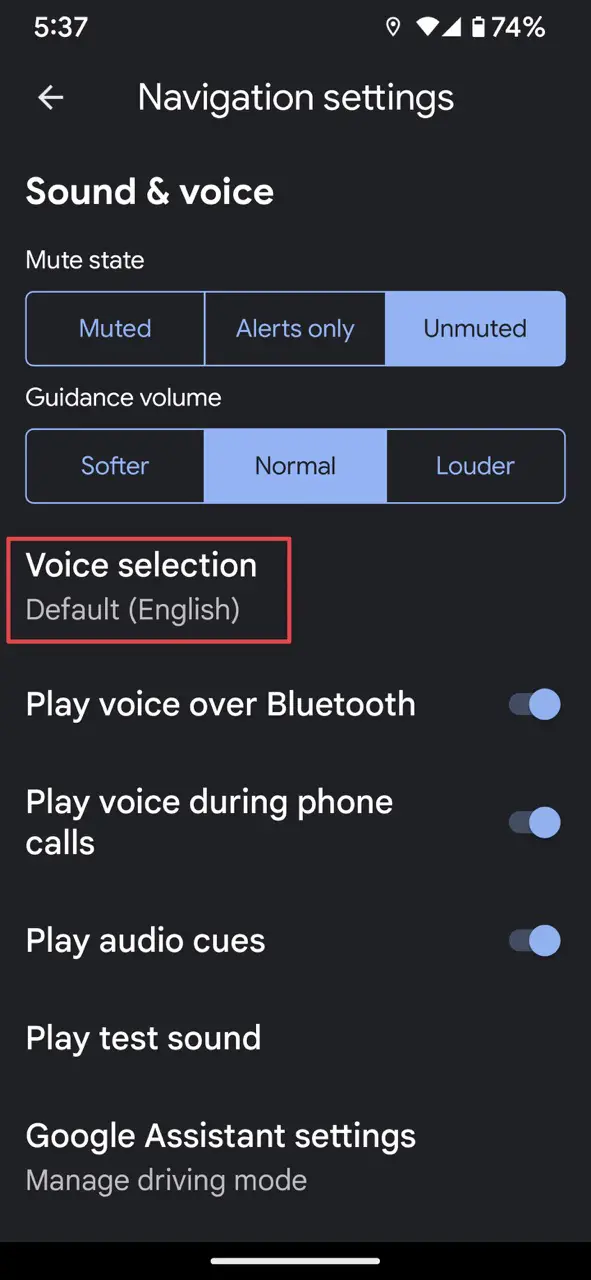
If you’d like to give this a try, open up your Google Maps application, then tap on your avatar on the upper right, then select Settings. From the Settings screen, tap on Navigation Settings, then Voice Selection. This will present you with a list of languages you can choose from.

I just want the steps!

  1. Open Google Maps app
  2. Tap on your avatar in the upper right
  3. Tap on Settings
  4. Tap on Navigation Settings
  5. Tap on Voice Selection
  6. Select a language

Use Waze instead

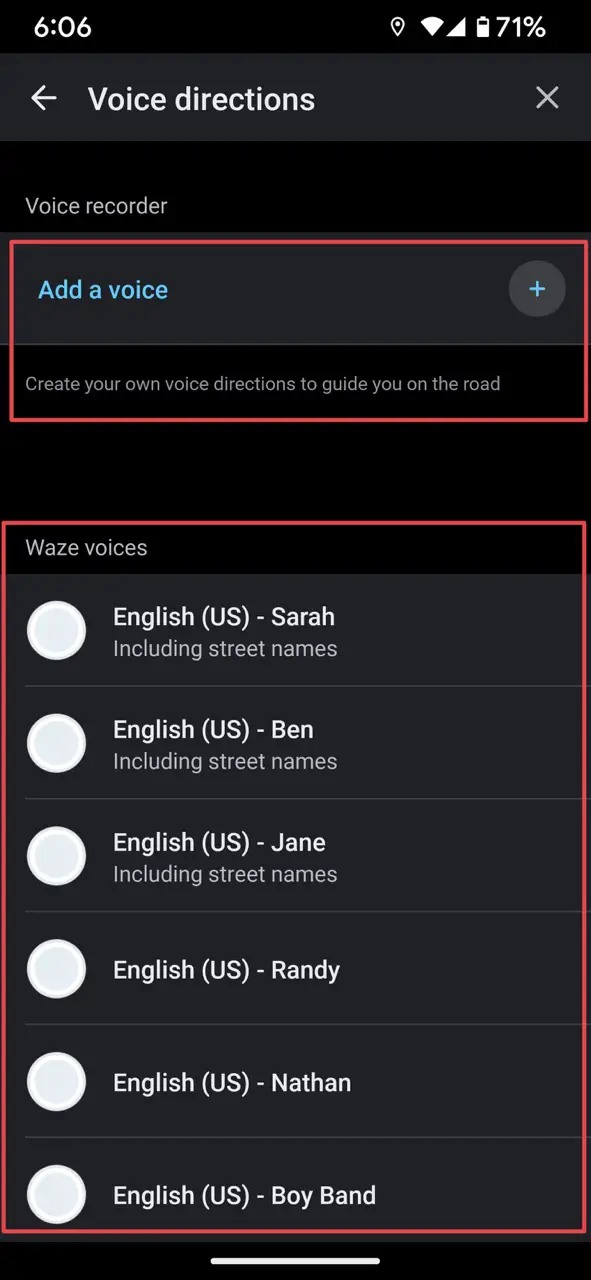
If what you are looking for is an actual selection of different voices for your turn-by-turn directions, then an alternative would be to use Google’s Waze instead of Maps for navigation. Waze provides a greater number of voice options as well as occasional promotional voices like those of Santa or Mrs. Claus, Christina Aguilera, and the Terminator among others. Waze is a good alternative to consider if you are searching for more distinctive options for your driving experience with the added bonus that you can even record your own voice to guide you through your trip.

Featured Videos

Xremove ads

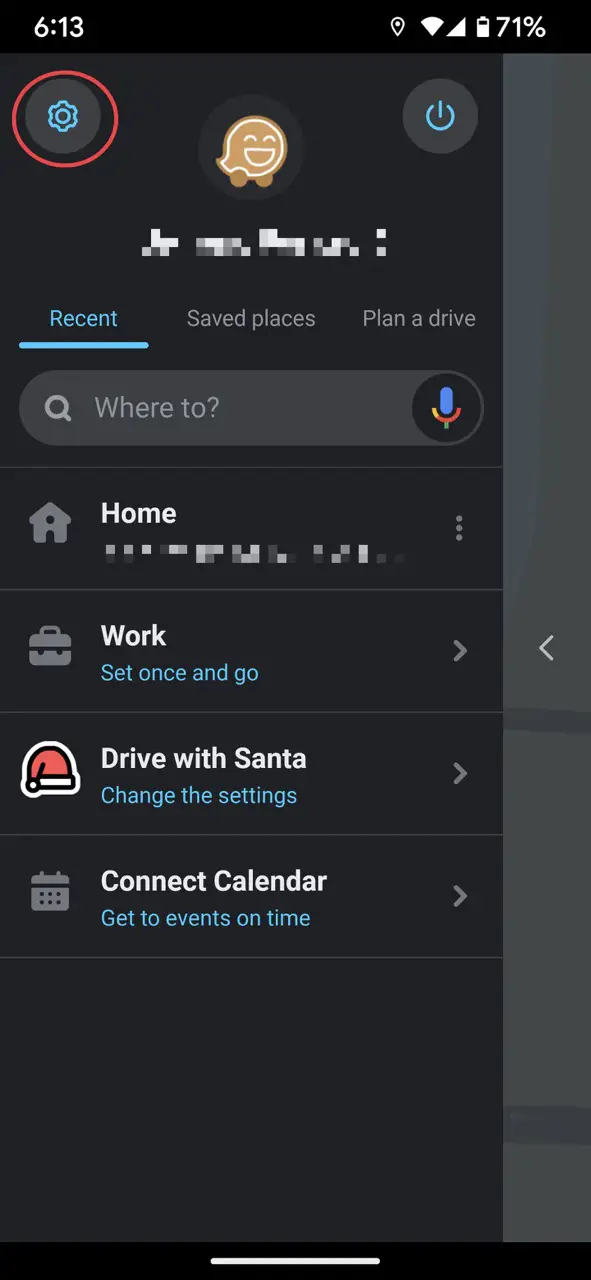
To change your voice directions settings in Waze, go to Settings, then tap on Voice & sound. You will then be shown different options for Waze voices as well as an option to record your own voice.
I just want the steps!

  1. Open Waze
  2. Access Settings from the top left
  3. Select Voice & sound
  4. Select a voice from the list or record your own voice

SUBSCRIBE TO UPSTREAM

Get Chrome Unboxed delivered straight to your inbox

Upstream is our flagship, curated newsletter with the top stories, most click-worthy deals, giveaways, and trending articles from Chrome Unboxed sent directly to your inbox a few times a week. Join 31,000+ subscribers.

SUBSCRIBE HERE!

Filed Under: Guides and How-To's Tagged With: directions, google maps, language, voice, waze

Primary Sidebar

Googlebook

Googlebook perk officially confirms Adobe Premiere is on the way

By Joseph Humphrey
September 22, 2026

I’m confused why the Lenovo Googlebook Duet m wasn’t at Google’s big launch event

By Robby Payne
September 22, 2026

MediaTek unveils Dimensity CX C10 Max: 3nm, 55 TOPS NPU, and built for future Googlebooks

By Robby Payne
September 21, 2026

Googlebook is here, and we went hands-on with the new software in NYC [VIDEO]

By Robby Payne
September 21, 2026

We went hands-on with all 5 new Googlebook laptops: here is our first look [Video]

By Robby Payne
September 21, 2026

More Googlebook

Xremove ads

Deals

The best Chromebook deals today

By Robby Payne
September 2, 2026

The best Chromebook ever made is $350 off at Best Buy right now

By Robby Payne
August 21, 2026

The excellent, powerful Acer Chromebook Plus Spin 514 is $150 off right now

By Robby Payne
August 12, 2026

Acer’s new Chromebook 315 is wildly affordable and points to the real future of Chromebooks

By Robby Payne
August 11, 2026

You can score the massively upgraded ASUS CX54 Chromebook Plus for just $599 right now

By Joseph Humphrey
July 28, 2026

More Deals

Xremove ads

Reviews

Acer Chromebook Plus Spin 514 Review: the best convertible you can buy [VIDEO]

By Robby Payne
July 1, 2026

Lenovo Chromebook Plus 2-in-1 Review: pretty great in a vacuum

By Robby Payne
April 23, 2026

My review after 6 weeks with the Lenovo Chromebook Plus 14 [VIDEO]

By Robby Payne
August 11, 2025

One week with the best small Android tablet you can buy, and I’m sold

By Robby Payne
May 9, 2025

Best Chromebooks of 2024 [VIDEO]

By Robby Payne
November 28, 2024

More Reviews

Xremove ads

TWITTER · FACEBOOK · INSTAGRAM · YOUTUBE · EMAIL · ABOUT

Copyright © 2026 · Chrome Unboxed · Chrome is a registered trademark of Google Inc.
We are participants in various affiliate advertising programs designed to provide a means for us to earn fees by linking to affiliated sites.

PRIVACY POLICY