Support our independent tech coverage. Chrome Unboxed is written by real people, for real people—not search algorithms. Join Chrome Unboxed Plus for just $2 a month to get an ad-free experience, access to our private Discord, and more. Learn more about membership here.
START FREE TRIAL (MONTHLY)START FREE TRIAL (ANNUAL)
Google’s Family Sharing has massive benefits – one subscription for Youtube and Youtube Music without advertisements, separate user libraries for Youtube TV (with ads…), and more under one shared cost. Up to five people in total can use Play Pass and Stadia for gaming, share a Google One storage bank, and you can even send each other reminders by force using Google Assistant like “Hey Google, remind Aiden to clean his room!”.
Today, though, I want to focus on an aspect of Family Sharing that’s not as straightforward depending on how you use it – the Family Library. With it, you can share eligible digital purchases in the form of games, apps, movies, TV shows, and books with your Family Group at no extra cost. One family payment method is shared between you all for purchases too, and kids even have to ask permission before ‘swiping’ to get new items, which is fantastic.
Unfortunately for me, I did things very wrong over the past handful of years. Launched in 2016, the Family Library came hot off the heels of my son being born, and Family Link was released just a year later. Understandably, I didn’t exactly rush to create him a Google account to store all of his Paddington and Dr. Seuss audiobooks to put him to sleep every night – I just bought them with my own account.
Now that he’s got his own Google account and his own little Lenovo Chromebook Duet with Family Link set up, I thought to separate out all of his children’s books, movies, and more for a number of reasons. I want to give him the sense of responsibility of casting his own content without him having to see anything I buy that may not be age-appropriate – fiction novels, PG-13 movies, etc., I wanted to stop getting recommendations for children’s content in my apps, and I wanted to stop having to manually delete items from his devices after I purchased them for myself since Family Sharing automatically adds new content to all family member’s accounts automatically. There is a setting in the Family section of the Play Store that allows you to have to manually add and remove content, but I’ll speak about that later.
Another problem is that I bought things on the wrong account over the course of my many years managing Google Accounts. As I get older, I’ve found that it’s more important to me to keep things separate for each account based on the focus or topic so that I can be more productive. No longer is it enough to keep Notes, Drive files, and more segregated – now, I want to do the same for music, books, movies, and so on. I also have a crazy level of undiagnosed OCD and an obsession with organizing data (What? It’s fun!) Anyways, here’s a breakdown of how I separate my game development studio Google Account and my personal account.
Personal account

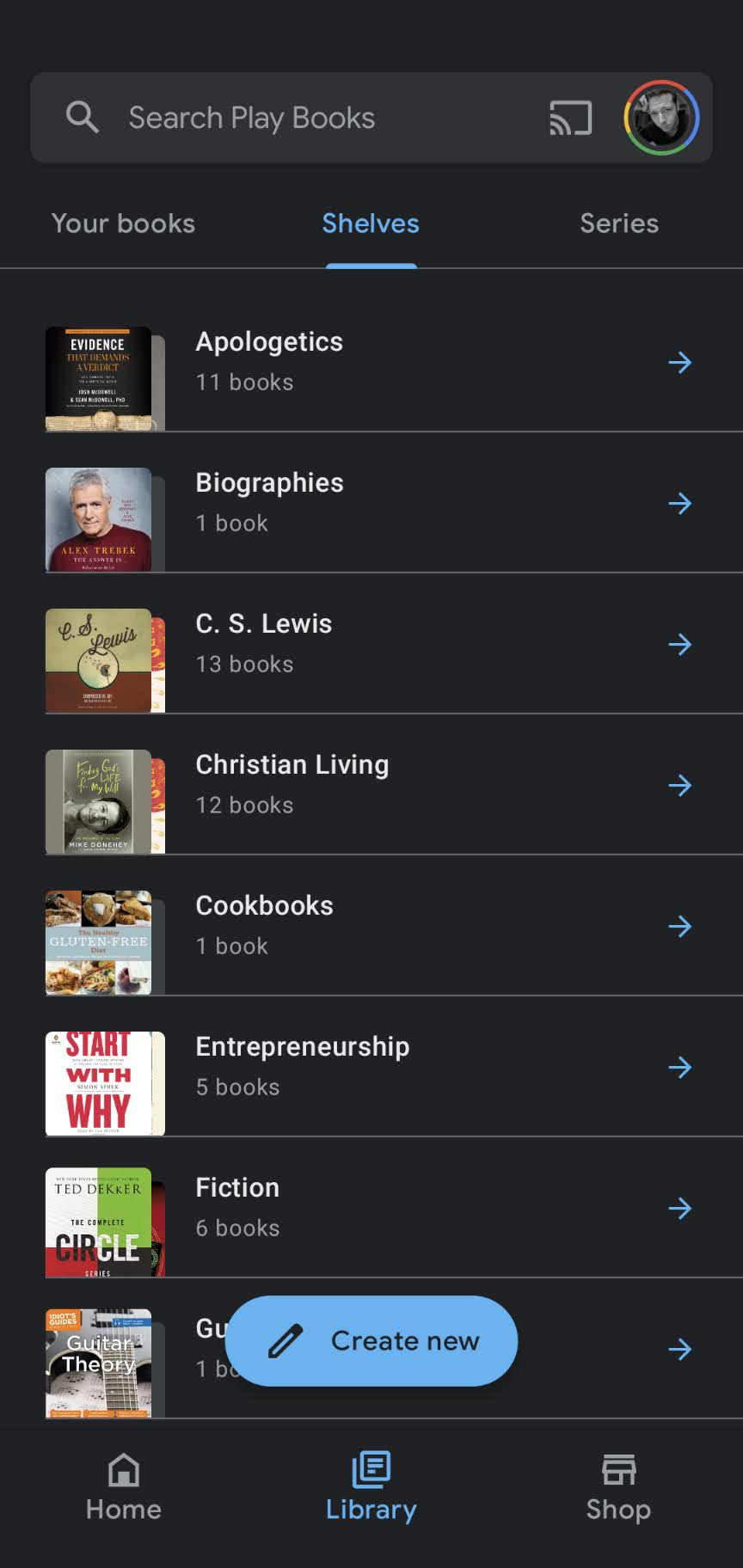
- Faith and Apologetics
- Entrepreneurship and Productivity
- Fiction
- Poetry
- Parenting
- Inspirational
- Cookbooks (When I’m not using my Nest Hub!)
- Guitar and songwriting
- Magic and misdirection
- Relationships and Self help
- Writing and Publishing
Company account
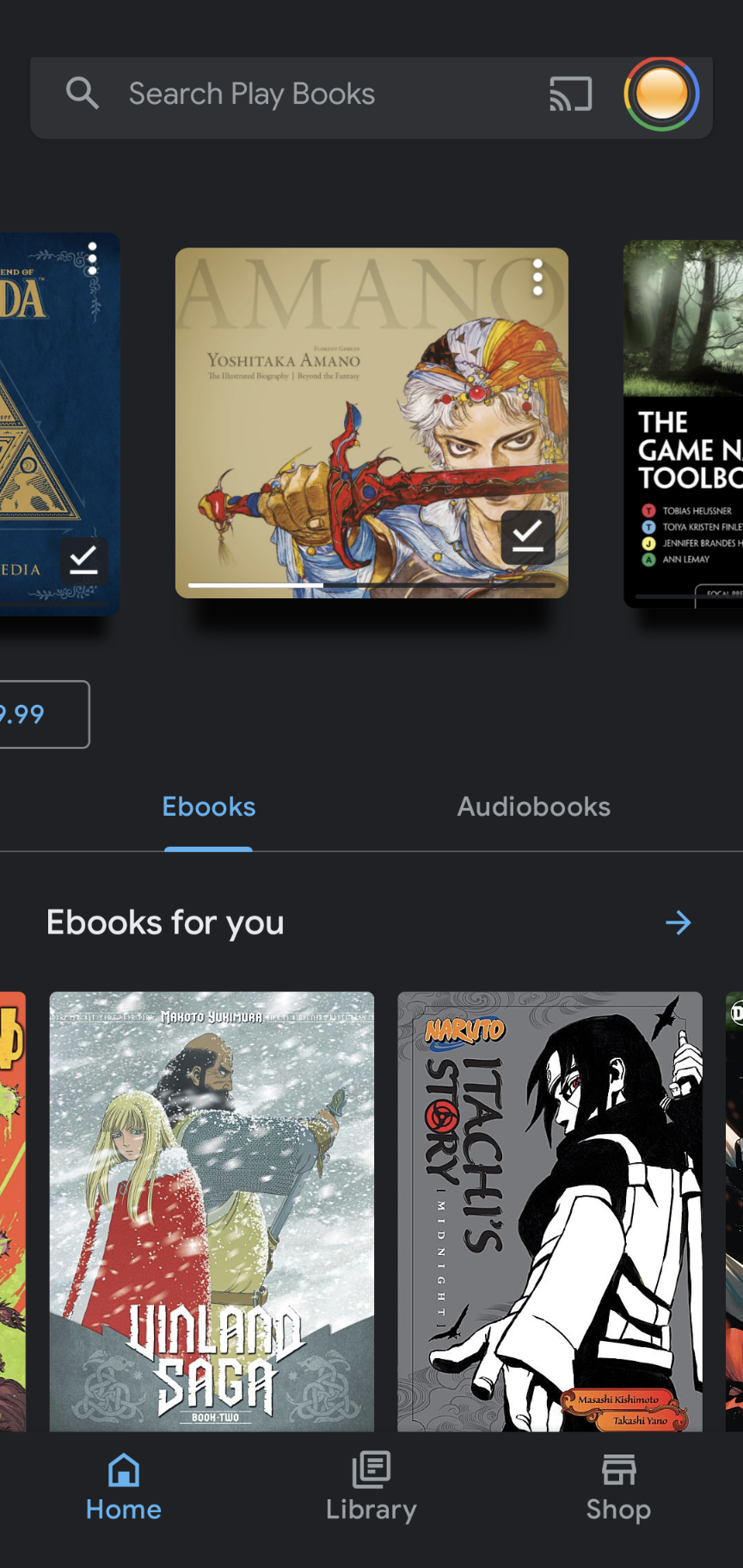
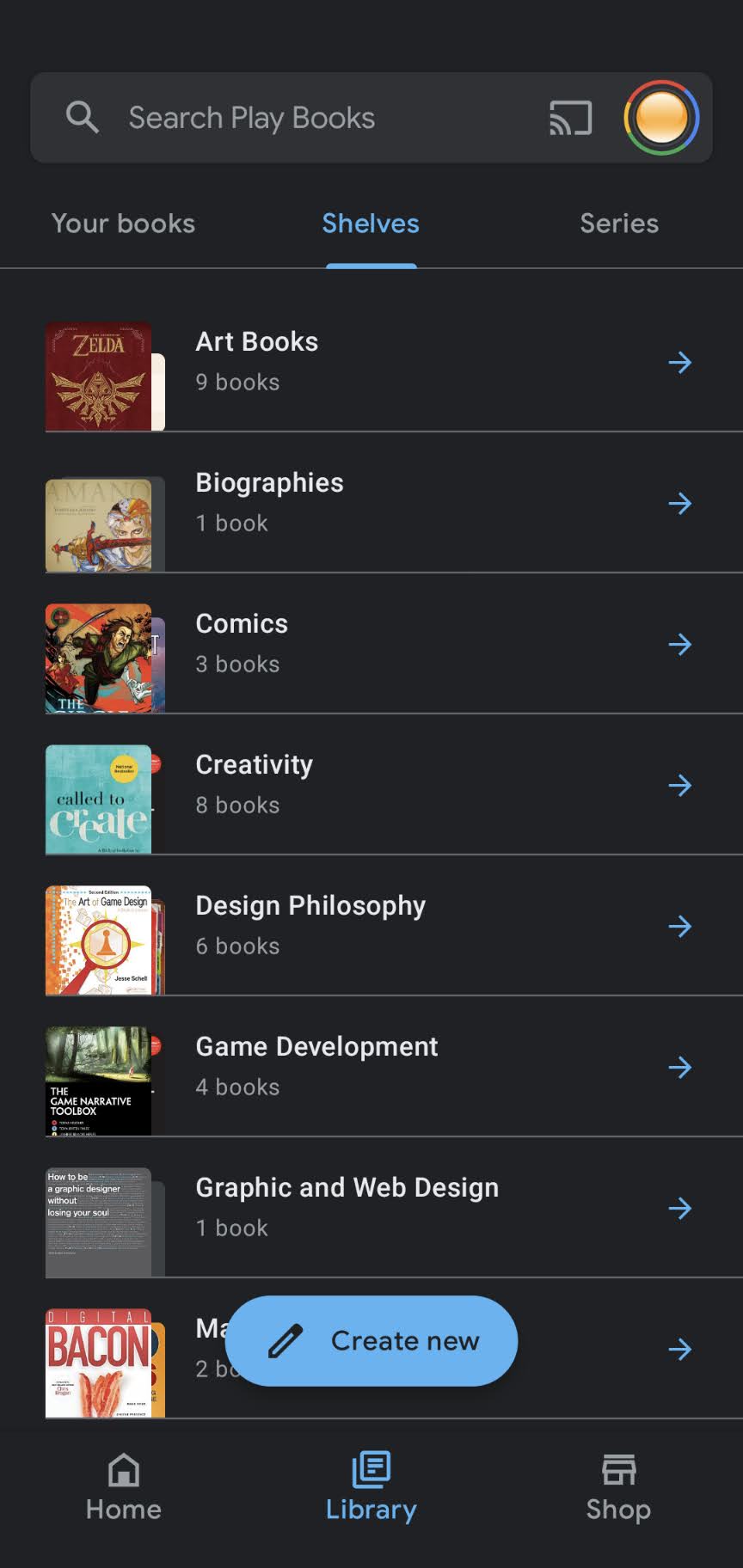
- Art books
- Game development reference guides
- Comic books
- Developer biographies
- Strategy guides
- Marketing
- Graphic and Web design
- The psychology of creativity
- Narrative design
- Design philosophy and Theory
Hopefully, now you can see the wide chasm between the two groups of content and why I like to separate them. Regardless of what your personal tastes are in books, I’m just using this as an example. I’m discussing Play Books because it’s the app I use most in the Family Library to share content, but I didn’t realize what a mess it would be to do so. Yes, it’s probably my fault, but that’s hardly the point. I keep coming back to the idea that Google has not set up its services properly to work between an individual’s work and personal personas. In this case, my work, and personal persona in addition to my son.
I understand that transferring content presents licensing issues, and Family Sharing was meant to handle this problem, but why can’t I verify that I’m the same person across multiple accounts? Why can’t I transfer content between a business and personal persona or even to my son without it remaining on the original account since this feature was released after I bought content that qualifies for it? Why can’t I add my Google Workspace account to a Family Group?
Before you say “Because it’s a business account, not a family member”, just keep in mind how integrated these types of accounts are in our personal lives. I keep using the term ‘personas’ because that’s what they are – at least for me. My business and my personal life are two halves of the same coin – not two separate coins. Maybe it’s because I’m a small business and not a corporation. Either way, I just wish that the company would take these things into consideration.
So, with three accounts being a complete mess, I went through and cleaned house. Yep, I’m ashamed to admit this, but instead of leaving everything completely disorganized, I went ahead and deleted content from each library if it was no longer relevant to that account. That means that I lost potentially hundreds of dollars in purchases to tighten things up. Yes, you can add or remove individual pieces of content from shared libraries, but if you bought it on the wrong account, there’s no option for you, as previously stated.
Removing content on one account that was a part of the shared library did leave a sample for that ebook or audiobook in the opposite account, which I first found frustrating as I had to delete hundreds of samples, but then I found that I really liked it since it allowed me to bookmark what content I would have to decide if I’m re-purchasing over time. Hey, it’s better than a wishlist bookmark, since I get to listen to said sample and add them to shelves for future consideration!
I do still have to re-train Google’s recommendation algorithms in these apps by pressing and holding a book in order to tell it I’m no longer interested in that type of content, but even though it will take some time, I think it was worth it. The most frustrating part is that I had to manually remove each and every item from my shared library because the setting in the Family Group in the Play Store that removes everything all at once simply didn’t work. I mean it – I tried it across multiple browsers, many times. Google’s setting to stop Family Sharing specific types of content is completely busted!
The moral of the story is this – don’t make the same mistakes I did. Purchase business books, technical guides, and reference content on your business account buy personal books on your personal account, and instead of quickly buying kids books or audiobooks on your own account to save time or avoid setting up a Family Link account, just handle it early so your kids can digitally ask your permission for new content. Once you do, it comes out of the family payment method and goes straight into their own library – no hassle. Most importantly, if you have multiple accounts signed in on your device, be sure to double-check that you’re on the correct one before making a purchase. Yes, the Play Store has a decent refund policy, but like me, you may not realize until it’s far too late.
I’m not saying that the Shared Library isn’t for anyone, I’m just saying that it feels like it’s become more of a problem than a solution, depending on who you are and how you use it. My hope is that Google one day finds a way to accommodate for separating out content post-feature release if it affects their users in unforeseen ways – especially kids – and that they also consider an individual’s needs across their business and personal life and how they may affect one another within the Google services ecosystem. Yes, this was mostly my fault, but I still thought this was worth a conversation. Let me know below if you have any of these issues or if you don’t really care where your content goes, so long as you can access it!
SUBSCRIBE TO UPSTREAM
Get Chrome Unboxed delivered straight to your inbox
Upstream is our flagship, curated newsletter with the top stories, most click-worthy deals, giveaways, and trending articles from Chrome Unboxed sent directly to your inbox a few times a week. Join 31,000+ subscribers.