


Support our independent tech coverage. Chrome Unboxed is written by real people, for real people—not search algorithms. Join Chrome Unboxed Plus for just $2 a month to get an ad-free experience, access to our private Discord, and more. Learn more about membership here.
START FREE TRIAL (MONTHLY)START FREE TRIAL (ANNUAL)
Google recently introduced the “Help me write” feature in Docs as part of its Duet AI for Google Workspace initiative. This new tool aims to enhance productivity and workflow by providing assistance with writing tasks (not replacing creativity or originality!). Many users who have gained access by applying to the Workspace Labs waitlist are already utilizing it to improve their writing experience. Today, I’m going to show you how to use it and give you a few tips and tricks for making the most out of it once you get to use it for yourself!

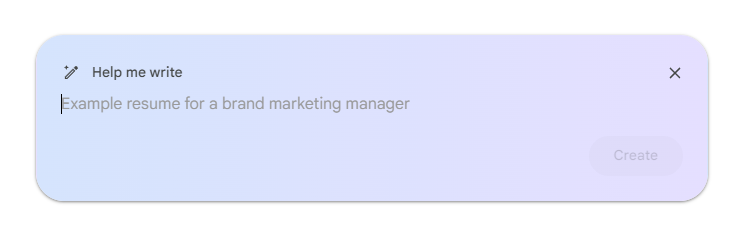
The “Help me write” feature is visible as soon as you open a new Google Document if you’re a part of the Labs beta. Upon clicking the button in the document body, you’ll notice an animated typing space that continuously cycles through suggestions for what the AI can assist you with. These suggestions are diverse and cover a wide range of writing tasks, such as drafting blog posts, writing song lyrics, captioning social media posts, and creating formal letters, resumes, and cover letters, among others things. However, you have the freedom to type whatever you’d like here, so don’t be fooled!
To get started, simply type your request or prompt in the provided text box and click “Create.” For example, let’s say you wanted to caption a social media post about Chromebooks. The AI would then generate a caption along with relevant hashtags. If you’re satisfied with the generated text, you can click the blue “Insert” button to seamlessly add it to your document. However, if you want to modify the text, you can click in area where you originally typed, add more specific details and then hit enter again to have your text response re-generated.
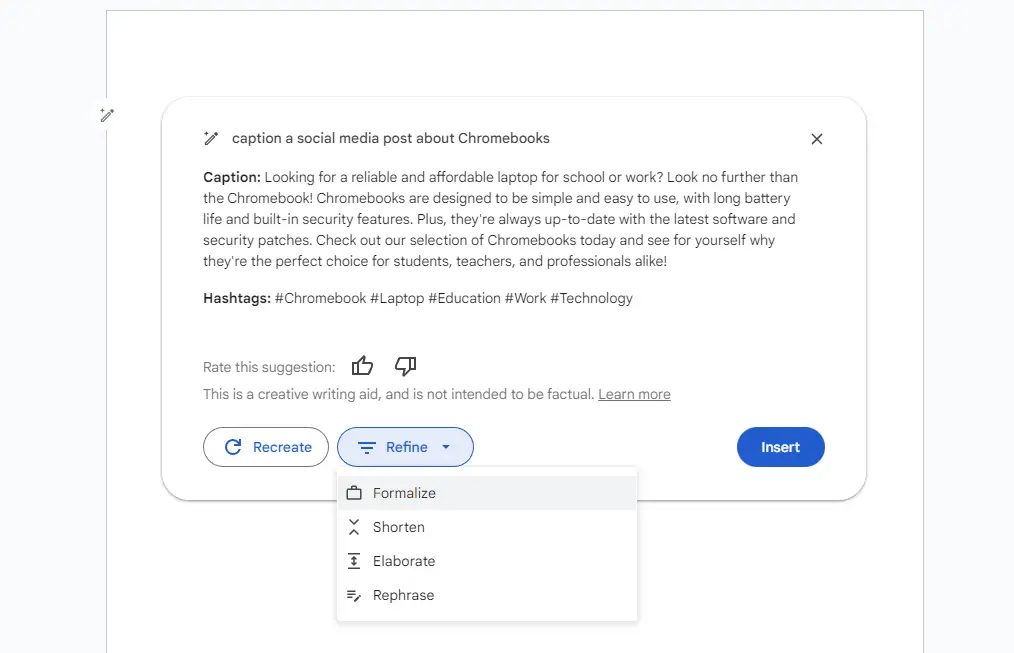
Next, you can click the “Refine” button to ask Docs to “Formalize”, “Shorten”, “Elaborate”, or “Rephrase” the text. Again, this is more rudimentary and specific than the freedom you have with ChatGPT, but it’s also more likely to be useful and easier to understand for regular users because of this. Clicking these options will, of course, do just those things – it will either formalize the text to make it sound more proper or professional, shorten it to make sure it can fit into smaller spaces like a Twitter post, elaborate on it to add detail and flesh it out a bit more, or rephrase it entirely. The last option seems to be a lot like the “Recreate” button, but I’m still playing with it at this point to be sure.
Here’s a pro-tip – once you “Insert” the text and accept it, it will be plopped into your Google Doc for further editing. However, you may notice that the magic pencil icon still exists to the left of the document wherever your cursor is placed. You can either insert more generative AI text in-between what you’ve already written or generated, or highlight existing text and modify it using the same “Help me write” feature! Doing so will ensure you have the most fun and best use of the new feature.
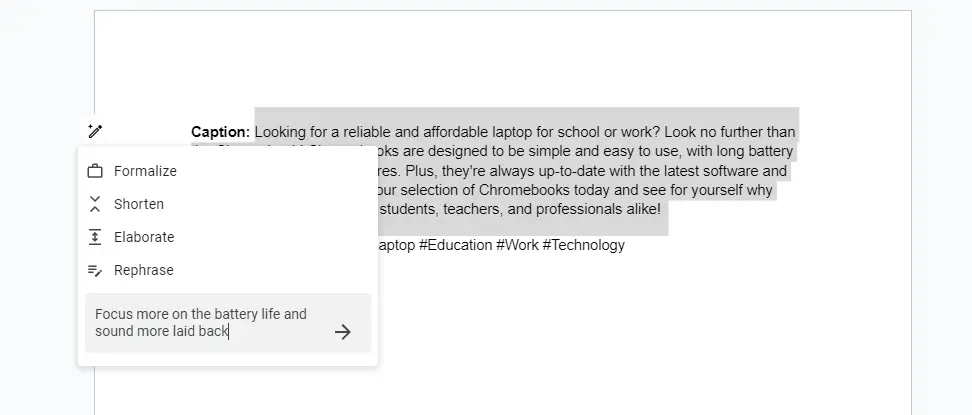
I’m noticing that it doesn’t seem to have context about everything else already inserted into the document, so if you highlight existing text and tell it to do something, you may need to re-specify the subject matter – bummer.
Lastly, the most powerful feature built in to this new Labs for Docs setup is the “Custom” entry section. Upon highlighting text and clicking the magic pencil icon to the left of the document canvas, you will see a text entry box on the popup called “Custom”. In here, you can type highly specific commands to the AI like “sound more confident”, or really anything else you want it to do to alter the existing text.
For example, if you do this and type in “Focus more on the battery life and sound more laid back”, it will take that feedback and re-create the text for further observation. The possibilities are endless. The “Help me write” feature in Docs is still brand-spanking new, but it’s looking really promising. I’d love to have this built into Google Keep at some point, and I can see this being really beneficial for many, many people!
SUBSCRIBE TO UPSTREAM
Get Chrome Unboxed delivered straight to your inbox
Upstream is our flagship, curated newsletter with the top stories, most click-worthy deals, giveaways, and trending articles from Chrome Unboxed sent directly to your inbox a few times a week. Join 31,000+ subscribers.

