


Support our independent tech coverage. Chrome Unboxed is written by real people, for real people—not search algorithms. Join Chrome Unboxed Plus for just $2 a month to get an ad-free experience, access to our private Discord, and more. Learn more about membership here.
START FREE TRIAL (MONTHLY)START FREE TRIAL (ANNUAL)
Since July when Google added its photo storage and sharing service to Drive for Desktop via the new File Stream application, I’ve been using it mostly as-is. Aside from attaching multiple accounts to it for easy access to all of my files across personas within one Windows 11 login – a feature that was also only recently added – I set and forget it at launch and haven’t thought much about it since.
Sometime down the line, I realized that my Google One storage quota had filled out like my stomach after a happy Thanksgiving dinner (I swear I won’t do that this year!). After digging a bit into my File Stream preferences which can be found in the system tray of my desktop, I found that out of the box, Google Photos chooses to upload your photos and videos at “Orignal quality”.
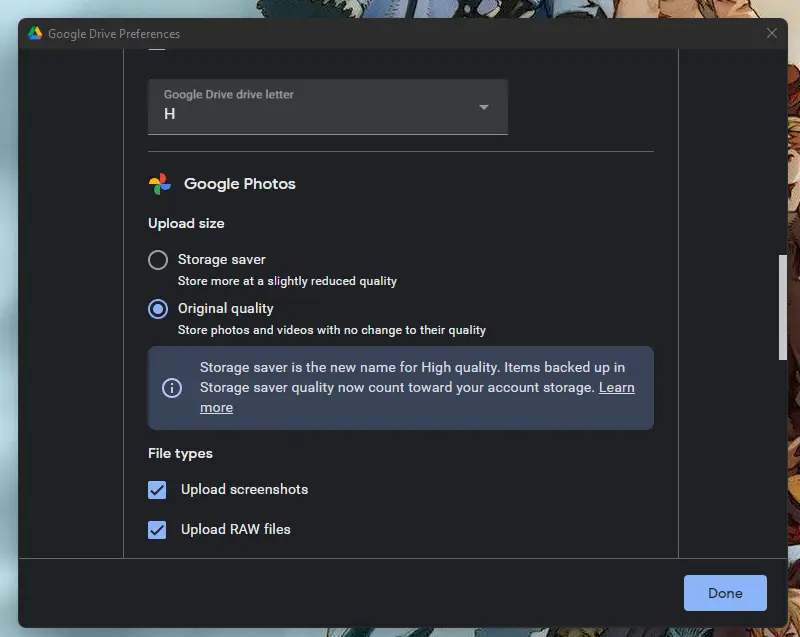
For anyone who may not recall, Google Photos has traditionally stored all user data as “High Quality”, which was free and unlimited, but ever since Google said goodbye to unlimited, it renamed this setting “Storage saver”. While no longer free, it did still save quite a bit of space as each photo or video was saved at a “slightly reduced quality”.
Regardless, it was and remains a better option for those who are simply storing screenshots as they work on Windows, or who don’t care much for having their other photos and such backed up regularly. Original quality is not simply reserved for photographers and others who can see a noticeable difference, but as Google has switched everyone to a paid model after their initial 15GB of account storage, most people I’ve spoken with regarding it have stated they prefer High quality over original to save money.
That’s why when I saw the File Stream default was “Original quality” for photos, I was a bit taken aback. Was this simply an oversight at Google? That’s unlikely. Instead, I see three options. Either they are really, really, really pushing for people to be forced to pay for a Google One subscription, which would be unethical since they didn’t inform anyone that this would contradict the previous default settings, or they’re deciding that anyone using the File Stream application for Windows or macOS will prefer original quality and perhaps that if they chose to begin with high quality as the default, they would get more complaints. This may be exactly what’s happening, especially if you consider the fact that the application can automatically back up external devices like thumb drives, hard drives, and SD cards.
It’s also possible that when I set this up, I checked “Original”, but I’m pretty sure I didn’t as I’ve been working with Photos for years now and helping customers navigate it, so I’m well aware of the difference between the two options. Either way, this is a cautionary tale – don’t let this go unnoticed. Whether you set it up improperly for lack of awareness, or whether this is set up as such out of the box, don’t make the mistake of letting this eat up all of your storage! There’s also a setting that lets you upload your photos to Drive as well, but if you check that, you’ll be storing them in both locations, thus taking up double the storage.
To check for yourself, go to the bottom-right of your computer screen to the system tray (Windows) and click the Drive icon. Then, click the cogwheel icon at the top right of that pop-up, and go to “Preferences”. From there, there should be another cogwheel at the top right near your account image in the new window that appears. Scroll down to find the Google Photos section, and select “High Quality”. Lastly, check the blue “Done” button at the bottom right.
Lastly, you’ll need to visit your Google Photos Settings on the web and click “Recover storage”. This will compress all of your Original quality images and videos into High quality and help you free up some space. Just remember, that one day, High quality will look low quality as screens and technology advance, just like those photos of you in a Halloween costume from the 90s now does. Still, for me at this time, I’ve decided this is acceptable quality, so you’ll have to make that decision for yourself.

As a game developer by night, the “Upload screenshots” feature is awesome, because it means any time I snap a capture of what I’m working on, it’s filled out in Photos on the web and across my devices as a sort of visual journal of my progress. Are you using Drive for Desktop? Have you moved over to the new version with File Stream and Photos integration? What quality are your photos and videos being stored as? Let me know in the comments below!
SUBSCRIBE TO UPSTREAM
Get Chrome Unboxed delivered straight to your inbox
Upstream is our flagship, curated newsletter with the top stories, most click-worthy deals, giveaways, and trending articles from Chrome Unboxed sent directly to your inbox a few times a week. Join 31,000+ subscribers.

