


Support our independent tech coverage. Chrome Unboxed is written by real people, for real people—not search algorithms. Join Chrome Unboxed Plus for just $2 a month to get an ad-free experience, access to our private Discord, and more. Learn more about membership here.
START FREE TRIAL (MONTHLY)START FREE TRIAL (ANNUAL)
If you’re a Chromebook user who heavily relies on web apps, you may have encountered the frustrating issue of generic grey icons appearing in your launcher. These placeholders with only the first letter of the app’s name can clutter your workspace and make app identification a challenge. Oh, and they’re also incredibly annoying.
This problem arises because the iconography for non-progressive web shortcuts do not seem to be synced to and from the cloud when signing into a new Chromebook. In this article, I’ll show you my method for quickly uninstalling these broken web app icons from the launcher and replacing them with the proper visual representations they should have.
Removing Broken Web App Icons
To begin the process of removing these grey icons, follow the steps below:
- Open your Chromebook’s launcher with the ‘Everything button‘
- Right-click anywhere in the launcher and hover over the ‘Sort’ option.
- From the dropdown menu, select “Sort by color.”
- The launcher will now group apps and web apps based on their color. All the apps without icons will be bundled under the grey color if you scroll down.
- Right-click on the app or web app you wish to remove.
- Select “Uninstall.”
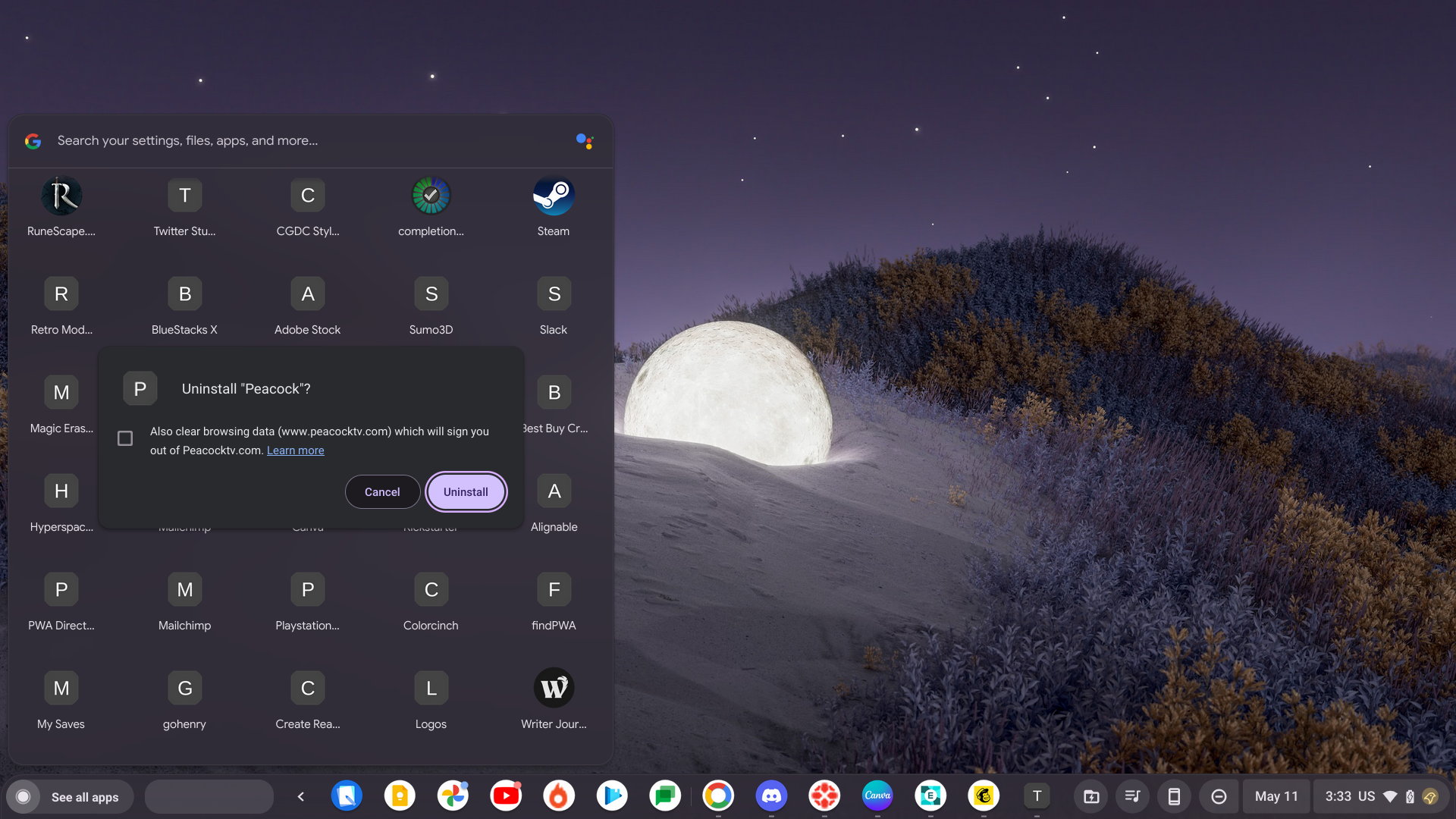
By sorting the launcher apps via their color, you can easily locate and eliminate the generic grey icons cluttering your workspace. Although the removal process requires manual deletion of each app, this method significantly reduces the time and effort required to visually spot them for removal.
Recreating the web apps
If you want to restore the icons for your non-PWA apps, you can re-create them using the “Create a shortcut” menu in Chrome. Here’s how to do it:
- Open the Chrome browser on your Chromebook.
- Visit the website you wish to turn into an icon
- Click on the three vertical dots in the top-right corner of the Chrome window.
- From the dropdown menu, hover over “More tools.”
- Select “Create a shortcut.”
- In the pop-up window, enter a name for the shortcut.
- Check the box next to “Open as a window” if you prefer the app to open in a separate window rather than a new tab.
- Click “Create.”
By following these steps, you can re-create the web app shortcut with its original icon, enhancing the visual appeal and making it easier to identify your apps in the launcher. I recommend doing this one app at a time so that you don’t forget what you were going to re-create, but you can jot down a list if you’d like to do them all at once.
Pro Tip: Only install web apps that are progressive (PWAs) where possible to avoid this problem in the future. A good place to find PWAs is the Google Play Store, which is slowly replacing native Android apps for many experiences. It’s also easier than creating a web shortcut, even with the “Install” button appearing in Chrome’s Omnibox this year.
Future Improvements
While this process can help you get back to the experience you had prior to moving to a new device, I hope that in the future, Google synchronizes non-PWA web shortcut icons to users’ Google Accounts. Alternatively, it can some kind of trick to fetch the icon images from the web when a shortcut is synced from your previous Chromebook.
With how long the launcher has been busted, not syncing changes or app deletions after a reboot, I don’t imagine this icon problem will ever be solved, but my hope is that the tech giant steps up to the plate and tries to take charge of it even though it’s not directly responsible for why it occurs in the first place.
SUBSCRIBE TO UPSTREAM
Get Chrome Unboxed delivered straight to your inbox
Upstream is our flagship, curated newsletter with the top stories, most click-worthy deals, giveaways, and trending articles from Chrome Unboxed sent directly to your inbox a few times a week. Join 31,000+ subscribers.

