


Support our independent tech coverage. Chrome Unboxed is written by real people, for real people—not search algorithms. Join Chrome Unboxed Plus for just $2 a month to get an ad-free experience, access to our private Discord, and more. Learn more about membership here.
START FREE TRIAL (MONTHLY)START FREE TRIAL (ANNUAL)
Last week, I published an article called The artist’s guide to drawing and sketching on a Chromebook, in which I covered several of the most popular drawing apps. Today, I’ll be going over six ways your child can draw on their Chromebook with virtually no learning curve. Keep in mind that these apps are extremely basic compared to the ones aforementioned, so while they will be easy to use, they will have serious limitations. They lack pressure sensitivity, palm rejection and more, but are a good starting point for young artists.
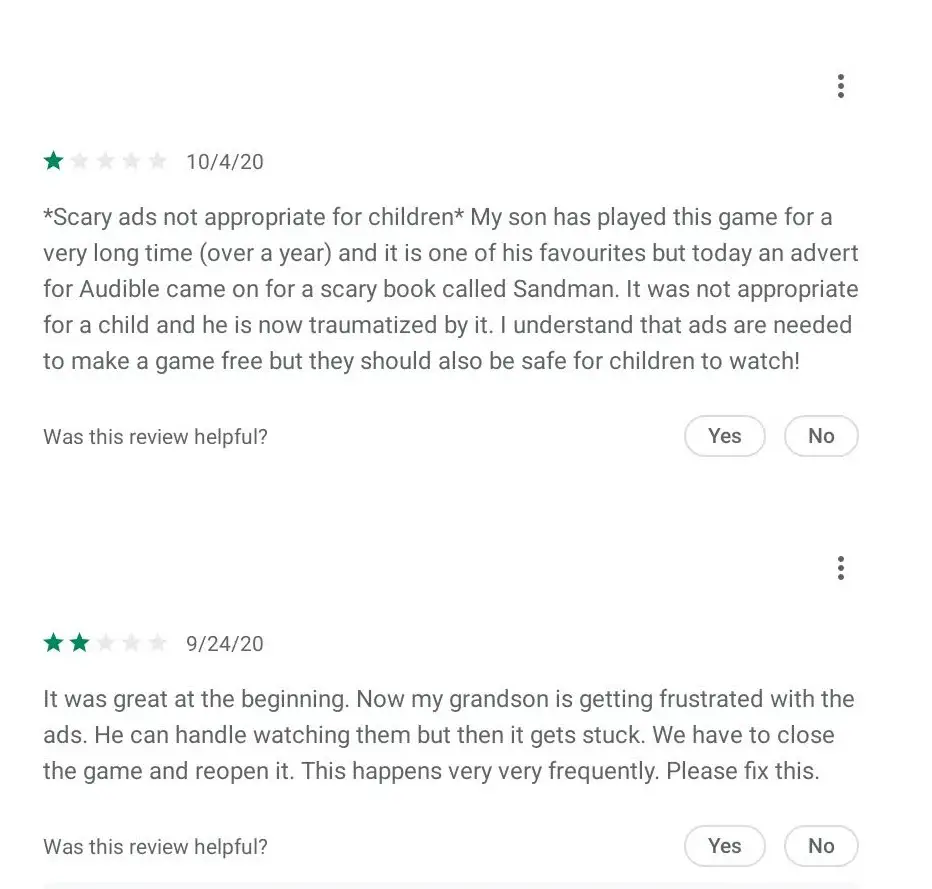
The reason I’ve chosen to only include apps with no in-app purchases or ads is because, well, I get it. I have a four year old and he’s seen a few ads in kids apps that were less than kid friendly. Once, a drawing app he was playing with showed a Halloween Horror Nights video ad…I mean, does no one tailor these ads or regulate them for kids apps? You can see below a few reviews for a drawing app that I won’t list here today where parents had similar concerns. I felt it was my duty to provide you with apps that keep your kids safe so they can express themselves creatively without fear or annoyance.
Google Keep
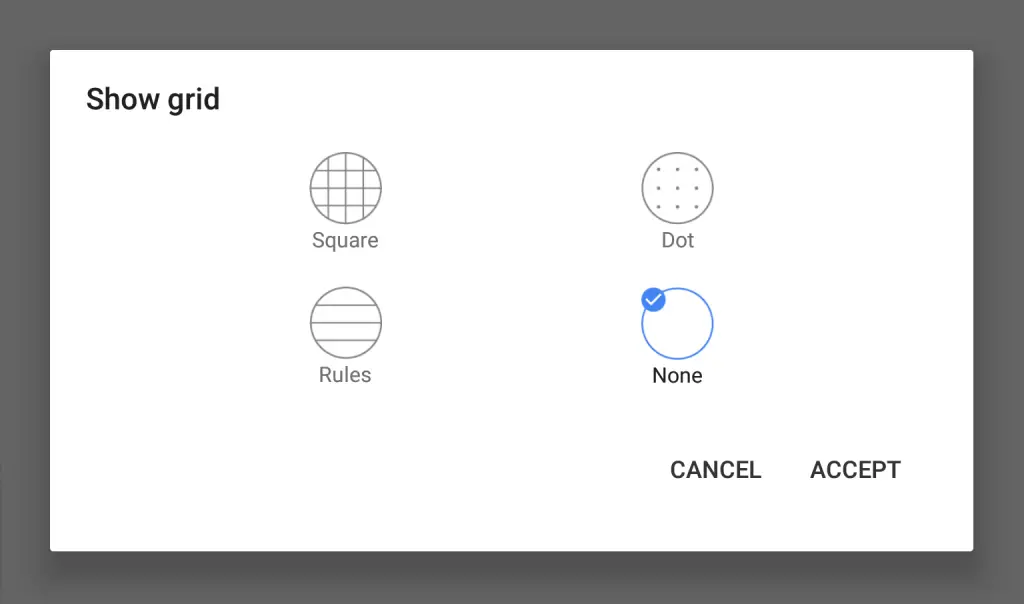
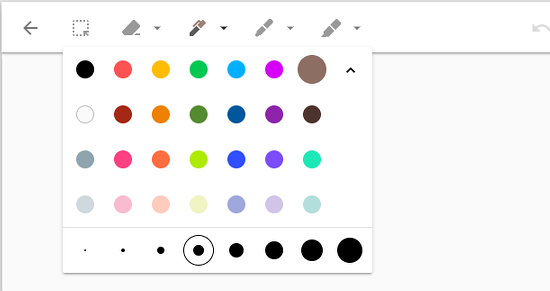
Synchronizing with your child’s Google account (hopefully under Family Link), Keep is a great note taking tool that can grow with their needs. What many aren’t aware of is that it can also be used for some basic drawing sessions. There’s a marker, a pen and a highlighter and all three have varying thicknesses and plenty of colors to choose from. The eraser tool is a bit different from what you’re probably used to. Instead of erasing just that spot you rub it over, it erases the entire segment you drew before lifting your pen or finger to move to the next. It’s rudimentary, but it has a clean interface. My favorite feature is that you can choose several paper types – blank, ruled, graph and dot graph. This one comes in app and web app variants.
Chrome Canvas
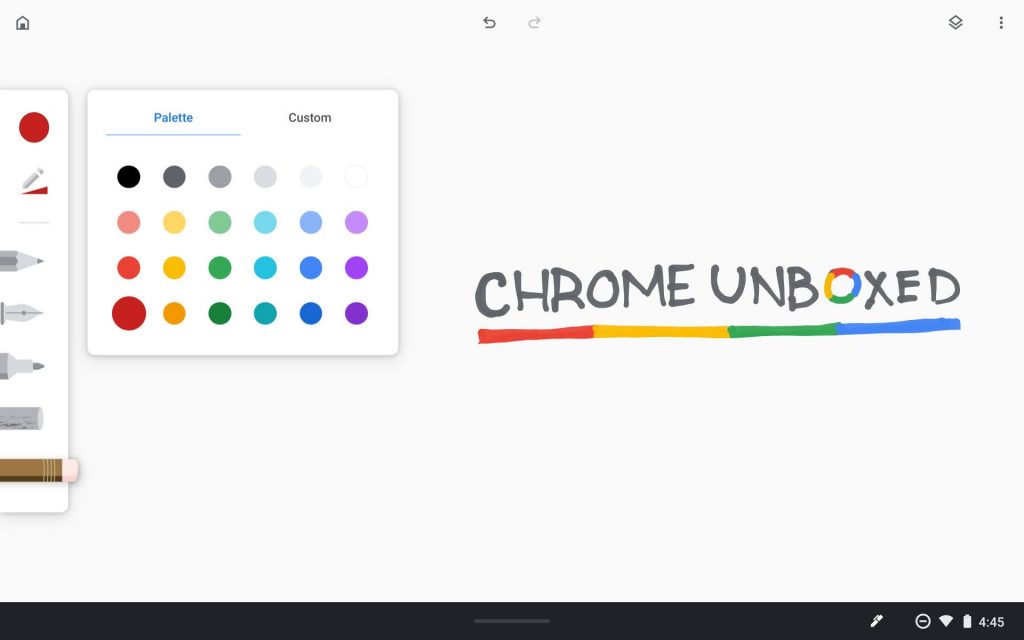
Chrome Canvas is another drawing app by Google and was created specifically for Chromebooks, Chromeboxes and Chromebases! It has a lot of the same tools as Keep, with a few differences. Here, you have a graphite pencil type tool, a calligraphy pen, a felt-tip marker, a smudge stick and an eraser. The color palette has the ability be customized to any color you wish with a wheel selector. You can change the thickness of your tool with a slider, which offers more flexibility than Keep. There are also layers which allow you to stack drawings on top of one another – a common feature for art software. Canvas comes pre-installed on Chromebooks now, so you can simply open your child’s Chromebook launcher – that is the magnifying glass on the keyboard where you’re used to caps lock being – and search for it.
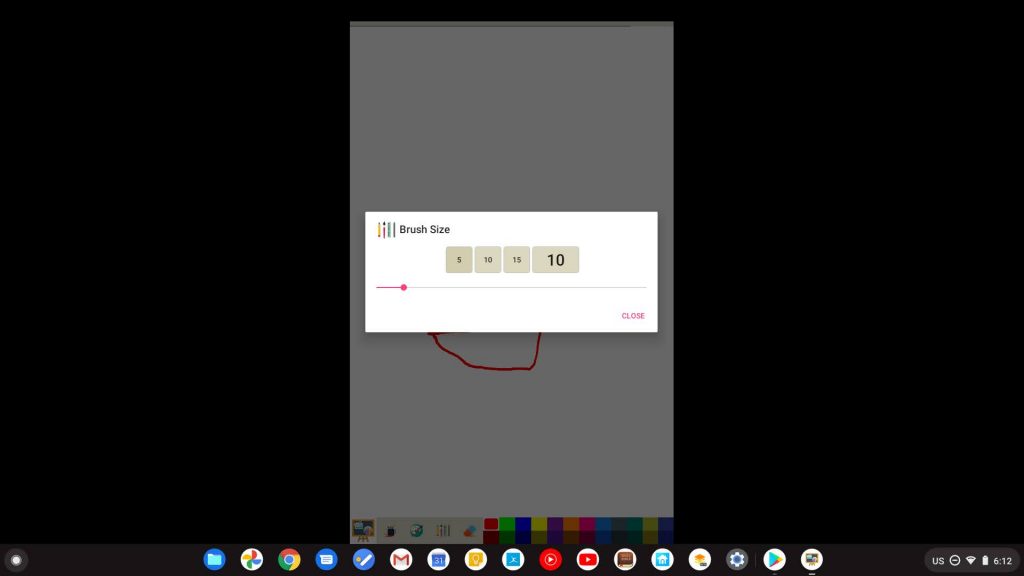
Kids Paint
This finger painting app from ng-labs can be used offline and lets your kids choose from 20+ vibrant colors with varying brush sizes. It definitely is limited compared to Canvas and Keep, but for those looking for something outside of Google’s ownership, you can pick this up for free from the Google Play Store. Most younger kids don’t really care if they have fancy features, so the focus here is a simple, streamlined experience without the need for supervision. I’m sad to say that for clamshell Chromebook owners, the app does not fit the width of the screen. This is precisely why I prefer web apps over Google Play apps. Kid’s Paint was basically created for phones, so unless you have a 2-in-1 device and flip it into portrait mode, your mileage may vary.
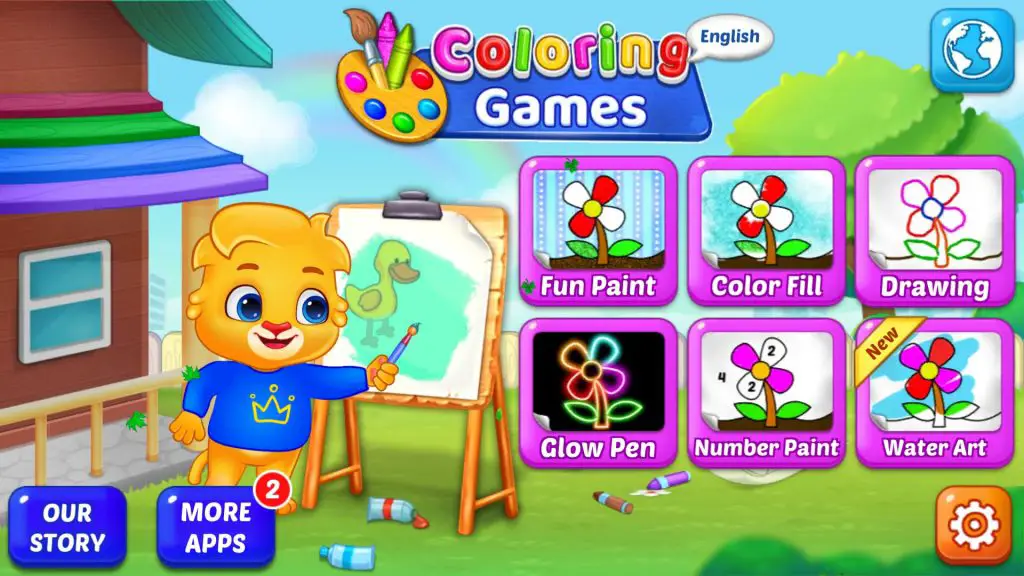
Coloring Games: Coloring Book, Painting, Glow Drawing
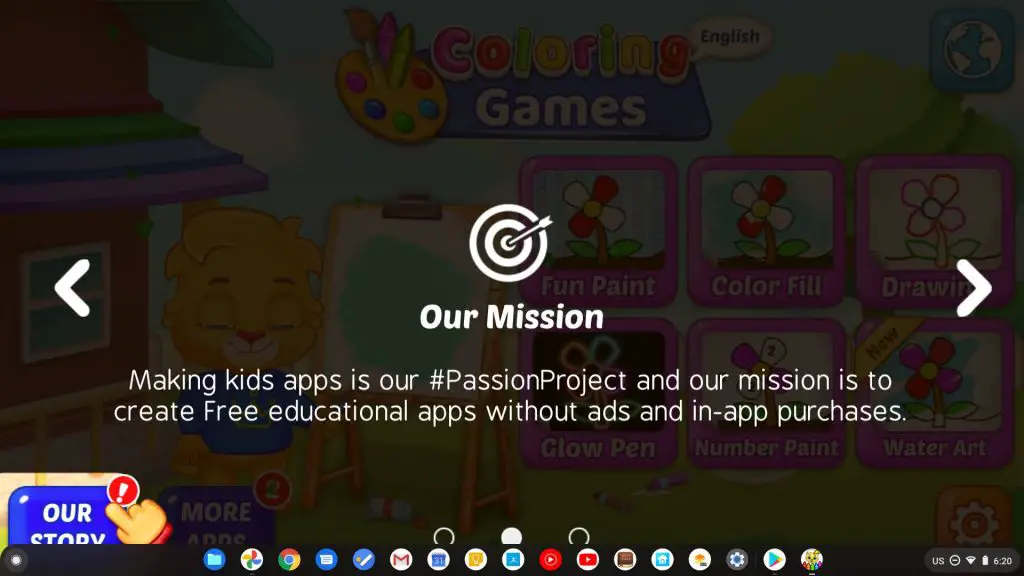
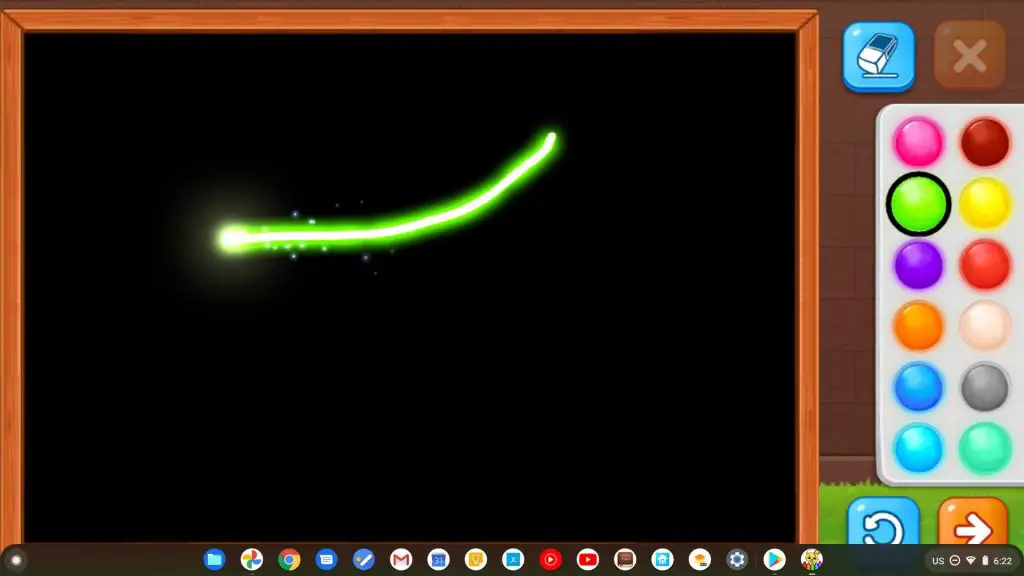
For kids aged 12 and up, this one has a really long name, but it’s perhaps the most impressive app here today. Coloring Games prides itself on being a family friendly drawing app – they make you go through a short three screen tutorial before getting started. The second screen they show you (seen below) shows you about their mission – it’s a passion project where they want to provide a free educational app without ads or in-app purchases. They have painting, color by number, water paint and more. The best thing you can mess with here is the glow pen, which reminds me of the Disney channel commercials where the kids draw out the Mickey ears with a wand. It has sparkles and feels pretty magical.
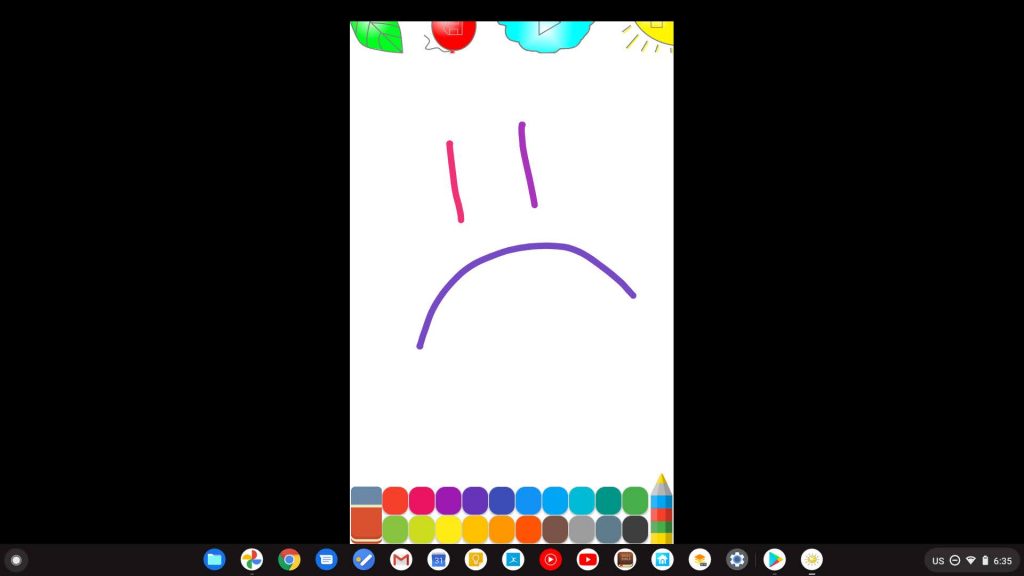
Learn To Draw (Kids Painting)
Another drawing app with portrait only support. This makes me really sad. For parents looking for a simple drawing app for their kids, these Google Play apps sure are disappointing for the most part. The only thing interesting about this app is that it has a multi-colored pencil that automatically alternates what color it draws with for each stroke.
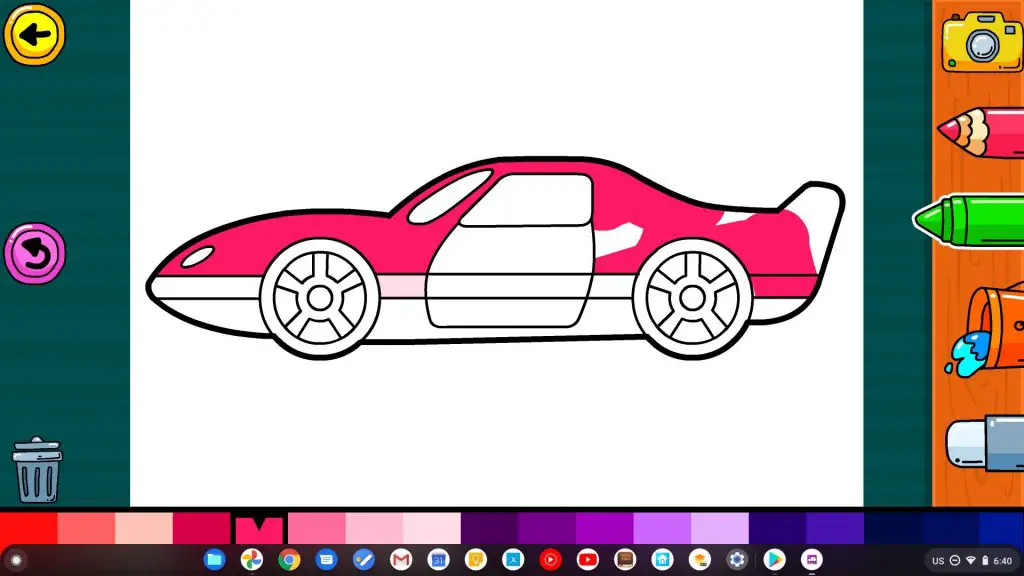
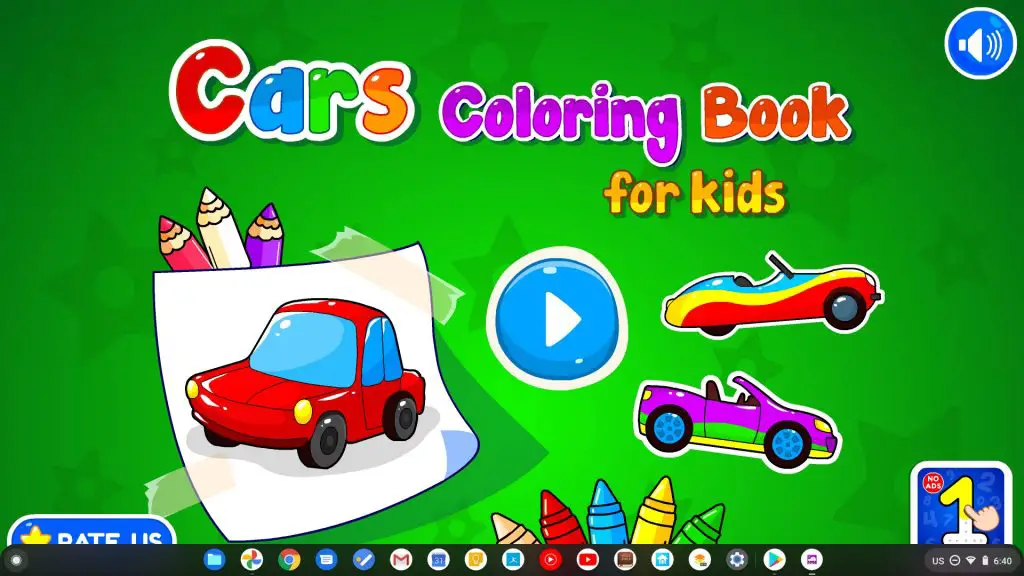
Learn Coloring & Drawing Car Games for Kids
This last one is geared towards kids who like cars. There are 30 pre-designed cars to color in and choosing a color and brushing the page automatically stays within the lines. Definitely good for toddlers who are just learning to draw, but I wouldn’t recommend this one for older children. Tools include a bucket fill, a crayon and a pencil as well as an eraser. The app has music playing but it can be disabled at the top right of the home screen.
At the end of the day, the more advanced apps that I mentioned in my last art related post, while potentially a bit scary for some, are well worth learning with your child as they offer better tools with a more native Chromebook experience that grows with them. I would stick to Google Keep or Chrome canvas for toddlers and take the time to invest in more in-depth art apps for older age groups.
SUBSCRIBE TO UPSTREAM
Get Chrome Unboxed delivered straight to your inbox
Upstream is our flagship, curated newsletter with the top stories, most click-worthy deals, giveaways, and trending articles from Chrome Unboxed sent directly to your inbox a few times a week. Join 31,000+ subscribers.

