


Support our independent tech coverage. Chrome Unboxed is written by real people, for real people—not search algorithms. Join Chrome Unboxed Plus for just $2 a month to get an ad-free experience, access to our private Discord, and more. Learn more about membership here.
START FREE TRIAL (MONTHLY)START FREE TRIAL (ANNUAL)
Whether you just found an awesome, new wallpaper for your Chromebook or you’re trying to save web images for business purposes by right-clicking them to “save as”, you may have noticed that over the last year that Chrome now saves images in a WebP format instead of the traditional JPG or PNG format that you’ve been accustomed to for decades.
Let’s first clear up any confusion around what WebP is, and why it’s even necessary. Then, I’ll show you how can get your images back into a format that you’d expect for use within editing software and for sharing with your friends and family.
What is WebP and why is Chrome making my life harder?
Believe it or not, WebP has actually been around for over a decade. It was first created by On2 Technologies in 2010 before the company was acquired by Google. Despite the fact that it seems to make everyone’s life a bit harder since most folks have not adopted the format for editing and sharing, and Windows can’t natively view these files as they are, WebP was created to make images up to 25% smaller and strike a balance between quality and practicality while serving them over the web to users.
They’re not only faster to load on web pages, are highly compatible with Chrome, Edge, and even Firefox, and even save tons of space for businesses by way of compression. Unfortunately, and as previously stated, this doesn’t exactly make them usable in many cases without a bit of tweaking. Oh, and sometimes, their quality can suffer a bit if that balance isn’t struck perfectly.
In most cases, or perhaps in all cases (I’m still trying to research this), Chrome isn’t actually the offender here. Generally, this is Wordpress (a popular website builder) automatically converting images into WebP, or web developers intentionally doing so to save server space, and Chrome just saves images to your computer in the format they were already in.
So how do I get my JPG back?
Before I show you how to change WebP files back into JPGs, it’s only right for me to state that you can technically use them in their current format. For instance, Adobe Photoshop does have a plugin that lets you read these without converting them. It’s also an open-source format, which means anyone can work on it to make improvements.
Since you likely only care about being able to get back to normal and using your images like you used to, let’s get on to the good stuff. There are actually a few approaches you can take. First and foremost, you can download and install the ‘Save image as Type’ extension from the Chrome web store. This allows you to right-click an image anywhere on the web (unless the source is protected) and choose “Save image as Type” to get your precious “JPG” and “PNG” back.
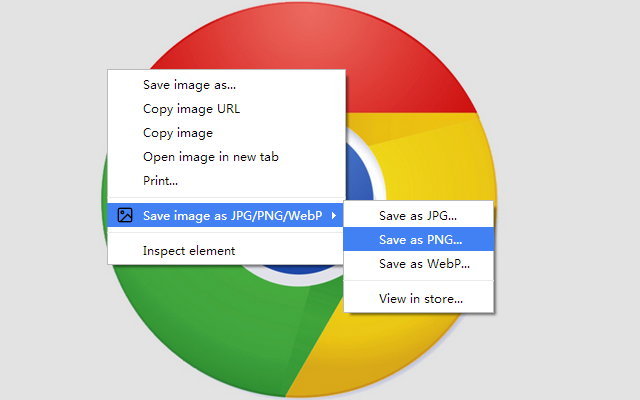
This has been around for years, but was updated last in 2015 – over 8 years ago. More importantly, the developer has not updated Privacy practices to comply with Google’s new web store policies. This means it does not have the seal of approval indicating it will respect any data it collects on you. That doesn’t necessarily make it a bad actor extension, but it does mean you should be cautious.
Alternatively – and this is what I would recommend – you can simply save a conversion tool web app as an application on your Chromebook. My go-to has always been Convertio’s WEBP to JPG Converter. Simply visit the site, choose your WebP image via the red “Choose Files” button, make sure the destination type is “JPG” or “PNG”. Then, click the “Convert” button and watch the tool do its thing.
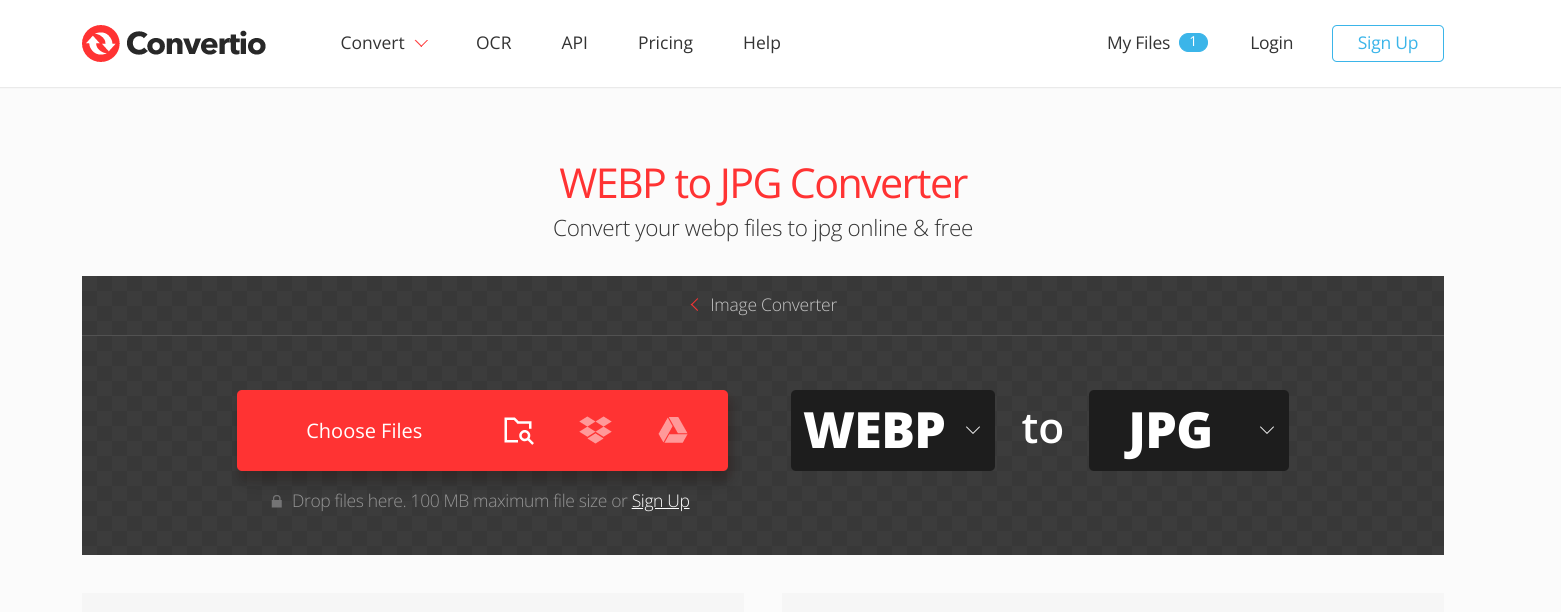
After that, just click the “Download” button on the converted image file and you’ve got your groove back! It’s unfortunate that this extra step is now required for most people who just want a freaking wallpaper, but I suppose you’ve got to do what you’ve got to do, right? Regardless, these two methods work wonders. Still, my hope is that either someone creates a tool that automagically converts images back to usable, more common formats or that more software and services start accepting WebP images. If it becomes as normalized as JPG or PNG (which I don’t think it ever will) then none of this will matter in time.
SUBSCRIBE TO UPSTREAM
Get Chrome Unboxed delivered straight to your inbox
Upstream is our flagship, curated newsletter with the top stories, most click-worthy deals, giveaways, and trending articles from Chrome Unboxed sent directly to your inbox a few times a week. Join 31,000+ subscribers.

