
Support our independent tech coverage. Chrome Unboxed is written by real people, for real people—not search algorithms. Join Chrome Unboxed Plus for just $2 a month to get an ad-free experience, access to our private Discord, and more. Learn more about membership here.
START FREE TRIAL (MONTHLY)START FREE TRIAL (ANNUAL)
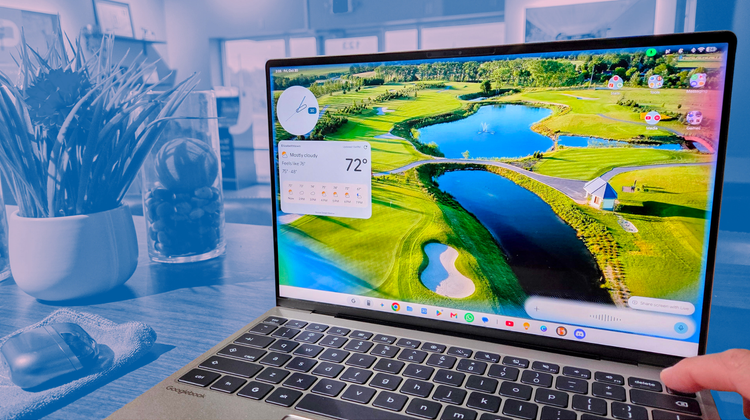
As we keep digging into the brand-new Googlebook OS platform, little quality-of-life settings keep bubbling up. When moving to a completely fresh desktop operating system, finding muscle-memory shortcuts that actually speed up daily tasks makes all the difference.
One of the standout design choices in Googlebook OS is how deeply integrated Gemini is right out of the box. By default, hitting the dedicated G + Spacebar keyboard shortcut pulls up the Gemini overlay instantly. It’s fantastic for quick typing queries, coding questions, or generating summaries, but it drops you straight into text input mode. If you don’t want to type in a simple question each time or just prefer talking through complex thoughts naturally, voice is the preferred way to interact with Gemini.
Thanks to a great tip spotted by user ALuis7C on the r/Googlebook subreddit, there is an easy setting toggle you should flip right now to make conversational Gemini access seamless.
Switching the power button from power menu to Gemini voice mode
By default, long-pressing the physical power button on your Googlebook calls up the standard system power menu (giving you options to shut down, restart, or lock the laptop). However, buried within the Googlebook OS system settings is a dedicated toggle that remaps this exact long-press behavior.
When toggled, holding down the power button skips the power menu entirely and immediately opens Gemini in voice input mode, with the microphone hot and ready to listen. Here is how you can set it up on your device:
- Open Settings on your Googlebook.
- Search Power button
- Select Press & hold power button
- Select Digital Assistant
- Choose the length of long-press to activate Gemini
Once enabled, a simple press-and-hold lets you dictate notes, ask quick questions, or initiate multi-turn tasks without needing to click the microphone icon or type a single character first. (And if you ever need the traditional restart/power menu, a quick software tap from the Quick Settings tray in the shelf will still get you there.)
Complementing your keyboard shortcuts and touch gestures
What makes this addition so welcome is how cleanly it rounds out the entire interaction model on Googlebook OS.
For quick written prompts, G + Spacebar remains the go-to for quiet, keyboard-based interactions. For touchscreen devices (that includes all Googlebooks), swiping inward from the bottom corner of the display also brings up Gemini voice input, but it can be a little hit-or-miss; and this simpler single press method is by far the quickest way to pull up Gemini for quick queries when needed.
SUBSCRIBE TO UPSTREAM
Get Chrome Unboxed delivered straight to your inbox
Upstream is our flagship, curated newsletter with the top stories, most click-worthy deals, giveaways, and trending articles from Chrome Unboxed sent directly to your inbox a few times a week. Join 31,000+ subscribers.

