

Support our independent tech coverage. Chrome Unboxed is written by real people, for real people—not search algorithms. Join Chrome Unboxed Plus for just $2 a month to get an ad-free experience, access to our private Discord, and more. Learn more about membership here.
START FREE TRIAL (MONTHLY)START FREE TRIAL (ANNUAL)
After a bit of a stint in a public preview, the convenient Home Panel for controlling your smart home devices is now making its way to a broader range of Google TV devices, including the popular Chromecast with Google TV and other devices/televisions running the platform. This feature, which mirrors the quick access controls found in the Google Home mobile app, significantly streamlines interacting with your connected gadgets directly from your TV screen.
Initially launched with the Google TV Streamer, the Home Panel later became available on the Chromecast with Google TV for users enrolled in the Public Preview program. Over the past day or two, however, reports indicate a much wider deployment is underway. 9to5 Google says they are seeing it arrive not only on Google’s own hardware, but also on integrated Google TV sets from manufacturers like Hisense.
Keep an eye out for a pop-up notification when you fire up your device, prompting you to set up the Home Panel. The guided setup is straightforward and even includes the option to enable Nest Doorbell notifications directly on your television – a handy feature ported over from other Google TV experiences.
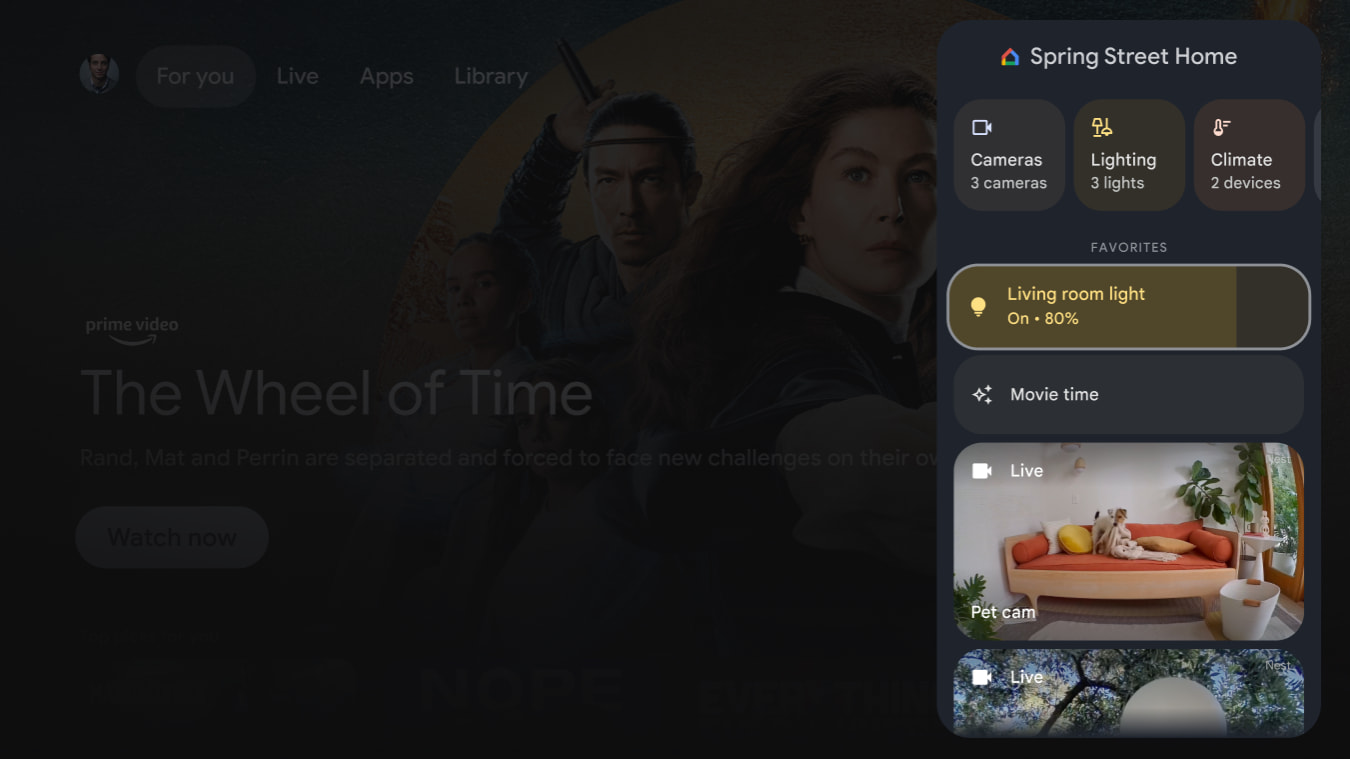
Once configured, the Home Panel resides neatly within the Quick Settings menu. From there, you gain quick control over a variety of smart home devices linked to your Google Home account. This includes adjusting lights and thermostats, checking locks, viewing live camera feeds, managing smart plugs, controlling vacuums, and interacting with connected TVs and speakers. Essentially, it brings the core controls from the Google Home app’s “Favorites” tab right to your biggest screen.
It’s important to note a few prerequisites for this feature to appear. You’ll need to be signed into your Google TV device with an account that is either the owner or a member of a “Home” within the Google Home app. Naturally, you also need compatible smart devices set up within that Home. If you don’t have any connected devices or aren’t part of a Google Home setup, the panel option won’t be available. Additionally, this functionality is not supported on Kids profiles.
SUBSCRIBE TO UPSTREAM
Get Chrome Unboxed delivered straight to your inbox
Upstream is our flagship, curated newsletter with the top stories, most click-worthy deals, giveaways, and trending articles from Chrome Unboxed sent directly to your inbox a few times a week. Join 31,000+ subscribers.

