
Support our independent tech coverage. Chrome Unboxed is written by real people, for real people—not search algorithms. Join Chrome Unboxed Plus for just $2 a month to get an ad-free experience, access to our private Discord, and more. Learn more about membership here.
START FREE TRIAL (MONTHLY)START FREE TRIAL (ANNUAL)
Messaging apps come in more flavors than Baskin Robbins’ Ice Cream and most people have a personal favorite. Personally, I’m a WhatsApp kind of guy. I use Android Messages on my phone and my Chromebook a lot of conversations but the majority of my chats, work and home-related, take place in WhatsApp because it is so similar to our long-lost friend Allo. Facebook is somewhat of an 800 lbs gorilla with their native FB messenger and WhatsApp collectively garnering nearly 3 billion users as of July 2019 but there are plenty of alternatives out there and the one you choose is ultimately what works best for you.
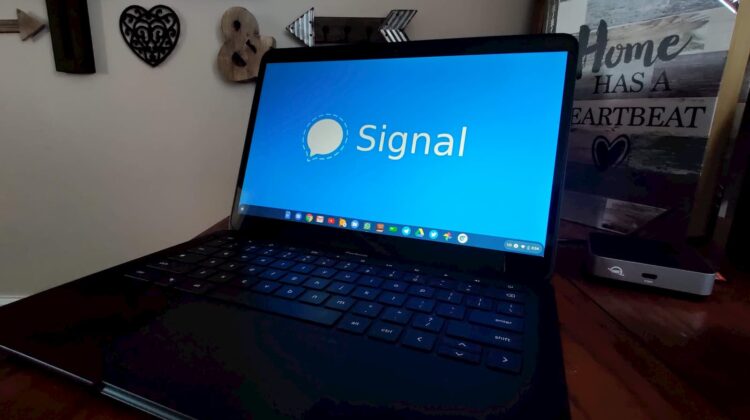
With a user-base in the vicinity of tens of millions, Signal Messenger is quickly becoming the choice of many who want a platform that focuses on security. The non-profit Signal Foundation maintains the Signal messaging platform and it is widely considered the most secure end-to-end encrypted messenger on the market. Unfortunately, Chrome OS users have been out of luck when it comes to using the desktop version of Signal since the Chrome app was deprecated back in 2017. However, thanks to Linux support, that is no longer the case.
Shop The Best Chromebooks of 2019 at Chrome Shop
At the request of Jaxon L., today we’re going to cover how to install the Linux version of Signal’s standalone desktop application. Now, Signal refers to this a “standalone” but to clarify, you still have to have Signal installed on your mobile device and you will sync it to the desktop application. So, let’s get started with the installation process. If you haven’t done so, start by getting Linux apps set up on your device and make sure everything is up-to-date. You can find the detailed how-to for this process here.
Signal officially supports all Debian builds but the application isn’t in the default repository which means you can just install it with a single apt command. First, we must import the GPG key for the Signal repository. Run the command below in your terminal to add the key.
curl -s https://updates.signal.org/desktop/apt/keys.asc | sudo apt-key add -Next, we need to add the repository to our source list. The command says “Xenial” which is an older version of Debian but it will work on Buster or any other Debian distro for that matter. Add the repo with the following command. (Once we’ve installed Signal, I’ll show you how to remove the repo from your source list if you want to clean things up. )
echo "deb [arch=amd64] https://updates.signal.org/desktop/apt xenial main" | sudo tee -a /etc/apt/sources.list.d/signal-xenial.listLast but not least, we will update the packages and install Signal using these two commands. Once the installation is complete, you should see the Signal icon in your app launcher. You can launch the desktop application and sync it to your phone with the displayed QR Code.
sudo apt update
sudo apt install signal-desktop
Not that you’ve installed Signal, you can optionally remove the repository from the source list with the command below. Keep in mind, you will need to add the repo back to update Signal in the future.
sudo rm /etc/apt/sources.list.d/signal-xenial.listI hope you found this helpful. I’m really excited to see where this Command Line series is going to take us and I appreciate all of the great input we’ve received from our readers. Keep the apps coming and I’ll keep finding ways to install them on Chrome OS. Until next time.
SUBSCRIBE TO UPSTREAM
Get Chrome Unboxed delivered straight to your inbox
Upstream is our flagship, curated newsletter with the top stories, most click-worthy deals, giveaways, and trending articles from Chrome Unboxed sent directly to your inbox a few times a week. Join 31,000+ subscribers.

