
Support our independent tech coverage. Chrome Unboxed is written by real people, for real people—not search algorithms. Join Chrome Unboxed Plus for just $2 a month to get an ad-free experience, access to our private Discord, and more. Learn more about membership here.
START FREE TRIAL (MONTHLY)START FREE TRIAL (ANNUAL)
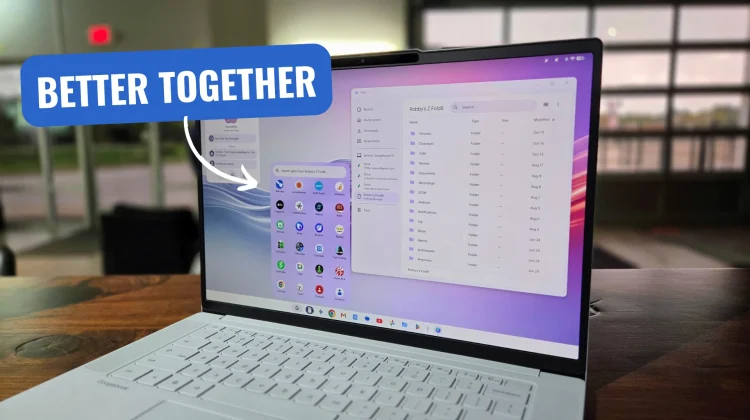
One of the biggest selling points of Googlebook is how effortlessly it pairs with your Android phone. Once your devices are sitting in the same Cross-Device group, features like App Streaming, Notification Sync, Files app continuity and Continue On feel a bit like magic.
However, because I’ve been jumping between all five launch Googlebooks over the past two weeks – logging in, logging out, resetting machines, and testing different setups – I recently ran into a weird wall where Cross-Device features completely stopped working on the Lenovo Googlebook 15 today.
While most people aren’t juggling five Googlebooks at once, it is very easy to end up in this exact same boat if you’ve factory reset your new Googlebook while tinkering with it, logged out and back in, or exchanged one launch model at Best Buy for another. If your phone and your Googlebook suddenly refuse to talk to each other, there is a good chance your account is tangled up with ghost sessions of the exact same laptop.
The duplicate device issue
When I dug into the Cross-device services menu on my phone to see why the Lenovo wasn’t connecting, I looked at my Device group list and immediately spotted the culprit. Somehow, my account had registered three separate instances of the Lenovo Googlebook 15 and three instances of the Dell XPS Googlebook.
Because the system saw three identical Lenovo laptops in the same group, the background handshake had no idea which session was the active one. Accordingly, the Cross-Device features simply stalled out.
Right now, there isn’t a quick “delete” button directly inside the Cross-device services menu to clear out those old ghost profiles. Fortunately, you can clean them up using the exact same method we’ve used for years to clear out old Chromebooks and Android phones.
How to remove duplicate Googlebooks from your group
To purge those inactive duplicate sessions and get your sync working again, you just need to visit your main Google Account dashboard:
- Open Chrome and head to google.com, click your profile icon in the top-right corner, and select Manage your Google Account.
- Click on the Security & sign-in tab on the left-hand menu.
- Scroll down until you see the Your devices section and click Manage all devices.
- Look for the section labeled Googlebook OS devices (which shows all active sessions across your hardware).
- Click into the older, duplicate sessions of your laptop that you are no longer using and click Sign out.
The second I signed out of the two older Lenovo sessions while leaving only my single, active session in the list, all of my Cross-Device features immediately sprang back to life without even needing a reboot.
I have no doubt that Google will eventually tighten up how Googlebook OS clears out stale device tokens after a reset or sign-out. Until then, if your Cross-Device sync hits a wall, check your device group for clones and clear them out from your Google Account security page.
SUBSCRIBE TO UPSTREAM
Get Chrome Unboxed delivered straight to your inbox
Upstream is our flagship, curated newsletter with the top stories, most click-worthy deals, giveaways, and trending articles from Chrome Unboxed sent directly to your inbox a few times a week. Join 31,000+ subscribers.

