
• Skip to main content
  • Skip to primary sidebar
  • Deals
  • Features
  • Guides
  • Chromebooks
  • Videos
  • Podcast
  • More +
    • Reviews
    • Unboxing
    • Upcoming Devices
    • Chromebook Plus
    • Chrome
    • ChromeOS
    • Chrome OS Flex
  • Search
  • Sign Up
  • Log In
Chrome Unboxed – The Latest Chrome OS News

Chrome Unboxed - The Latest Chrome OS News

A Space for All Things Chrome, Google, and More!

  • Deals
  • Features
  • Guides
  • Chromebooks
  • Videos
  • Podcast
  • More +
    • Reviews
    • Unboxing
    • Upcoming Devices
    • Chromebook Plus
    • Chrome
    • ChromeOS
    • Chrome OS Flex
  • Search
  • Sign Up
  • Log In

How to use the awesome, new Data Extraction Smart Canvas feature in Google Sheets

June 8, 2023 By Michael Perrigo View Comments

Support our independent tech coverage. Chrome Unboxed is written by real people, for real people—not search algorithms. Join Chrome Unboxed Plus for just $2 a month to get an ad-free experience, access to our private Discord, and more. Learn more about membership here.
START FREE TRIAL (MONTHLY)START FREE TRIAL (ANNUAL)

There’s a ton to explore in the revamped Google Workspace apps. By adding dynamic and interactive Smart Canvas elements, Google is essentially rewriting Docs, Sheets, Slides, Gmail and more at their very core. Seriously, if you’re not using these features yet, you’re missing out big time.

While not yet available to everyone, a new ‘Data Extraction’ feature will certainly come as a welcome addition if you are just getting accustomed to inject file smart chips into your spreadsheets across your organization.

Xremove ads

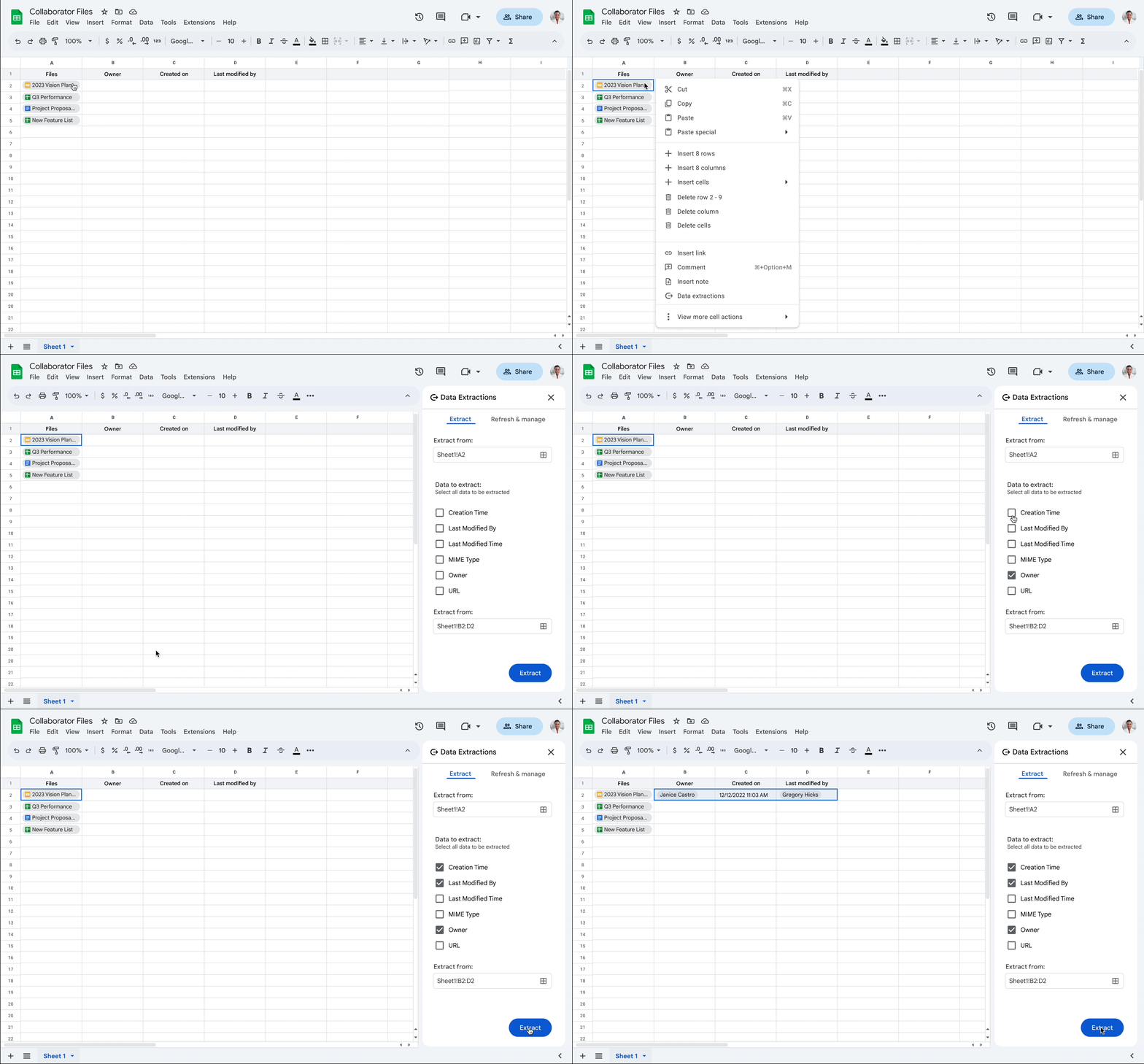
By clicking or right-clicking on a file smart chip in a Sheet cell, you can select the new ‘Data extractions’ option to open up the side panel and begin well, extracting data from the source document for use directly in the active Sheet.
Google Workspace Blog

Depending on what kind of information is available in the Doc, Slide, or linked Sheet, you will see relevant options in the side panel as “data to extract”. By checking a few boxes and clicking the blue ‘Extract’ button, you yank a copy of the information directly from the file in question and drop it into your workspace!

Featured Videos

Xremove ads

So, what would you use this for, exactly? Well, the possibilities are truly endless, and users will very likely think of their own use cases as they begin to integrate these tools into their workflow and team culture. However, if you need to interact with invoices or contracts you’ve linked in a column or row in order to quickly grab the information of the recipient like their name or address, for example, you won’t need to leave your active Sheet to do so.

This means no more tab clusters in Chrome as you juggle multiple files just to copy and paste bits of information! I can honestly see this coming in handy, and I do have several ideas for how to use this in a more creative capacity, but I’ll save that for another day.

If you’ve already gained access to this and are using it in any specific way, please let others known in the comments section! I’d also be interested in reading all about your implementation. Until this rolls out to everyone though, it’s a nice feature to gawk at since it’s so clever and powerful.

Xremove ads

SUBSCRIBE TO UPSTREAM

Get Chrome Unboxed delivered straight to your inbox

Upstream is our flagship, curated newsletter with the top stories, most click-worthy deals, giveaways, and trending articles from Chrome Unboxed sent directly to your inbox a few times a week. Join 31,000+ subscribers.

SUBSCRIBE HERE!

Filed Under: Guides and How-To's, New & Upcoming Features, Workspace

About Michael Perrigo

Known as "Google Mike" to his customers, Michael worked at Best Buy as a Chromebook Expert who dedicated his time to understanding the user experience from a regular Chromebook owner's perspective. Having spent nearly 20 years meeting you face-to-face, he strives to help you understand your technology through carefully crafted guides and coverage, relentlessly seeking out the spark in what's new and exciting about ChromeOS.

Primary Sidebar

Googlebook

How many years of updates Googlebook gets could make or break it on Day One

By Robby Payne
September 8, 2026

Your Android phone might soon double as a wireless mouse for Googlebook

By Robby Payne
September 5, 2026

Google’s John Solomon explains why Googlebook is Google’s next Chromebook moment

By Robby Payne
September 4, 2026

Googlebook is designed for AI, but that’s not why I’m excited for it

By Robby Payne
September 3, 2026

Leaked Googlebook ‘Look up’ app appears on the Play Store ahead of launch

By Robby Payne
September 2, 2026

More Googlebook

Xremove ads

Deals

The best Chromebook deals today

By Robby Payne
September 2, 2026

The best Chromebook ever made is $350 off at Best Buy right now

By Robby Payne
August 21, 2026

The excellent, powerful Acer Chromebook Plus Spin 514 is $150 off right now

By Robby Payne
August 12, 2026

Acer’s new Chromebook 315 is wildly affordable and points to the real future of Chromebooks

By Robby Payne
August 11, 2026

You can score the massively upgraded ASUS CX54 Chromebook Plus for just $599 right now

By Joseph Humphrey
July 28, 2026

More Deals

Xremove ads

Reviews

Acer Chromebook Plus Spin 514 Review: the best convertible you can buy [VIDEO]

By Robby Payne
July 1, 2026

Lenovo Chromebook Plus 2-in-1 Review: pretty great in a vacuum

By Robby Payne
April 23, 2026

My review after 6 weeks with the Lenovo Chromebook Plus 14 [VIDEO]

By Robby Payne
August 11, 2025

One week with the best small Android tablet you can buy, and I’m sold

By Robby Payne
May 9, 2025

Best Chromebooks of 2024 [VIDEO]

By Robby Payne
November 28, 2024

More Reviews

Xremove ads

TWITTER · FACEBOOK · INSTAGRAM · YOUTUBE · EMAIL · ABOUT

Copyright © 2026 · Chrome Unboxed · Chrome is a registered trademark of Google Inc.
We are participants in various affiliate advertising programs designed to provide a means for us to earn fees by linking to affiliated sites.

PRIVACY POLICY