
• Skip to main content
  • Skip to primary sidebar
  • Deals
  • Features
  • Guides
  • Chromebooks
  • Videos
  • Podcast
  • More +
    • Reviews
    • Unboxing
    • Upcoming Devices
    • Chromebook Plus
    • Chrome
    • ChromeOS
    • Chrome OS Flex
  • Search
  • Sign Up
  • Log In
Chrome Unboxed – The Latest Chrome OS News

Chrome Unboxed - The Latest Chrome OS News

A Space for All Things Chrome, Google, and More!

  • Deals
  • Features
  • Guides
  • Chromebooks
  • Videos
  • Podcast
  • More +
    • Reviews
    • Unboxing
    • Upcoming Devices
    • Chromebook Plus
    • Chrome
    • ChromeOS
    • Chrome OS Flex
  • Search
  • Sign Up
  • Log In

How to use face detection on Pixel to improve auto-rotate

September 4, 2022 By Johanna Romero View Comments

featured image with auto rotate icon illustration

Support our independent tech coverage. Chrome Unboxed is written by real people, for real people—not search algorithms. Join Chrome Unboxed Plus for just $2 a month to get an ad-free experience, access to our private Discord, and more. Learn more about membership here.
START FREE TRIAL (MONTHLY)START FREE TRIAL (ANNUAL)

I’m sure you can relate to how annoying it is to lie down while using your phone and have your phone’s display rotate to landscape orientation. This particular scenario was responsible for people turning off auto-rotate on their phones altogether and manually enabling it as needed.

But what if I told you that you no longer have to do this? Beginning with Android 11, the auto-rotate feature became more helpful by relying on the accelerometer to determine the correct orientation. This was improved on in Android 12 by introducing the use of the front-facing camera to make this feature even smarter and use the position of your face as a guide.

Xremove ads

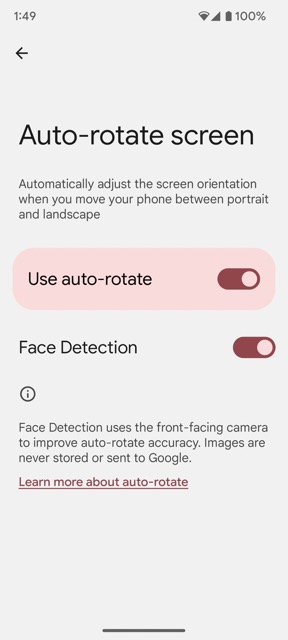
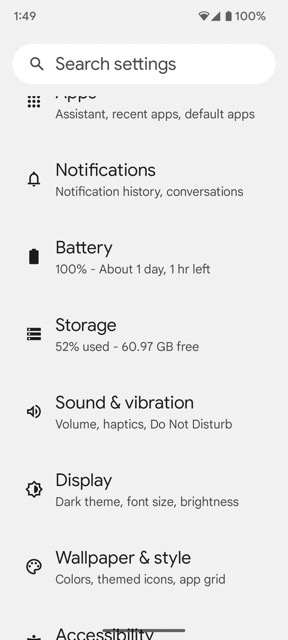
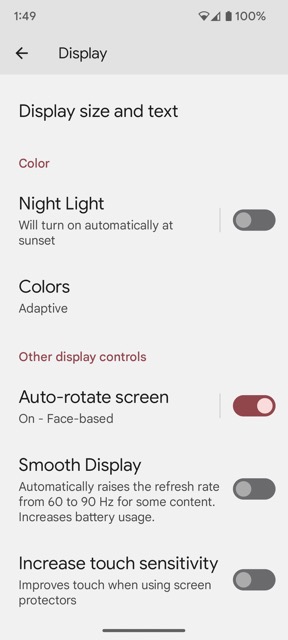
To turn that feature on a Pixel device, like the Pixel 6 or Pixel 6a, first, go to your device’s Settings. Next, scroll down to and select “Display.” Scroll down once again and select “Auto-rotate screen,” but don’t turn on the toggle here, instead tap on it to see more options. You will then see an option to toggle-on auto-rotate and one to use “Face Detection.” Select both options from this screen.
Once these two options are turned on, if your device is running Android 12 or newer, you will be able to hold your phone in any position — and as long as the selfie camera can see your face — it should not prompt you with the auto-rotate icon at the bottom of the screen.

Featured Videos

Xremove ads
I just want the steps!
    ​
  1. Go to your phone’s Settings
  2. Select Display
  3. Tap on Auto-rotate screen, but don’t turn on the toggle from here
  4. Toggle on Use Auto-rotate and then Enable Face Detection

Filed Under: Guides and How-To's, Pixel Tagged With: auto rotate, face detection, how to, pixel

Primary Sidebar

Googlebook

Your Android phone might soon double as a wireless mouse for Googlebook

By Robby Payne
September 5, 2026

Google’s John Solomon explains why Googlebook is Google’s next Chromebook moment

By Robby Payne
September 4, 2026

Googlebook is designed for AI, but that’s not why I’m excited for it

By Robby Payne
September 3, 2026

Leaked Googlebook ‘Look up’ app appears on the Play Store ahead of launch

By Robby Payne
September 2, 2026

Acer teases its first Googlebook at IFA ahead of Google’s press event

By Robby Payne
September 2, 2026

More Googlebook

Xremove ads

Deals

The best Chromebook deals today

By Robby Payne
September 2, 2026

The best Chromebook ever made is $350 off at Best Buy right now

By Robby Payne
August 21, 2026

The excellent, powerful Acer Chromebook Plus Spin 514 is $150 off right now

By Robby Payne
August 12, 2026

Acer’s new Chromebook 315 is wildly affordable and points to the real future of Chromebooks

By Robby Payne
August 11, 2026

You can score the massively upgraded ASUS CX54 Chromebook Plus for just $599 right now

By Joseph Humphrey
July 28, 2026

More Deals

Xremove ads

Reviews

Acer Chromebook Plus Spin 514 Review: the best convertible you can buy [VIDEO]

By Robby Payne
July 1, 2026

Lenovo Chromebook Plus 2-in-1 Review: pretty great in a vacuum

By Robby Payne
April 23, 2026

My review after 6 weeks with the Lenovo Chromebook Plus 14 [VIDEO]

By Robby Payne
August 11, 2025

One week with the best small Android tablet you can buy, and I’m sold

By Robby Payne
May 9, 2025

Best Chromebooks of 2024 [VIDEO]

By Robby Payne
November 28, 2024

More Reviews

Xremove ads

TWITTER · FACEBOOK · INSTAGRAM · YOUTUBE · EMAIL · ABOUT

Copyright © 2026 · Chrome Unboxed · Chrome is a registered trademark of Google Inc.
We are participants in various affiliate advertising programs designed to provide a means for us to earn fees by linking to affiliated sites.

PRIVACY POLICY