



Support our independent tech coverage. Chrome Unboxed is written by real people, for real people—not search algorithms. Join Chrome Unboxed Plus for just $2 a month to get an ad-free experience, access to our private Discord, and more. Learn more about membership here.
START FREE TRIAL (MONTHLY)START FREE TRIAL (ANNUAL)
I know you’re over-saturated with Google’s popular primary color scheme, and you may even love it as much as I do, but when you use your Google Calendar to time block every morning and plan your day, bright red, yellow, blue, and green can get a bit visually overwhelming.
Have you ever wished you could change these colors to something a bit more muted? Do you just want something fresh and exciting to look at? Today, I’m going to show you how to change your Calendar’s colors to anything you want. Well, not just anything – we’re going to be hand-picking a new set of complementary colors that are visually appealing and fun.
How to change a calendar’s color
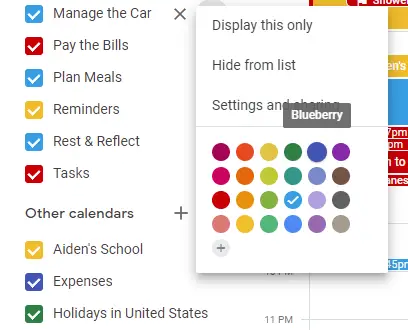
First thing’s first, go ahead and open the Google Calendar web app on your Chromebook or desktop. Most of you probably already knew that you could hover over and click the three-dots “more” options menu to the right of each individual calendar name on the left-hand side to choose other colors like tomato red, banana yellow, basil or sage green, flamingo pink, graphite, and more.
How to choose complementary colors
However, the often-overlooked option is both not a color at all, while simultaneously being all colors at once. More specifically, it allows you to use any hexadecimal color code you want, offering you the ability to fully customize Google Calendar’s event card backgrounds to your liking. Tapping this icon will call up a new dialog box with a slider and color wheel as well as a hex code entry text box.
You could choose any color and have a fresh, new look…in theory, but since most people aren’t designers, why don’t we rely on an external source for “color theory” to make sure the colors you choose complement one another and don’t clash.
Props to an amazing productivity YouTuber named Jeff Su who gave me the idea and the resource we’ll be discussing for this article with his Calendar productivity tips video. If you’re not already subscribed, I would encourage you to do so as his content is both engaging and entertaining while being extremely useful.
To grab a complementary set of colors for our Google Calendar, head over to Color Hunt on the web. Color Hunt has loads of color palette combinations like pastel, neon, vintage, retro, light, dark, warm, cold, and more. For my example below, I’m using this palette as it has a lot of great brown and beige colors.
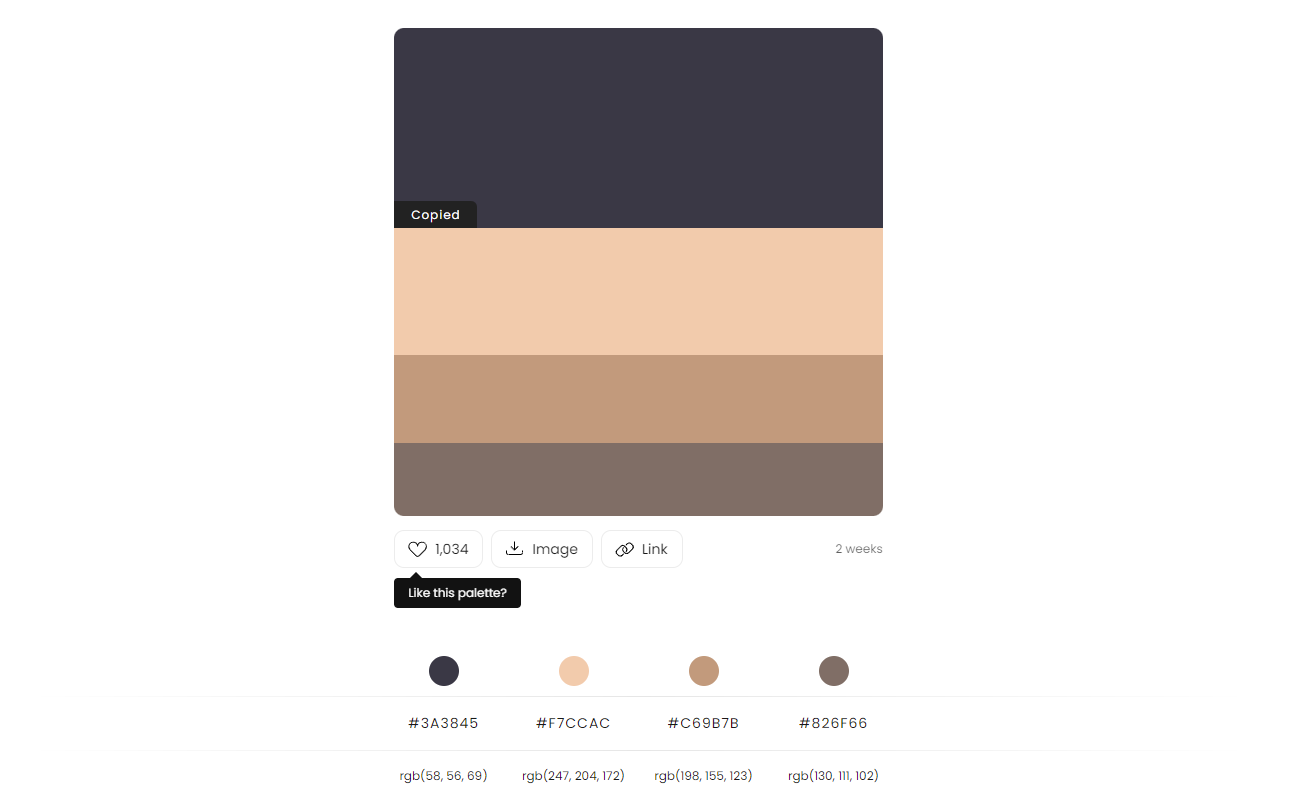
Once you’ve selected a color palette you’d like to apply to your calendars, hover over each Color Hunt color or shade and click the hexadecimal number to place it into the bottom-left of them as seen above.
Go back to Google Calendar, hover over the name of one of your calendars, and click the three dots menu to the right of it as we previously discussed. Then, click the plus icon below the available colors and enter the aforementioned hex color dialog box.
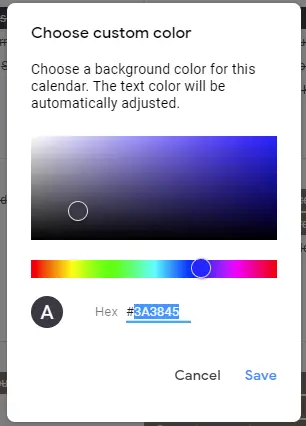
All you’ll have to do now is paste the hexadecimal color code into the “Hex” box and hit “Save”. You may need to manually select it from the color picker for that calendar again, but once you do, all events on that calendar will automagically swap over to your custom color!
Lastly, go back to Color Hunt and copy the remaining palette colors and paste them into the Hex color of each of your other calendars, and you’ll be left with a visually pleasing color scheme for everything on your Google Calendar.
The final result
You can see here that my final result incorporates all of the colors in the palette I referenced above. I’ve stripped out all of my information with Photoshop, but yours will, of course, have all of your Calendar events plugged into these cards.
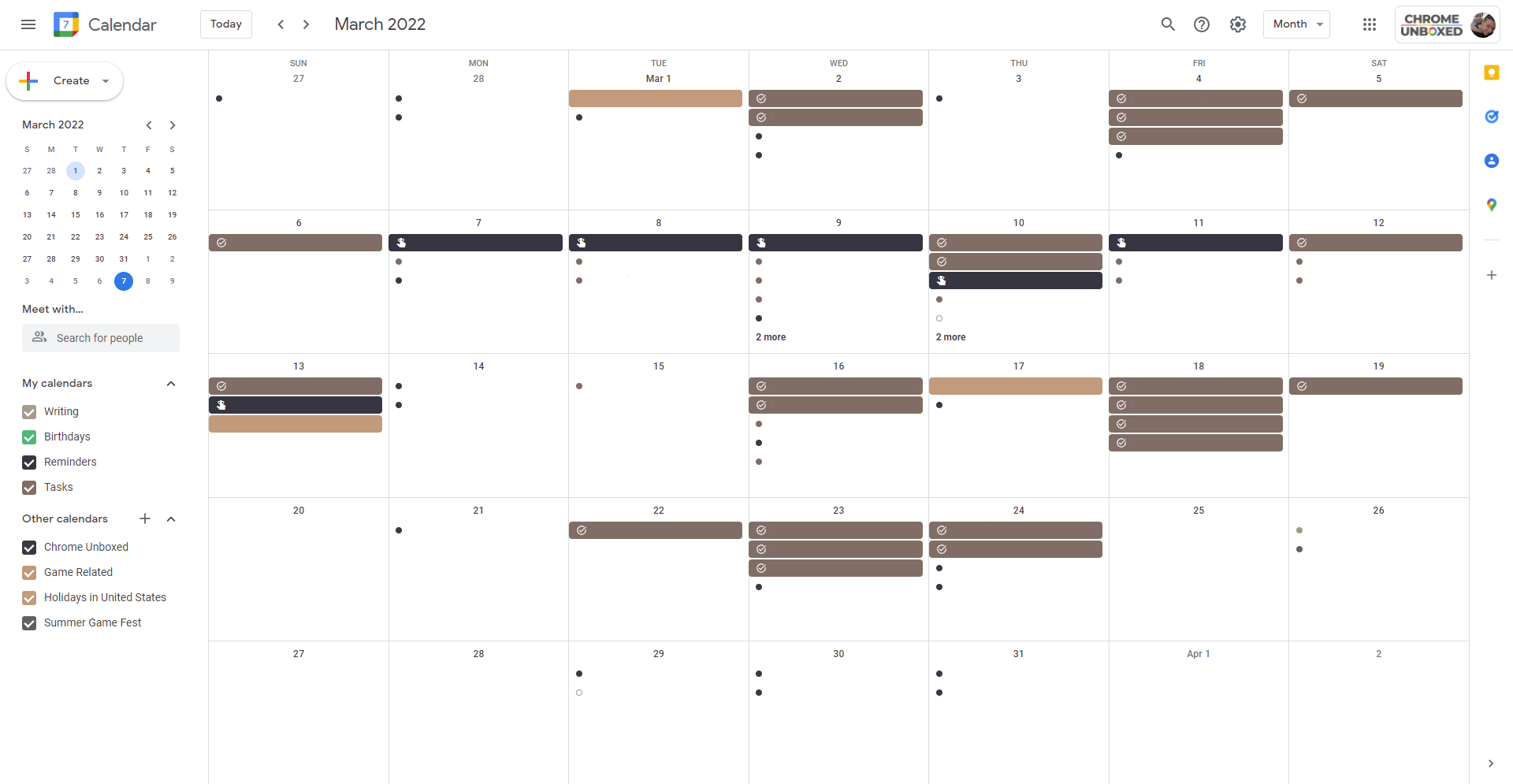
While it does take a bit of manual labor, it’s still worth it because these new colors, though custom, will be carried across all of your devices, which absolutely rocks! One thing I wish Google would do now that everything is Material Design is to let users custom pick these colors for the entire interface. Right now, you can only change card colors, but the rest of the UI remains accented with Google blue. If you have any other Google Calendar tips or tricks that you’d like for us to cover, let us know in the comments section below, and share your favorite Color Hunt color palette with us too.
SUBSCRIBE TO UPSTREAM
Get Chrome Unboxed delivered straight to your inbox
Upstream is our flagship, curated newsletter with the top stories, most click-worthy deals, giveaways, and trending articles from Chrome Unboxed sent directly to your inbox a few times a week. Join 31,000+ subscribers.

