

Support our independent tech coverage. Chrome Unboxed is written by real people, for real people—not search algorithms. Join Chrome Unboxed Plus for just $2 a month to get an ad-free experience, access to our private Discord, and more. Learn more about membership here.
START FREE TRIAL (MONTHLY)START FREE TRIAL (ANNUAL)
Chromebooks and printing have a historically painful relationship. More specifically, users finding a printer that works with Chrome OS and setting up that printer has long been one of the biggest hurdles Chromebook owners. For years, this meant finding a printer that supported Google Cloud Print or setting up a second computer as a print server for your Chromebook. Unfortunately, (or fortunately, if you know what we know) Google Cloud Print will soon be no more. As of December 31, 2020, Google’s wireless printing protocol will be retired and that has sent many Chromebook users into a tizzy as they scramble to find a viable printing alternative.
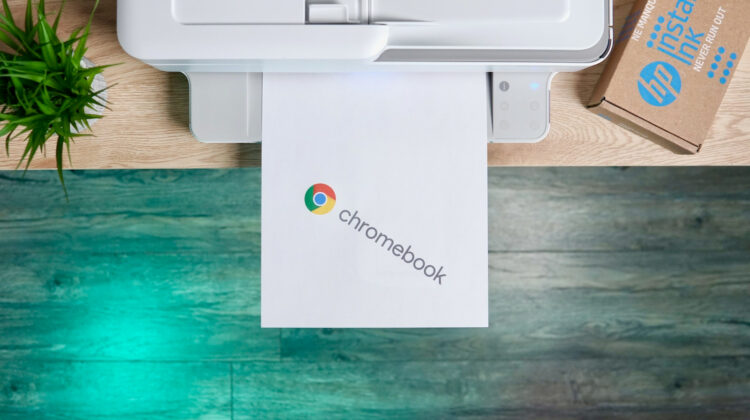
Thankfully, printing on Chrome OS has come a long way over the past couple of years. In some instances, setting up a wireless printer and using it with a Chromebook is actually easier than it is on other operating systems. This is due, in part, to the fact that Chromebooks don’t need to download drivers or install applications to access network printers. Today, we’re going to take a look at just how easy it is to set up an HP all-in-one printer on your wireless network with just your smartphone. Once we’re done, your Chromebook will automatically see the printer and you will be able to print without any extra applications, extensions, or plugins. Check out this video to see how it’s done.
Setting up an HP All-in-One printer for you Chromebook
From start to finish, this entire process takes less than five minutes and once it’s complete, your HP printer should show up under available devices in your Chromebook’s settings. This is all done from the HP Smart app on your phone. You can get it for free at 123.hp.com. There’s also a Windows and macOS version of the HP Smart app if you prefer to use another computer to set up the printer. Keep in mind, there isn’t an all-encompassing print solution for Chrome OS at the moment. I have tested and used half a dozen HP consumer models that all work perfectly with Chrome OS once they are set up on the wireless network. That said, you may encounter an HP Printer that doesn’t play well with the HP Smart app. If that happens to be your situation, you can try the HP Print for Chrome extension and chances are very good that this gives your Chromebook access to your wireless printer.
In the video, I used the HP Envy Pro 6455 All-in-One but this method works for the budget-friendly 2000 series as well as the 3000 series printers from HP. To find your specific printer and which protocols it supports, head over to this support page at HP. I think that you will find most late-model HP consumer printers will work with either HP Smart or the HP Chrome extension.
If you have a new HP printer or you have recently reset your printer, install the HP Smart app on your mobile device and make sure that your phone is connected to the wi-fi that you wish to connect the printer to. Open the HP Smart app and click “set up a new printer.” From there, the app will search for any printers already set up on the network. Click the “+ Add Printer” button and look for your new or reset printer. The model number may not be exactly the same as your actual printer but it should be similar since there are numerous models in HP’s family of devices. For our HP, the app displayed HP 6400. Click the model that is yours and you should be prompted to confirm the wireless network and password if you have one in place.
The setup should take no more than a minute or two and once it is complete, you may be prompted to connect an HP account for things such as HP’s Instant Ink or other services. You can do this at your discretion or you can simply skip this step and your printer will be good to go. Now, when you go to the printer settings on your Chromebook, you should see the new printer ready to use. You can click the save button next to the printer and it will now show as an option any time you opt to print from your device. Note: If your printer does not appear in the HP Smart app, you may need to put it into setup mode. For information on that, consult the HP website and find the manual for your specific printer. For my $60 HP 2652, I just had to press the wireless button on the control panel and the app found it.
I hope this quick tutorial helps you get up and running with a new printer and quells any fear that you may have now that Google Cloud Print is going away. We have found that many printers from Epson, Canon, and Brother work just as well with Chrome OS. All you have to do is make sure that they are set up on your wireless network on your Chromebook will simply see them and you can print to them with ease. If you’re having trouble getting your specific printer set up, drop a comment below and we’ll see if we can help you work out the kinks. Cheers.
HP Smart app for Android and iOS
SUBSCRIBE TO UPSTREAM
Get Chrome Unboxed delivered straight to your inbox
Upstream is our flagship, curated newsletter with the top stories, most click-worthy deals, giveaways, and trending articles from Chrome Unboxed sent directly to your inbox a few times a week. Join 31,000+ subscribers.

