

Support our independent tech coverage. Chrome Unboxed is written by real people, for real people—not search algorithms. Join Chrome Unboxed Plus for just $2 a month to get an ad-free experience, access to our private Discord, and more. Learn more about membership here.
START FREE TRIAL (MONTHLY)START FREE TRIAL (ANNUAL)
You’ve probably at least heard of something called “Google Play Points”, but what are they, and why do they matter? How do you set them up and more importantly, how do you even spend them, and on what? Today, I’m going to answer all of these questions for you so you can make the most of Google’s Play Store offerings, and maybe even get some free stuff!
What are Google Play Points?
Google Play Points are Google’s reward program where you earn…well, points! Every dollar you spend on something in the Play Store, be it a book, audiobook, app, game, or anything else, you’ll earn Play Points. You’ll also earn Points when you spend on in-app purchases in games and so on. Once you’ve allocated enough of them, you can cash them in for rewards in games you’ve installed (coupons, in-game currency, etc.), or Play Store Credit. Oh, and if you want to support a good cause, you can choose to donate to a non-profit using those points. This system technically replaces Google’s now-defunct “Google One Today” donation service.
Google Play Points are available in Australia, Austria, Belgium, Denmark, Finland, France, Germany, Greece, Hong Kong, Indonesia, Ireland, Israel, Italy, Japan, Korea, Netherlands, New Zealand, Norway, Portugal, Saudi Arabia, South Africa, Spain, Sweden, Switzerland, Taiwan, United Arab Emirates, United Kingdom, or the United States.
Google Play Help
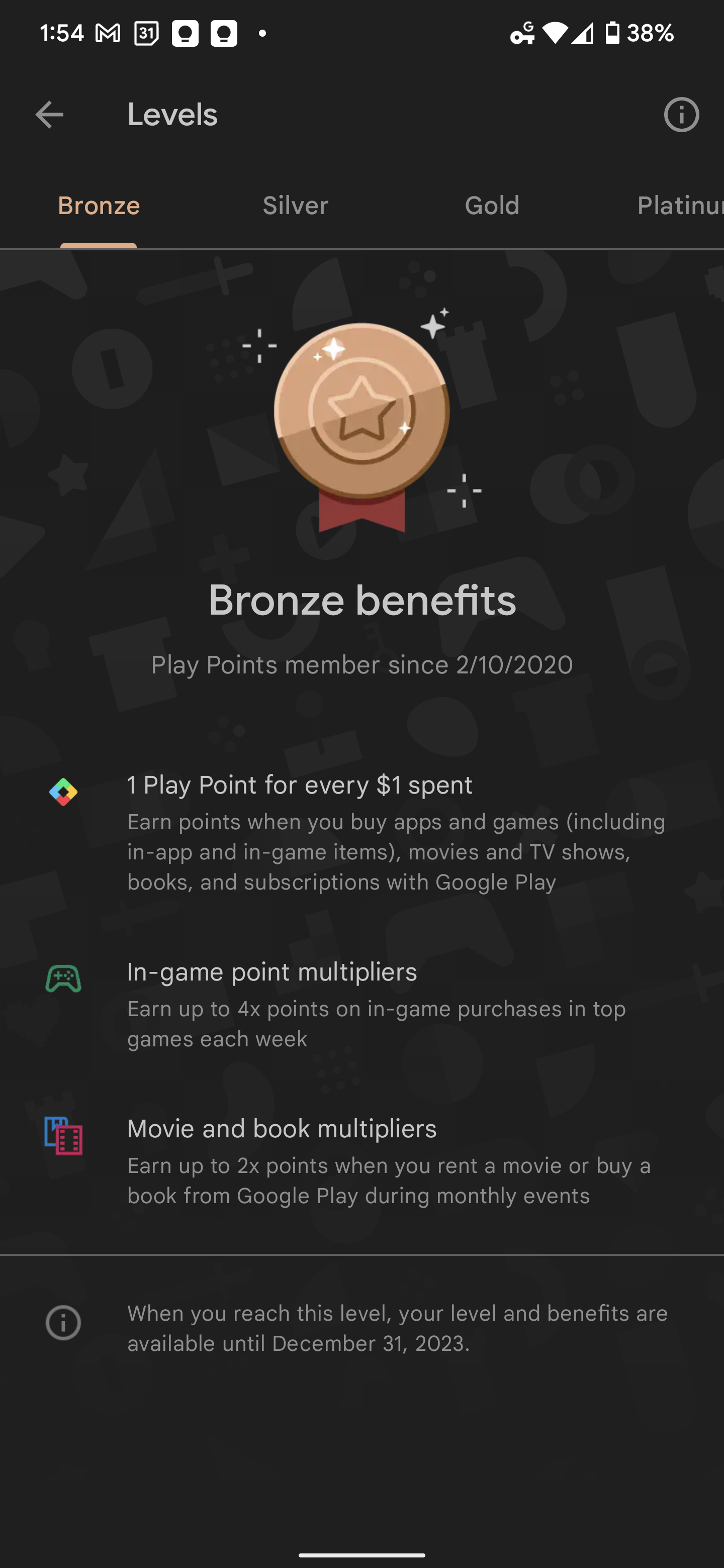
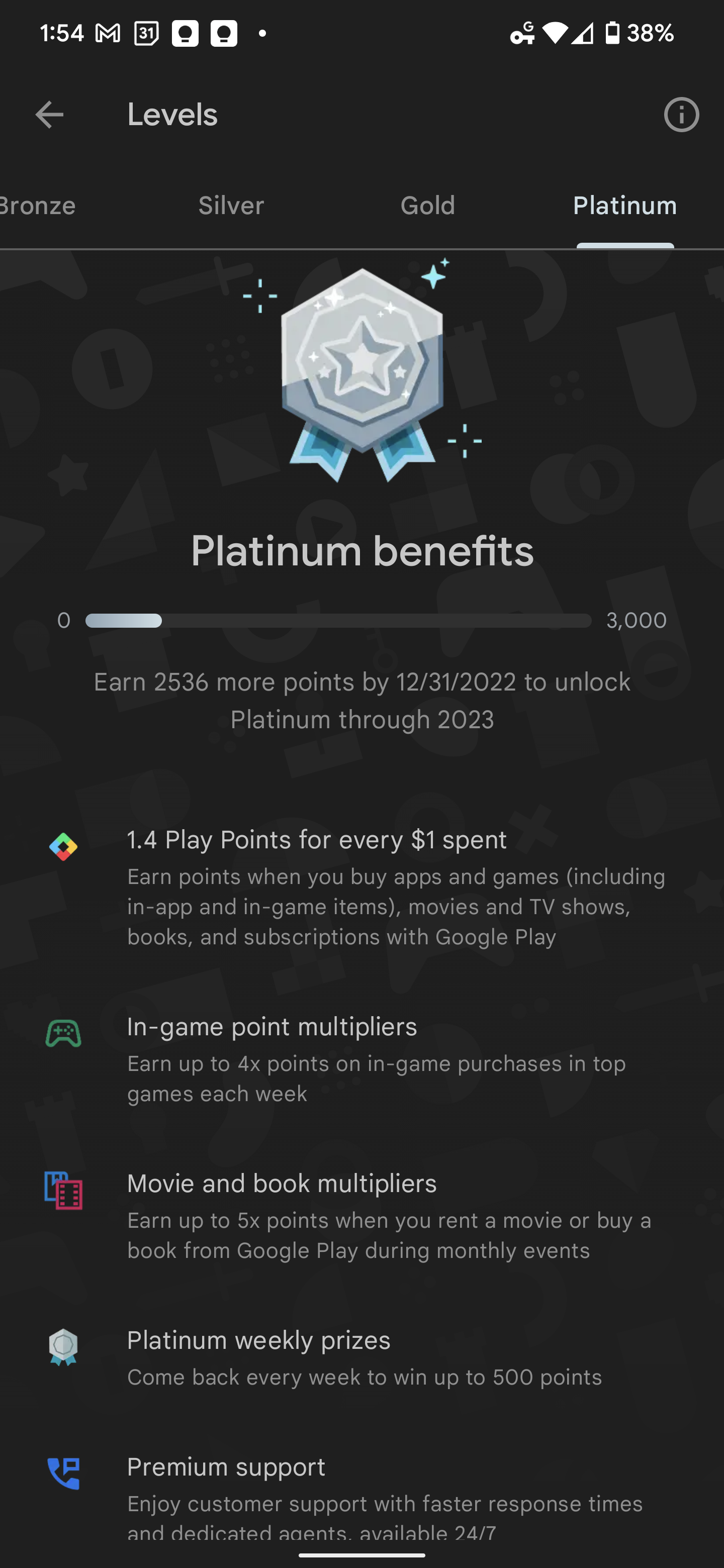
Okay, so you now know what Play Points are, but did you know that you can work your way up to different tiers as you earn? That’s right, there’s the Bronze, Silver, Gold, and Platinum level, and each comes with its own benefits. For Bronze, you’ll earn 1 point per $1 you spend, up to 4x points in games during weekly events, and up to 2x points on movie rentals and books during monthly events. As you move up to silver, gold, and platinum, these numbers also go up, but I’ll let you check out the images below to see a full list of the benefits. As a heads up, you’ll need to maintain a certain spending threshold each year in order to stay at whatever level you’re at, otherwise, you’ll drop down to the level below and your benefits will change as well.


Alright, sign me up!
Actually, you can enroll in the program directly by visiting Play Points on the web or by visiting the Google Play Store on your phone and tapping your profile image in the top-right of the screen, and then tapping “Play Points” halfway down the list that appears. Follow up by tapping “Learn more” and then “Join for free”.
You’ll need to have a debit or credit card on file in order to set this up, so you’ll be prompted on the next screen. Don’t worry, this is only in case you wish to make purchases. The Play Points program is completely free to use, so you won’t incur a charge by signing up!
I just want the steps!
1. Open the Google Play Store on your Android device
2. Tap your profile image
3. Tap “Play Points”
4. Tap the green “Join for free” button
5. Put your debit or credit card information on file
How do I spend Play Points though?
Okay, you’re now signed up, and you may have even allocated a handful of Google Play Points already, but how the heck do you spend them? That’s actually quite simple, and Google has streamlined the process a lot since the program first launched! First, tap your profile image at the top right of the Play Store and you’ll see a colorful bar that states which Play Points level you’re at and how many more you need in order to keep your status for the next year.
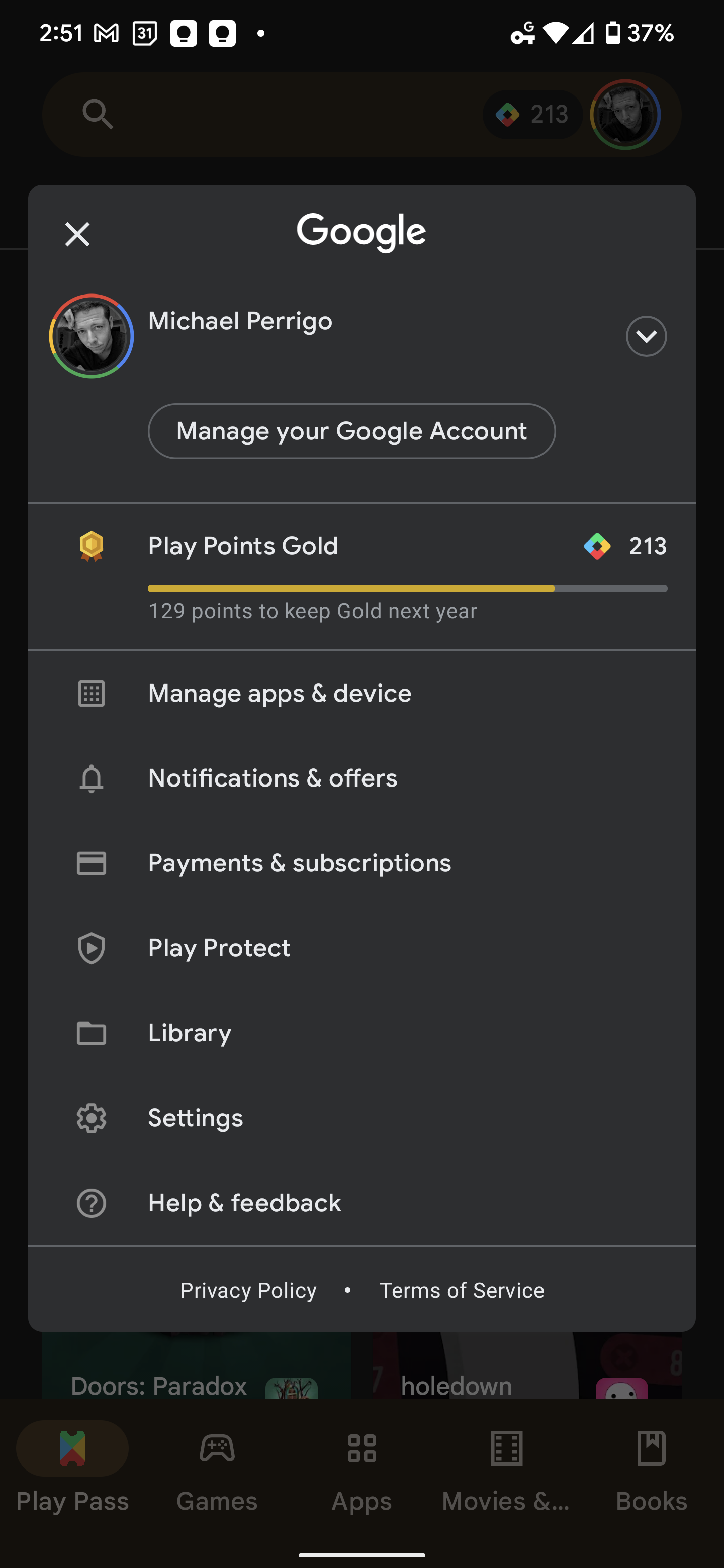
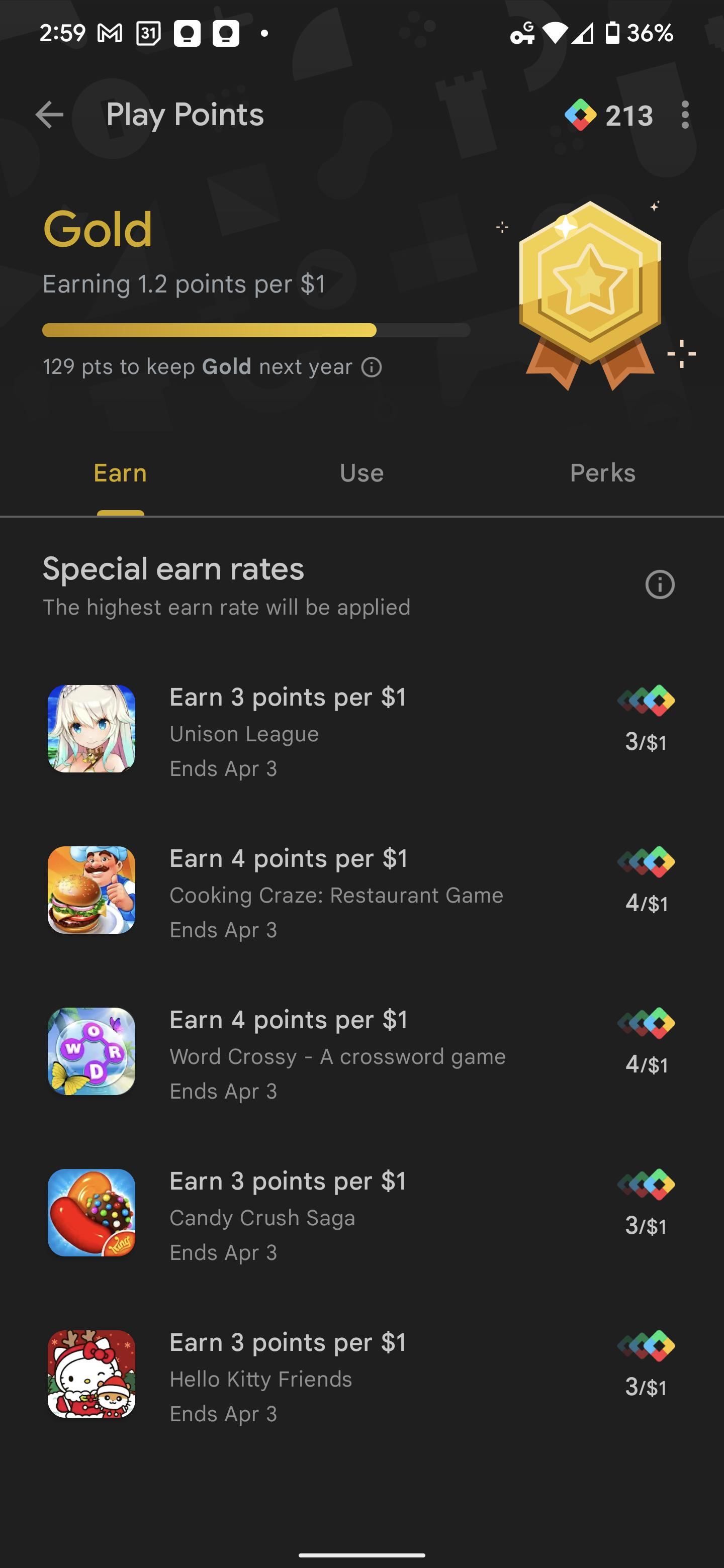
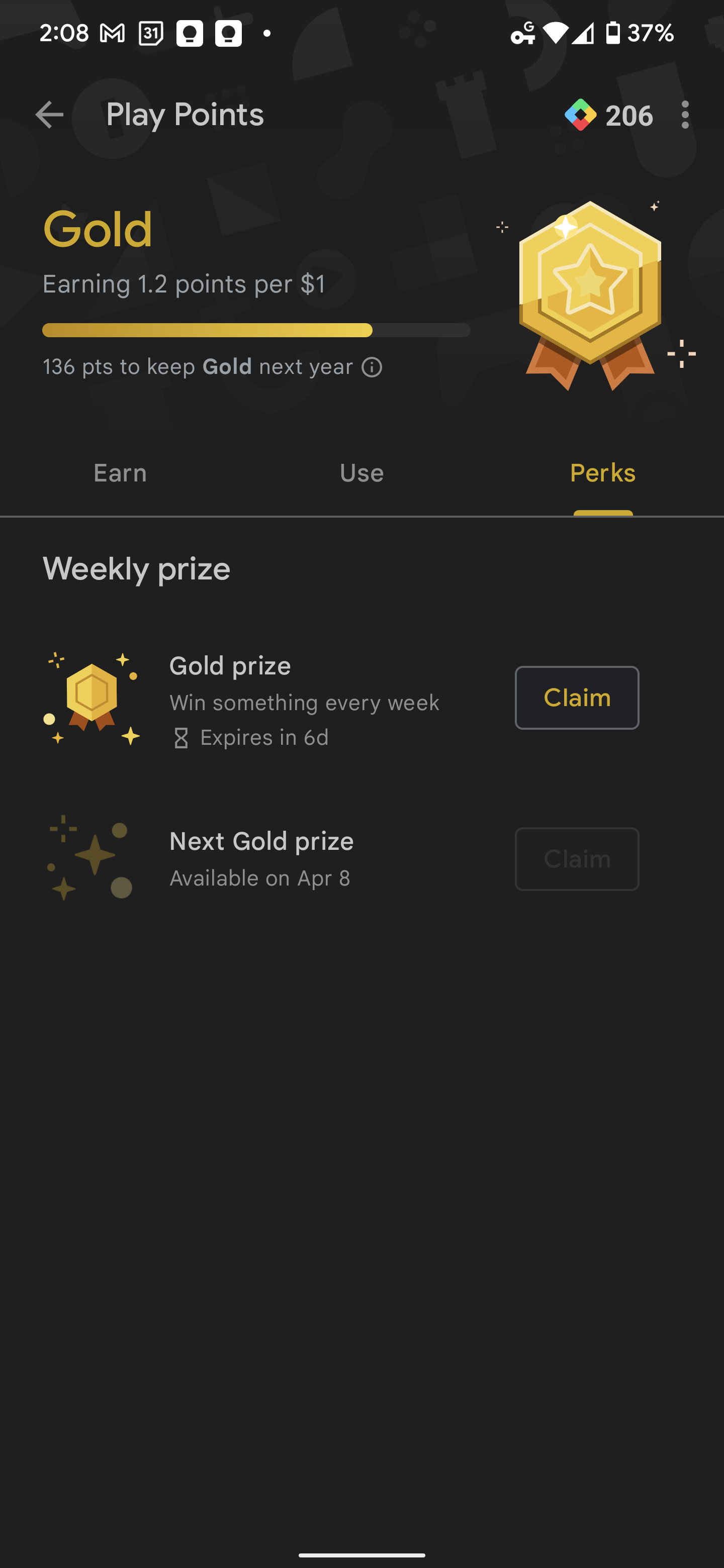
Simply tap the bar to be taken to the full Points experience, and enjoy earning, using, or claiming your points using the three tabs that appear there. After enrolling, you’ll start receiving weekly notifications about free “Perks” which you can claim as shown below. They do expire if you don’t claim them, and it only takes a moment to do so. Claiming these are how you get free apps and games! You don’t get a load of points this way, but it is a great way to work the system and save up for something you’ve been wanting.
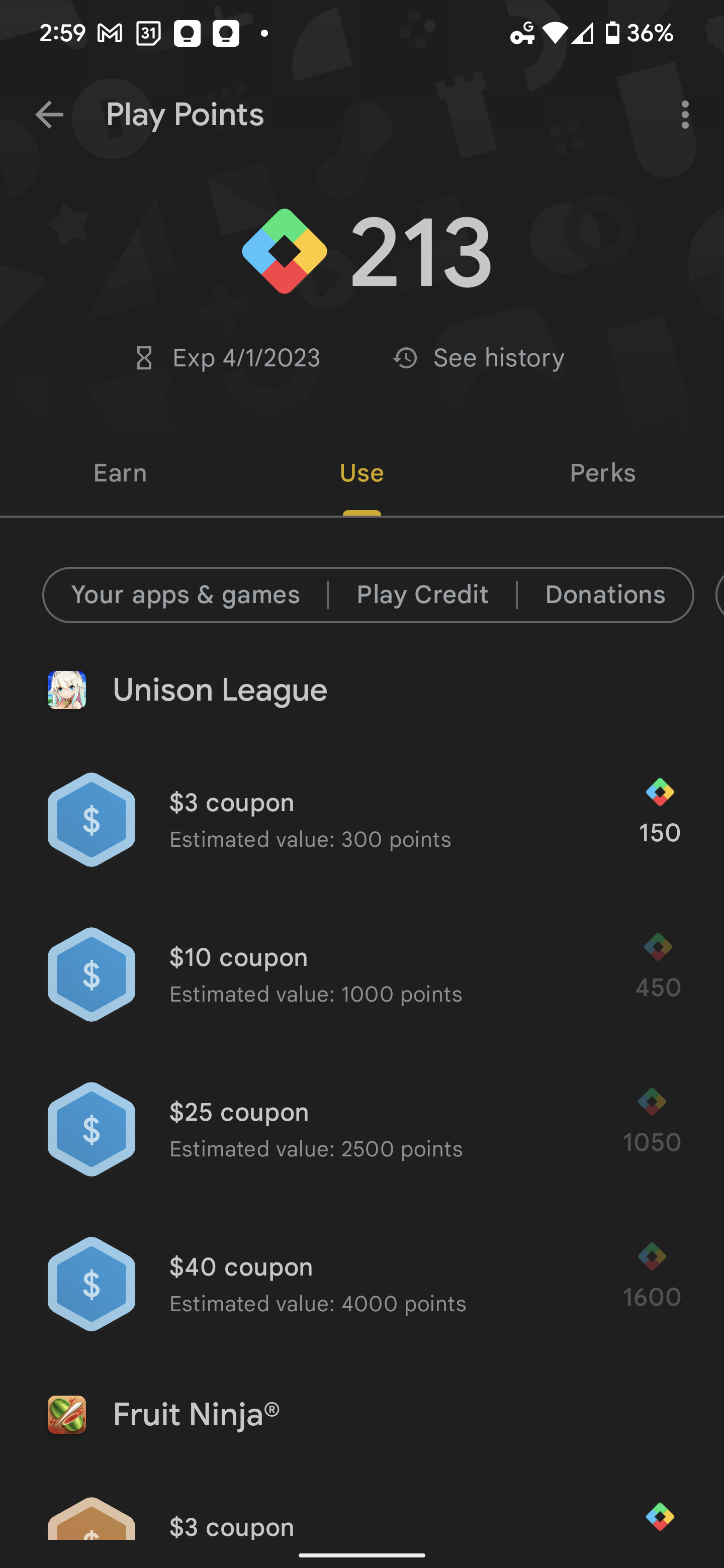
On the “Use” tab you see above, you can also filter out “Play Credit” and cash your points in for “money” you can spend on the Play Store, but Google recently made it possible to spend your points directly on apps, games, and more, so this is redundant. One of my favorite features on the “Use” tab though, is the ability to filter ways to spend your points based on how many you have so that you don’t see anything you can’t get.
I just want the steps!
1. Open the Google Play Store
2. Tap your profile image
3. Tap the Play Points bar
4. Use the “Earn”, “Use”, and “Perks” tabs to navigate Play Points.
5. Don’t forget to claim your weekly reward on the “Perks” tab!
SUBSCRIBE TO UPSTREAM
Get Chrome Unboxed delivered straight to your inbox
Upstream is our flagship, curated newsletter with the top stories, most click-worthy deals, giveaways, and trending articles from Chrome Unboxed sent directly to your inbox a few times a week. Join 31,000+ subscribers.

