

Support our independent tech coverage. Chrome Unboxed is written by real people, for real people—not search algorithms. Join Chrome Unboxed Plus for just $2 a month to get an ad-free experience, access to our private Discord, and more. Learn more about membership here.
START FREE TRIAL (MONTHLY)START FREE TRIAL (ANNUAL)
If you own a pair of Google’s Pixel Buds that you use with your Android device and want to use them with your Chromebook as well, you will unfortunately not get the fancy fast pair experience made famous by the Google Pixel phones. However, you will be able to pair them with any device that supports Bluetooth 4.0 or above.
Put your Pixel Buds in pairing mode
Since we are using Bluetooth for this process, we need to start by putting your Pixel Buds in pairing mode to be discoverable. To do this, open the Pixel Buds charging case with the buds still inside. Then, press and hold the pairing button that’s on the back of the case. You will know you’ve entered pairing mode when the status light on the case is pulsing white.
I just want the steps!
1. Open the Pixel Buds charging case with your buds still inside
2. Press and hold the pairing button
Connect your Buds to your Chromebook
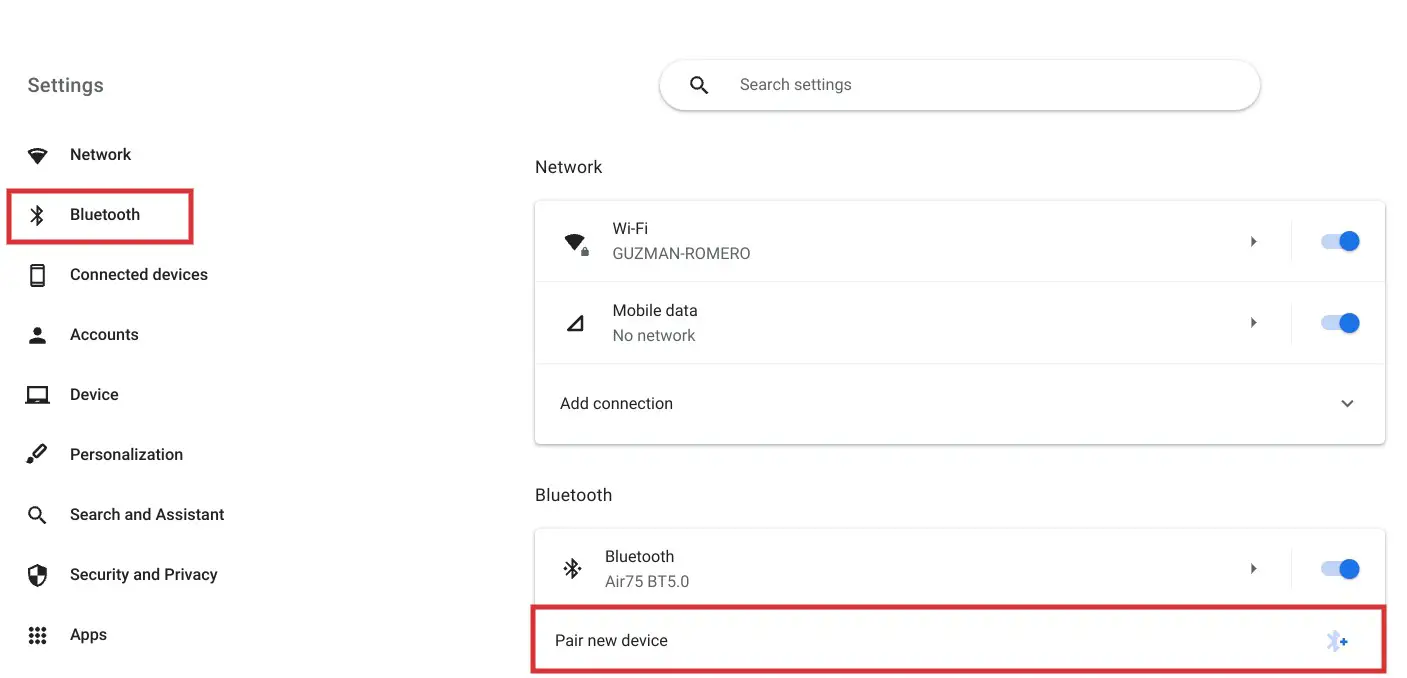
Now that your Pixel Buds are discoverable and waiting to be paired with let’s move on to your Chromebook. First, navigate to your Chromebook’s Settings and click on Bluetooth from the menu options on the left. Then, on the right, click on “Pair new device.”
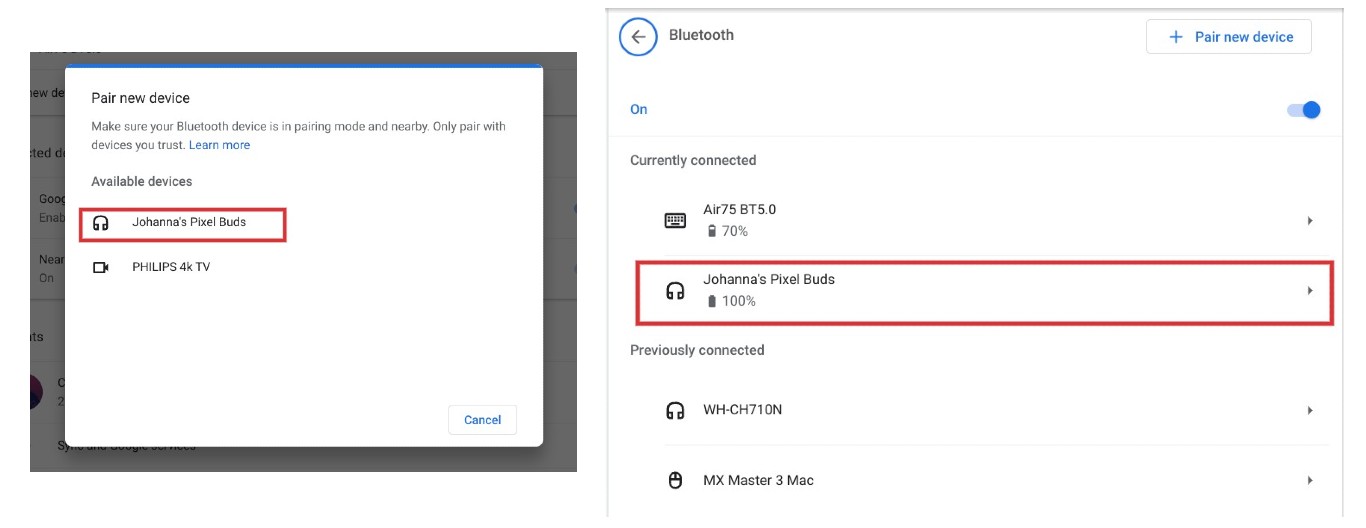
You will get a popup showing you nearby Bluetooth devices with which you can pair. Select your Google Pixel Buds from that list until they connect. Once paired, your Pixel Buds will be connected with your Chromebook and show their battery status in the Bluetooth devices section.
I just want the steps!
1. Open your Chromebook’s Settings
2. Click on Bluetooth from all the menu options on the left
3. On the right, click on “Pair new device”
4. Select your Pixel Buds from the list of devices to pair with
Reconnect to the Pixel Buds
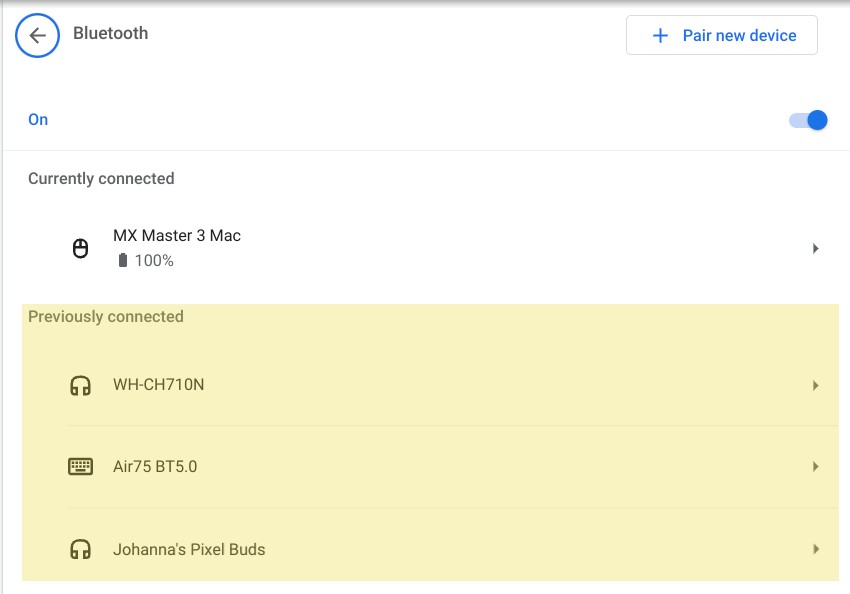
Once your Pixel Buds have been paired with your Chromebook, you will be able to use them there any time you want. To reconnect them, open the Pixel Buds charging case and remove the buds to begin the process. If you last used your buds on that same Chromebook, they should connect automatically. If not, you will need to select your Pixel Buds from your Chromebook’s Bluetooth menu, where it now shows under “Previously connected.”
I just want the steps!
1. Open the Pixel Buds charging case and remove the buds
2. If they don’t automatically connect to your Chromebook, open your Chromebook’s Bluetooth menu
3. Under the “Previously connected” devices list, select your Pixel buds in order to reconnect them
SUBSCRIBE TO UPSTREAM
Get Chrome Unboxed delivered straight to your inbox
Upstream is our flagship, curated newsletter with the top stories, most click-worthy deals, giveaways, and trending articles from Chrome Unboxed sent directly to your inbox a few times a week. Join 31,000+ subscribers.
