

Support our independent tech coverage. Chrome Unboxed is written by real people, for real people—not search algorithms. Join Chrome Unboxed Plus for just $2 a month to get an ad-free experience, access to our private Discord, and more. Learn more about membership here.
START FREE TRIAL (MONTHLY)START FREE TRIAL (ANNUAL)
Google is now rolling out its Enhanced Smart Fill feature as a part of its Workspace Labs AI initiative. If you’re looking to automate finding relationships between column pairs and swiftly filling in the corresponding values, this is worth exploring. Don’t worry, I’m going to go over how to use it here in a moment, but first, I have to make something clear.

On Google Sheets, enhanced Smart Fill suggestions can make manual text processing tasks easier for you by automatically detecting the relationship between incomplete column pairs and using AI to predict the remaining values, allowing them to be instantly filled.
Google Docs Editors Help
The rollout is being done in phases, so not everyone will have immediate access. To determine if you can use Enhanced Smart Fill, look for the “Help me organize” sidebar on the right side of your Google Sheet. Also, currently, this feature is only available on desktop, not mobile – sorry!
How to access enhanced Smart Fill in Google Sheets
Once you’re enrolled in Workspace Labs and Google gives you the golden ticket to start using this, you’ll actually see it overtake your screen and introduce you to the feature with a pop up dialogue box. If you closed the “Help me organize” box from the right hand sidebar on accident or on purpose, you can get back to it by going to Insert > Help me organize from the toolbar at the top of your sheet.
Here are some real world examples for Smart Fill
Enhanced Smart Fill can be particularly useful in various scenarios. For instance, if you have a task like categorizing feedback into different themes or making inconsistent address data uniform, this feature can prove to be a time saver.

In the example above, I started from scratch, gave the ‘Help me organize’ sidebar a prompt called “Market campaign for an indie games blog” since I’m spinning up Indie Game Mode and it did more than fill in suggestions, it gave me a bunch of content to start with!
As you can see, before injecting the suggestions into the Sheet, you’ll have an opportunity to preview them much in the same way that “Help me Write” works in Google Docs. Once you’re satisfied, you can click the blue “Insert” button you see at the bottom of that last row of generated text.
Just as with the aforementioned Docs AI writing helper, Google says artificial intelligence suggestions across its products are meant to act as a “springboard” for your creativity, not a replacement. Obviously, the text dumped into my sheet is far from perfect, but it’s always easier to work with than starting with a blank sheet, right?
That being said, there are limitless opportunities to put this kind of tool to work for you, and I encourage you to both experiment and comment below how you’ve managed to make it useful.
Example use cases of enhanced Smart Fill:
- Categorize feedback by theme
- Organize news article by topic
- Convert address data to consistent format
- Extract phone numbers from text fields
If you don’t like it, here’s how to turn it off!
If you end up trying out Enhanced Smart Fill and decide it’s not for you, turning it off is straightforward. Within any suggestion that pops up, there will be a three-dot menu. By clicking on it, you’ll see an option to ‘Enable enhanced Smart Fill suggestions’, which you can uncheck to turn off the feature. Alternatively, this can also be managed by navigating to Tools > Autocomplete in the main menu and unchecking the same option. Re-enabling it later is as simple as re-checking the box.
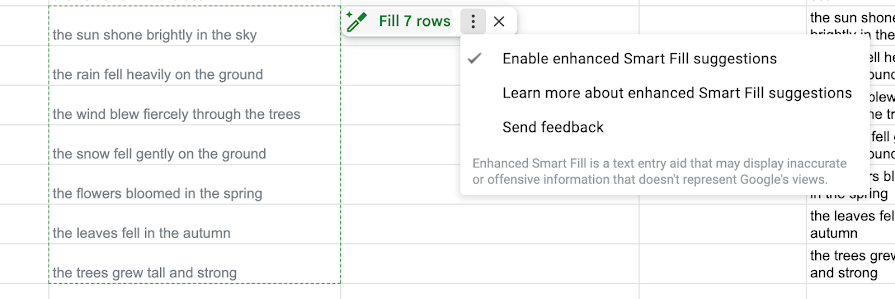
How to toggle Smart Fill in Google Sheets
1. Visit the Tools section at the top of your Google Sheet
2. Check or uncheck the ‘Enable enhanced Smart Fill suggestions’ option
SUBSCRIBE TO UPSTREAM
Get Chrome Unboxed delivered straight to your inbox
Upstream is our flagship, curated newsletter with the top stories, most click-worthy deals, giveaways, and trending articles from Chrome Unboxed sent directly to your inbox a few times a week. Join 31,000+ subscribers.

