
Support our independent tech coverage. Chrome Unboxed is written by real people, for real people—not search algorithms. Join Chrome Unboxed Plus for just $2 a month to get an ad-free experience, access to our private Discord, and more. Learn more about membership here.
START FREE TRIAL (MONTHLY)START FREE TRIAL (ANNUAL)
Chrome OS tablets are still finding their place in the consumer market but the pending release of the Duet Chromebook from Lenovo could open the floodgates for the form-factor. With the smaller, tablet-first devices coming, many users may want to use their Chromebook tablets as their primary reader. I’m more into old fashioned analog reading myself but I am fully aware that millions of people take to their Kindles, Nooks, iPads and mobile devices to digest daily content and that’s totally fine.
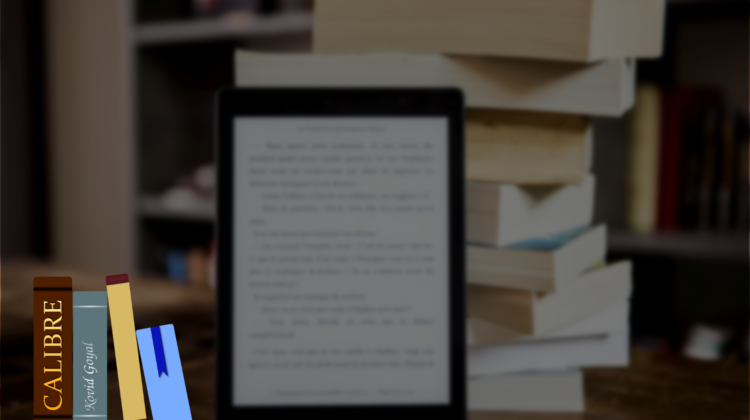
Chrome OS has some web-based options for reading e-books and even more options if you look to the Google Play Store but what if you already have a library of publications. For many, Calibre is the one-stop-shop for managing an extensive, multi-platform catalog. The open-source e-book management software is completely free and lucky for Chromebook users, there is a Linux version. I first encountered Calibre on the Facebook Chromebook group that we highlighted last week. One user was looking to install the e-book manager but was running into some unexpected errors. I took a few minutes to figure out what was missing from the equation and now, we know exactly how to install the program on Chrome OS. So, here we go.
First thing’s first. You will need to make sure that your Chromebook is up to date and that it supports Linux applications. To update, head to the settings menu in the bottom right system tray. Click the gear icon and select “About Chrome OS” at the bottom of the left-hand menu. Click “check for updates” to see if you’re up to date. If not, wait for the update to download and you will be prompted to restart and complete the update. If you are up to date, we can move on to the next step.
If your Chromebook supports Linux apps, you should see the option in the same settings menu where you updated your device. Head back to the settings and look at the menu on the left. Below the Apps tab, you will see a little penguin (His name is Tux, BTW) with the words Linux (Beta) beside him. Click Linux and then select “turn on.” In the pop-up window, select “install” and wait for the Linux container to be created. Once it is finished, a black window will open that contains a line with yourusername@penguin. That is the Linux terminal where we will input the commands to install Calibre and any other applications you choose.

Before we install Calibre, you will need to make sure your Linux container has all of its packages updated and installed. The first command simply pings the Debian repository and checks for newer versions of the packages that are currently installed. The second actually installs the new packages. The -y is just a shortcut to accept the upgrade without having to be manually prompted. To run the commands, copy the text below and paste it into the terminal. You can paste by right-clicking your mouse or two-finger clicking with your touchpad.
sudo apt update && sudo apt upgrade -yNext, there is one missing dependency that shows up when you try to install Calibre. It won’t prevent the installation but it is a network security package so we want to make sure it is in place before we move forward. Copy the line below and wait for the installation to finish.
sudo apt-get install libnss3-dev -yLast, we will download and install Calibre using the following commands. This will take a few minutes but when it is finished, you will be able to find Calibre along with the book viewers in your app launcher. You can search for them by name or find them inside the Linux Apps folder that was automatically created when you enabled Linux apps. Copy the commands below and paste them into your terminal and hit Enter.
wget -nv -O- https://download.calibre-ebook.com/linux-installer.sh | sudo sh /dev/stdinSo, what can you do with Calibre? Well, when you launch the app, you will be prompted to choose your go-to e-book device and then, you can import your e-book library. When Calibre was installed, it created a Library folder inside the Linux folder of your device. If you have your e-books on another device, I would move them to Google Drive first. Next, open Google Drive on your Chromebook that has Calibre installed and start dragging your e-books into the Calibre Library folder. Now, when you click “Add Books” in Calibre, all of your compatible e-book, doc and text files will be at your fingertips for importing. For someone who has a lot of digital books, Calibre looks like the perfect all-in-one manager and it seems to work perfectly on Chrome OS thanks to Linux apps. I hope that someone finds this helpful. I suspect we’ll see many more e-readers make their way to Chrome OS as more tablets hit the market.
SUBSCRIBE TO UPSTREAM
Get Chrome Unboxed delivered straight to your inbox
Upstream is our flagship, curated newsletter with the top stories, most click-worthy deals, giveaways, and trending articles from Chrome Unboxed sent directly to your inbox a few times a week. Join 31,000+ subscribers.

