
• Skip to main content
  • Skip to primary sidebar
  • Deals
  • Features
  • Guides
  • Chromebooks
  • Videos
  • Podcast
  • More +
    • Reviews
    • Unboxing
    • Upcoming Devices
    • Chromebook Plus
    • Chrome
    • ChromeOS
    • Chrome OS Flex
  • Search
  • Sign Up
  • Log In
Chrome Unboxed – The Latest Chrome OS News

Chrome Unboxed - The Latest Chrome OS News

A Space for All Things Chrome, Google, and More!

  • Deals
  • Features
  • Guides
  • Chromebooks
  • Videos
  • Podcast
  • More +
    • Reviews
    • Unboxing
    • Upcoming Devices
    • Chromebook Plus
    • Chrome
    • ChromeOS
    • Chrome OS Flex
  • Search
  • Sign Up
  • Log In

How to get a screenshot of your Chromebook’s login screen

August 7, 2022 By Johanna Romero View Comments

Support our independent tech coverage. Chrome Unboxed is written by real people, for real people—not search algorithms. Join Chrome Unboxed Plus for just $2 a month to get an ad-free experience, access to our private Discord, and more. Learn more about membership here.
START FREE TRIAL (MONTHLY)START FREE TRIAL (ANNUAL)

It doesn’t come up often, but there may be times when you need a screenshot of your Chromebook’s login page. Whether it is to capture an error message or to have a clean image of it for documentation, most of the time most people resort to just taking a picture of it. However, there is a better way.

The good news is that you can take a screenshot of your login screen the same way you would any other page on your Chromebook. The difference is that the screenshot will not be saved in your Downloads folder as a regular one does, but rather in a temporary directory. Here’s how you can capture this image and save it to a permanent folder:

Xremove ads

Take the screenshot by holding down CTRL and then pressing the overview key (or F5 if you’re using a non-ChromeOS keyboard). Next, log in to your Chromebook as usual and we’ll proceed from there.

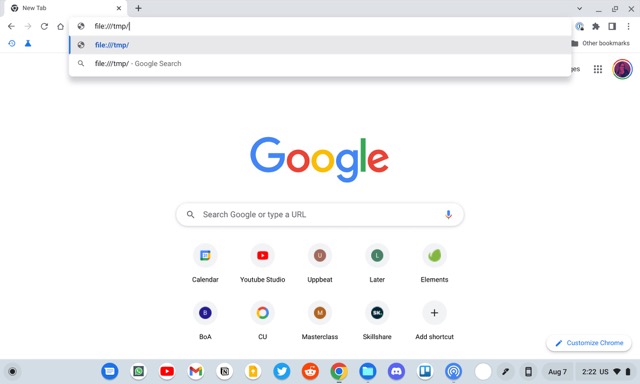
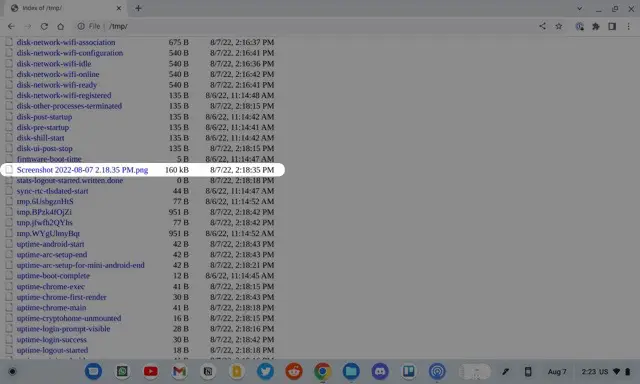
Once you are logged in, open the Chrome browser and type in file:///tmp/ into the address bar. This will take you to the directory where files are temporarily saved on your Chromebook. Scroll down the list of files until you find one that begins with the file name “Screenshot” followed by the date and time of the file creation. Click on the file name, which will open the image inside of the browser window.
Featured Videos

Xremove ads
Chromebook login screenshots how to 1
Chromebook login screenshots how to 2
Chromebook login screenshots how to 3

Once you have the image open, right-click on it and save it to your favorite location. This will ensure that you get it to keep it permanently as temporary files are, as their name implies, only available temporarily.
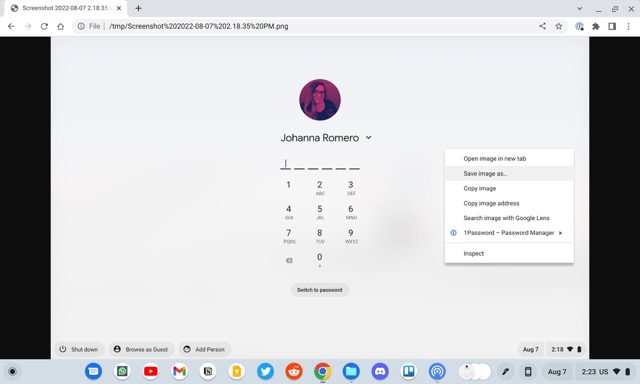
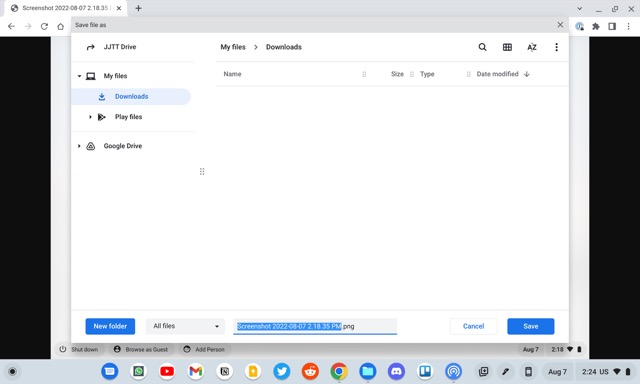
Chromebook login screenshots how to 4
Chromebook login screenshots how to 5
I just want the steps!
    ​
  1. Take your screenshot as you normally would.
  2. Log in to the Chromebook.
  3. Open the Chrome browser.
  4. Type in file:///tmp/ into the address bar.
  5. Look for a file that starts with the title “Screenshot,” followed by the date, and click on it to open it.
  6. Once the image is open, right click on it, and save it to your preferred location.

Filed Under: Guides and How-To's Tagged With: chromebook, chromeos, how to, screenshot, screenshots

Primary Sidebar

Googlebook

Googlebook’s ‘Rambler’ feature is the biggest speech-to-text upgrade I’ve ever used

By Robby Payne
October 7, 2026

Will Android apps struggle on Intel Googlebooks? Google and Intel offer different answers

By Robby Payne
October 7, 2026

Luminar and Fantastical bring premium, desktop-class apps to Googlebook

By Robby Payne
October 6, 2026

Android gaming on Googlebook is already hitting a frustratingly familiar roadblock

By Robby Payne
October 6, 2026

Real desktop widgets and shortcuts on the Googlebook desktop are refreshing

By Robby Payne
October 6, 2026

More Googlebook

Xremove ads

Deals

My favorite convertible Chromebook is $150 off right now and primed for Googlebook OS

By Robby Payne
September 29, 2026

Google Pixel Buds 2a in Hazel bundled with a new Googlebook laptop at Best Buy

Score a free $129 pair of Pixel Buds 2a with any Googlebook pre-order at Best Buy

By Robby Payne
September 28, 2026

The best Chromebook deals today

By Robby Payne
September 2, 2026

The best Chromebook ever made is $350 off at Best Buy right now

By Robby Payne
August 21, 2026

The excellent, powerful Acer Chromebook Plus Spin 514 is $150 off right now

By Robby Payne
August 12, 2026

More Deals

Xremove ads

Reviews

Acer Chromebook Plus Spin 514 Review: the best convertible you can buy [VIDEO]

By Robby Payne
July 1, 2026

Lenovo Chromebook Plus 2-in-1 Review: pretty great in a vacuum

By Robby Payne
April 23, 2026

My review after 6 weeks with the Lenovo Chromebook Plus 14 [VIDEO]

By Robby Payne
August 11, 2025

One week with the best small Android tablet you can buy, and I’m sold

By Robby Payne
May 9, 2025

Best Chromebooks of 2024 [VIDEO]

By Robby Payne
November 28, 2024

More Reviews

Xremove ads

TWITTER · FACEBOOK · INSTAGRAM · YOUTUBE · EMAIL · ABOUT

Copyright © 2026 · Chrome Unboxed · Chrome is a registered trademark of Google Inc.
We are participants in various affiliate advertising programs designed to provide a means for us to earn fees by linking to affiliated sites.

PRIVACY POLICY