• Skip to main content
  • Skip to primary sidebar
  • Deals
  • Features
  • Guides
  • Chromebooks
  • Videos
  • Podcast
  • More +
    • Reviews
    • Unboxing
    • Upcoming Devices
    • Chromebook Plus
    • Chrome
    • ChromeOS
    • Chrome OS Flex
  • Search
  • Sign Up
  • Log In
Chrome Unboxed – The Latest Chrome OS News

Chrome Unboxed - The Latest Chrome OS News

A Space for All Things Chrome, Google, and More!

  • Deals
  • Features
  • Guides
  • Chromebooks
  • Videos
  • Podcast
  • More +
    • Reviews
    • Unboxing
    • Upcoming Devices
    • Chromebook Plus
    • Chrome
    • ChromeOS
    • Chrome OS Flex
  • Search
  • Sign Up
  • Log In

How to fix Google Chrome’s ‘Nearly up-to-date’ infinite loop issue on Windows

July 21, 2021 By Michael Perrigo View Comments

Recently, I’ve been test-driving Windows 11 to draw as many comparisons and contrasts from it as I can to Chrome OS both for fun and for research. I’ve concluded that Windows 11 borrowed more than a few things from Chrome OS, and the fact that that is not such a bad thing after all. Recently, I’ve been experiencing a bug with Chrome on Windows that causes me to be stuck in an infinite update loop. No matter how many times I relaunch the browser after it tells me it’s ‘Nearly up-to-date’, I’m met with the same message.

Today, I’m going to show you how to resolve this problem if you’re facing it too. I always recommend that you backup your bookmarks and other browser data just to be safe, or simply sign in to Chrome and make use of Google Sync so that it’s all stored in the cloud before we begin. You’ll be attempting this at your own risk, and I’m solely providing you with advice, but doing this for myself caused no data loss, so it should be fine. Hats off to TechAntidote for providing a solution and saving the day!

Xremove ads

To get started, force quit all instances of Chrome.exe from your Windows task manager using Ctrl+Shift+Esc. If you’re met with an error that states Chrome is still running, you’ll need to be certain you’ve done the same for all other currently signed-in user accounts on your machine. Once you’ve done so, open your Windows File Explorer and navigate to the ‘C:\’ drive. Then, open ‘Program Files’, go to ‘Google’, ‘Chrome’, and then finally to the ‘Application folder. It should look practically identical to what you see in the image below. You may need to look in ‘Program Files (x86)’ if it’s not housed in the standard Program Files folder.
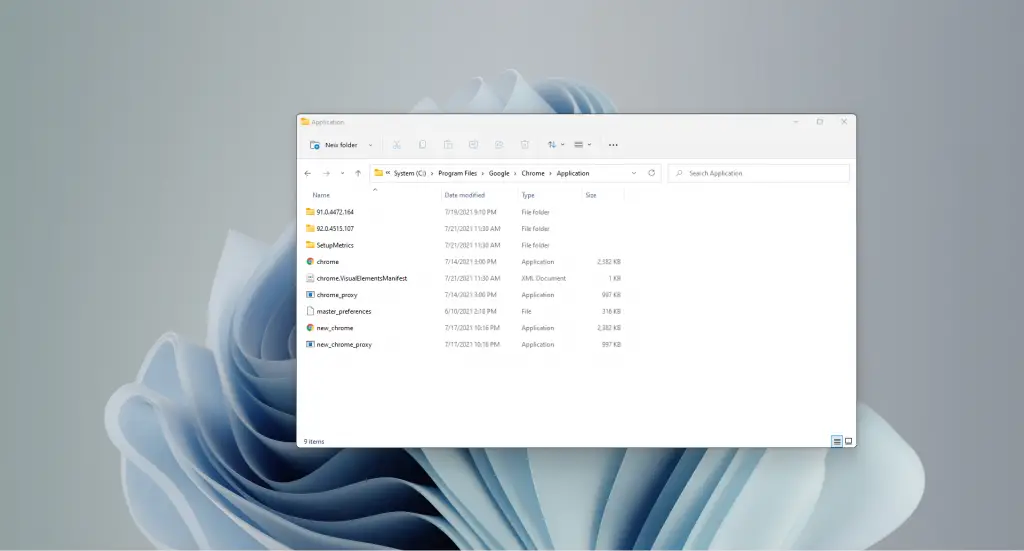
C:/Program Files/Google/Chrome/Application

Alright, let’s fix this issue and get on with our day, shall we? Right-click ‘chrome’ and delete it. Once it’s gone, right-click ‘new_chrome’ and rename it to ‘chrome’. Lastly, right-click the folder near the top that is for the older or current version of Chrome and leave the newer folder there. In the example above, ‘91.0.4472.164’ is my current version of Chrome whereas ‘92.0.4515.107’ is newer. Obviously, the goal is to delete the folder that has a lower number version and leave the one that is higher as Chrome versions increase in number with each update.

Featured Videos

Xremove ads

That’s it! Opening Chrome again and navigating to the Settings page and then to the ‘About Chrome’ tab on the left sidebar will reveal that ‘Google Chrome is up to date’ and the newest version number will be listed. If you’ve ever experienced an infinite update loop, you’ll know it can be super frustrating, and I wanted to provide a solution here for you to make use of and to share with others. I hope this helped!

Join Chrome Unboxed Plus

Introducing Chrome Unboxed Plus – our revamped membership community. Join today at just $2 / month to get access to our private Discord, exclusive giveaways, AMAs, an ad-free website, ad-free podcast experience and more.

Plus Monthly

$2/mo. after 7-day free trial

Xremove ads

Pay monthly to support our independent coverage and get access to exclusive benefits.

Start free trial

Plus Annual

$20/yr. after 7-day free trial

Pay yearly to support our independent coverage and get access to exclusive benefits.

Xremove ads
Start free trial

Our newsletters are also a great way to get connected. Subscribe here!

Click here to learn more and for membership FAQ

Filed Under: Guides and How-To's, News

About Michael Perrigo

Known as "Google Mike" to his customers, Michael worked at Best Buy as a Chromebook Expert who dedicated his time to understanding the user experience from a regular Chromebook owner's perspective. Having spent nearly 20 years meeting you face-to-face, he strives to help you understand your technology through carefully crafted guides and coverage, relentlessly seeking out the spark in what's new and exciting about ChromeOS.

Primary Sidebar

Xremove ads

Deals

The best Chromebook deals today

By Robby Payne
December 15, 2025

Save $220 on the powerful, versatile Acer Chromebook Plus Spin 714

By Robby Payne
December 10, 2025

The Google Pixel 9a just hit its lowest price ever at $150 off

By Joseph Humphrey
December 8, 2025

At $349, this Lenovo Chromebook Plus is one of the best value laptops you can buy

By Joseph Humphrey
December 3, 2025

The elusive 8GB Lenovo Chromebook Duet 11 is finally back in stock and down to $279

By Robby Payne
December 2, 2025

More Deals

Xremove ads

Reviews

My review after 6 weeks with the Lenovo Chromebook Plus 14 [VIDEO]

By Robby Payne
August 11, 2025

One week with the best small Android tablet you can buy, and I’m sold

By Robby Payne
May 9, 2025

Best Chromebooks of 2024 [VIDEO]

By Robby Payne
November 28, 2024

Samsung Galaxy Chromebook Plus Review: Samsung is back! [VIDEO]

By Robby Payne
October 28, 2024

Lenovo Chromebook Duet 11″ Review [VIDEO]

By Robby Payne
October 19, 2024

More Reviews

Xremove ads

Guides

This Chromebook trackpad shortcut is definitely not new, but is blowing my mind

By Robby Payne
March 11, 2024

How to reduce broadcast delay on YouTube TV to stop live spoilers

By Robby Payne
December 8, 2023

Windows PC keyboard and Chromebook

How to use a Windows keyboard with a Chromebook

By Joseph Humphrey
December 8, 2023

How reset and revert your Chromebook to the previous version of Chrome OS

By Robby Payne
November 29, 2023

My Chromebook Plus features disappeared: here’s how I fixed it

By Robby Payne
November 24, 2023

More Guides

TWITTER · FACEBOOK · INSTAGRAM · YOUTUBE · EMAIL · ABOUT

Copyright © 2025 · Chrome Unboxed · Chrome is a registered trademark of Google Inc.
We are participants in various affiliate advertising programs designed to provide a means for us to earn fees by linking to affiliated sites.

PRIVACY POLICY