


Support our independent tech coverage. Chrome Unboxed is written by real people, for real people—not search algorithms. Join Chrome Unboxed Plus for just $2 a month to get an ad-free experience, access to our private Discord, and more. Learn more about membership here.
START FREE TRIAL (MONTHLY)START FREE TRIAL (ANNUAL)
The time has come: welcome to our exclusive guide on how you can use Vulkan in Crostini! This unlocks the full gaming power of Chromebooks by allowing more modern games to work. More importantly, it also allows Steam’s Proton compatibility layer to work at its full potential, which means the majority of Windows games will now run on Chromebooks. How cool is that?!
Let me preface that using Crouton would be a lot easier and achieve better results when it comes to using Vulkan on your Chromebook. Especially considering the performance hit Vulkan currently gets in Crostini. Crouton natively supports OpenGL, Vulkan, and even OpenCL since it avoids some of the layers and complexity of Crostini.
I’ve got a few more disclaimers to get out of the way before we get rolling. You need to have an intermediate knowledge of Linux, a modern AMD or Intel Chromebook (ideally one of the devices getting Borealis support for the best results), and should have your Chrome OS device in the Developer or hidden Canary channel for the best experience. In this guide, I won’t walk through every little detail and will continue with an assumption that you’ve met the prerequisites. With all that being said, let me break the down steps in order: enabling Vulkan, installing Arch Linux, installing the latest development graphics drivers, and testing it out.
The first step is to start the Crostini virtual machine, named “termina”, with Vulkan support enabled. Do NOT open the “Terminal” application on Chrome OS. Make sure to shut it down if it’s running. Instead, open the “crosh” shell by pressing the keyboard buttons CTRL, ALT, and t. Then manually start it from the command-line.
crosh> vmc start --enable-gpu --enable-vulkan terminaThe second step is to install Arch Linux as a Crostini container. Checkout the ArchWiki guide on setting up a Crostini container or this amazing video from my pal ChrisTitusTech where he walks through it all including how to install the a Arch Linux User (AUR) package manager named “yay”. The AUR is my favorite thing about Arch Linux. With it, you can install almost any Linux program out there thanks to community contributors. Lots of packages are also provided for the latest development versions of packages. We’ll get into that next. Make sure you’re in the Arch Linux container and also have the 32-bit multilib package repositories enabled before proceeding.
The third step is to install “mesa-git” and “lib32-mesa-git” as a non-root user using “yay”. Mesa is the open-source Linux graphics drivers. I’ve been working with the respective AUR package maintainers over the past few months to upstream all of the manual changes I made to build the new VirtIO Venus driver. In short: it’s even easier to install now.
$ yay -S mesa-git lib32-mesa-gitThe fourth step is to tell Vulkan to use our new VirtIO Venus driver. Make sure the new driver will be loaded now and on future reboots:
$ export VK_ICD_FILENAMES=VK_ICD_FILENAMES=/usr/share/vulkan/icd.d/virtio_icd.i686.json:/usr/share/vulkan/icd.d/virtio_icd.x86_64.json
$ echo "export VK_ICD_FILENAMES=VK_ICD_FILENAMES=/usr/share/vulkan/icd.d/virtio_icd.i686.json:/usr/share/vulkan/icd.d/virtio_icd.x86_64.json" | sudo tee -a /etc/environment
Finally, let’s validate that it works! You should see “venus” being reported as the driver. If you see “llvmpipe” then you are using the wrong driver and likely did something wrong with the last step. That is the CPU-based graphics renderer for Vulkan that is only used for automated testing. It’s incredibly slow so you probably don’t ever want to use it.
$ sudo pacman -S vulkan-tools
$ vulkaninfo | grep driverName
        driverName         = venus
        driverName                                           = venus
$ vkcube
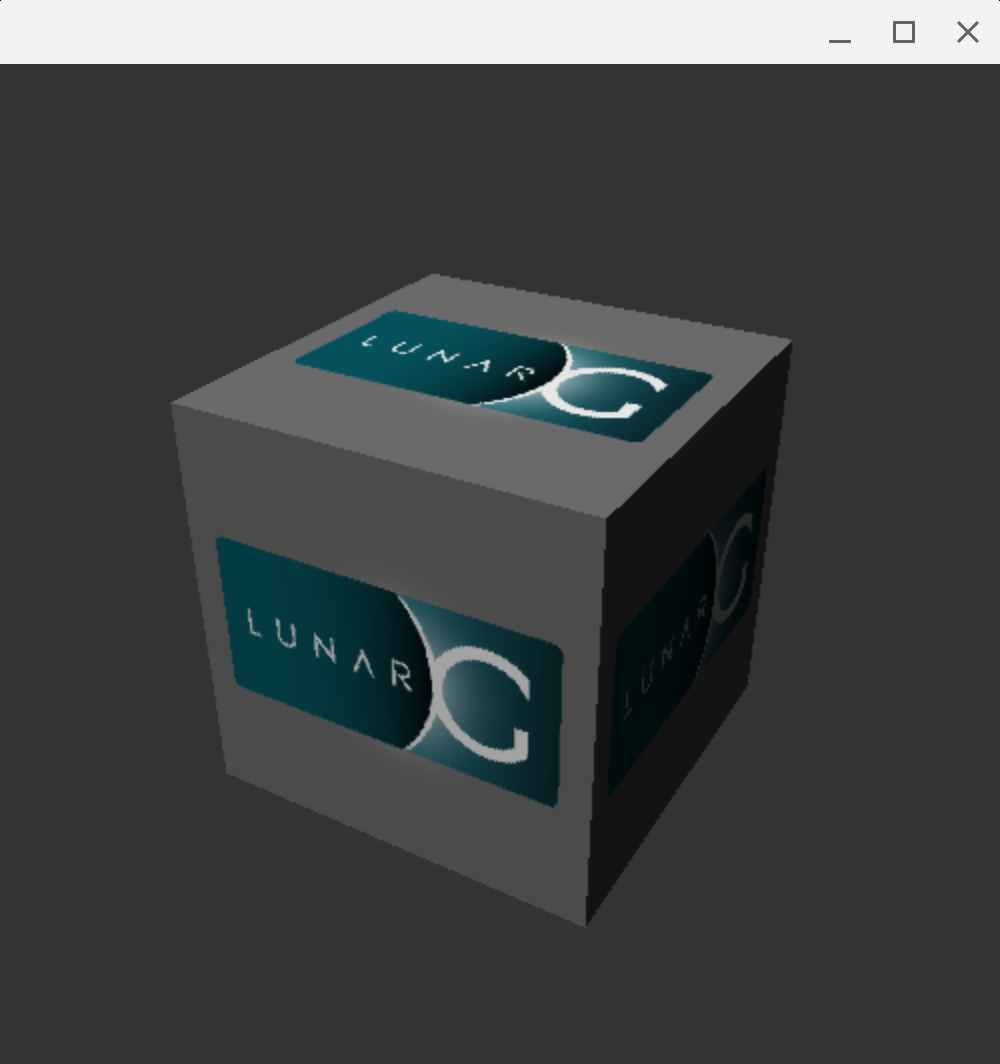
You can then run the demo application “vkcube” which will display a basic spinning 3D cube. If you see this then rejoice! You’ve done it!
At this point, I recommend installing Steam and enabling Proton (no need to disable the Vulkan back-end anymore!) and find out which of your favorite Windows games work. With Valve’s commitment to Proton, gaming on Chrome OS and Linux will only get better. Good luck, have fun, and let us know what your experience is like using Vulkan in Crostini!
SUBSCRIBE TO UPSTREAM
Get Chrome Unboxed delivered straight to your inbox
Upstream is our flagship, curated newsletter with the top stories, most click-worthy deals, giveaways, and trending articles from Chrome Unboxed sent directly to your inbox a few times a week. Join 31,000+ subscribers.
