



Support our independent tech coverage. Chrome Unboxed is written by real people, for real people—not search algorithms. Join Chrome Unboxed Plus for just $2 a month to get an ad-free experience, access to our private Discord, and more. Learn more about membership here.
START FREE TRIAL (MONTHLY)START FREE TRIAL (ANNUAL)
Are you sick and tired of editing late at night and being completely blinded by the light of a white user interface in Google Docs? What’s astonishing to me is that despite the many ways that Google has already baked Dark Mode into many of its apps, several others remain without it in 2022. That’s right, the company is taking way too long with the rollout of a dark theme for its services, and its efforts are extremely inconsistent.
You can toggle Dark mode in Docs on Android, and I’ll show you how to do that, but today, we’re primarily going to focus on how to darken the interface of Docs on the web. Trust me, your eyes will thank you. So, without further ado, let’s get started!
Enable Dark Mode on Android
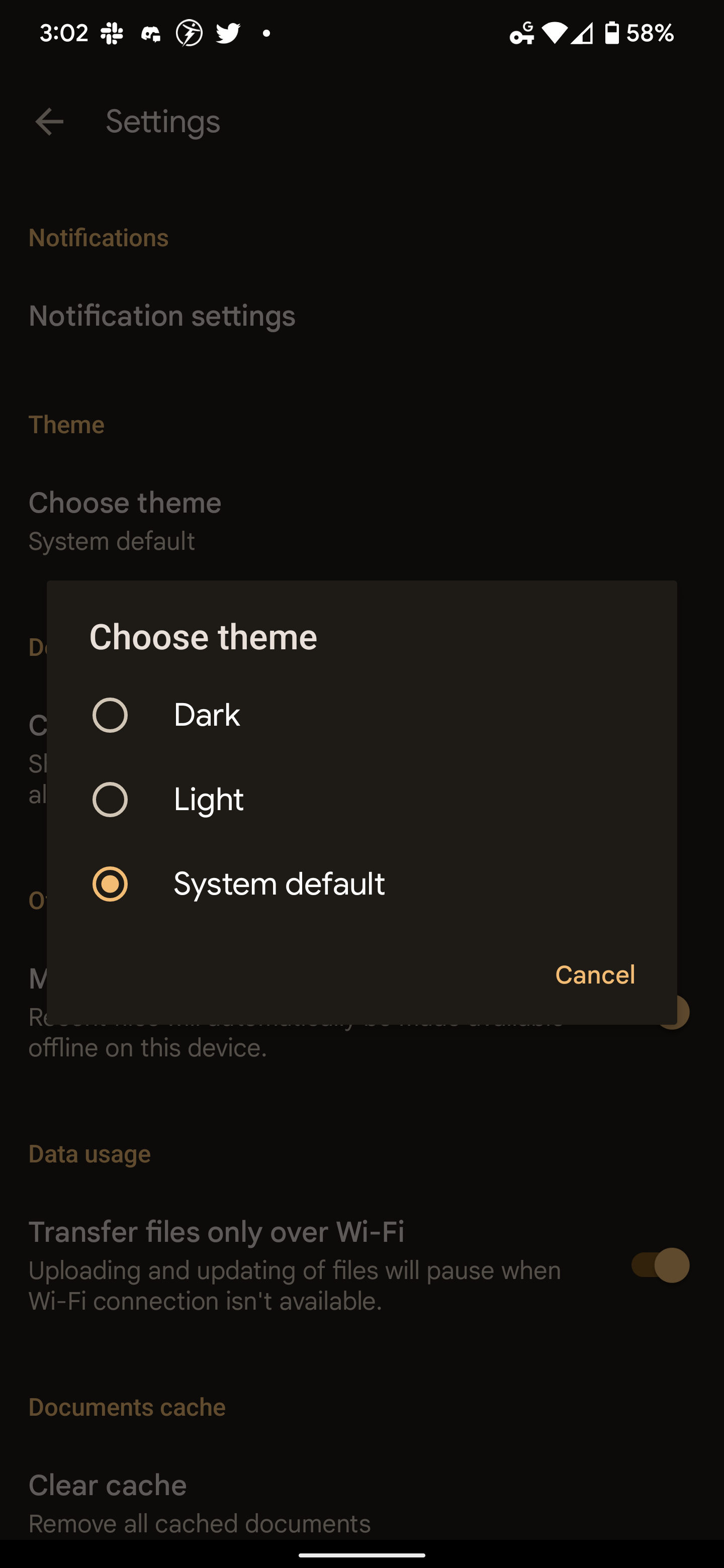
In order to make Docs on your phone or tablet (or the Google Play app on your Chromebook) adopt a dark theme, you just need to open the hamburger menu at the top-left of the screen, tap “Settings” and then under the “Theme” section, tap “Choose theme”. From here, you can choose Dark, Light, or System default. Selecting this last option will automatically adapt your UI to the same theme as your entire phone system.
I just want the steps!
1. Open the Google Docs Android app
2. Open the Hamburger menu on the top left of the screen
3. Tap “Choose theme” under the Theme section
4. Choose “Dark”, or “System default” and change your OS theme to Dark Mode
Enable Dark Mode on the Web
Here’s where we go off of the rails a bit and explore outside of Google’s offerings. On the Google Docs web app, the company has yet to provide a dark theme as mentioned above. Instead, we’ll be relying on Chrome extensions. While I’m covering two of them here today, there are plenty more to choose from! The first one is appropriately named “Google Docs Dark Mode“. Simply visit the Chrome web store using this link and install it using the blue “Add to Chrome” button. Once it’s done, visit a new Google Doc on the web and toggle the extension from the puzzle piece at the top of your Chrome toolbar.
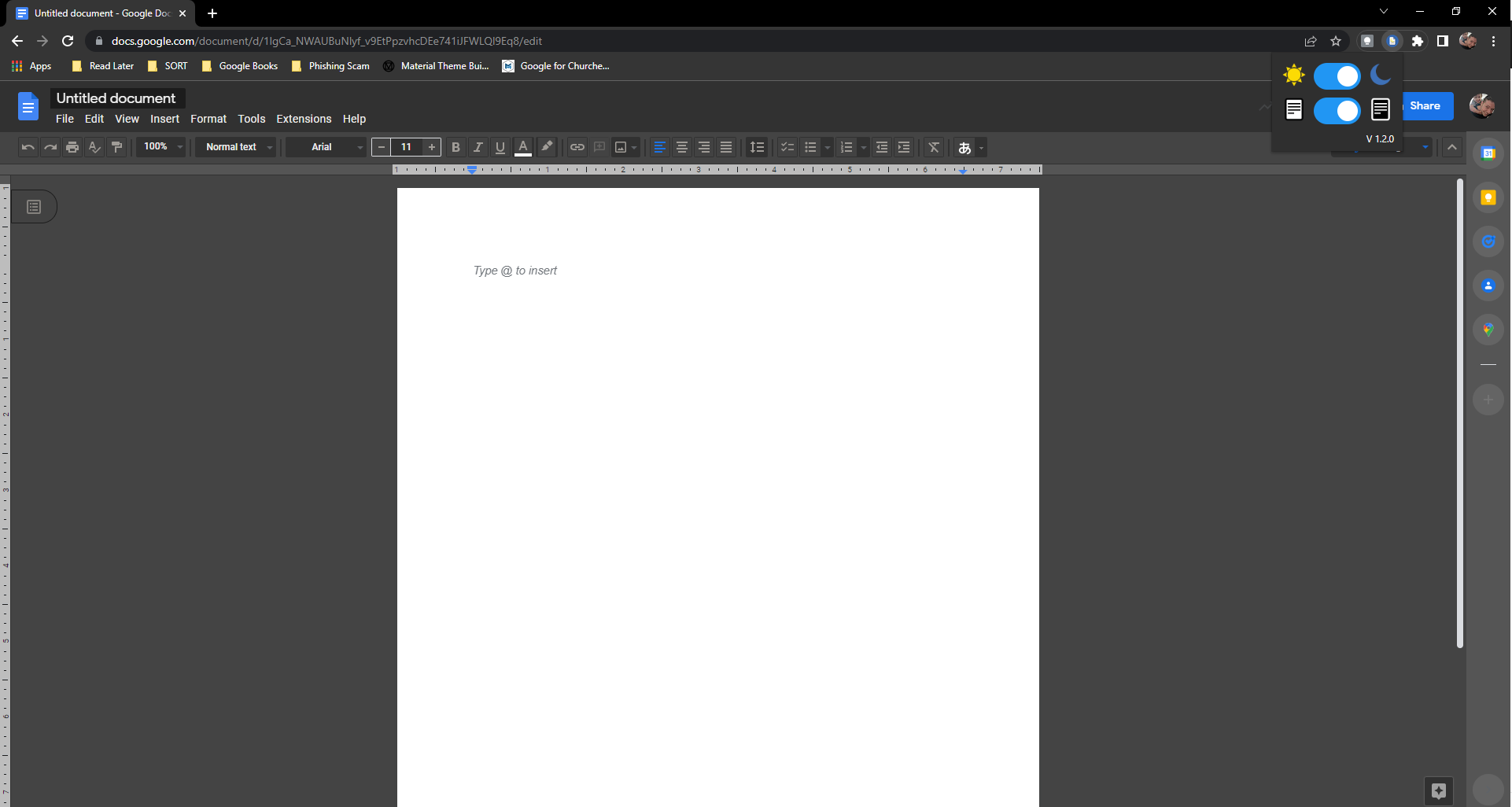
While this extension allows you to toggle between light and dark mode, you’ll notice that it leaves the main body of the document white, which in my opinion, defeats the purpose almost entirely! The reason I’m showing you this one first though is because it’s received the Chrome Web Store’s seal of approval stating that the developer will respect your privacy and not use your information in ways that it has not disclosed.

I just want the steps!
1. Install the “Google Docs Dark Mode” extension
2. Open a new document
3. Click the puzzle piece icon at the top right of your browser
4. Click (or pin and click) the Google Docs Dark Mode extension
5. Flip both toggles that appear
6. Enjoy!
There’s actually a much better extension to use in order to get a dark theme for writing in Docs, but the developer has not updated it in two years, and lists the license for the extension ‘as is’, meaning they will probably not be returning to it any time soon in order to update the Web Store listing in an effort to receive the seal of approval badge for privacy practices. However, I don’t personally believe that this means the developer will disrespect your privacy, but just that they aren’t around to bring the extension up to speed with Google’s standards.
Despite this, it’s received the Web Store’s new “Featured” badge, stating that it follows recommended extension practices, so it may still be worth giving it a shot, especially as it darkens the canvas where you write while the previous extension does not!
Anyway, the better extension is called Google Docs in Dark, and if you install it, I recommend uninstalling or turning off the previous one we covered so they don’t conflict with one another. While this one looks much more in line with what a dark theme ought to look like, it does seem to invert colors for icons, which could be annoying to some users!
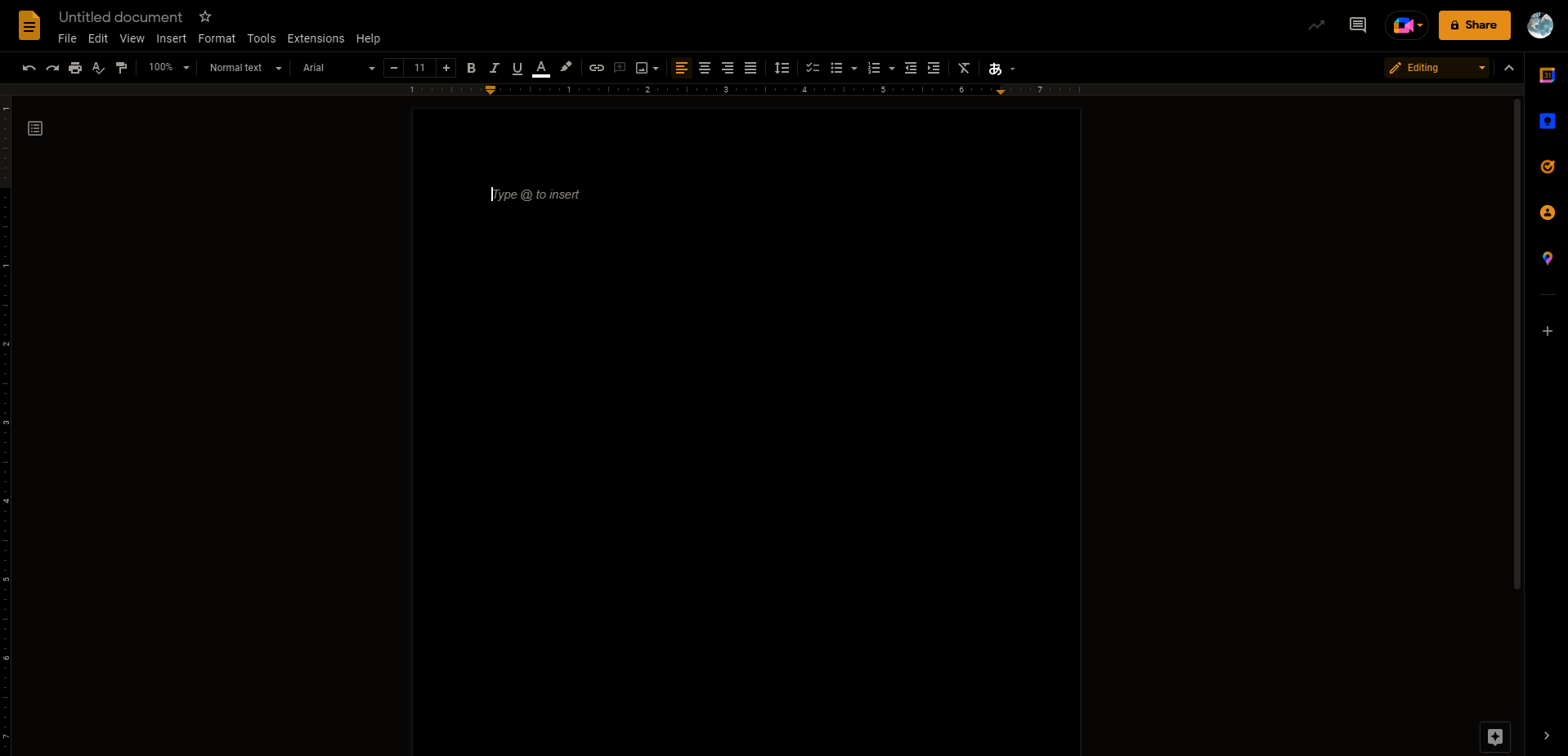
This is because the icons aren’t simply being inverted – the entire web page is actually relying on a color inversion technique! It’s simple, yet effective, and if this developer can do it, then Google ought to be able to as well. We hope to see the tech giant implement a proper dark theme for Docs on the web before long, but I understand that color inversion is only a piece of the puzzle while determining what a good user experience should be.
If you have any other dark mode extensions for your favorite Google services, please be sure to include them in the comments below. I’ve been using the latter extension for quite some time, and the inverted icons hardly bother me anymore. Have fun!
I just want the steps!
1. Install the “Google Docs in Dark” extension
2. Open a new document
3. Click the puzzle piece icon at the top right of your browser
4. Click (or pin and click) the orange Google docs icon to launch the extension
5. Click the weird orange and black toggle that appears to toggle dark mode!
6. Enjoy!
SUBSCRIBE TO UPSTREAM
Get Chrome Unboxed delivered straight to your inbox
Upstream is our flagship, curated newsletter with the top stories, most click-worthy deals, giveaways, and trending articles from Chrome Unboxed sent directly to your inbox a few times a week. Join 31,000+ subscribers.

