

Support our independent tech coverage. Chrome Unboxed is written by real people, for real people—not search algorithms. Join Chrome Unboxed Plus for just $2 a month to get an ad-free experience, access to our private Discord, and more. Learn more about membership here.
START FREE TRIAL (MONTHLY)START FREE TRIAL (ANNUAL)
I’m often an edge case when it comes to how I use Google services due to the fact that I try my hardest to keep my personal, work, creative and other endeavors separate while simultaneously attempting to cross-pollinate my access to each from the other Google Accounts. I think that the company does a poor job of considering the fact that each person is made up of several different personas all while remaining one unique individual.
My latest attempt at this was to keep my YouTube playlists separate for my game studio, my personal life, my interest in tech and Chromebooks, and more while not having to be on a specific account in order to add a video to a specific list for later recall. Needing to swap accounts or Chrome browser profiles constantly creates an unnecessary fragmentation in my productivity that I’d prefer to avoid, and I’m sure you would too!
That’s why I’m going to show you how to share a YouTube playlist across two or more Google Accounts today. So, let’s cut straight to the chase – you can’t. Wait, don’t leave yet, there’s still hope! Well, sort of. There are problems with the approach we’ll take today, and it’s by no means perfect, but it still may be worth it for you to have access to a particular list of tutorial videos for something, for example, across two different accounts, so stick with me for a moment.
YouTube has a little-known feature called collaboration that I’ve honestly not seen anyone talk about before. When I first discovered it, I was ecstatic! Basically, you can add your other email address or the email address of a separate person with whom you’d like to share access right to the settings of that content, making it easy for them to view and add or remove videos at will.
I was originally going to title this article “How to move a YouTube playlist from one Google Account to another”, but as it turns out, it’s no longer possible. I wanted to spend some time organizing my digital footprint, and unfortunately, Google nixed the “Add all to…” button for others outside of your Google Account a few years back. This button would let you duplicate all videos on someone’s list over to one of your own for safe keeping, and it was a lifesaver.
Users have since found clever workarounds like adding “&disable_polymer=true” to the end of the URL or turning the link into a YouTube Music URL in order to trick the system into showing an option to copy the content over, but both of these methods have also since been removed – particularly when the platform changed interfaces.
So, we’re left with the “Add collaborator” method. The issue with this is that while viewing a video and clicking the “Add to playlist” button below it, the lists of videos you’ve been invited to collaborate on don’t always show up. It’s incredibly surprising that Google would half bake a feature and not follow through on – wait, never mind, it’s not that surprising at all, actually.
Okay, let’s add the other you (Your other personas) or someone else as a collaborator on that playlist you’ve been wanting to “share”. As a reminder, sharing one is different from collaboration as the former only allows others to watch content instead of having the power to manage it. Think carefully about what type of permission you’d like for a separate person to have over your curated content before granting it!
If you notice in the example below, tapping the horizontal three dots “more” options menu on a list found at https://www.youtube.com/playlist?list=<playlist ID> or simply by selecting a playlist found on your YouTube Library, you’ll be presented with a few options including one for manually adding videos to it, managing its settings, and even deleting it.
My “Unreal Engine Tutorials” list does have the aforementioned “Add all to…” button, but that’s only because the content is housed on this Google Account. As I’ve said before, while accessing it from a different account, the button does not appear, making this entire process necessary – bummer.
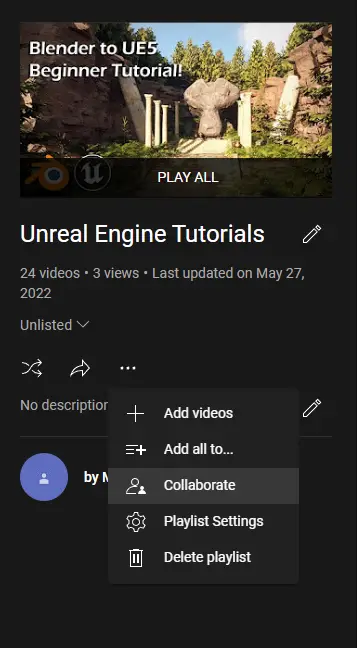
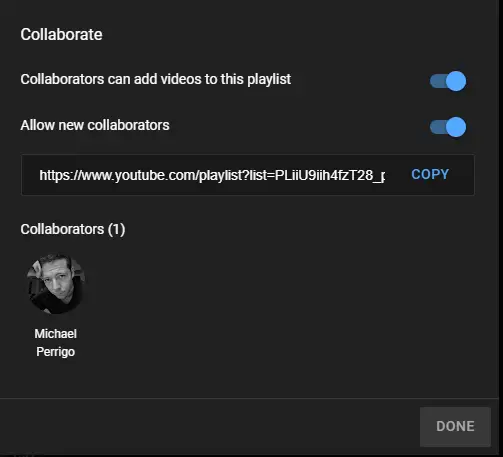
Upon clicking the three dots and choosing “Collaborate”, a pop-up dialogue box will show the collaboration settings for that list. All you need to do is copy the URL, share it, and tick the “Collaborators can add videos to this playlist” and “Allow new collaborators” toggles. Next, open the alternate Google Account, or in the case where it’s another separate person attempting to collaborate with you, ask them to click the link you’ve shared.
At the top of the page, you (or they) will see the following message: “Add to this playlist as…” followed by the account’s username that’s accessing the link. By clicking the blue “Continue” button, the new account will be added as a collaborator – woohoo! From now on while watching any YouTube video, tapping the “Add to playlist” button below it will present not only the lists you’ve created but the ones you’re approved as a collaborator on.

If you visit the playlist again, you’ll see “Added by…” followed by the email address of the YouTube account that slid it into the list while browsing. This makes it easy to see and manage who is collaborating and how. Of course, you’ll want to make sure in those instances where you’re not utilizing this trick to cross-reference content between a personal and work account that you only add things that are useful and find a balance with the other collaborators.
I just want the steps!
1. Visit your YouTube Library and click on a playlist
2. Click the three dots menu below the playlist thumbnail
3. Click “Add collaborator”
4. Toggles “Collaborators can add new videos”
5. Toggle “Allow new collaborators” (optional)
6. Share the URL
7. Access the URL or ask the collaborator to do so
8. Click the blue “Continue” button at the top of the playlist
9. Add a new video to your collaborative playlist
SUBSCRIBE TO UPSTREAM
Get Chrome Unboxed delivered straight to your inbox
Upstream is our flagship, curated newsletter with the top stories, most click-worthy deals, giveaways, and trending articles from Chrome Unboxed sent directly to your inbox a few times a week. Join 31,000+ subscribers.

