
• Skip to main content
  • Skip to primary sidebar
  • Deals
  • Features
  • Guides
  • Chromebooks
  • Videos
  • Podcast
  • More +
    • Reviews
    • Unboxing
    • Upcoming Devices
    • Chromebook Plus
    • Chrome
    • ChromeOS
    • Chrome OS Flex
  • Search
  • Sign Up
  • Log In
Chrome Unboxed – The Latest Chrome OS News

Chrome Unboxed - The Latest Chrome OS News

A Space for All Things Chrome, Google, and More!

  • Deals
  • Features
  • Guides
  • Chromebooks
  • Videos
  • Podcast
  • More +
    • Reviews
    • Unboxing
    • Upcoming Devices
    • Chromebook Plus
    • Chrome
    • ChromeOS
    • Chrome OS Flex
  • Search
  • Sign Up
  • Log In

How to block or prevent pop-ups in Chrome

December 5, 2022 By Robby Payne View Comments

Google Chrome Pop-Up Blocker

Support our independent tech coverage. Chrome Unboxed is written by real people, for real people—not search algorithms. Join Chrome Unboxed Plus for just $2 a month to get an ad-free experience, access to our private Discord, and more. Learn more about membership here.
START FREE TRIAL (MONTHLY)START FREE TRIAL (ANNUAL)

The Google Chrome browser by default automatically prevents pop-ups from appearing. You may have noticed a small notification in the address bar that says “Pop-up blocked,” which is basically Chrome working its magic and preventing a pop-up from opening. However, some popups do manage to get through and usually have to do with the settings of the site you are visiting. In the guide below, I will show you how to choose your default pop-up & redirect settings in Chrome and how to manage pop-ups and redirects for a specific site.

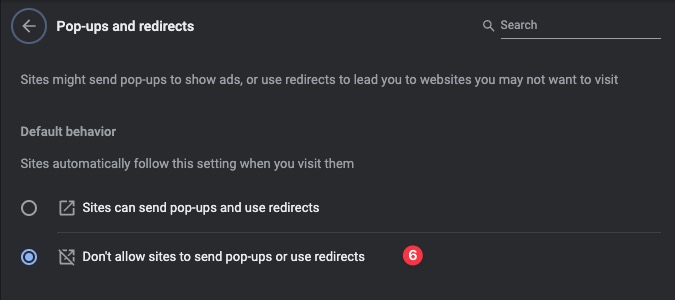
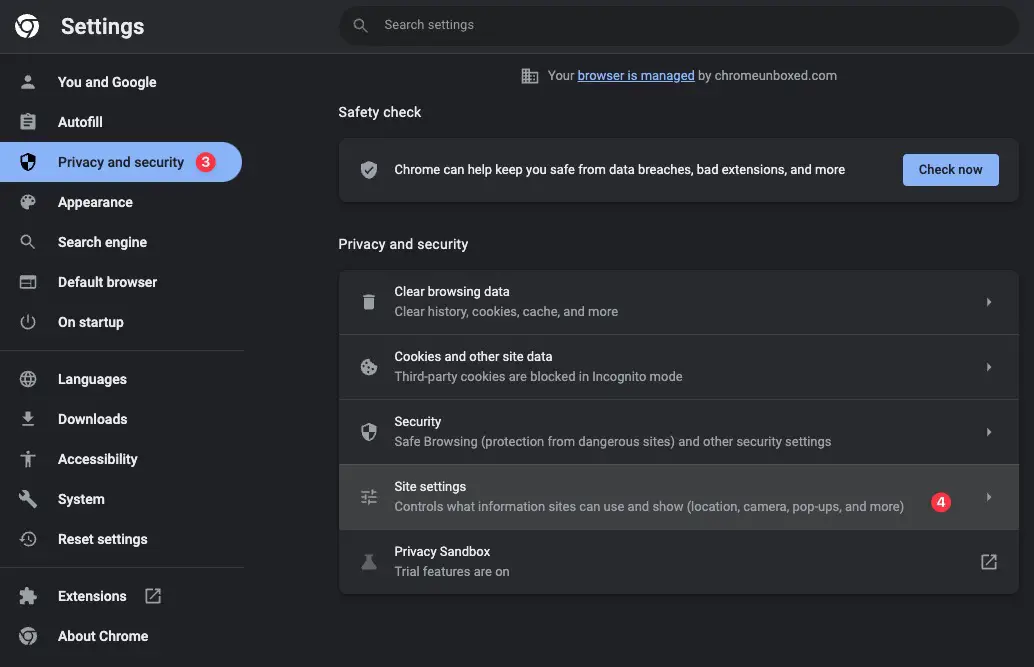
To manage your default Chrome pop-up and redirect settings, open Chrome, and at the top right click on “More” and then “Settings.” On the settings page, click on the “Privacy and security” section found on the left, then select “Site Settings.” This will take you to another section where you will scroll all the way down until you see “Pop-ups and redirects.” Click on this option and select whether you want to allow pop-ups or not. If you want to block all pop-ups, then you will want to select the “Don’t allow sites to send pop-ups or use redirects” option.
Xremove ads
Click on images to enlarge them

I just want the steps!

  1. On your computer, open Google Chrome.
  2. At the top right, click on the three-dot menu and then Settings.
  3. Click Privacy and security.
  4. Click on Site Settings.
  5. Click Pop-ups and redirects.
  6. Choose whether to have the pop-up blocker on or off.

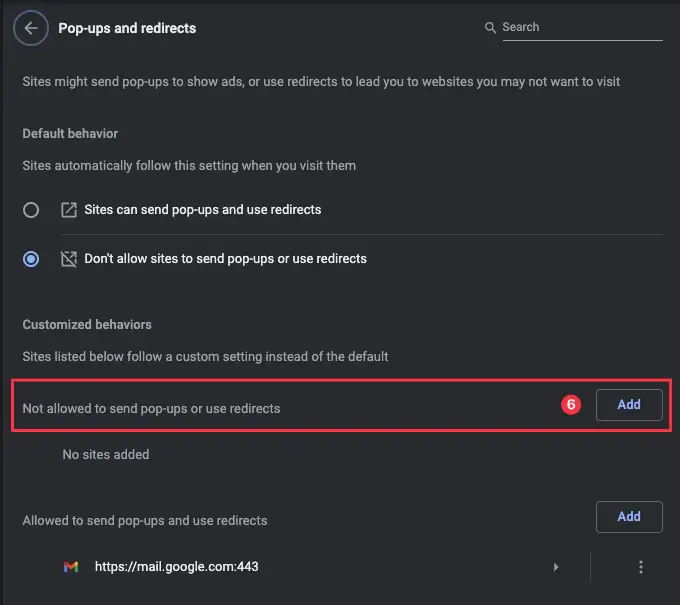
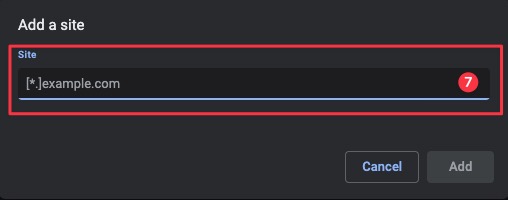
However, you may also go a step further and manage this for specific sites if you find that some of them are getting through the default pop-up blocker. To tweak pop-ups and redirect settings from a specified site, follow all the steps above until step number 5, then scroll down to the “Customized behaviors” section of “Pop-ups and redirects.” In there, you will find options to either block or allow pop-ups and redirects from specific sites. To add a site to either section, click on “Add,” then type in the URL desired.
I just want the steps!

  1. On your computer, open Google Chrome.
  2. At the top right, click on the three-dot menu and then Settings.
  3. Click Privacy and security.
  4. Click on Site Settings.
  5. Click Pop-ups and redirects.
  6. Scroll down to Customized behaviors and click Add to specify a site.
  7. Type in the URL of the site you want to block, then click on Add.

Featured Videos

Xremove ads

Filed Under: Guides and How-To's Tagged With: chrome, how-to, pop-up blocker

About Robby Payne

As the founder of Chrome Unboxed, Robby has been reviewing Chromebooks for over a decade. His passion for ChromeOS and the devices it runs on drives his relentless pursuit to find the best Chromebooks, best services, and best tips for those looking to adopt ChromeOS and those who've already made the switch.

Primary Sidebar

Googlebook

Fresh Lenovo Googlebook Duet m leak shows detached Bluetooth keyboard switch

By Robby Payne
September 25, 2026

Google’s classic ‘Text’ app is now an Android app for Googlebook on the Play Store

By Robby Payne
September 24, 2026

Why we can now rule out hardware or software bugs for the missing Lenovo Duet m

By Robby Payne
September 24, 2026

Best Buy is giving away free Pixel Buds 2a with any Googlebook pre-order

By Robby Payne
September 23, 2026

Every new Googlebook includes nearly $600 in free software perks

By Robby Payne
September 23, 2026

More Googlebook

Xremove ads

Deals

The best Chromebook deals today

By Robby Payne
September 2, 2026

The best Chromebook ever made is $350 off at Best Buy right now

By Robby Payne
August 21, 2026

The excellent, powerful Acer Chromebook Plus Spin 514 is $150 off right now

By Robby Payne
August 12, 2026

Acer’s new Chromebook 315 is wildly affordable and points to the real future of Chromebooks

By Robby Payne
August 11, 2026

You can score the massively upgraded ASUS CX54 Chromebook Plus for just $599 right now

By Joseph Humphrey
July 28, 2026

More Deals

Xremove ads

Reviews

Acer Chromebook Plus Spin 514 Review: the best convertible you can buy [VIDEO]

By Robby Payne
July 1, 2026

Lenovo Chromebook Plus 2-in-1 Review: pretty great in a vacuum

By Robby Payne
April 23, 2026

My review after 6 weeks with the Lenovo Chromebook Plus 14 [VIDEO]

By Robby Payne
August 11, 2025

One week with the best small Android tablet you can buy, and I’m sold

By Robby Payne
May 9, 2025

Best Chromebooks of 2024 [VIDEO]

By Robby Payne
November 28, 2024

More Reviews

Xremove ads

TWITTER · FACEBOOK · INSTAGRAM · YOUTUBE · EMAIL · ABOUT

Copyright © 2026 · Chrome Unboxed · Chrome is a registered trademark of Google Inc.
We are participants in various affiliate advertising programs designed to provide a means for us to earn fees by linking to affiliated sites.

PRIVACY POLICY