

Support our independent tech coverage. Chrome Unboxed is written by real people, for real people—not search algorithms. Join Chrome Unboxed Plus for just $2 a month to get an ad-free experience, access to our private Discord, and more. Learn more about membership here.
START FREE TRIAL (MONTHLY)START FREE TRIAL (ANNUAL)
Google has prepared a blast from the past in the form of its efforts to revive the Google Wallet app and branding. The idea is to offer users a more card-centric, user-friendly experience that’s not centered on peer-to-peer payments and transaction management like Google Pay.
Wallet allows you to add credit and debit cards, passports, loyalty cards, event tickets (Disney, concerts, movie tickets, etc.) and even your COVID-19 vaccination record (depending on what state or country you live in. Ultimately, it’s a fantastic way to lighten the load on your wallet and stop carrying around so many keychain items, and that alone makes it worth using each day.
However, something I’ve noticed has been left out of the mix when others pitch or use the service is gift cards. Today, I’m going to give you a quick and straightforward tutorial on how to add all of the gift cards you’ve got stuffed in your wallet or laying around the house into a beautiful, vertical display for quick and clutter-free checkout on the go!
Taking stock of your gift cards
First and foremost, go ahead and get all of the gift cards your family and friends gave you last year that you either spent part or none of into a pile near you. From there, you’ll want to be certain to check their balance by Googling something like “Best Buy gift card check balance“, and replacing “Best Buy” with the card provider’s name. All companies have such a tool and by punching in the 16 digits on the back of the card as well as the PIN code (you may need to grab a coin and scratch off what’s covering it!) you can quickly discover how much money you’re sitting on.

Take a sharpie marker and write the allocated amount per card on the back, but be sure you don’t cover the bar code. Until you get comfortable with checking out on the go with Google Wallet, you may want to keep these in your physical wallet. If for some reason the provider doesn’t scan gift cards or decides they won’t accept a digital version, you’ll still have all of your bases covered. This may defeat the purpose of digitizing them in some ways, but you still won’t need to reach for your wallet in most instances, and over time, you will no longer need to keep them physically handy.
Adding gift cards to Google Wallet
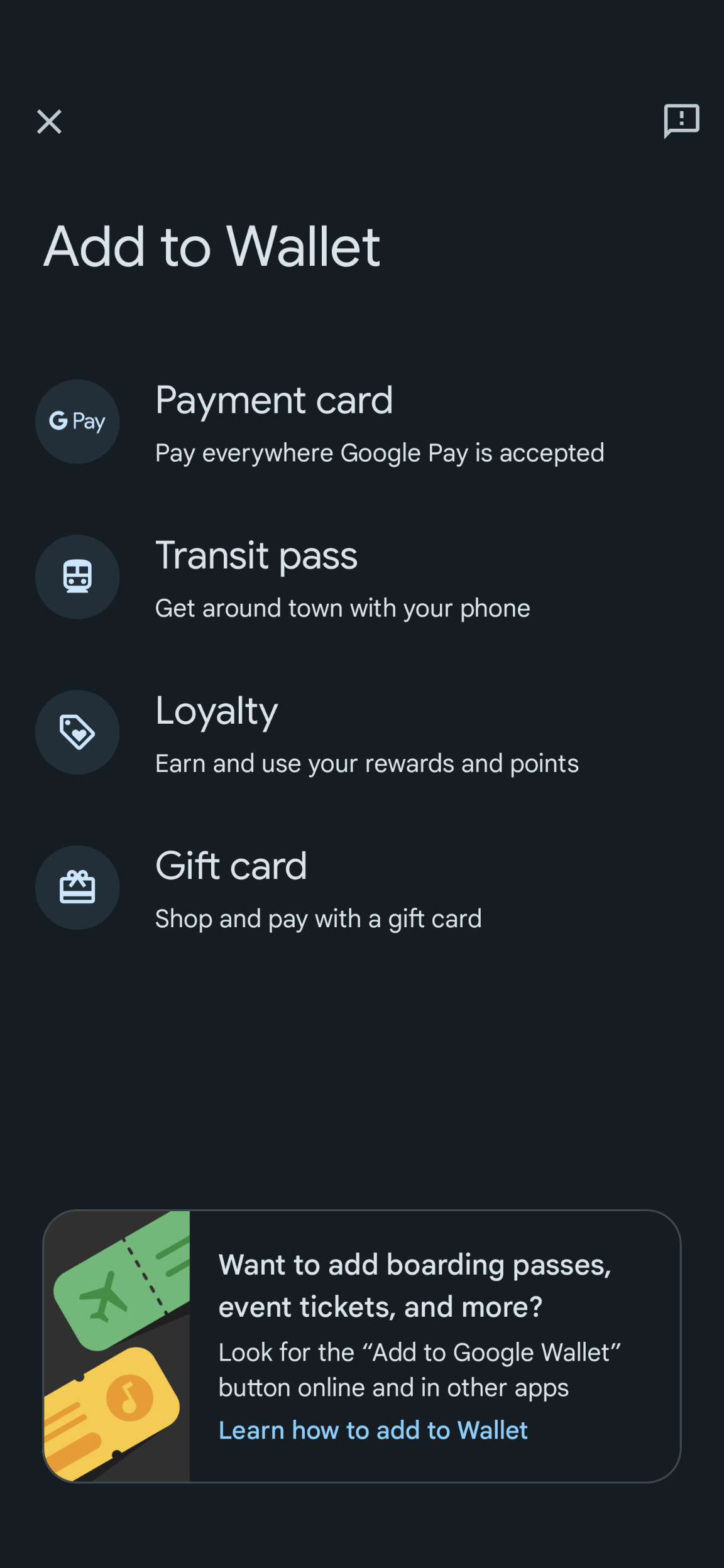
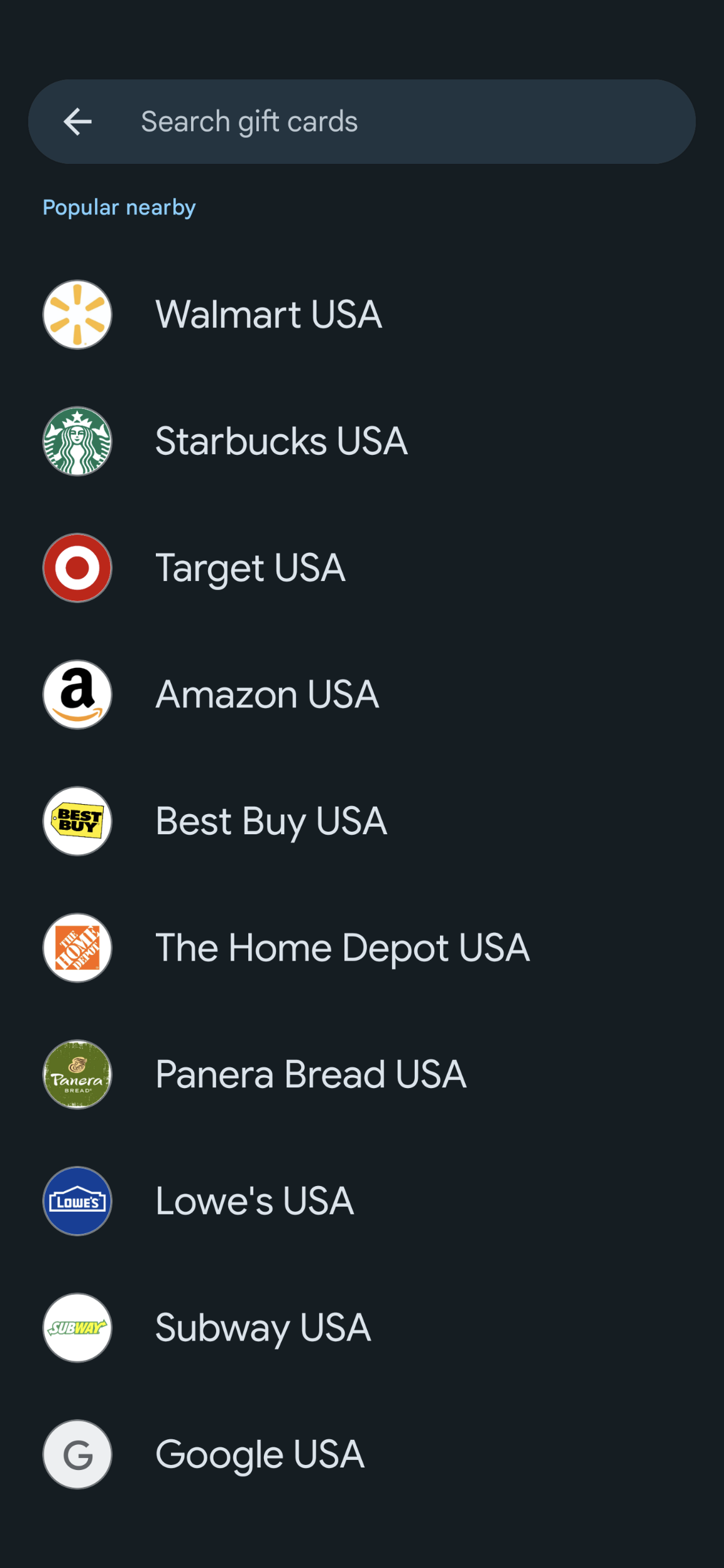
It’s time to open the Google Wallet app on your Android device. Now, tap the “+ Add to Wallet” button at the bottom right of the screen and choose “Gift card”. Then, a long list of card providers will populate the screen. Things like Target, Amazon, Panera Bread, Walmart, Starbucks, and so on. Go ahead and choose the brand of the gift card you’re holding or use the search bar at the top of the screen.
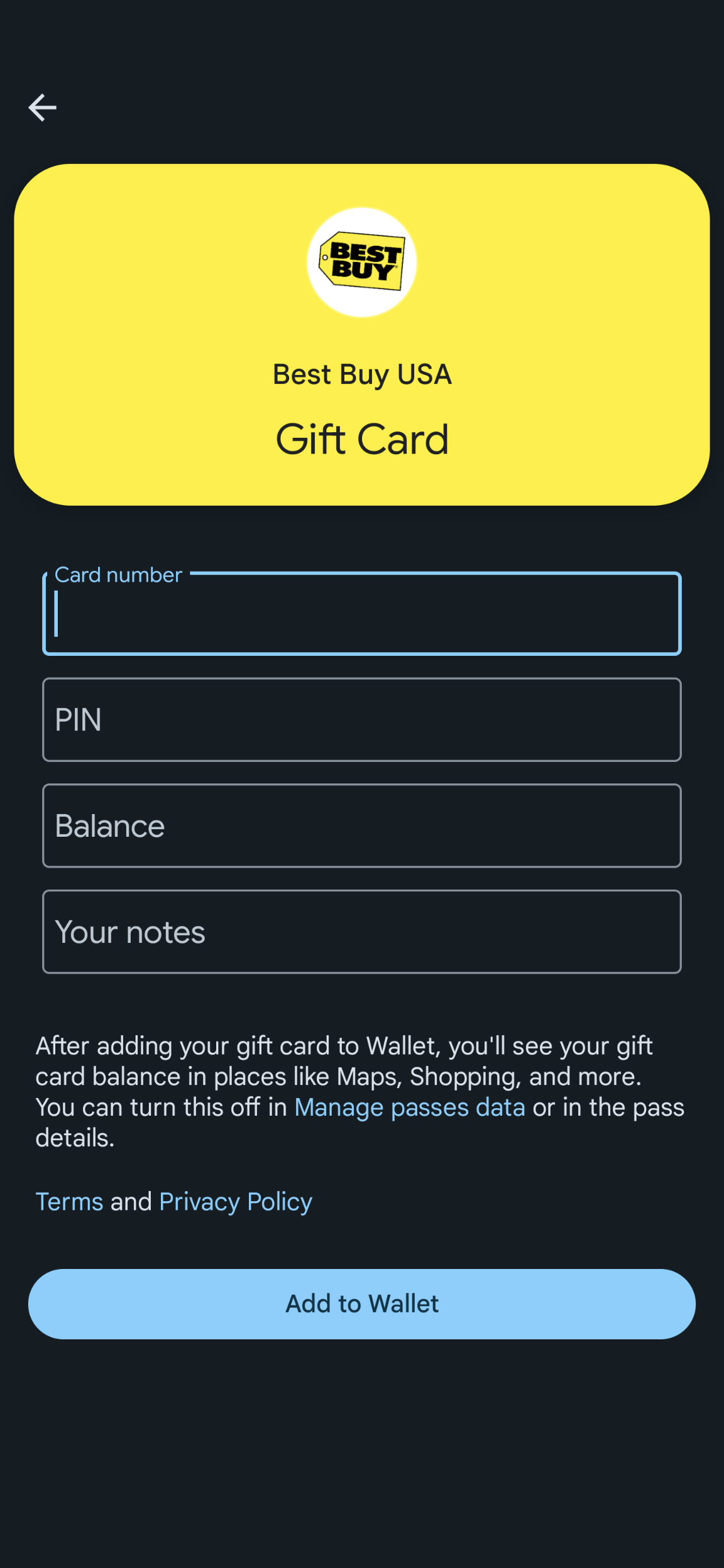
The very next screen will let you enter the card’s 16-digit number, the PIN code (also found on the back), the balance you wrote in permanent marker as previously discussed, and any notes you may want to include about it. Lastly, the blue “Add to Wallet” button will finalize your choices, and the gift card itself will appear just under your primary debit or credit card in the vertical list!
I just want the steps!
1. Open the Google Wallet app on your phone
2. Tap “+ Add to Wallet” at the bottom right
3. Select “Gift Cards” from the list
4. Select a gift card provider or search
5. Enter the card number, PIN, card balance, and your notes
6. Tap “Add to Wallet” to finalize
The Final Result
Alright, that’s that! Let’s go back to the homescreen of Google Wallet and see your gift cards. As previously mentioned, they appear just beneath your primary payment cards in the vertical list as shown below. In the example, I have Barnes & Noble, Best Buy, and Starbucks added. My card number and security code have been blurred out.
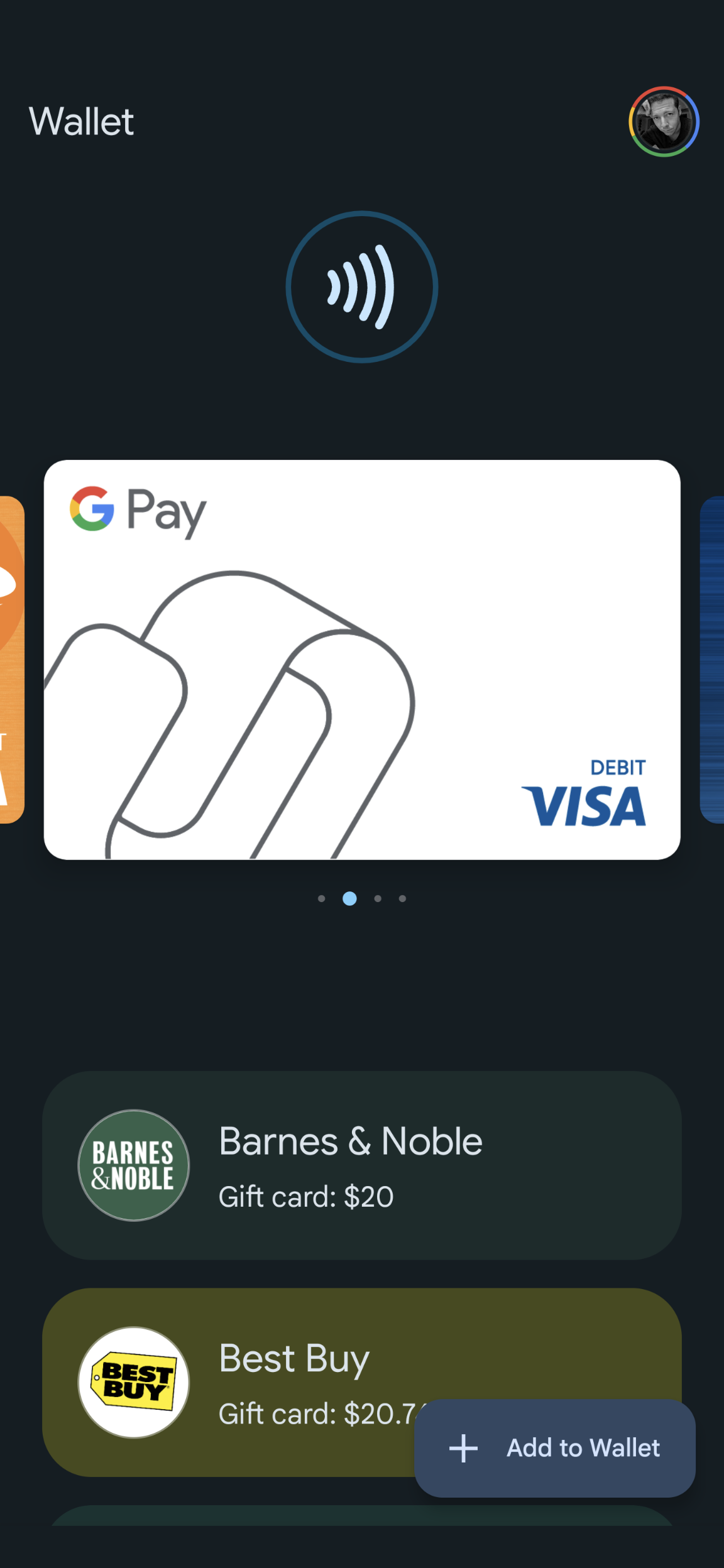
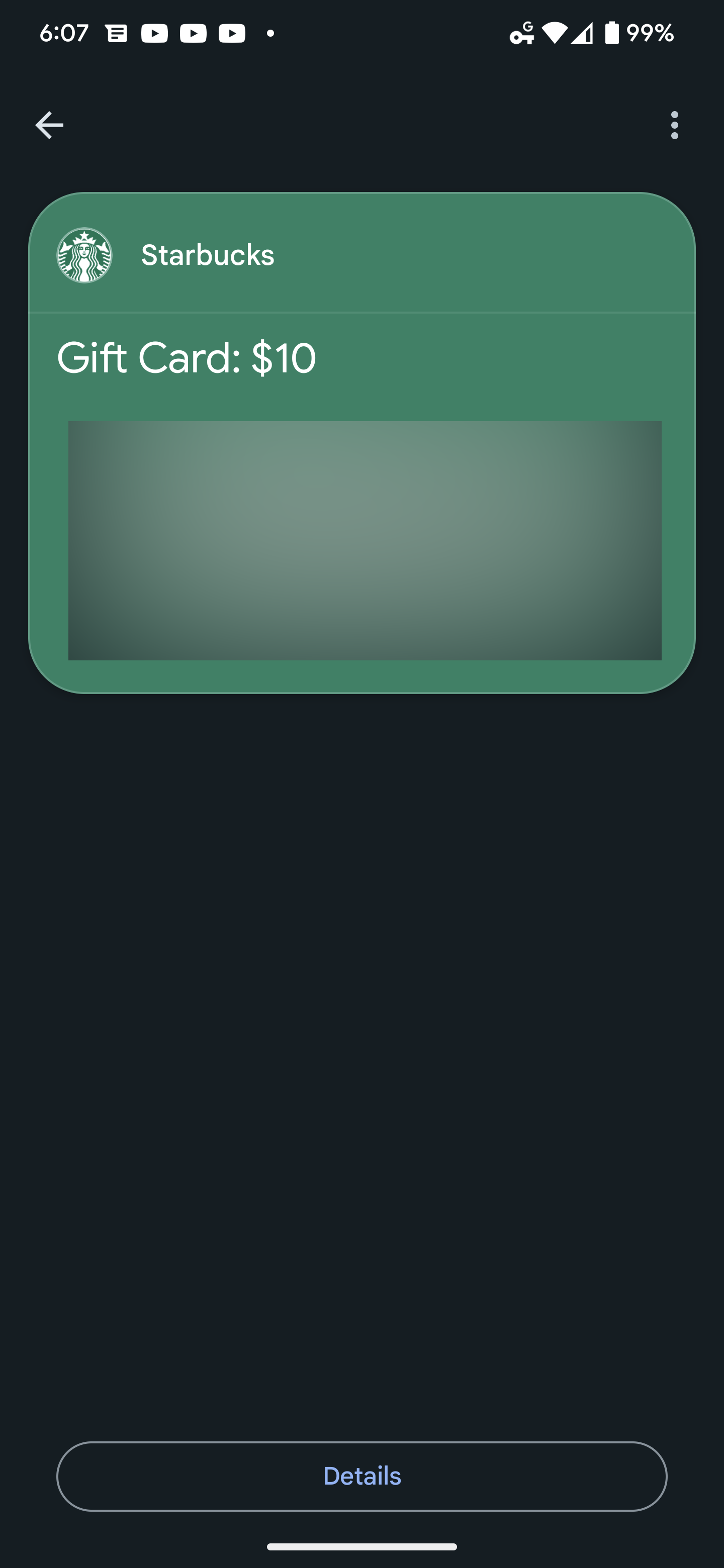
When you visit the store, all you need to do is open Wallet, tap the card from the list, and let the employee there scan your phone screen. Feel free to remove the gift card from the app once its balance reaches zero by tapping the three dots at the top right of the scan screen (middle image) to keep things nice and tidy.
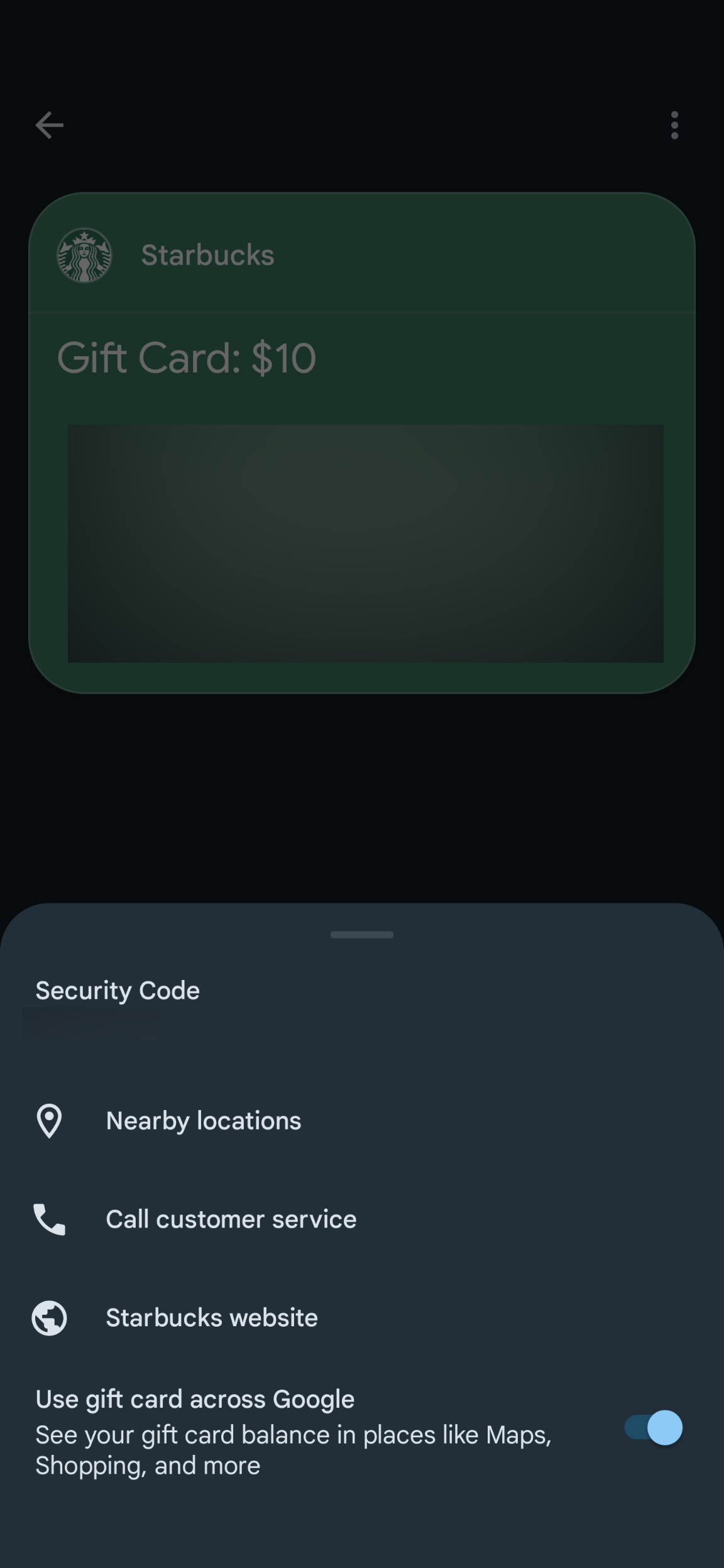
Did you know?: You can use your gift cards across Google. Cards and balances will appear in Maps, Shopping, and more!
By tapping the “Details” button at the bottom of the card’s scan screen, you can call up nearby locations for that store, call their customer service directly, or visit their website for more information. You can also toggle the “Use gift card across Google” option if you’d like, but it’s on by default.
I love that Google Wallet is becoming an all-inclusive replacement for the wallet in your back pocket. Your chiropractor will thank you for scanning gift cards and other things in, and Google is working with many people to get driver’s licenses and car insurance among other things plugged into the service next. Don’t forget to add your student ID or any other relevant cards that you may want to cut down on carrying as well. I hope that this was helpful and that you can now cut up or toss out all of those physical gift cards you’ve been hoarding!
SUBSCRIBE TO UPSTREAM
Get Chrome Unboxed delivered straight to your inbox
Upstream is our flagship, curated newsletter with the top stories, most click-worthy deals, giveaways, and trending articles from Chrome Unboxed sent directly to your inbox a few times a week. Join 31,000+ subscribers.

