


Support our independent tech coverage. Chrome Unboxed is written by real people, for real people—not search algorithms. Join Chrome Unboxed Plus for just $2 a month to get an ad-free experience, access to our private Discord, and more. Learn more about membership here.
START FREE TRIAL (MONTHLY)START FREE TRIAL (ANNUAL)
If you’re anything like me, you get so burnt out on managing your Gmail that you just let it pile up for years at a time. Not important messages from family and colleagues, but all of the things you’ve signed up for that you just have no energy or interest in deleting or clicking through as they come in. Worse still is that these types of “subscription newsletters” never end.
It seems most companies are content on spamming the hell out of you until you finally give way and buy something from them. It can lead you to regret signing up in the first place. Luckily, there’s an ‘unsubscribe’ button in Gmail directly, you can use a service like Unroll.me to mass unsubscribe from many of these providers, and we’ve even covered how you can keep your Gmail inbox free of spam and promotions using filters and other clever methods.
However, now that you have a bunch of crap sitting around that you’ve largely ignored out of sheer terror of the time it will take you to clean up, how do you go about doing so in the first place? Today, I’m going to show you how to use Gmail’s search combined with a mass deletion trick to get back to inbox zero – at least with all of the stuff you’re apt to leave in the past!
First, open any email message from a sender that you have thousands of and want to delete in bulk. In the sender’s name area, highlight their email address and copy it using CTRL+C.
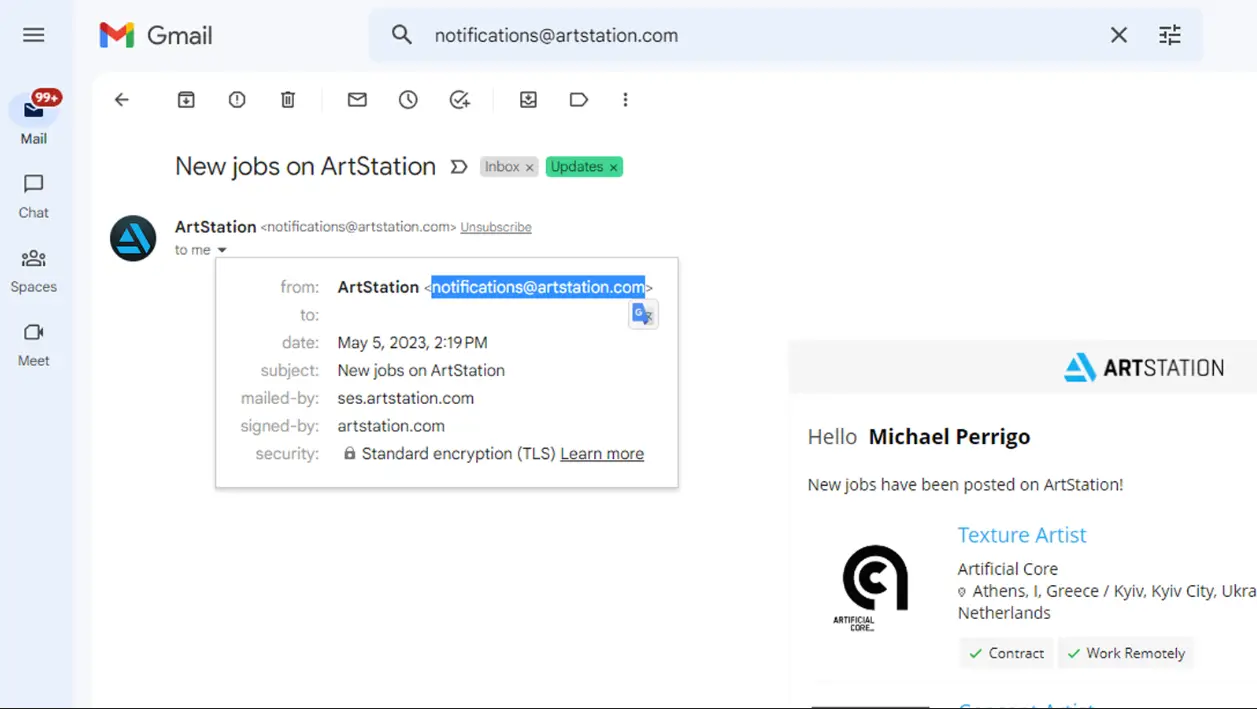
Next, head up to the search bar at the top of Gmail and paste that email address in with CTRL+V. If you want to be certain no emails that potentially contain a keyword also found in that sender’s email address but that you’d like to keep are caught up in the deletion process we’re about to perform, use the filter slider dropdown icon to the right of the search bar and paste the email address into the ‘From’ section instead.
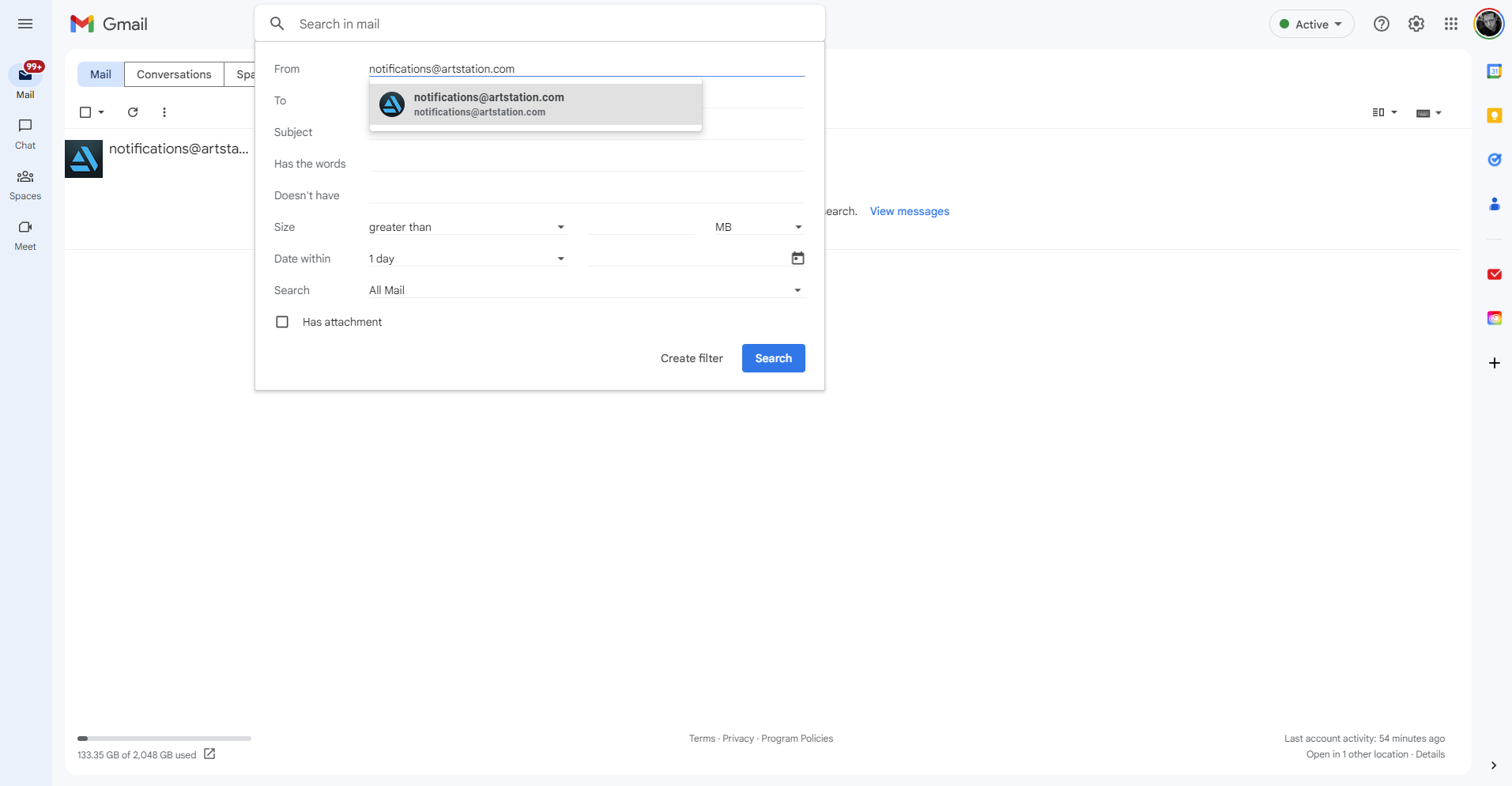
Hit enter and you’ll see a one-page list of all of the emails that match that search query from that sender. At the top-left of the list of found messages, there’s a little checkbox that’s responsible for selecting all of the messages on the page you’re viewing as opposed to the checkbox that appears next to each email for individual selection. Check that top checkbox (it’s up there with the archive, delete, and unread buttons, to name a few).

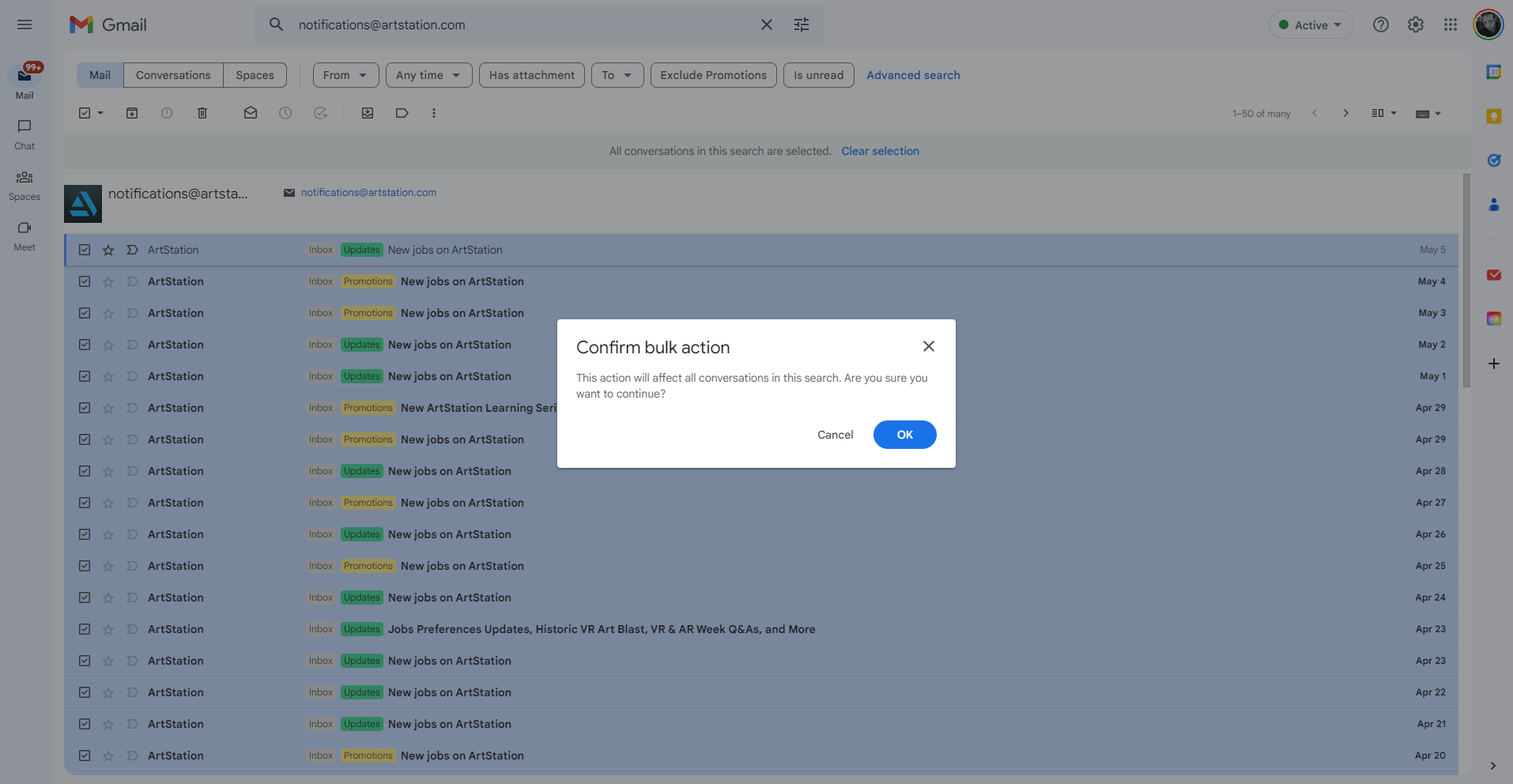
You should see that all of the messages turned blue, indicating that they’re selected. This is where our trick comes in. Normally, you’ll notice that you’re doing this page after page after page, and it takes a bunch of time. However, if you notice, there’s a “All ‘x’ conversations on this page are selected” message at the top of your search page. There’s a blue link to the right of that which states ‘Select all conversations that match this search’. Clicking this is the magic formula to mass-deletion without need for much work! This will automagically select all of the email messages from this sender you searched for throughout your entire Gmail inbox and history, not just this page. Pretty cool, right?

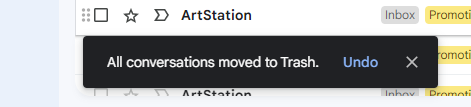
Once you’ve clicked that, just click the trash can icon at the top-left of the window and you’ll see a ‘Confirm bulk action’ dialogue box pop up that you’ll need to click ‘okay’ on (it’s the blue button). Then, all of the content matching your search will be removed from your Gmail account! It’s still in the trash for 30 days, and you can delete it permanently to free up account storage by opening the hamburger menu at the top-left of Gmail and going to ‘Trash’ > ‘Empty Trash now’ – this process could take some time on Google’s servers, and it could be several days before you see your account storage free up.
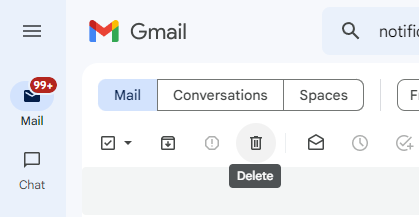
Unless you use some of the aforementioned methods to ‘unsubscribe’ from senders who incessantly email you, you’ll continue to get this type of spam build-up. I recommend going through those steps before you use this search trick, and in fact, going through them once a month or every few months.
This it! As you can see, with just a few simple steps, you can easily declutter your inbox and rid yourself of old and irrelevant messages in mass. This process not only helps you maintain a cleaner inbox (and your sanity, of course) but also allows you ensure that more important emails that require your attention aren’t buried in the chaos. I hope you give this method a try, and let me know in the comments section whether or not you have as much garbage building up as I often do!
I just want the steps!
- Open an email from the sender you want to delete in bulk and copy their email address.
- Paste the email address into Gmail’s search bar or ‘From’ section using the filter slider dropdown icon.
- Press enter to display a list of emails from the sender.
- Check the top-left checkbox to select all messages on the current page.
- Click ‘Select all conversations that match this search’ to select all emails from the sender.
- Click the trash can icon, then click ‘okay’ on the ‘Confirm bulk action’ dialogue box.
- Go to ‘Trash’ > ‘Empty Trash now’ in Gmail’s menu to permanently delete the emails.
SUBSCRIBE TO UPSTREAM
Get Chrome Unboxed delivered straight to your inbox
Upstream is our flagship, curated newsletter with the top stories, most click-worthy deals, giveaways, and trending articles from Chrome Unboxed sent directly to your inbox a few times a week. Join 31,000+ subscribers.

