

Support our independent tech coverage. Chrome Unboxed is written by real people, for real people—not search algorithms. Join Chrome Unboxed Plus for just $2 a month to get an ad-free experience, access to our private Discord, and more. Learn more about membership here.
START FREE TRIAL (MONTHLY)START FREE TRIAL (ANNUAL)
Last week, we covered a handful of common misconceptions surrounding Chromebooks. Debunking some of these long-held myths got us thinking. Millions of students, employees, and general consumers have made the move to Chrome OS over the past year. Since we have lived in this ecosystem for years, it is very easy to take for granted all of the things that Chrome OS does well. Not wanting to overlook the numerous new users that have adopted our beloved operating system, it occurred to me that new users to any platform have a lot of the same questions and we wanted to take the time to help you get answers and make the most out of your new Chromebook lifestyle.
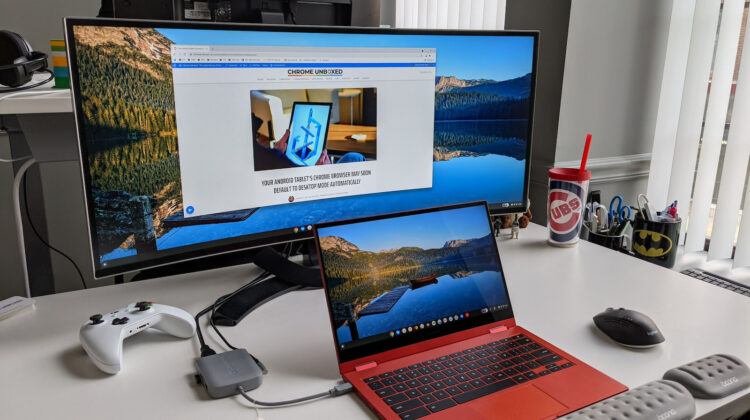
One question we get all the time is how to extend a Chromebook to an external monitor. Unfortunately, there isn’t a single, blanket answer to that question. That said, the good news is that whichever Chromebook you own, you can find a solution for using an extended display or even two if your device supports it. For casual use, this may have never crossed your mind as many users simply use their Chromebooks like they would any other laptop – in their laps. Now that more and more people are using Chrome OS devices as daily drivers for remote learning, working from home, and even gaming, a secondary monitor can be the key to a larger workspace and better productivity.
Now that you know your Chromebook will support a second display, let’s take a look at the various options you have for getting that extra monitor set up. Unless your Chrome OS device is going on ten years old, you like do not have a VGA out for adding a second display but that doesn’t mean that the old monitor in your garage has to go to waste. Most modern Chromebooks feature a USB-C port that can but used in tandem with a VGA monitor with the right hardware accessory.
You can invest $200 in a dock like the C2G USB-C Docking Station from Dell and use it for just about any device you have around. It features a USB-C port that you can plug into your Chromebook and then, you can extend to multiple displays (if supported) via VGA, HDMI, and Display Port. This is a great option if you also use a Windows device and are looking to extend multiple displays at once but it is probably overkill if you just want a single display for your Chromebook. If you simply want a quick, clean USB-C to VGA connection, you can pick up a handy little adapter from Amazon, Best Buy, or just about any electronics store for under $20. This one from Lenovo is only $19.99 and is small enough to throw in your bag when you’re headed to the office or on the road.
Lenovo USB-C to VGA Adapter Cable
Note: VGA only supports up to 1920 x 1200 so you’re only going to get slightly better than Full HD resolution on a compatible monitor. That said, the majority of VGA monitors out there aren’t going to offer higher than that, anyway.
If you are looking to extend your display from a USB-A port, it can be done using a Display Link-compatible adapter but the results can be hit or miss depending on the speed of your USB port. This should be used as a last resort because there are plenty of better options out there. For example, if you have a monitor with an HDMI port, the options for extending your Chromebook’s display are practically endless. Which one you choose really depends on what other options you’d like in a dock or adapter. For example, I use the Moshi Symbus Q USB-C dock with built-in wireless charging. I use a 27″ HP monitor and the Moshi has an HDMI port on the back and two USB-A ports for my peripherals. The attached USB-C cable plugs directly into my Chromebook and I instantly have a second display. The Google-Esque cloth top provides ample space to wirelessly charge my phone or my earbuds and it is small enough to stay out of the way. It does, however, cost $170.
On the go or even at the office, one of the most portable, versatile, and affordable options out there is the OWC USB-C travel dock gen 2. It is as small as a wallet and features an HDMI port, USB-C and USB-A ports, and a full-sized SD card reader. It has an attached, stowable USB-C cable that easily plugs into your device and it is a great option if you frequently find yourself in need of a dock for transferring photos or moving files from one device to another. I keep one of these in my bag so I’m never without a quick, easy way to connect to a second display or other accessories. You can find the OWC travel dock for around $50 from multiple online sellers.
Another great option, if you happen to be on the go more than you are stationary, is a portable USB-C monitor. With this type of portable display, you can set up shop just about anywhere and all you need is a USB-C cable to connect your Chromebook to the panel. There are a lot of options out there that include 4K, touchscreens, and even in-built batteries but you can find a basic 15.6″ Full HD portable monitor just online for less than $200. Just make sure that you are getting one that has a decent portfolio case that converts to a sturdy stand. We’ve seen a few models on Amazon that look fine but are miserably unstable due to flimsy materials that make up the case. This one from ASUS is always a solid choice.
These are some of the ways that you can easily extend your Chromebook’s display to a second screen but don’t forget, you can always cast your display to a nearby television that has a Chromecast attached. Muti-monitor support is quickly becoming a standard from Chrome OS, as well. Soon, most devices that hit the market will easily support chaining two or more displays and creating the ultimate desktop experience. Stay tuned. We have more tips and tricks coming for new and experienced users alike.
SUBSCRIBE TO UPSTREAM
Get Chrome Unboxed delivered straight to your inbox
Upstream is our flagship, curated newsletter with the top stories, most click-worthy deals, giveaways, and trending articles from Chrome Unboxed sent directly to your inbox a few times a week. Join 31,000+ subscribers.

