
• Skip to main content
  • Skip to primary sidebar
  • Deals
  • Features
  • Guides
  • Chromebooks
  • Videos
  • Podcast
  • More +
    • Reviews
    • Unboxing
    • Upcoming Devices
    • Chromebook Plus
    • Chrome
    • ChromeOS
    • Chrome OS Flex
  • Search
  • Sign Up
  • Log In
Chrome Unboxed – The Latest Chrome OS News

Chrome Unboxed - The Latest Chrome OS News

A Space for All Things Chrome, Google, and More!

  • Deals
  • Features
  • Guides
  • Chromebooks
  • Videos
  • Podcast
  • More +
    • Reviews
    • Unboxing
    • Upcoming Devices
    • Chromebook Plus
    • Chrome
    • ChromeOS
    • Chrome OS Flex
  • Search
  • Sign Up
  • Log In

Chromebook How To: Take A Screenshot

December 5, 2016 By Gabriel Brangers View Comments

Support our independent tech coverage. Chrome Unboxed is written by real people, for real people—not search algorithms. Join Chrome Unboxed Plus for just $2 a month to get an ad-free experience, access to our private Discord, and more. Learn more about membership here.
START FREE TRIAL (MONTHLY)START FREE TRIAL (ANNUAL)
screenshotThere are a lot of screen recording apps out there. Many offer rich editing options, collaboration tools and more. Some, like HYFY, even give you free, unlimited storage for your screen captures as well as integration with a number of popular messaging applications.

Sometimes, however, you just want to take a screenshot. Chrome OS has you covered.

Xremove ads

Taking a screen grab with your Chromebook or Chrome OS device couldn’t be more simple. For those who aren’t familiar with this built-in feature, here’s a quick rundown.


Full Screenshot

A full screenshot is just that, an image of your whole desktop. To capture the image use the following keystrokes:  Ctrl + switch window

Featured Videos

Xremove ads

For users with a non-Chrome OS keyboard you will use Ctrl+F5.

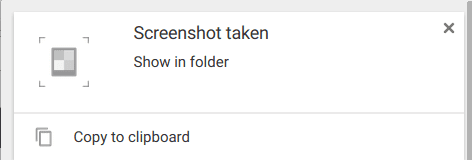
Your image will be save automatically to the downloads folder and you will see a notification pop-up confirming that the screenshot was taken.
screenshot-2016-12-05-at-12-22-35-pm
Once saved, you can open the file with the image gallery or third party app to edit. The native Chrome OS image viewer will gives you the option to crop your photos and soon will allow for image resizing as well.

Xremove ads

Partial Screenshot

If you just want to grab a specific portion of your screen and bypass cropping images use the following keystrokes:  Ctrl + Shift + switch window

The keystroke combo for non-Chrome OS keyboards will be Ctrl+Shift+F5.

Don’t panic, when you click this key combination your screen will go a little dim. From there, you just highlight the are you want to capture by clicking and dragging over it with the mouse cursor. Same as before, your image will be saved automatically and you’re good to go.

Xremove ads


Fun Tip

Here’s a little bonus for you.

Want to have a little fun with your co-worker or maybe tease your spouse or kids a bit? Try rotating the display on their Chrome device. Just press:

Ctrl + Shift + Refresh

Xremove ads

Always worth a laugh. 🙂

Filed Under: All Stories, Chromebooks, ChromeOS, Guides and How-To's

About Gabriel Brangers

Lover of all things coffee. Foodie for life. Passionate drummer, hobby guitar player, Web designer and proud Army Veteran. I have come to drink coffee and tell the world of all things Chrome. "Whatever you do, Carpe the heck out of that Diem" - Roman poet, Horace. Slightly paraphrased.

Primary Sidebar

Xremove ads

Deals

Massive Deal Alert: The Acer Chromebook Plus Spin 714 just hit an all-time low $499

By Robby Payne
April 1, 2026

The best Chromebook deals today

By Robby Payne
March 30, 2026

The Acer Chromebook Plus Spin 714 hits a new all-time low at $270 off

By Robby Payne
March 25, 2026

You can score $40 off Google’s battery-powered Nest Doorbell right now

By Joseph Humphrey
March 20, 2026

The touchscreen Lenovo Chromebook Slim 3 is a steal at under $200

By Robby Payne
March 16, 2026

More Deals

Xremove ads

Reviews

Acer Chromebook Plus Spin 514 Review: Kompanio Ultra power in a convertible

By Robby Payne
December 24, 2025

My review after 6 weeks with the Lenovo Chromebook Plus 14 [VIDEO]

By Robby Payne
August 11, 2025

One week with the best small Android tablet you can buy, and I’m sold

By Robby Payne
May 9, 2025

Best Chromebooks of 2024 [VIDEO]

By Robby Payne
November 28, 2024

Samsung Galaxy Chromebook Plus Review: Samsung is back! [VIDEO]

By Robby Payne
October 28, 2024

More Reviews

Xremove ads

Guides

This Chromebook trackpad shortcut is definitely not new, but is blowing my mind

By Robby Payne
March 11, 2024

How to reduce broadcast delay on YouTube TV to stop live spoilers

By Robby Payne
December 8, 2023

Windows PC keyboard and Chromebook

How to use a Windows keyboard with a Chromebook

By Joseph Humphrey
December 8, 2023

How reset and revert your Chromebook to the previous version of Chrome OS

By Robby Payne
November 29, 2023

My Chromebook Plus features disappeared: here’s how I fixed it

By Robby Payne
November 24, 2023

More Guides

TWITTER · FACEBOOK · INSTAGRAM · YOUTUBE · EMAIL · ABOUT

Copyright © 2026 · Chrome Unboxed · Chrome is a registered trademark of Google Inc.
We are participants in various affiliate advertising programs designed to provide a means for us to earn fees by linking to affiliated sites.

PRIVACY POLICY